
When your Redmi Note 13 Pro suddenly stops ringing for incoming calls, it can leave you feeling disconnected. This problem often stems from a simple setting buried in MIUI 15 or a temporary network hiccup. I'd start with the quick fixes below, as they resolve the issue for most people.
The first thing to try is a force restart. Just press and hold the Power button for about 15 seconds until you see the Xiaomi logo appear. This clears out any minor software glitches that might be interfering with the phone's radio.
Next, pull down the notification shade twice to see the full Quick Settings panel. Make sure the Airplane Mode icon isn't highlighted. If it is, tap it to turn it off, wait a few seconds, and then tap it on and off again to refresh your connection to the cellular network.
Check Your Do Not Disturb and Focus Modes
MIUI has several features that can silence calls. Swipe down and check for a crescent moon icon or a "Focus" mode like Work or Sleep. Tapping it will turn it off. For more control, go to Settings > Sound & vibration > Do Not Disturb.
Inside the Do Not Disturb settings, look at the rules. Make sure "Calls" are not set to "None" or that you don't have a schedule enabled that's accidentally blocking calls during the day. You can also check which contacts, if any, are allowed to break through the silence.
Review Call Blocking and Spam Settings
Xiaomi's security apps can be aggressive. Open your Phone app, tap the three-dot menu in the top right, and go to Settings > Call blocking. Here, you can see a list of blocked numbers, remove any that shouldn't be there.
Also, go to the Security app on your home screen. Tap the gear icon for settings and look for "Fraud protection" or similar call security features. Sometimes, these can mistakenly flag legitimate calls as spam and send them straight to voicemail without your phone ever ringing.
Verify Your SIM Card and Network
Grab the SIM ejector tool that came with your phone and pop out the tray. Take out the SIM card, give the gold contacts a gentle wipe with a soft, dry cloth, and reseat it firmly. A loose connection here is a common culprit.
Once it's back in, check your signal strength. If you only have one or two bars, try moving near a window. The Snapdragon 7s Gen 2 modem is generally good, but thick walls can still cause issues. You can also try manually selecting your network by going to Settings > SIM cards & mobile networks > Preferred network type and choosing "4G/3G/2G" instead of "5G" to see if it holds a more stable connection.
Disable Call Forwarding
It's worth checking if calls are being redirected. Open the Phone app, tap the three-dot menu, and go to Settings > Calls > Call forwarding. Make sure all options, like "Always forward" or "When busy," are set to "Turn off" or your carrier's default number.
While you're in the call settings, also look for "Additional settings" and check "Call barring." Ensure that all incoming call barring options are disabled, as these can block calls from coming through entirely.
Reset Your Network Settings
This will clear all your saved Wi-Fi passwords and Bluetooth pairings, but it often fixes persistent cellular problems. Go to Settings > About phone > Reset > Reset Wi-Fi, mobile & Bluetooth.
Tap "Reset settings" and confirm. Your phone will reboot. After it comes back on, you'll need to reconnect to Wi-Fi networks and your Bluetooth devices, but this gives the cellular radio a completely fresh start.
Update Your Software and Apps
An outdated system can have bugs that affect calling. Go to Settings > About phone > MIUI version. Tap "Check for updates" and install any available system updates. These often include important radio and stability fixes.
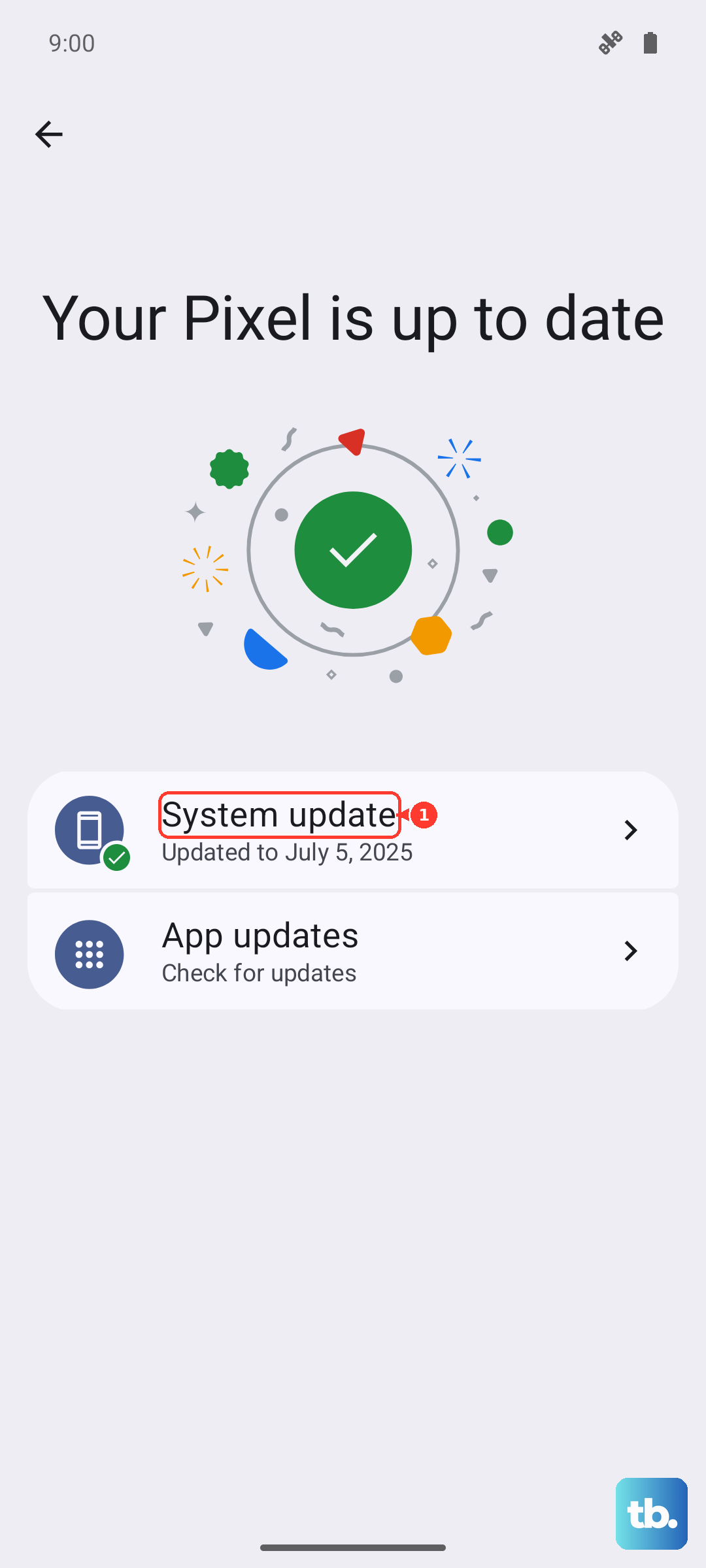
Also, open the Google Play Store, tap your profile icon, and go to "Manage apps & device." Under "Updates available," see if there's an update for the "Phone by Google" app or your carrier's services app, as these manage call functions.
Clear the Phone App's Data
If the Phone app itself has corrupted data, it can malfunction. Go to Settings > Apps > Manage apps. Find "Phone" in the list and tap on it. Then, tap Storage usage > Clear data.
Confirm by tapping "OK." This will reset the app to its default state, so you might lose your call log and any custom settings within the dialer. It won't delete your contacts, as those are stored separately.
Check for Problematic Third-Party Apps
Sometimes, an app you installed can interfere with core phone functions. Think about any call recorder, dialer, or security apps you've added recently. Try booting your phone into Safe Mode to test.
Press and hold the Power button until the power menu appears. Then, long-press the "Power off" option on the screen. A "Reboot to safe mode" prompt will appear, tap "OK." If calls work normally in Safe Mode, a recently downloaded app is likely the cause. You'll need to uninstall apps one by one to find the culprit.
Contact Your Carrier
If you've tried everything here, the issue might be on your carrier's end. Use another phone to call their customer service. Ask them to check for any outages in your area, ensure your line is properly provisioned for voice calls, and that there are no account blocks.
They can also perform a network refresh on their side, which is different from resetting settings on your phone. It's also a good time to verify that your SIM card isn't old or damaged, and ask if they can send a replacement.