
Picture messages getting stuck on "Downloading" on your Redmi Note 13 Pro is a common headache. It usually boils down to a network hiccup, a setting that got switched off, or a temporary glitch in MIUI. The good news is you can almost always fix it yourself without much fuss.
Let's start with the quick things you should try right away. These solve the problem more often than not.
Restart Your Phone
It sounds too simple, but a full restart clears out temporary software bugs that can block MMS downloads. Just press and hold the power button for about 15 seconds until you see the Redmi logo appear and the phone reboots. This is the force restart method for the Note 13 Pro, and it's a great first step.
Check Your Mobile Data Connection
MMS doesn't download over Wi-Fi alone. It needs an active mobile data connection, even if you're sitting on your home network. Swipe down from the top of your screen to open the Quick Settings panel and make sure the mobile data icon is turned on. Also, check your signal bars. If you're in a weak coverage area, try moving to a different spot.
Sometimes, the MIUI software can be aggressive with battery saving, which might restrict data for the Messages app in the background. It's worth a quick check.
Force Stop and Relaunch the Messages App
If the app itself is having a moment, force stopping it gives it a clean slate. Go to Settings > Apps > Manage apps. Find and tap on "Messages." On the app info page, tap Force stop. Then, just open the Messages app again from your home screen and see if the picture downloads.
Enable MMS Auto-Download in Your Messages App
This is the most common culprit. If auto-download is off, you'll see the download button but pictures won't come through automatically. Open the Messages app and tap the three-dot menu in the top-right corner. Go to Settings > Advanced settings.
Look for an option called "Auto-download MMS" or "Auto-retrieve MMS" and make sure it's toggled on. While you're here, also check for a "Roaming auto-retrieve" setting if you're traveling.
Verify Your APN Settings
Incorrect Access Point Name (APN) settings from your carrier will break MMS. To check them, go to Settings > SIM cards & mobile networks. Tap on the SIM card you use for texting, then select Access Point Names.
You should see a list. The correct one for your carrier will usually have a filled-in circle next to it. If it looks empty or you only see generic entries, you'll need the exact settings from your carrier. A quick call to their support or a search on their website for "APN settings" will get you the right details to enter here.
Clear the Cache for the Messages App
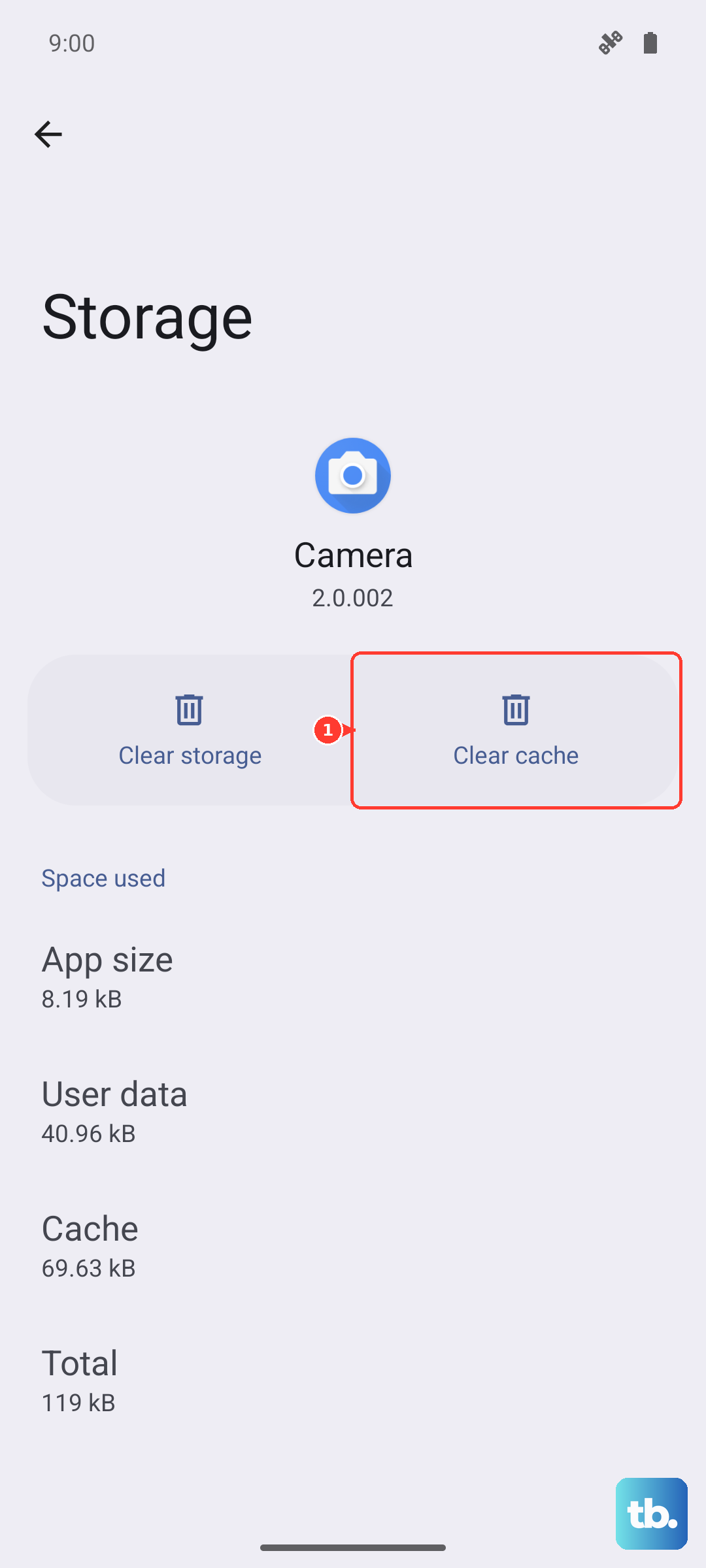
Corrupted temporary cache files can cause all sorts of app weirdness. Clearing them is safe and won't delete your texts. Head back to Settings > Apps > Manage apps and find "Messages" again.
Tap on it, then go to Storage usage. At the bottom, you'll see an option to Clear cache. Tap it. For more stubborn issues, you can tap "Clear data," but be warned this will erase your entire message history, so only do this if you're okay with that or have a backup.
Check for a System Update
Xiaomi regularly releases MIUI updates that fix bugs, including messaging issues. An outdated system could be the problem. Go to Settings > About phone > MIUI version.
Tap the "Check for updates" button. If an update is available, I'd recommend installing it. The 67W charger that came with your phone will make quick work of topping up the battery during the update process if you need it.
Reset Your Network Settings
This is a deeper fix that resets all network-related configurations back to factory defaults. It will erase your saved Wi-Fi networks, Bluetooth pairings, and mobile data settings, but not your personal files.
To do this, go to Settings > Additional settings > Backup & reset. Tap on Reset phone, then select Reset network settings. Confirm the reset. After your phone reboots, you'll need to reconnect to Wi-Fi and re-pair Bluetooth devices, but it often clears up persistent MMS problems.