
When your Redmi Note 13 Pro's microphone stops picking up your voice, it can turn simple calls, voice notes, and video recordings into a frustrating experience. The issue might be with the main mic at the bottom, the secondary one up top, or even the one used for video. Let's start by figuring out which one is acting up.
A fast way to narrow this down is a browser based mic test. If the meter responds when you talk, the mic itself is fine and the problem sits in software or settings.
Test Your Redmi Note 13 Pro Microphone
Open the pre-installed Recorder app. Tap the red record button and speak for a few seconds, then play it back. If the audio is muffled or silent, you've confirmed the issue.
You can also test it during a call. Call your voicemail or a friend and ask if they can hear you clearly. For the video microphone, record a short clip in the Camera app and check the sound.
1. Check for Physical Blockages
The primary microphone is the tiny pinhole next to the USB-C charging port. It's very easy for pocket lint, dust, or even a bit of moisture to get lodged in there.
Take a close look with a bright light. You can gently clean it with a dry, soft-bristled brush, like a clean toothbrush. Avoid using compressed air or sharp objects, as you could push debris further in or damage the internal mesh.
2. Remove Your Phone Case
Some cases, especially rugged or poorly designed ones, can partially cover the microphone holes. Take the case off completely and run the recorder test again.
I've seen this fix issues where people's voices sound distant or muffled on calls. It's a simple thirty-second check that rules out an easy problem.
3. Restart Your Phone
A quick reboot clears out temporary software glitches that might be affecting the audio system. Just press and hold the power button, then tap 'Restart'.
If your phone is frozen and won't respond to the screen, you'll need to force a restart. Press and hold the power button for 15 seconds or more until you feel it vibrate and see the Redmi logo appear.
4. Disconnect Bluetooth Accessories
If you have wireless earbuds, a headset, or a smartwatch connected, your phone might be routing all audio through them. Open your quick settings panel and tap the Bluetooth icon to turn it off temporarily.
Then, make a test call or recording. This is a common culprit, especially if the microphone works fine in some apps but not others.
5. Check App Permissions
Android 14 and MIUI are strict about permissions. If an app like WhatsApp, Google Meet, or Instagram can't access your mic, it will seem broken.
Go to Settings > Apps > Manage apps. Find the app giving you trouble, tap on it, and select Permissions. Make sure the 'Microphone' permission is set to 'Allow'.
6. Force Stop and Clear App Cache
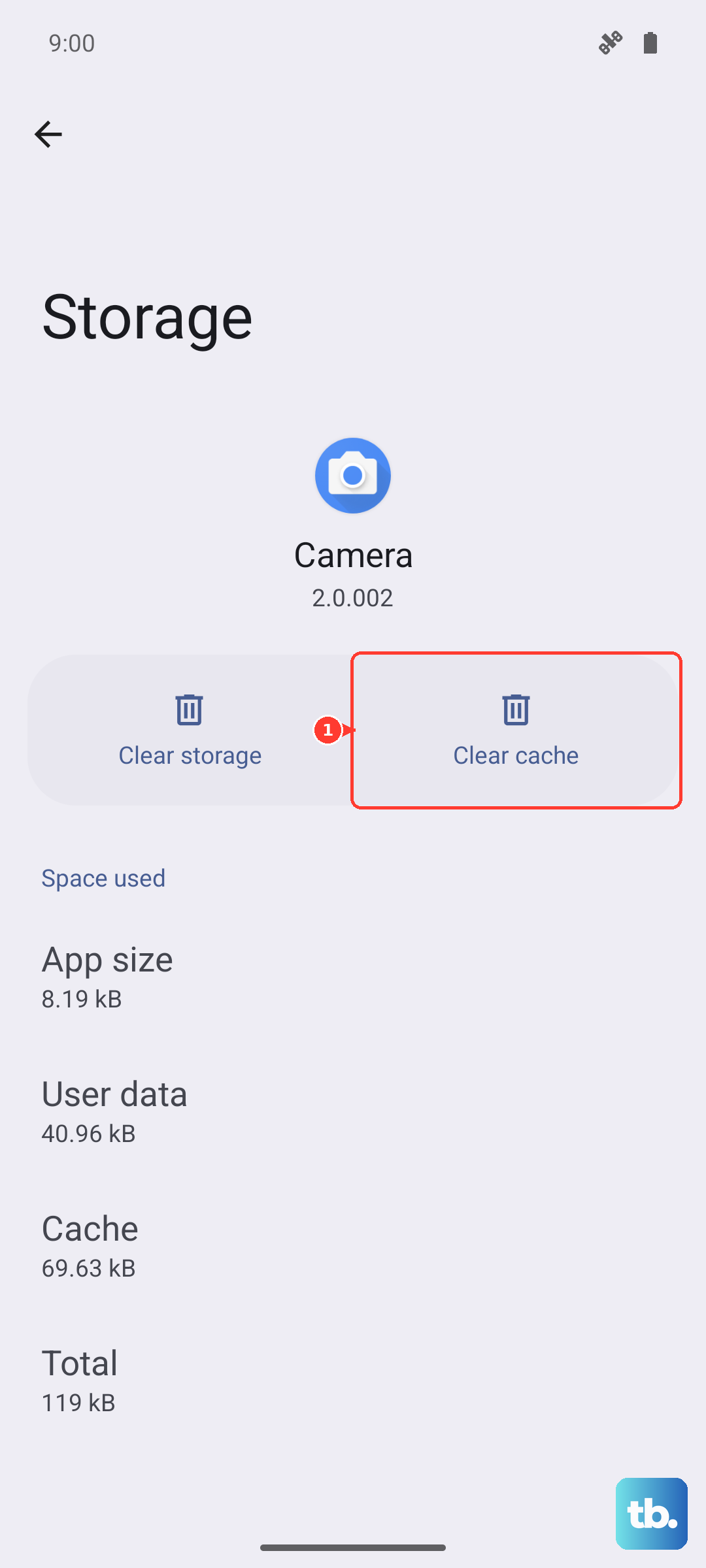
If the problem is isolated to one app, a deeper reset can help. Go back to Settings > Apps > Manage apps and select the problematic app.
Tap Force stop, then go to Storage usage and tap Clear cache. This wipes temporary data without deleting your login info or personal files within the app.
7. Update Your Software
Xiaomi regularly releases MIUI updates that fix bugs, including audio issues. Go to Settings > About phone > MIUI version.
Tap 'Check for updates' and install any available version. It's a good idea to plug in your 67W charger during this process, as the update can take a few minutes and uses battery.
8. Check for Audio Enhancements or Modes
MIUI has various sound settings that can sometimes interfere. Go to Settings > Sound & vibration.
Look for options like 'Audio effects' or 'Mi Sound enhancer' and try turning them off. Also, check if you have any 'Sound modes' like 'Silent' or 'Vibrate' enabled, as some can lower call volume.
9. Reset App Preferences
This resets all your app permissions, notification settings, and default apps without deleting any personal data. It's a broad fix for settings-related issues.
Navigate to Settings > Apps > Reset app preferences. Tap 'Reset apps' and confirm. You'll need to re-grant microphone access to apps the next time you use them.
10. Boot into Safe Mode
Safe Mode disables all third-party apps. If your microphone works perfectly here, it means a recently installed app is causing the conflict.
To enter Safe Mode, press and hold the power button until the power menu appears. Then, long-press the 'Power off' option on your screen. Tap 'OK' when prompted to reboot to Safe Mode. Test your microphone with the Recorder app. To exit, just restart your phone normally.
If the Problem Persists
If you've tried all these steps and the microphone is still dead or terribly distorted, the issue could be hardware-related. This might be due to a faulty microphone module, damage from liquid exposure (even though the phone has some seals), or a loose internal connection from a drop.
Since the Redmi Note 13 Pro doesn't have a user-replaceable microphone, the next step would involve seeking a professional diagnosis from an authorized Xiaomi service center. They can run hardware tests to pinpoint the exact cause.