You reach for your Redmi Note 13 Pro to light up a dark cupboard or a late-night walk, tap the torch, and the LED stays dead. Sometimes the icon flicks on and straight back off, sometimes the phone behaves as if the flashlight is unavailable, and sometimes nothing happens at all. The good news is that the rear flash on this model (the single LED beside the 200MP main camera) doubles as the torch, so a working flashlight is part of the hardware you already own.
Most flashlight faults on this phone are software or heat related rather than a broken LED, which means you can usually clear them yourself in a few minutes. The fixes below run from the quickest taps to the official reset and support routes, so start at the top and stop as soon as the light comes back on.
Start With the Control Center Toggle
Before anything else, confirm you are turning the torch on the way HyperOS expects. On the Redmi Note 13 Pro, pulling down from the top-right of the status bar opens the Control center, while pulling down on the left shows your notifications, so a swipe from the wrong side will never show the torch control.
- 1.Swipe down from the top-right of the screen to open the Control center.
- 2.Tap the Flashlight (Torch) icon to switch the LED on.
If the Flashlight icon is not there at all, it may have been removed from the panel. Open the Control center, tap Edit, then add the Flashlight icon back so it is one tap away.
Heat Can Switch the LED Off on Purpose
If the torch refuses to come on, or shuts itself off after a moment, when the phone feels warm, that is a designed safety behavior rather than a fault. Xiaomi confirms the phone will temporarily turn off the flashlight under high temperatures, and that once the phone cools down the flashlight will return to normal operation.
Move out of direct sun or other heat, take off a thick case so the back can shed warmth, and give it a few minutes before trying again. It also helps to close power-intensive apps that drive the temperature up, because high temperatures are what trigger the cut-off in the first place.
Heavy games, video playback, navigation, and the Camera app left running in the background are the usual culprits. Close them, let the phone settle back to a normal temperature, and the LED should re-enable on its own.
Give the Power Button a Direct Torch Shortcut
If the Control center toggle feels unreliable, set up a second way to fire the torch that does not depend on the panel. HyperOS lets you map the flashlight to a quick button press so you can trigger it without hunting through menus.
Go to Settings > Additional setting > Button shortcuts > Turn on torch and choose a trigger such as Double press the Power button. On some builds the same option lives under Settings > Additional settings > Gesture shortcuts > Turn on flashlight, where you enable Double press the Power button.
Once it is set, a quick double press of the Power button turns the torch on and off. If that shortcut works while the Control center icon does not, the problem is with the panel toggle and not the LED itself.
Restart the Phone, or Force It if the Screen Is Frozen
A simple restart clears the temporary software glitches that can leave the flashlight or camera service stuck, and it is one of the most reliable fixes here. Power the phone off and back on normally first, then test the torch again.
If the screen is frozen or completely unresponsive, you can force a restart instead. The official instruction is to press and hold the Power button for more than 10 seconds until the phone reboots, then check the flashlight once it is back at the home screen.
Boot Into Safe Mode to Catch a Misbehaving App
A recently installed app can grab the camera or flash and stop the torch from turning on. Safe Mode loads only the built-in system apps and disables everything you downloaded, which is a clean way to test that theory.
To enter Safe Mode, long press the Volume Down key during a restart so the phone boots with third-party apps disabled. Once it has started, open the Control center and try the torch.
If the flashlight works in Safe Mode, a downloaded app is almost certainly the cause. Reboot the phone normally, then uninstall apps you added around the time the problem started, beginning with anything that uses the camera or flash.
Install the Latest HyperOS Update
Flashlight and camera-service bugs are sometimes fixed in a system update, so it is worth making sure you are on the newest build. The Redmi Note 13 Pro shipped on MIUI 14 (Android 13) and moves up to Xiaomi HyperOS, and fixes keep arriving through the built-in updater.
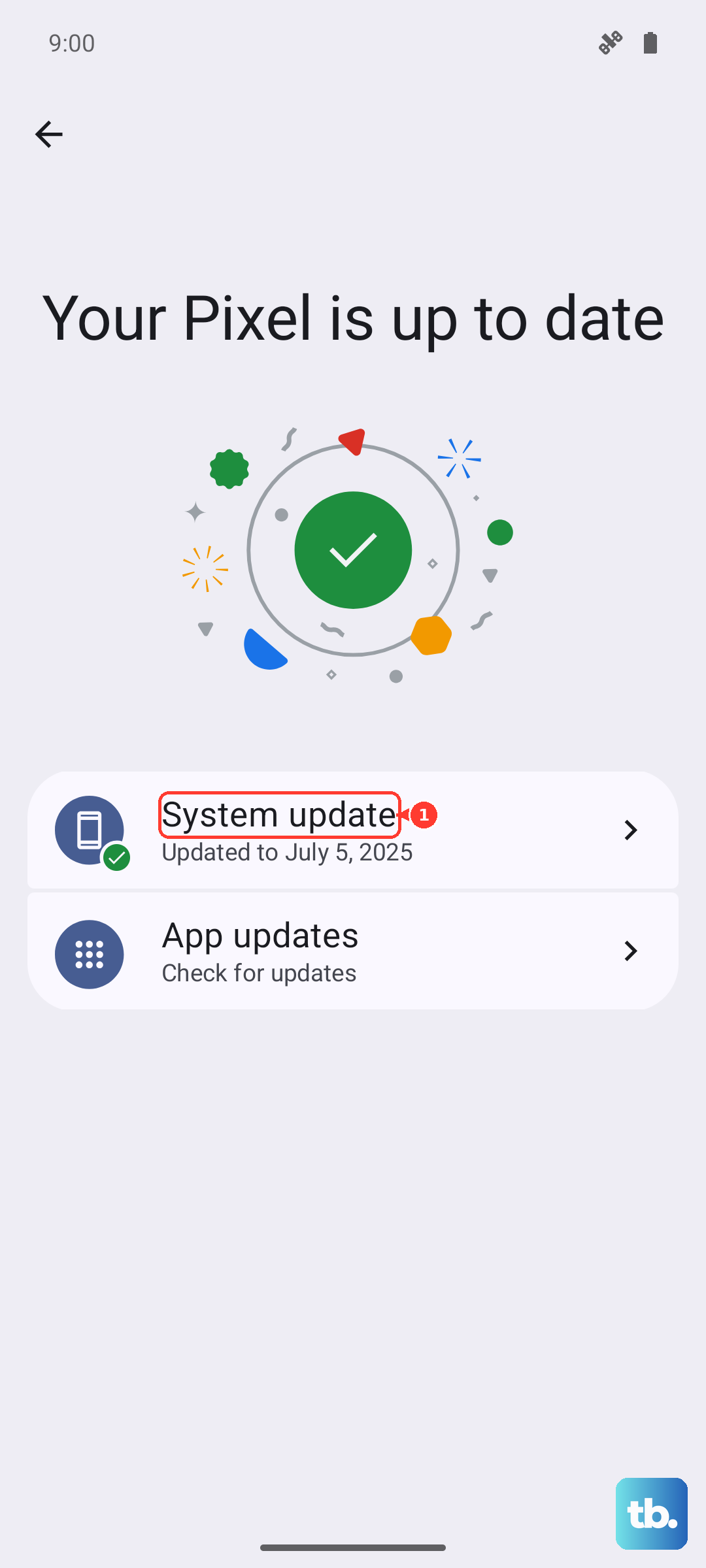
Go to Settings > About phone, tap Xiaomi HyperOS, then Check for updates, and download and install anything that appears. Keep the phone charged and on Wi-Fi while it updates, then test the torch once it has restarted.
Clear the System Cache in Recovery Mode
If the torch is still stubborn, a corrupted system cache can be the cause, and clearing it does not erase your personal data. This is done from Recovery Mode rather than the normal Settings menu.
- 1.Turn the phone off completely.
- 2.Press and hold the Power and Volume Up buttons until the phone boots into Recovery Mode.
- 3.Use the volume keys to highlight Wipe cache partition, then confirm the selection.
- 4.Choose Reboot system now and let the phone start up normally.
Once it is back at the home screen, open the Control center and test the flashlight again.
Factory Reset as the Last Software Step
If nothing above brings the LED back, a factory reset clears out a deeper software problem by returning the phone to its original state. This step wipes the device, so treat it as a genuine last resort and protect your data first.
Xiaomi warns that all data, settings, applications, and personal information stored on your phone will be erased, so back up anything important and copy those backups off the device before you begin. When you are ready, go to Settings > About phone > Factory reset > Erase all data and follow the prompts.
After the reset, set the phone up and test the torch before you restore all your apps, so you can tell whether the flashlight is fixed on a clean system.
When the Hardware Is the Problem, Reach Xiaomi
If the flashlight never works, including in Safe Mode and after a factory reset, the fault is likely in the LED or the camera module rather than in software. At that point the repair belongs with Xiaomi rather than another round of settings changes.
Use Xiaomi's official support and Contact us page to reach the support team or to book an appointment at an authorized service center. If your phone is still within its warranty period, an in-warranty hardware fault should be repaired under that cover, so have your purchase details ready when you get in touch.
Frequently Asked Questions
Why does my Redmi Note 13 Pro flashlight turn off by itself?
The most common reason is heat. Xiaomi confirms the phone will temporarily turn off the flashlight under high temperatures and that it returns to normal once the phone cools down, so let it cool and close power-intensive apps before trying again.
Where is the flashlight icon on the Redmi Note 13 Pro?
It lives in the Control center, which you open by pulling down from the top-right of the status bar (the left side shows notifications instead). If the icon is missing, open the Control center, tap Edit, and add the Flashlight icon back.
How do I turn on the torch without using the screen?
Set a button shortcut. Go to Settings > Additional setting > Button shortcuts > Turn on torch (or Settings > Additional settings > Gesture shortcuts > Turn on flashlight) and enable Double press the Power button, then double press Power to toggle the torch.
Will wiping the cache partition delete my photos and apps?
No. Wiping the cache partition in Recovery Mode clears temporary system files only and leaves your personal data in place. The factory reset is the step that erases everything, so keep a backup before doing that one.
Does the Redmi Note 13 Pro have a separate flashlight LED?
No, it uses the rear camera flash as the torch. The single-LED, single-color-temperature flash next to the 200MP main camera doubles as the flashlight, which is why a camera or system fault can sometimes affect the torch.