
When your Redmi Note 13 Pro's email stops working, it can throw a wrench in your day. Whether you're missing important messages or can't send anything out, these problems usually have a fix you can handle yourself. The key is to start with the simplest solutions first.
Before you dive into the deeper settings, take a quick look at a few basics. Make sure you're connected to the internet, either via Wi-Fi or your mobile data. It's also worth checking if your email provider, like Gmail or Outlook, is having a widespread outage. A quick web search for "[Your Email Service] down" can tell you that.
Check Your Network Connection
Email issues often come down to a spotty connection. Start by toggling your Wi-Fi off and on. Swipe down from the top of your screen to open the Quick Settings panel and tap the Wi-Fi icon. If you're on mobile data, do the same for the cellular icon.
If that doesn't help, try the nuclear option for network resets: Airplane Mode. Pull down the Quick Settings shade again and tap the airplane icon. Wait about 30 seconds, then tap it again to turn it off. This forces your phone to re-establish all its connections from scratch.
Force Close and Restart the Email App
A glitch in the app itself is a common culprit. To force close it, swipe up from the bottom of your screen and hold to enter the recent apps view. Find your email app, be it Gmail, Outlook, or the stock MIUI Email app, and swipe it all the way up to close it. Wait a moment, then tap its icon to reopen it fresh.
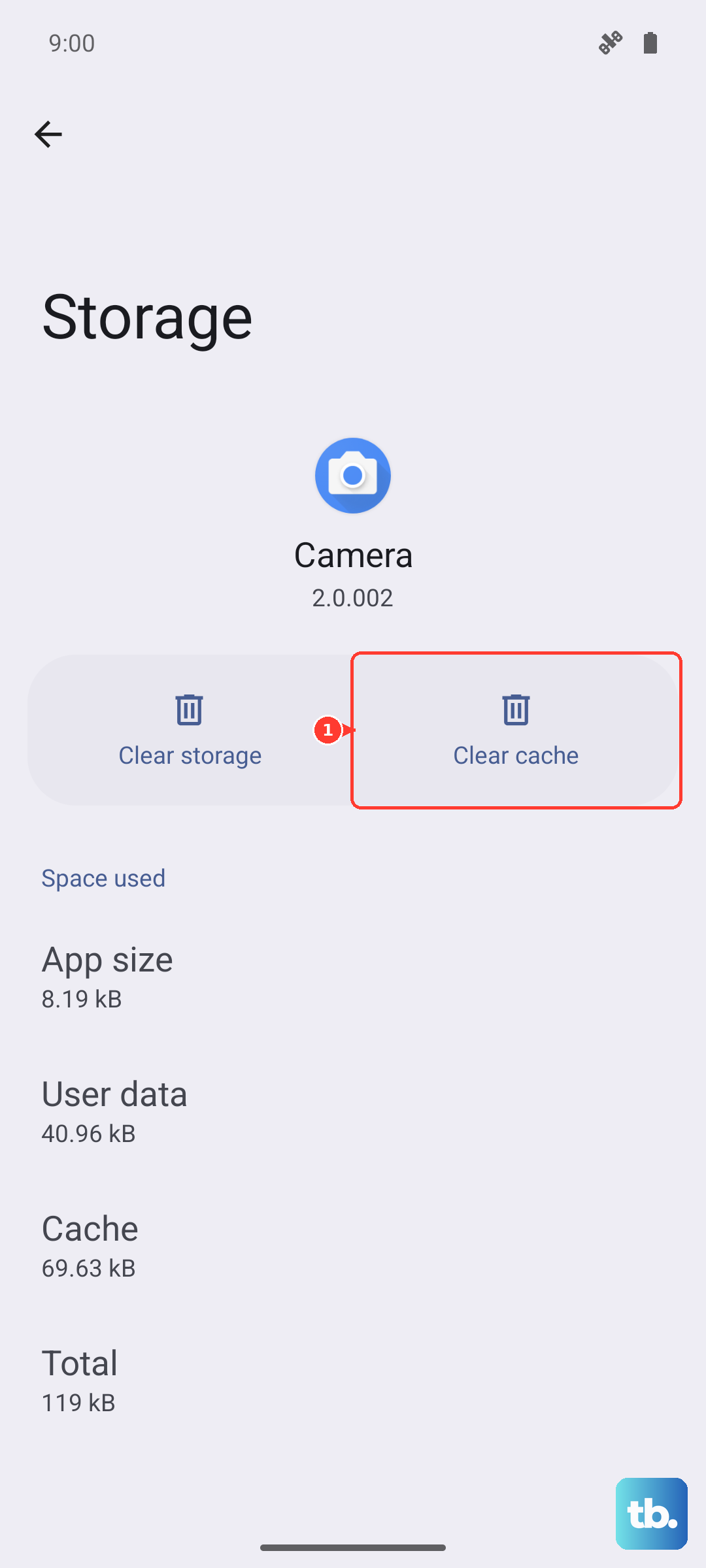
If the app is still acting up, try clearing its cache. Go to Settings > Apps > Manage apps. Find your email app in the list and tap on it. Select Clear cache. This gets rid of temporary files without touching your login info or emails.
Verify Your Sync and Background Data Settings
Android and MIUI have settings that control how apps sync in the background. First, make sure background data isn't restricted for your email app. Head to Settings > Apps > Manage apps, select your email app, then tap Battery saver. Make sure it's set to "No restrictions".
Next, check the account sync settings. Go to Settings > Accounts & sync. Tap on your email account and make sure the toggle for "Sync Email" or "Sync Mail" is turned on. You can also tap "Sync now" to force an immediate check for new messages.
Review Your Notification Permissions
Sometimes emails are arriving, but you're just not being alerted. Open Settings > Notifications & control center > App notifications. Scroll to find your email app and tap on it. Ensure "Allow notifications" is enabled. You can also customize the sound and vibration patterns here if they were accidentally muted.
Check for App and System Updates
An outdated app or version of MIUI can have bugs that break email functionality. Open the Google Play Store, tap your profile picture, and go to Manage apps & device. See if there's an update available for your email app and install it.
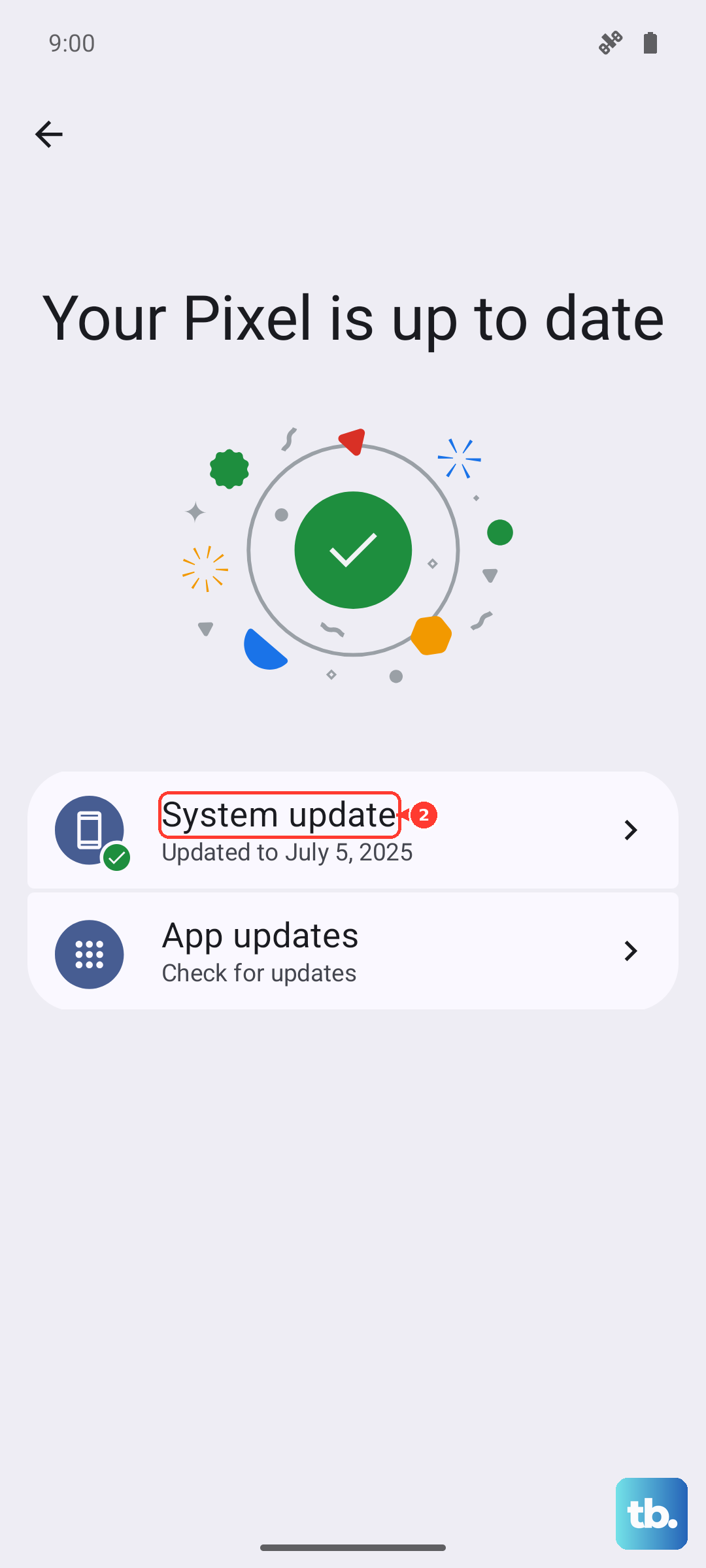
For system updates, which can include important fixes, go to Settings > About phone > MIUI version. Tap "Check for updates" and install any that are available. I'd recommend doing this while connected to Wi-Fi and plugged into your 67W charger, as updates can take a few minutes.
Re-add Your Email Account
If settings are corrupted, removing and re-adding the account often clears things up. Go to Settings > Accounts & sync. Tap on the problematic email account and select Remove account. Confirm, then go back and tap "Add account" to set it up again from scratch. You'll need your email address and password handy.
For Gmail users specifically, you might need to check your Google Account security. If you've recently changed your password or enabled 2-Step Verification, you may need to sign in again on your device. The system will usually prompt you for this.
Disable Battery Saver and Data Saver Modes
MIUI's aggressive power-saving features can sometimes halt background syncing. Swipe down the notification shade and look for the Battery Saver or Data Saver icons. If either is active (usually orange), tap it to turn it off. For a more thorough check, go to Settings > Battery and ensure Power saving mode is off.
Data Saver is another setting to check. Go to Settings > SIM cards & mobile networks > Data usage. Tap on Data saver and make sure it's switched off, or add your email app to the "Unrestricted data" list.
Inspect Your Storage Space
If your phone's internal storage is completely full, apps can malfunction. Go to Settings > About phone > Storage to see how much space you have left. If you're critically low, try deleting some old downloads, cached files, or unused apps to free up a few gigabytes.
Try a Different Email App
This is a great way to figure out if the problem is with your account or with a specific app. Download a different email client from the Play Store, like Outlook or Spark, and try adding your account there. If it works perfectly in the new app, the issue is likely with your original app's configuration or cache.
Check Date, Time, and Certificate Settings
Incorrect time settings can break secure connections to email servers. Go to Settings > Additional settings > Date & time. Make sure "Use network-provided time" and "Use network-provided time zone" are both enabled.
For work or school accounts, there might be a security certificate required. If your IT department provided one, you may need to install it. This is less common for personal accounts like Gmail or Yahoo.
Perform a Force Restart
A simple reboot can clear out temporary software hiccups. Just press and hold the power button on the side of your Redmi Note 13 Pro for about 15 seconds. Keep holding until you see the phone screen go black and the MIUI logo reappear, then release. This forces a full restart without needing to navigate any menus.
Review VPN or Private DNS Settings
If you use a VPN for privacy or work, try temporarily disabling it. You can usually do this from its app icon or the VPN notification. Some VPNs block certain ports needed for email. Similarly, if you've set up a custom Private DNS (like for ad-blocking), try setting it back to "Automatic" in Settings > Connection & sharing > Private DNS.
Reset App Preferences or Network Settings
As a less drastic step before a full reset, you can reset all app preferences. This reverts app permissions, default apps, and background restrictions to factory defaults without deleting your data. Go to Settings > Apps > Reset app preferences and tap reset.
If you suspect a deeper network issue, you can reset Wi-Fi, mobile data, and Bluetooth. Go to Settings > Connection & sharing > Reset Wi-Fi, mobile data & Bluetooth. You'll have to re-enter Wi-Fi passwords afterward, but it can fix stubborn connection problems.