
When your Redmi Note 13 Pro apps keep closing unexpectedly, it's usually a quick software hiccup you can fix yourself. I'd start by force stopping the app and clearing its cache, which solves the problem most of the time.
Force Stop and Restart the App
Head to Settings > Apps and find the app that's misbehaving. Tap on it and hit Force stop. This completely shuts down the app's process. Wait a few seconds, then open it again from your home screen. This is the fastest way to clear a temporary glitch.
Clear the App's Cache and Data
If force stopping doesn't work, the app's temporary files might be corrupted. Go back into the app's info page in Settings and tap Storage & cache. Tap Clear cache first. This deletes temporary data without touching your login or saved settings.
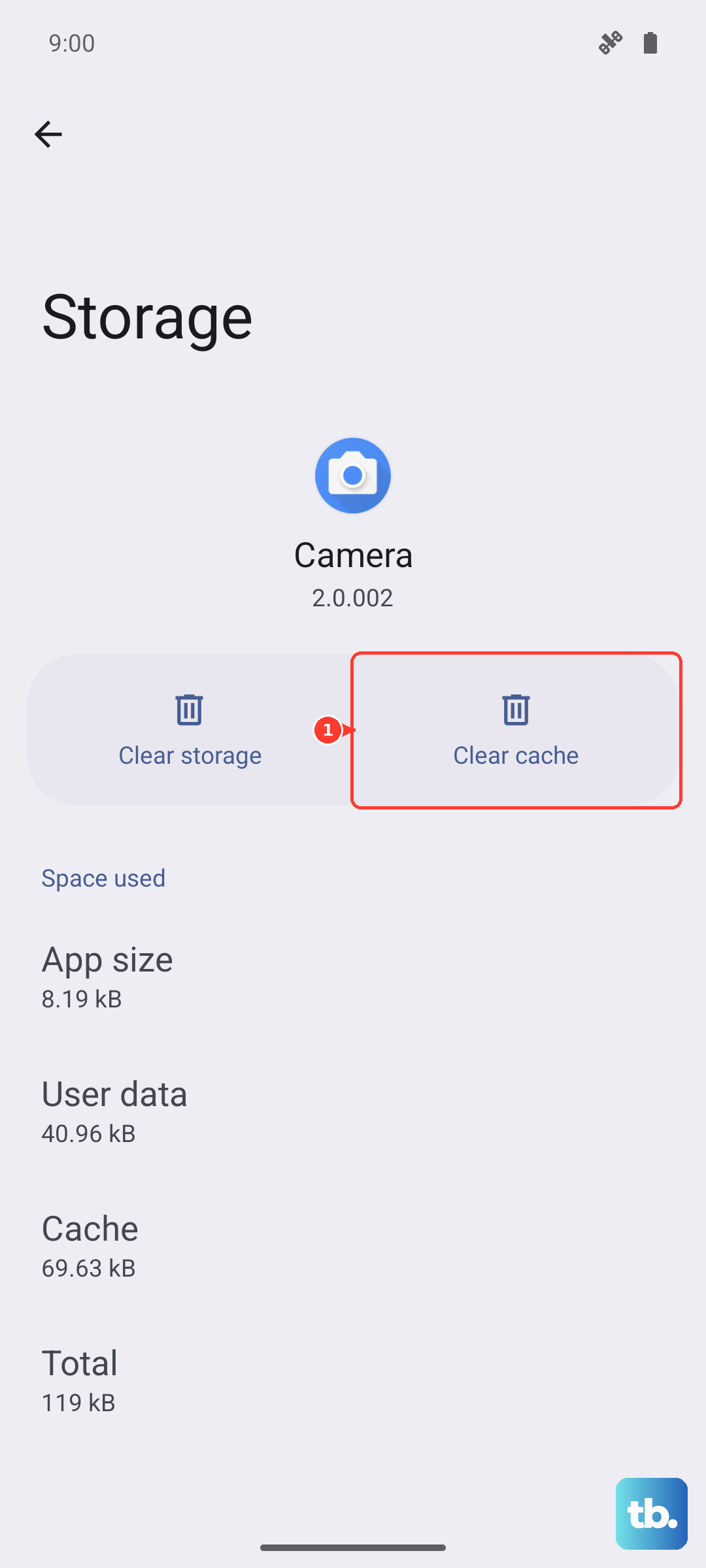
If the app is still crashing, you can try Clear data. This is a more nuclear option, as it will reset the app to its freshly installed state, wiping your preferences and forcing you to log in again. It's very effective for stubborn crashes, though.
Check for App and System Updates
Outdated apps are a common crash culprit. Open the Google Play Store, tap your profile icon, and go to Manage apps & device. Install any pending updates, especially for the problematic app. Developers push fixes for bugs all the time.
Also, make sure your phone's software is current. Go to Settings > About phone > MIUI version and tap "Check for updates." Installing the latest MIUI update can resolve system-level conflicts that cause apps to fail.
Free Up Storage Space
The Redmi Note 13 Pro needs free space for apps to run smoothly. If your storage is nearly full, apps can't create the temporary files they need, leading to crashes. Go to Settings > Storage to see what's using space.
Clear out old downloads, offload photos to Google Photos, and consider uninstalling apps you never use. The 67W fast charger that came with your phone is great for quick top-ups, but it won't help with a full storage drive.
Check Your Internet Connection
Apps that rely heavily on an online connection, like social media or banking apps, can crash or freeze if your network is unstable. Try switching between Wi-Fi and mobile data to see if the problem is network-specific.
For Wi-Fi, try forgetting the network and reconnecting. You can also restart your router. A weak or fluctuating signal can confuse an app and cause it to close.
Reinstall the Problematic App
When a single app is the issue, a fresh install often does the trick. Press and hold the app icon on your home screen, tap the info (i) icon or drag it to Uninstall. Confirm, then head to the Play Store to download it again.
This gives you a completely clean slate. Any corrupted files from the old installation are gone. Just remember you'll need to log back in and set your preferences again.
Restart Your Phone
Don't underestimate a simple reboot. It clears the phone's RAM and stops any background processes that might be interfering. Just press and hold the power button and tap Restart.
If the phone is completely frozen and you can't access the menu, you can force a restart. Press and hold the Power button for about 15 seconds until you feel it vibrate and the screen goes black, then release. The phone will boot up normally.
Review App Permissions
Sometimes an app crashes because it's being denied a permission it suddenly needs. Go to Settings > Apps > [Problem App] > Permissions. Review the list and make sure key permissions, like Storage or Location, are granted if the app requires them.
Consider MIUI Optimizations and Background Restrictions
MIUI's battery saver features can sometimes be too aggressive. Go to Settings > Battery and check the app's battery saver settings. You can set it to "No restrictions" to prevent MIUI from limiting its background activity.
Also, if you've recently used the Security app's boost feature or a cleaner, it might have restricted background processes. You can manage these in the Security app under settings, and it's also a good place to disable system ads if you're seeing them.
Perform a Factory Reset
If every app is crashing constantly and nothing else has worked, a factory reset is the final step. This will erase everything on your phone, so you must back up your photos, contacts, and important files first.
Go to Settings > About phone > Factory reset. Tap Erase all data and follow the prompts. After the phone restarts, you can set it up as new or restore your backup. This will eliminate any deep-seated software corruption.