
When your Realme GT 7 Pro gets stuck and won't update, it's a real roadblock, especially when you're waiting for new features or security patches. You might see an error message, a download that won't start, or an installation that fails halfway through. Let's get your phone back on track.
Force Restart Your Phone First
This is the quickest thing to try. Just press and hold the Power button on the side of your GT 7 Pro for about 10 seconds. Keep holding until you see the Realme logo appear and the phone restarts. This simple reboot can clear out a temporary software glitch that's preventing the update check from working properly.
Check Your Wi-Fi Connection
Android updates, especially large ones, require a stable Wi-Fi connection. Head to Settings > Wi-Fi and make sure you're connected to a reliable network. Try loading a webpage in Chrome to test the speed. If it's slow, restart your router or switch to a different network. Public Wi-Fi often blocks large downloads, so your home network is best.
Free Up Storage Space on Your GT 7 Pro
Your phone needs breathing room. A major Android update can require several gigabytes of free space. Go to Settings > Storage to see what's available. With that massive 6500mAh battery, you might have a ton of photos and videos filling things up. Clear your app caches or move files to cloud storage to make room for the update to download and install.
Delete the Downloaded Update File
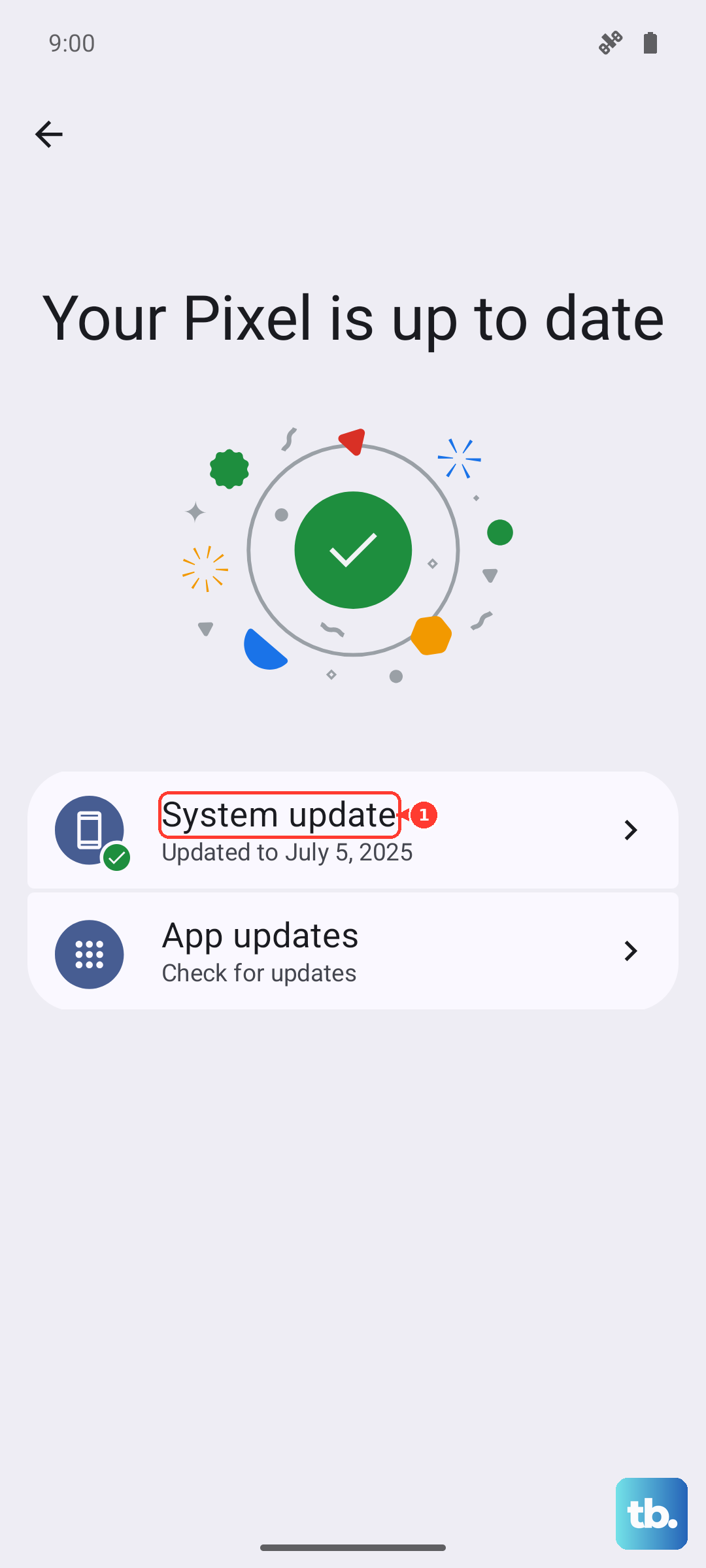
If a previous update attempt failed, a corrupted download file might be stuck in your storage, blocking new attempts. Go to Settings > Storage and look for a large file related to a system update. You can also try going to the Software Update screen and tapping the three-dot menu; sometimes there's an option to clear the update data. After deleting it, head back to Settings > About phone > Software update to start fresh.
Reset Your Network Settings
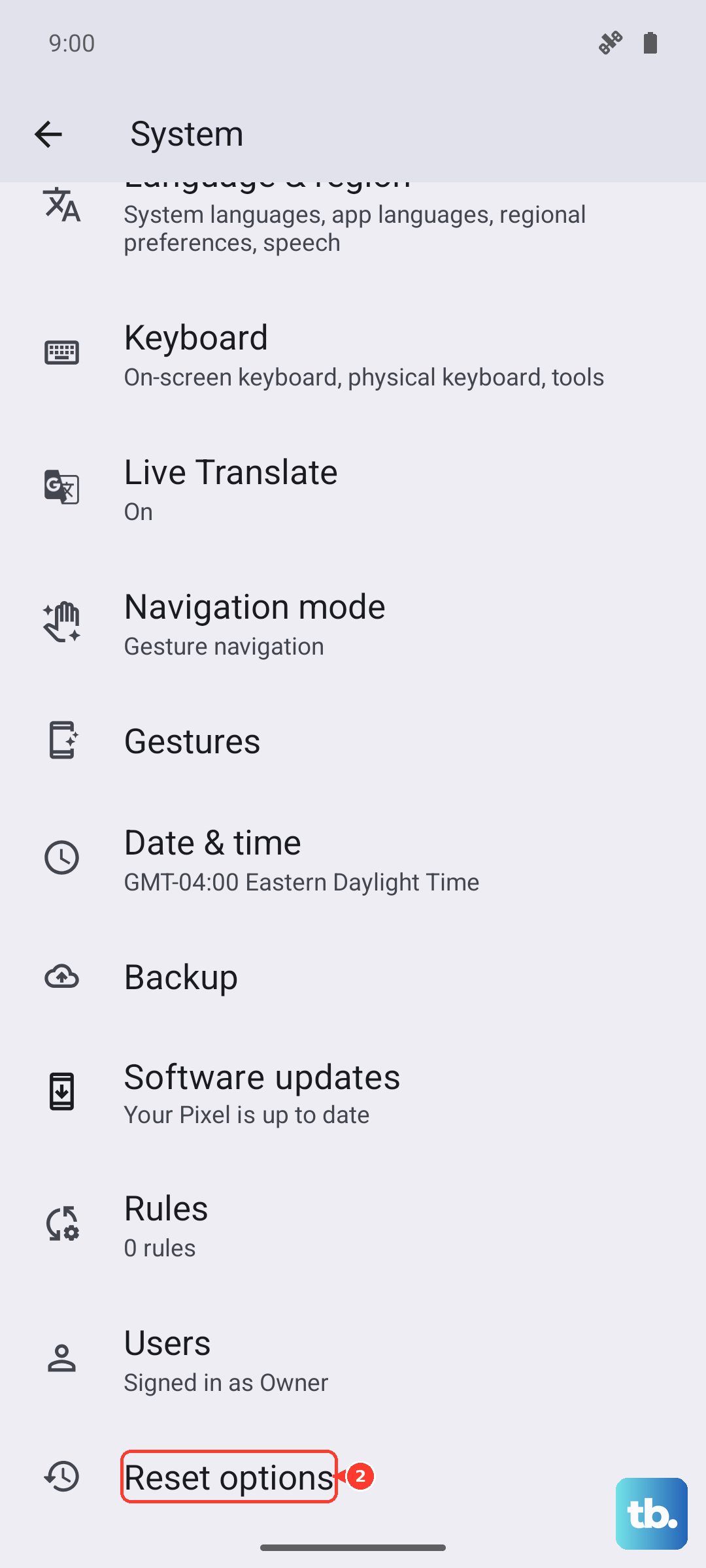
This fixes a lot of connectivity-related update problems. Navigate to Settings > System > Reset options > Reset Wi-Fi, mobile & Bluetooth. Confirm the reset. This will erase all your saved networks and Bluetooth pairings, so you'll need to reconnect to your Wi-Fi afterward. Once you're back online, try checking for the update again.
Update Using a Computer
If the over-the-air update just won't cooperate, using a PC can bypass the issue. You'll need a USB-C cable (the one that came with your 120W charger works perfectly). Connect your GT 7 Pro to your computer and enable file transfer mode. Then, you can download the official update package from Realme's support website and use their local update tool to install it directly. This method is great for avoiding Wi-Fi or storage problems on the phone itself.
Check for Server Issues
The problem might not be on your end at all. During a major Realme UI rollout, their servers can get overwhelmed. You can check community forums or Realme's official social media channels for any announcements about update delays or server maintenance. If servers are busy, just waiting a few hours or trying late at night can make all the difference.
Ensure Your Phone is Compatible
This might seem obvious for a 2024 flagship, but it's worth confirming. The update you're seeing should be specifically for the Realme GT 7 Pro model. You can check your exact model number in Settings > About phone. Installing software meant for a different device can cause serious problems, so always make sure the update is intended for your specific phone.
Update in a Clean State
Sometimes, third-party apps can interfere with the system update process. I'd try restarting your phone, and then immediately going to the Software Update section in Settings without opening any other apps. If you have a VPN, ad blocker, or aggressive battery saver app running, try temporarily disabling them before you start the update download.