
When your Realme GT 7 Pro won't send photos, it's usually a quick fix. The most common culprit is a simple setting or a temporary app glitch. I'd start by checking your mobile data and giving the phone a quick restart.
Check Your Mobile Data and MMS Settings
If you're trying to send a picture via your carrier's text messaging (SMS/MMS), you need mobile data enabled, even if you're on Wi-Fi. Swipe down twice from the top of your screen to open the Quick Settings panel and make sure the mobile data icon is active.
Next, open the Messages app, tap the three-dot menu in the top right, and go to Settings > Advanced. Ensure "Auto-download MMS" is turned on. Some carriers also require you to have the correct APN settings configured, which you can check under Settings > Mobile network > Access Point Names.
Verify Your Internet Connection
A weak or unstable connection will stop any photo in its tracks. If you're on Wi-Fi, try switching to your 5G or 4G mobile data to see if the picture goes through. The Snapdragon 8 Elite modem in the GT 7 Pro is very capable, but a poor signal area can still cause issues.
Conversely, if you're using mobile data, try connecting to a strong Wi-Fi network. You can also try toggling Airplane mode on and off from the Quick Settings panel to reset your network connections instantly.
Force Close and Clear the Messaging App Cache
The app you're using to send the photo might have a temporary hiccup. Swipe up from the bottom of the screen and hold to enter the recent apps view, then swipe the messaging app (like Google Messages or the stock Realme Messages app) up to close it completely. Reopen it and try again.
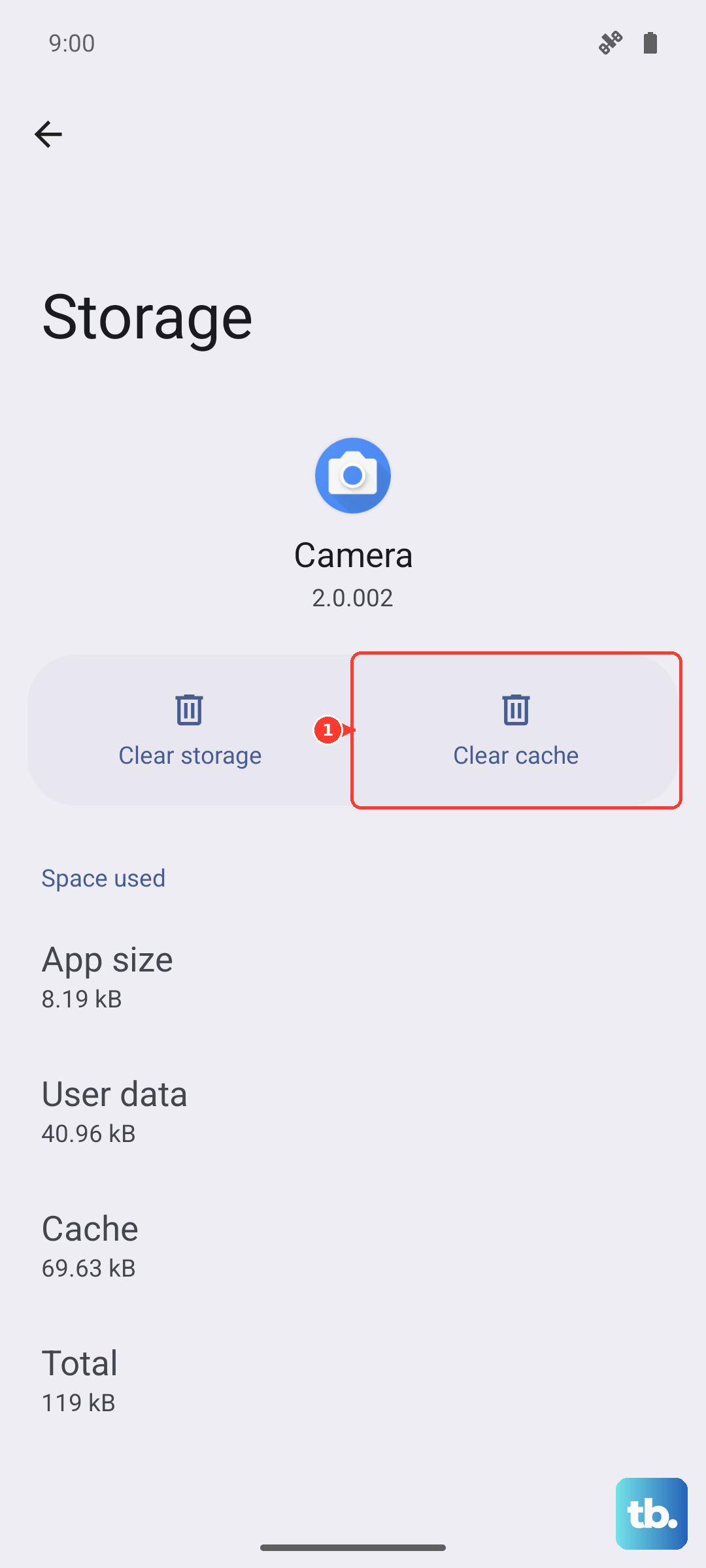
If that doesn't work, clear the app's cache. Go to Settings > Apps > Manage apps, find your messaging app, and tap on it. Select Storage usage and then tap Clear cache. This won't delete your messages.
Check the Photo File Size and Format
Carrier-based MMS messages have strict size limits, often around 1MB. If your 50MP camera shot is too large, it will fail to send. Try sending a different, smaller picture to test. You can also use the gallery's edit or share function to resize the image before sending.
Also, check if you're trying to send a file format the app doesn't support. Stick to common formats like JPG or PNG. If you're using a chat app like WhatsApp or Telegram, make sure the app itself is updated from the Google Play Store.
Restart Your Realme GT 7 Pro
A simple restart clears out minor software glitches that can affect messaging. Just press and hold the power button for a couple seconds and tap "Restart." If the phone is unresponsive, you can perform a force restart by pressing and holding the power button for about 10 seconds until the screen goes black and the Realme logo reappears.
Disable Data Saver or Battery Saver Modes
Power-saving features can restrict background data, which is necessary for sending multimedia messages. Pull down the Quick Settings panel and make sure any "Data Saver" or "Battery Saver" icons are not highlighted or active.
You can check the full settings by going to Settings > Battery and ensuring "Power Saving Mode" is off. Also, go to Settings > Mobile network and look for a "Data Saver" option to disable it.
Update Your Software and Carrier Services
An outdated system can have bugs that affect messaging. Go to Settings > About device > Realme UI version and tap "Check for updates." Install any available updates for Realme UI 6.0 based on Android 15.
Also, open the Google Play Store, tap your profile icon, and go to Manage apps & device > Manage > Updates available. Look for updates to "Carrier Services" and "Google Play services," as these are critical for network communication.
Try a Different Messaging App
This is a great way to figure out if the problem is with a specific app or with the phone system itself. Download a popular alternative like Google Messages from the Play Store and set it as your default. Try sending a photo from the new app.
If it works, the issue is with your previous messaging app. You can try clearing its data (warning: this may delete your message history) or simply stick with the new one that works.
Reset Your Network Settings
This will wipe all your saved Wi-Fi passwords, Bluetooth pairings, and mobile network settings back to default, which can resolve deeper connection issues. Go to Settings > System settings > Backup & reset.
Tap on Reset phone and then select Reset network settings. Confirm and enter your lock screen PIN if prompted. After the phone reboots, you'll need to reconnect to Wi-Fi networks and re-pair Bluetooth devices.
Check for App-Specific Permissions
The messaging app needs permission to access your photos, media, and SMS. Go to Settings > Privacy > Permission manager. Find your messaging app in the list and tap on it.
Make sure permissions like "Photos and videos," "Files and media," and "SMS" are set to "Allow." Without these, the app can't attach or send your pictures.