
If your Realme GT 7 Pro is taking forever to load pages or buffer videos, it's a real buzzkill, especially on a phone with such a powerful Snapdragon 8 Elite chip. The issue is almost always a quick settings fix or a network hiccup, not the phone's hardware.
I'd start by checking your mobile data connection. Pull down the notification shade and look at the status bar. If you see "H+" or "3G" instead of "4G" or "5G," you're on a slower network. Toggling Airplane mode on and off for about 10 seconds is the fastest way to force the phone to reconnect to the fastest available tower.
Just swipe down twice from the top of the screen and tap the airplane icon. Wait a moment, then tap it again to turn it off. This simple reset often gives you an immediate speed boost.
Switch Between 5G and 4G for Stability
While 5G is faster, its signal can be less stable indoors or in areas with spotty coverage, causing your phone to struggle. If your internet feels inconsistent, forcing the GT 7 Pro to use 4G/LTE can provide a more reliable and sometimes faster experience.
Go to Settings > Mobile network > SIM card & mobile data. Select your primary SIM and tap Preferred network type. Change it from "5G/4G/3G/2G" to "4G/3G/2G." This tells your phone to ignore 5G and lock onto the stronger 4G signal.
Enable Data Saver in Realme UI
Realme UI's Data Saver mode is excellent for managing background data. It restricts apps from using mobile data in the background, which not only saves your data plan but can also free up bandwidth for the app you're actively using, making it feel snappier.
You can find it by going to Settings > Mobile network > Data Saver. Toggle it on. For more control, tap into the settings to see which apps are allowed to use background data and adjust them individually.
Clear the Cache for Chrome and System Services
Over time, your browser and system services store temporary files that can get corrupted and slow things down. Clearing this cache is a safe first step that doesn't delete your personal data like logins or history.
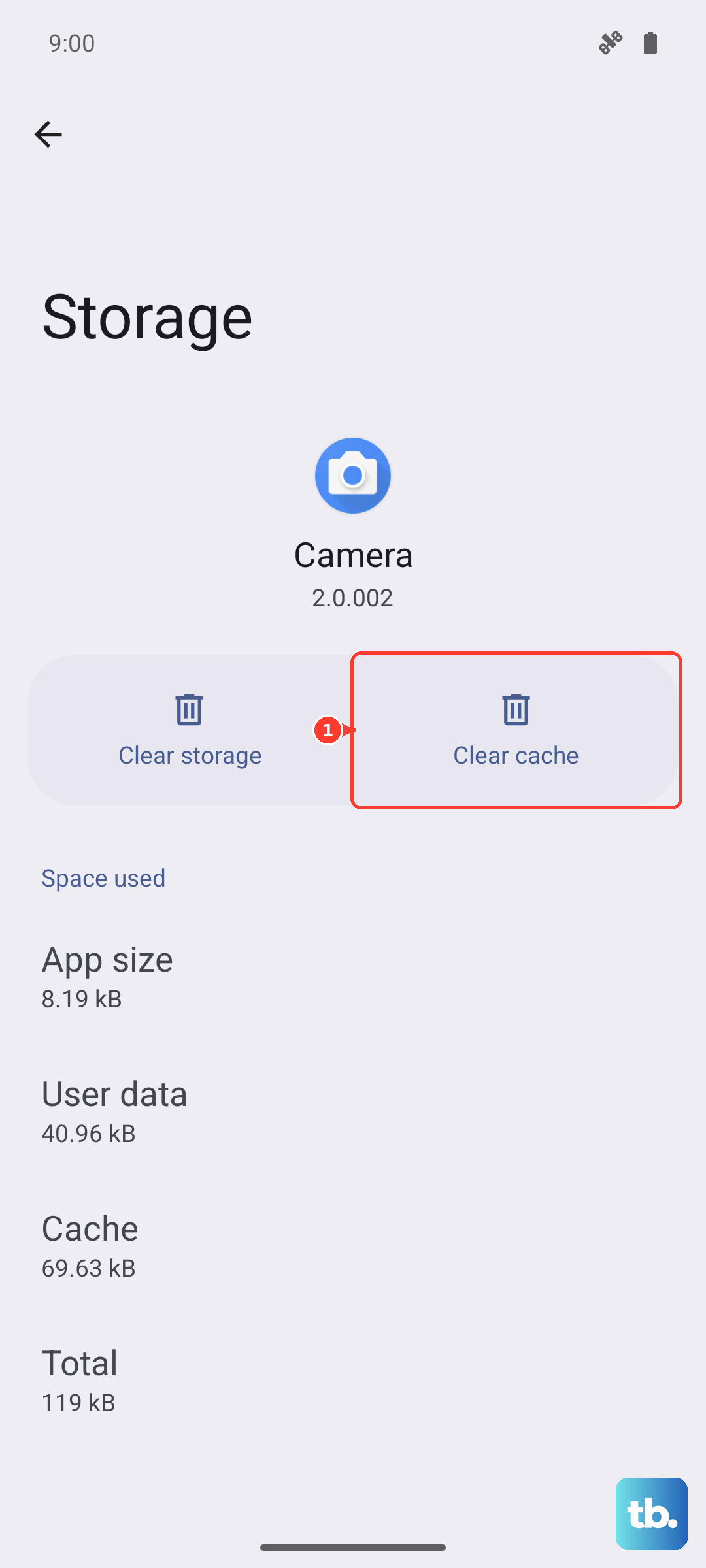
For Chrome, open the app, tap the three dots in the top right, and go to History > Clear browsing data. Select "Cached images and files" and tap "Clear data." For a deeper clean, also clear the cache for Google Play Services. Go to Settings > Apps > See all apps, find "Google Play Services," tap Storage & cache > Clear cache.
Check for Network-Specific Software Updates
Realme occasionally releases updates that specifically improve modem performance and network connectivity. These aren't always part of the big Android version updates, so it's worth checking manually.
Head to Settings > About device > Software update and tap "Check for updates." If an update is available, especially one mentioning "system stability" or "performance improvements," install it. Make sure you're on WiFi and have a good charge, as the 120W charger can top you up quickly if needed.
Reset Your WiFi Network Settings
If the slow internet is only happening on WiFi, the saved network profile on your phone might be the issue. Resetting network settings will forget all WiFi networks, Bluetooth pairings, and mobile data preferences, so you'll have to reconnect to everything.
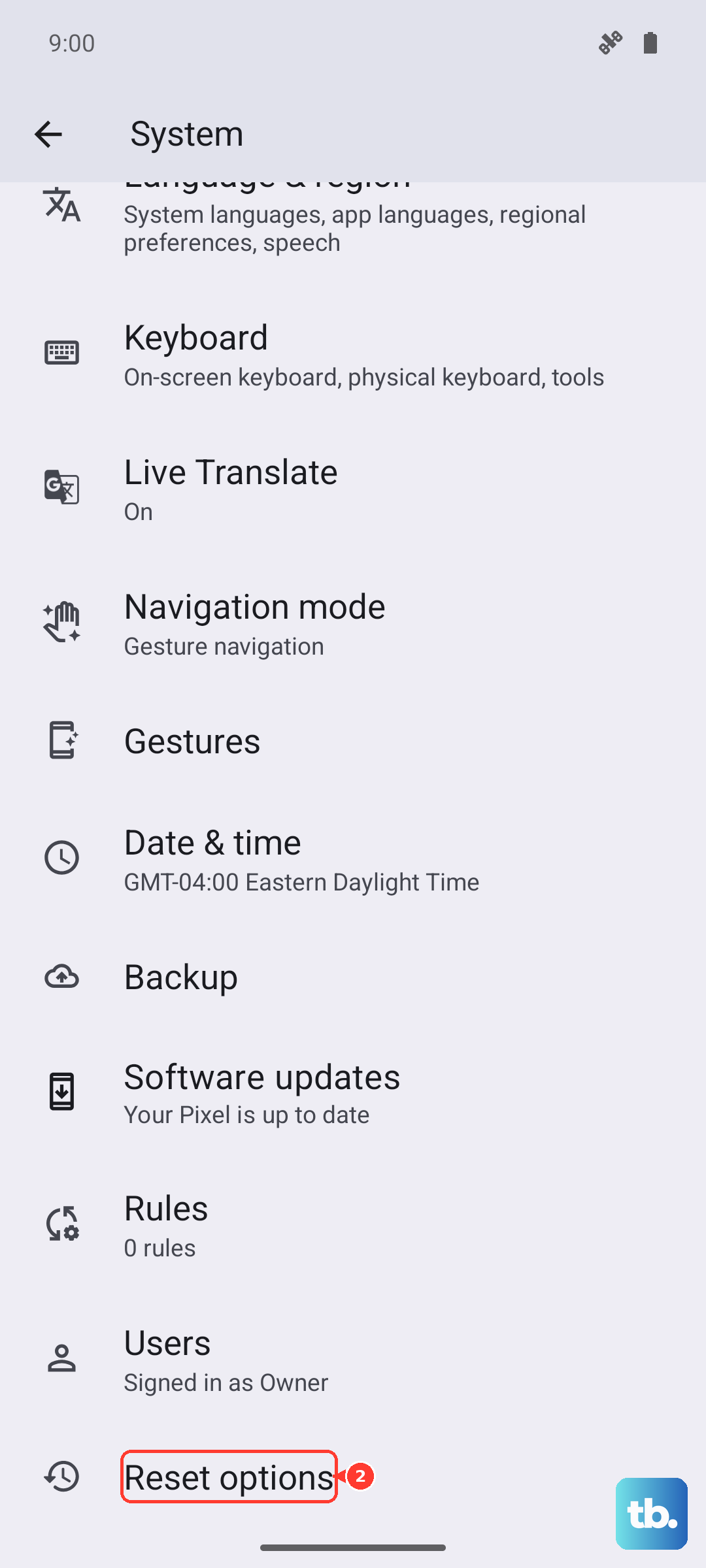
This is a more thorough fix. Go to Settings > System > Reset options. Tap Reset WiFi, mobile & Bluetooth and confirm. After the phone reboots, reconnect to your WiFi network and test the speed again.
Manage Background Apps and Performance Mode
The GT 7 Pro is powerful, but having too many apps running in the background can consume system resources and network bandwidth. Swipe up from the bottom and hold to enter the recent apps menu, then swipe each app window away to close it.
Also, check your performance mode. Go to Settings > Battery > Performance mode. If it's set to "Low Power," switching to "High Performance" or "Balanced" can ensure the modem and CPU aren't being throttled, which can impact data speeds.
Disable VPN or Proxy Connections
If you're using a VPN for privacy or work, try disabling it temporarily. All your internet traffic is routed through a remote server when a VPN is active, which almost always adds latency and reduces your download speed.
Go to Settings > Network & internet > VPN and disconnect any active VPN profile. Similarly, if you've manually configured a proxy (which is less common), you can check under Settings > WiFi, tap the gear icon next to your network, and ensure "Proxy" is set to "None."
Perform a Soft Reset
When in doubt, reboot. A soft reset clears the phone's temporary memory and can fix a wide variety of glitches, including network issues. Just press and hold the power button until the power menu appears, then tap "Restart."
If the phone is completely unresponsive, you can force a restart by pressing and holding the power button for about 10 seconds until you feel a vibration and see the Realme logo. This is safe and won't erase any data.