
Missing calls on your Realme GT 7 Pro is a real headache, especially when you're expecting something important. You check your phone and see the missed call notification, but you never heard a thing. The good news is this is almost always a simple setting or a minor software hiccup that you can fix yourself.
Check Your Phone's Sound Mode
The first thing to look at is the physical alert slider on the side of your Realme GT 7 Pro. Slide it down towards the screen to make sure it's not in Silent or Vibrate mode. You should see an on-screen indicator confirming it's in Ring mode. I'd start with this one, as it's the most common oversight.
Next, pull down the notification shade twice to open the Quick Settings panel. Look for icons like a bell with a line through it or a moon. These represent Silent Mode and Do Not Disturb. If either is highlighted, tap it to turn the feature off. These modes are great for meetings but easy to forget you've left on.
Adjust Your Volume and Ringtone
With the phone unlocked, press the volume up button on the side. Keep pressing until the volume bar on the screen is maxed out. This controls your ringtone volume directly. For a more precise check, go into Settings > Sound & vibration. Here, you can drag the sliders for Ringtone and Notification volume to the right.
Sometimes, the specific ringtone file can get corrupted. Try changing it to something else. In Settings > Sound & vibration > Phone ringtone, pick a different default tone and have a friend call you to test it. This quick swap can often kick the system back into working order.
Review Do Not Disturb and Focus Settings
Realme UI's Do Not Disturb and Focus modes are powerful but can silence calls if configured a certain way. Go to Settings > Sound & vibration > Do Not Disturb. Make sure the main toggle at the top is off.
Scroll down and check the rules. Look at "Scheduled" to ensure it's not set to turn on automatically at certain times. Also, review the "Exceptions" list. You need to make sure "Calls" or at least "Calls from contacts" is allowed to break through the silence, otherwise all calls will be muted.
Disconnect Bluetooth and Check Call Settings
If your GT 7 Pro is connected to a Bluetooth headset, speaker, or your car, incoming call audio will route there by default. Swipe down your Quick Settings and tap the Bluetooth icon to turn it off temporarily, then test a call. You can also go to Settings > Connected devices > Connection preferences > Bluetooth to manage paired devices.
It's worth checking a couple of other call-related settings. Open your Phone app, tap the three-dot menu, and go to Settings > Blocked numbers. Make sure the person trying to reach you isn't accidentally on that list. Also, look for a setting called "Silence unknown callers" and ensure it's disabled if you're expecting calls from numbers not in your contacts.
Check App Permissions and Notifications
The Phone app needs the correct permissions to play sounds. Go to Settings > Apps > See all apps and find "Phone" in the list. Tap on it and select Permissions. Ensure it has permission for "Notifications" and that the notification category for "Incoming calls" is set to "Alerting" and not "Silent."
While you're there, tap on Notifications within the Phone app settings. Make sure "Allow notifications" is enabled. Sometimes, after a major OS update, these settings can get reset. This applies to any other calling app you use, like WhatsApp or Telegram, too.
Restart and Update Your Phone
A simple restart clears out temporary glitches that can affect the sound system. Just press and hold the power button, then tap "Restart" on the screen. If the phone is completely unresponsive, you can force a restart by pressing and holding the power button for about 10 seconds until you feel it vibrate and the Realme logo appears.
Software bugs are often addressed in updates. Connect to Wi-Fi and go to Settings > About phone > Realme UI version. Tap on it to check for and install any available updates. The process uses the hefty 120W charger efficiently, so even if your battery is low, it'll charge up incredibly fast during the update.
Reset App Preferences or Network Settings
If the issue is isolated to calling apps, resetting app preferences can help without deleting any data. Go to Settings > Apps > See all apps, tap the three-dot menu, and select Reset app preferences. This resets notification and permission settings for all apps back to their defaults.
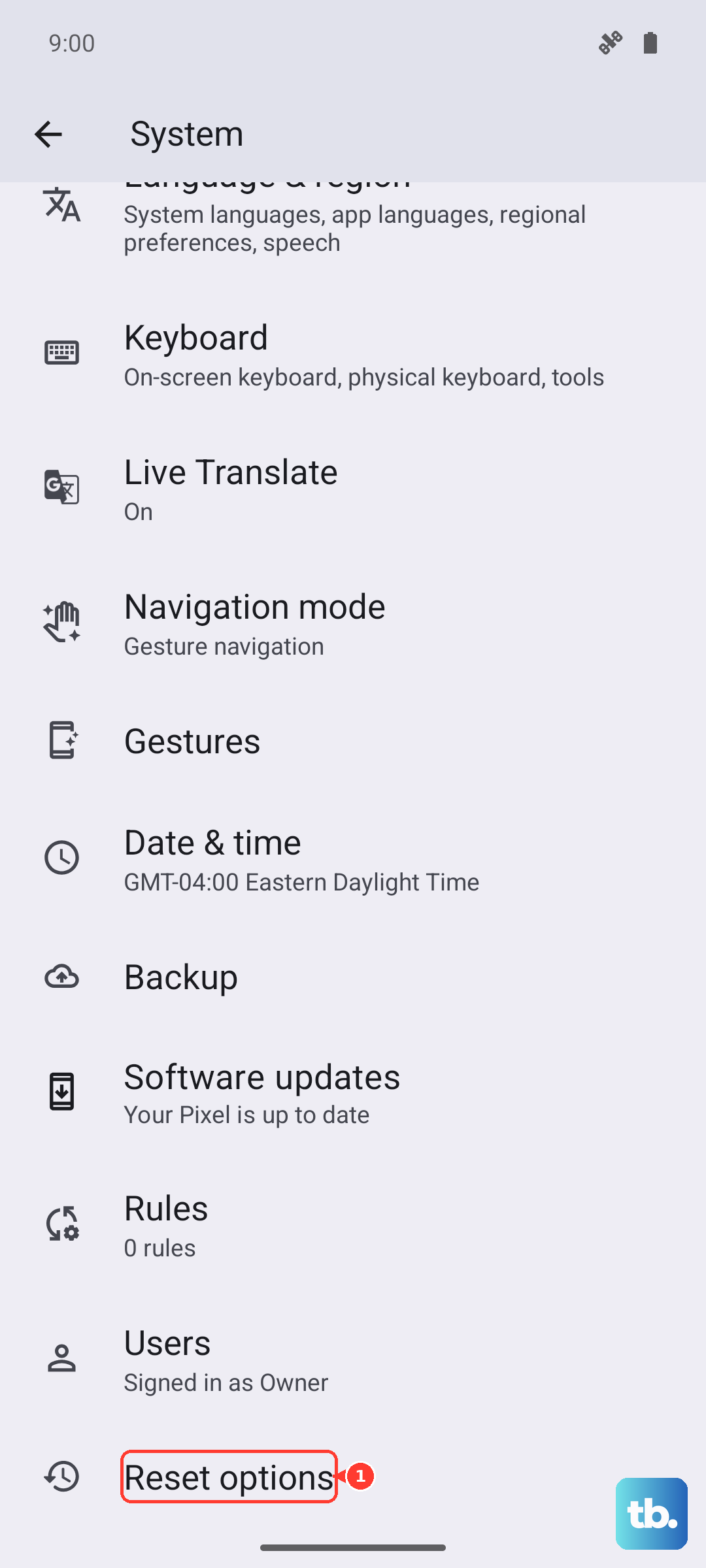
For issues with carrier calls or VoLTE, resetting network settings can be useful. Navigate to Settings > System > Reset options. Tap on Reset Wi-Fi, mobile & Bluetooth. You'll need to re-enter Wi-Fi passwords and re-pair Bluetooth devices, but it can resolve deeper connectivity issues that affect call routing.
Perform a Factory Reset
If you've tried everything else and the phone still won't ring, a factory reset is the final step. This will erase all data from your phone, so it's crucial to back up everything important first. Use Google Drive or the built-in backup tool in Settings > System > Backup.
Once backed up, go to Settings > System > Reset options > Erase all data (factory reset). Follow the prompts to confirm. After the phone reboots, set it up as new initially to test if the ringing issue is resolved before restoring your backup, just in case the backup contains a problematic setting.