When your Realme GT 7 Pro can't download a picture or video someone sent you, it's usually a quick fix. MMS messages need a mobile data connection to work, and a simple setting or app glitch is often the culprit.
Let's get those photos and videos downloading again.
Restart Your Realme GT 7 Pro
This is the universal first step for a reason. A quick restart clears out temporary software bugs that can block MMS downloads. Just press and hold the power button for about 10 seconds until you feel the phone vibrate and the Realme logo appears.
It takes less than a minute and solves more problems than you'd think.
Check Your Mobile Data and Signal
MMS doesn't work over Wi-Fi alone. You need an active mobile data connection. Swipe down from the top of your screen twice to open the Quick Settings panel and make sure the mobile data icon is turned on.
Also, take a glance at your signal bars. If you're down to one or have an "X," try moving to a different spot. The Snapdragon 8 Elite modem is powerful, but it still needs a decent signal to pull down those files.
Force Close and Reopen Messages
Sometimes the messaging app just gets stuck. Swipe up from the bottom of your screen and hold to enter the recent apps view. Find the Messages app and swipe it all the way up to close it.
Then, tap the Messages icon again to launch it fresh. Try tapping the download button on the stuck MMS again.
Enable MMS Auto-Retrieve in Settings
Your phone might be set to wait for your permission before downloading MMS to save data. To change this, open the Messages app and tap the three-dot menu in the top-right corner. Go to Settings > Advanced settings.
Look for an option called "Auto-download MMS" or "Auto-retrieve MMS" and make sure the toggle is switched on. This tells your phone to grab multimedia messages as soon as they arrive.
Verify Your APN Settings
Incorrect Access Point Name (APN) settings are a common cause of MMS failures. These settings tell your phone how to connect to your carrier's multimedia service. To check them, go to Settings > Mobile network > Access Point Names.
You should see a list, with one option selected (usually your carrier's name). If the list is empty or looks wrong, you'll need the correct info from your carrier. You can usually find this on their support website, or you can call them and ask for the MMS APN settings for your Realme GT 7 Pro.
Clear the Messages App Cache
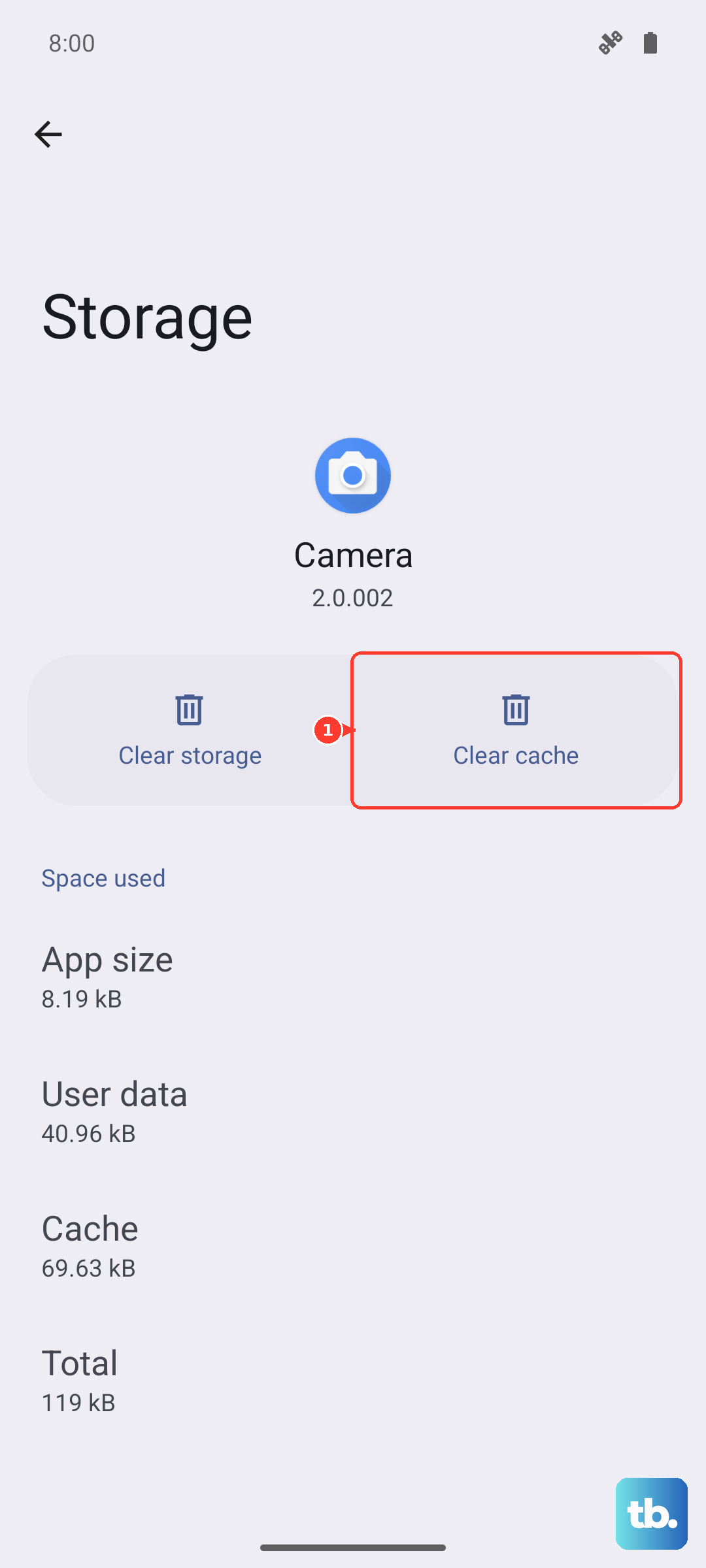
Corrupted temporary files in the app's cache can cause download hiccups. Clearing it is safe and won't delete your conversations. Head to Settings > Apps > Manage apps.
Find and tap on "Messages." Then, tap Storage usage and hit the "Clear cache" button. After doing this, reopen Messages and see if the MMS will download.
Make Sure You Have Storage Space
Your GT 7 Pro needs a little free space to save incoming media files. With that massive 6500mAh battery keeping you going all day, it's easy to forget about storage. Go to Settings > About device > Storage to check your available space.
If you're running low, consider offloading some photos or videos to cloud storage or deleting old app caches. You don't need gigabytes free, but having less than 500MB can sometimes cause issues.
Turn Off Realme's Data Saver Mode
Data Saver is a great feature for limiting background data, but it can sometimes be too aggressive and block MMS. To check, go to Settings > Mobile network > Data Saver.
If it's on, try turning it off temporarily. Then, ask your friend to resend the MMS or try downloading the stuck one again. If it works, you can go back and tweak Data Saver's settings to allow the Messages app to use data in the background.
Update Your Phone's Software
An outdated system can have bugs that affect messaging. Realme UI 6.0 on Android 15 is still new, and updates often include connectivity fixes. Go to Settings > About device > Software update.
Tap "Check for updates." If one is available, I'd recommend installing it. Use your included 120W charger to keep the phone powered up during the update, as the process can generate some heat.
Reset Your Network Settings
If you're still stuck, resetting network settings can clear deeper configuration errors. This will erase all Wi-Fi passwords, paired Bluetooth devices, and mobile network settings, returning them to factory defaults.
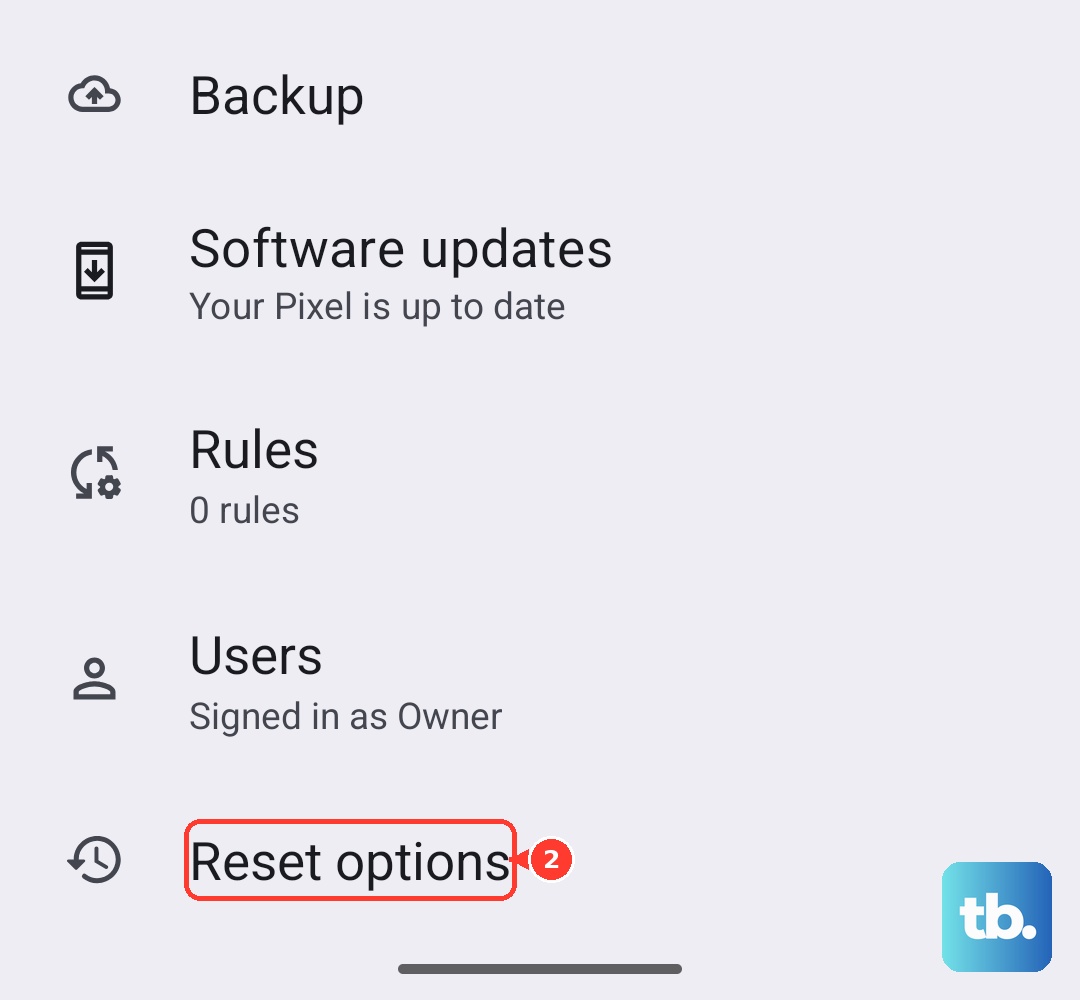
To do this, navigate to Settings > System settings > Reset options. Tap "Reset Wi-Fi, mobile & Bluetooth" and confirm. After the phone reboots, you'll need to reconnect to Wi-Fi and re-pair Bluetooth devices, but it often resolves persistent MMS issues.