
When your Realme GT 7 Pro starts restarting on its own, it can be incredibly disruptive. This is often a software hiccup, but with the phone's powerful Snapdragon 8 Elite chip and 120W charging, heat can sometimes play a role. I'd start with the simplest fix first.
Before you begin, it's a good idea to make sure your important data is backed up. You can use Google Drive or the built-in backup feature in Realme UI 6.0 under Settings > Additional Settings > Backup and Reset.
Perform a Force Restart
This is the quickest way to clear a temporary software glitch that's causing the restarts. Just press and hold the Power button on the side of your GT 7 Pro for about 10 seconds. Keep holding it until you see the Realme logo appear on the screen, then release. The phone will boot up normally.
Check for Problematic Apps
A third-party app that isn't playing nicely with Android 15 or Realme UI is a very common cause. Start by booting into Safe Mode. This temporarily disables all apps you've installed.
To enter Safe Mode, press and hold the Power button until the power menu appears. Then, tap and hold the "Power off" option on your screen. A prompt will ask if you want to reboot to Safe Mode. Tap "OK".
If the phone runs stable in Safe Mode without restarting, you've confirmed an app is the culprit. Restart normally to exit Safe Mode, then try uninstalling apps you installed just before the problem started, or any known battery/performance hogs.
Update Your Apps and System Software
Outdated apps can cause conflicts, especially after a major OS update. Open the Google Play Store, tap your profile icon, and go to Manage apps & device. Tap "Update all" to get everything current.
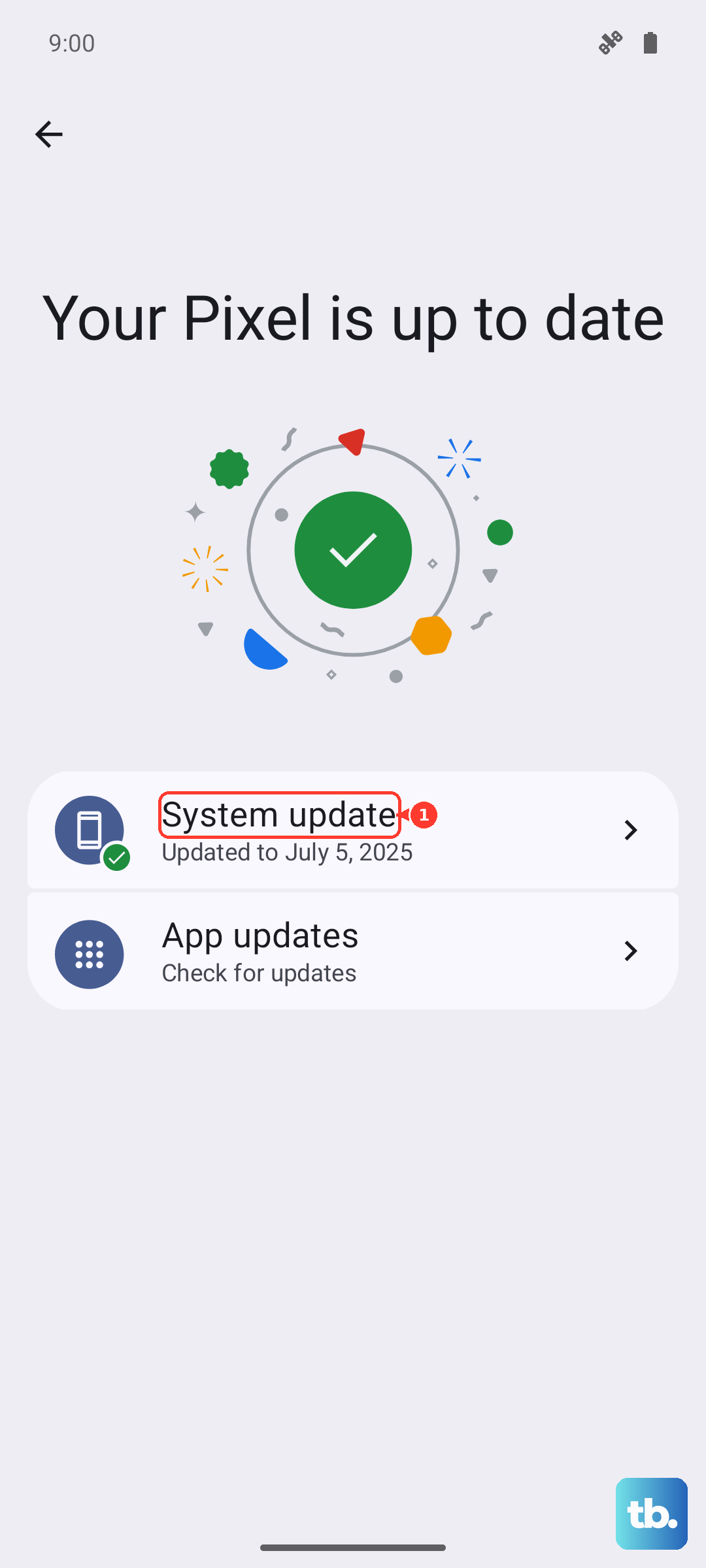
More importantly, check for a system update. Realme frequently releases patches for stability. Go to Settings > About device > tap on "Realme UI version". If an update is available, download and install it. Make sure your phone is charged above 50% and connected to Wi-Fi first.
Manage Heat and Charging
The GT 7 Pro's 120W charging is incredibly fast, but it generates significant heat. If the phone gets too hot, it can force a restart to protect itself. Try using the phone while it's charging with the included 120W adapter and see if the restarts happen then.
If they do, try charging with a slower, standard USB-C charger for a while to see if the problem stops. Also, avoid using demanding apps or games while the phone is fast charging, and take it out of its case if you're charging in a warm environment.
Free Up Storage Space
If your phone's storage is completely full, the system can become unstable. Check your available space by going to Settings > Additional Settings > Storage.
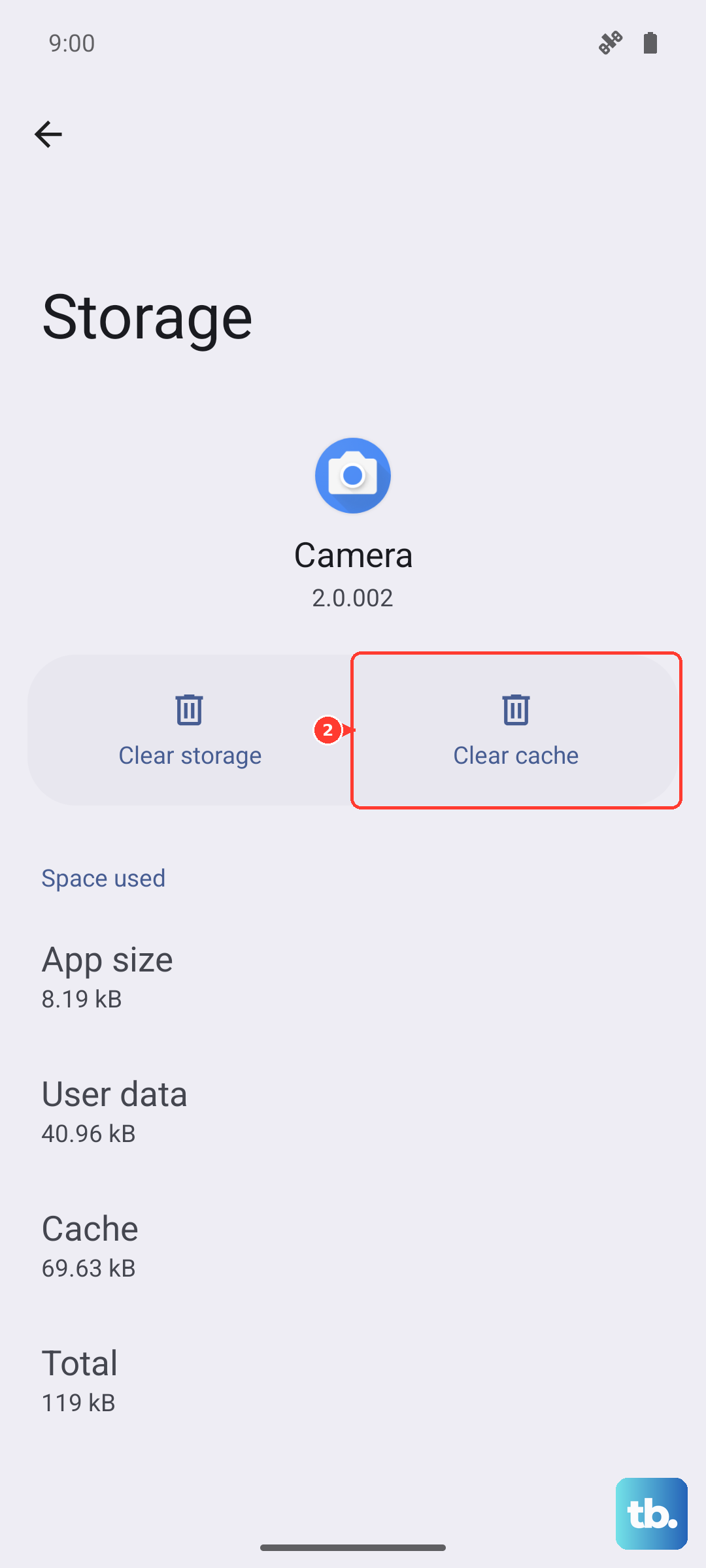
If you're running low, clear cached data from apps. You can also offload large videos or files to Google Photos or another cloud service. That massive 6500mAh battery is great for endurance, but you still need free space for the OS to breathe.
Reset App Preferences
This is a useful middle step that resets app permissions, background restrictions, and default apps without deleting any of your data. It can fix issues caused by an app misbehaving in the background.
Navigate to Settings > Apps > App management. Tap the three-dot menu in the top right and select "Reset app preferences". Confirm the action. You'll need to re-grant permissions to apps as you use them again.
Perform a Network Settings Reset
If the restarts seem tied to mobile data or Wi-Fi connectivity, resetting network settings can help. This will erase all saved Wi-Fi networks, Bluetooth pairings, and mobile data settings.
Go to Settings > Additional Settings > Backup and Reset > Reset phone. Here, select "Reset Wi-Fi, mobile & Bluetooth". Enter your lock screen PIN if prompted and confirm. You'll have to reconnect to your networks and re-pair Bluetooth devices afterward.
Wipe the Cache Partition
Corrupted system cache files can lead to all sorts of erratic behavior, including random reboots. You'll need to boot into Recovery Mode to clear it.
First, power off your GT 7 Pro completely. Then, press and hold the Volume Down button and the Power button together. Hold them until the Realme logo appears, then release. You'll enter Recovery Mode.
Use the volume buttons to navigate to "Wipe data" and press the power button to select it. Then, choose "Wipe cache" and confirm. Once it's done, select "Reboot" to start your phone normally. Your personal data remains untouched.
Factory Reset Your Phone
If nothing else has worked, a factory reset is the final software step. This will erase everything and return the phone to its out-of-the-box state, so ensure your backup is complete first.
You can do this from within the settings at Settings > Additional Settings > Backup and Reset > Erase all data (factory reset). Follow the prompts, enter your password, and confirm.
If your phone is stuck in a restart loop and you can't access settings, you can use Recovery Mode. Power off, then hold Volume Down and Power to enter Recovery. Navigate to "Wipe data" and select "Format data". This is the more complete wipe option in Recovery.