
When your Realme GT 7 Pro won't let you install an app, it can feel like you've hit a wall. You've got this powerful phone with a Snapdragon 8 Elite chip and a massive 6500mAh battery, but it's useless if you can't get the apps you need. The good news is that most of these download blocks are caused by simple software hiccups that you can fix yourself.
Let's go through the most reliable solutions, starting with the quick checks and moving to the more involved ones if needed.
Check Your Connection and Restart
First, make sure your internet is actually working. Pull down the notification shade on your GT 7 Pro and look at the Wi-Fi or mobile data icon. If you're on Wi-Fi, try switching to your mobile data plan for a moment, as some networks can block the ports the Play Store uses.
If switching doesn't help, give your phone a fresh start. Press and hold the power button for about ten seconds until you see the Realme logo appear. This simple reboot clears out temporary glitches in memory and often gets downloads moving again.
Verify the Date and Time
This one catches a lot of people off guard. Google's servers use your phone's clock to verify downloads. If the time is off, the download can fail. To fix it, open Settings and go to Additional Settings > Date & time.
Make sure "Automatic date & time" is turned on. If it's already on and you're still having trouble, try turning it off and manually setting the correct date, time, and time zone yourself. Then toggle automatic setting back on.
Clear the Google Play Store's Cache
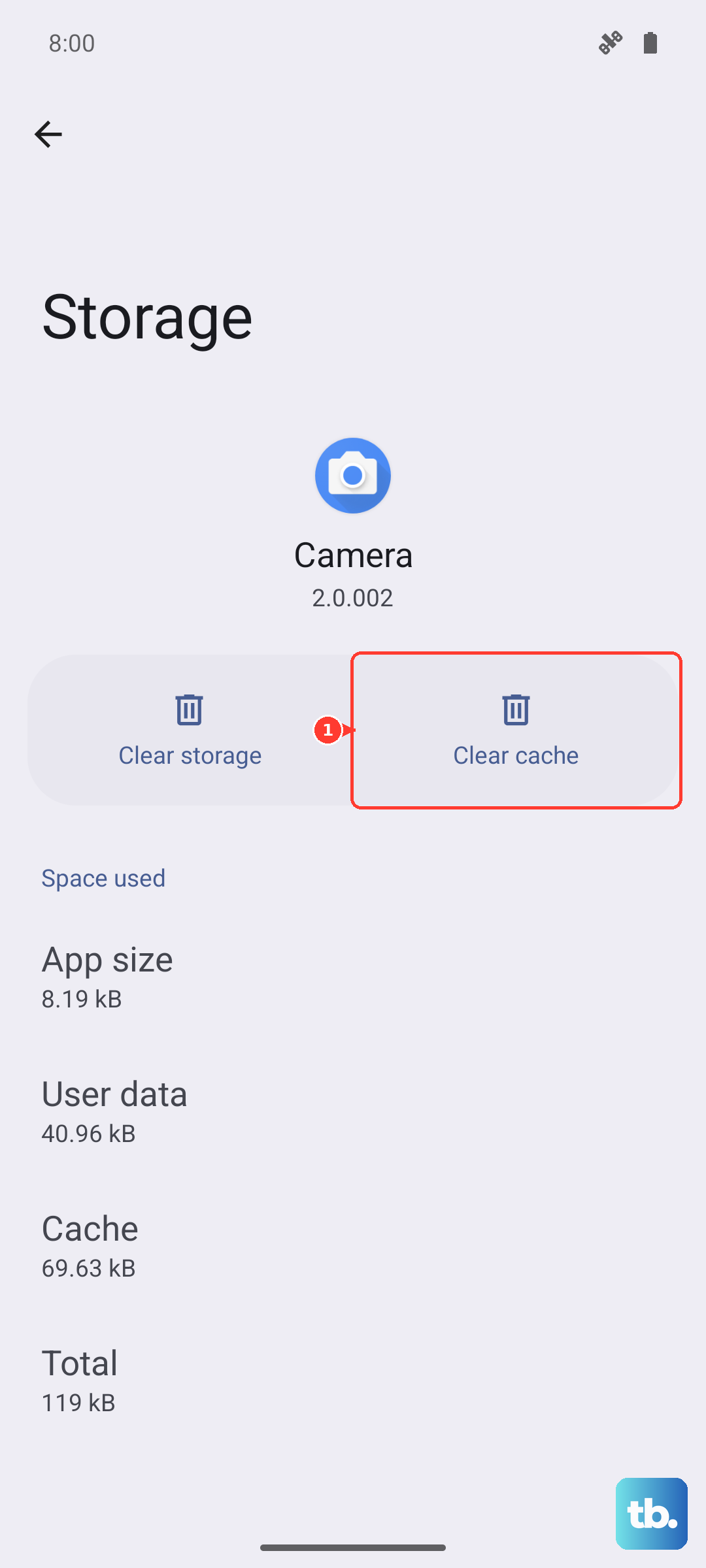
The Play Store app stores temporary data to run faster, but this cache can get corrupted. Clearing it is a safe first step that doesn't delete your apps or account. Go to Settings > Apps > App management and find "Google Play Store" in the list.
Tap on it, then select Storage usage. You'll see two buttons: "Clear cache" and "Clear data." Start by tapping "Clear cache." If that doesn't work, you can come back and try "Clear data," which will reset the app to its default state and sign you out, so you'll need to log back in.
Clear Google Play Services Data
This is the engine behind the scenes for all Google apps on your phone. If it has a problem, app downloads can stall. Head back to Settings > Apps > App management and find "Google Play services." Tap it and go to Storage usage.
Tap "Manage storage" at the bottom. Here, you can tap "Clear all data." Don't worry, this won't delete your personal files like photos. It just resets the service's information and often resolves stubborn download errors.
Check and Reset Your Download Manager
Android has a built-in system app called Download Manager that handles all downloads. First, make sure it's enabled. In App management, tap the three-dot menu in the top right and select "Show system." Now search for "Download Manager."
If you see a "Disable" button, that means it's already on. If you see "Enable," tap it. While you're there, tap into the app and go to Storage usage to clear its cache and data, just like you did for the Play Store.
Review Your Google Account Sync
Sometimes the sync between your phone and your Google account gets stuck. Open Settings > Accounts & sync and select your primary Google account. You'll see a list of everything that syncs, like Contacts and Gmail.
Tap the three-dot menu and choose "Sync now" to give it a manual refresh. If that doesn't change anything, you can try removing and re-adding the account. Tap "Remove account" at the bottom, restart your phone, then go back and add it again under Settings > Accounts & sync > Add account.
Free Up Storage Space on Your GT 7 Pro
Even with a lot of storage, you can hit the limit. The GT 7 Pro doesn't have expandable storage, so you need to manage what's on the phone. If you see an "Insufficient storage" error, you'll need to make room.
Check what's taking up space by going to Settings > Additional Settings > Storage. Look for large files or apps you no longer use. I'd start by clearing cached data from multiple apps, which you can do right from this storage menu.
Check for a System Software Update
Realme frequently releases updates for Realme UI that fix bugs and improve compatibility. An outdated system can sometimes conflict with the Play Store. To check, go to Settings > About device > Software update.
Tap "Check for updates." If one is available, I'd recommend installing it. Make sure your phone is charged above 30% and connected to Wi-Fi, as the update will require a restart.
Examine App-Specific Permissions
Both the Google Play Store and Google Play services need certain permissions to function. Go to Settings > Apps > App management and find "Google Play Store." Tap on it, then go to Permissions.
Ensure that permissions like "Storage" are allowed. Do the same for "Google Play services." While you're in the Play services app info, also check "Modify system settings" to ensure it's allowed to make changes.
Address Specific Error Codes
If you're seeing a numeric error, it can point you to the right fix. A common one is Error 491 or DF-BPA-09. These are often related to payment or account issues. For these, clearing the cache and data for the Play Store and Play Services, as described above, is the best first step.
Another frequent error is Error 963, which usually means there's a problem with the app's installation package. Try clearing the cache for the Play Store first. If that fails, go to Settings > Apps > App management, find "Google Play Store," and tap "Force stop" before trying the download again.
Consider a Factory Reset
If you've tried every other step and apps still won't install, a factory reset is the final option. This will erase everything on your phone and return it to its original out-of-the-box state, so it's a last resort.
You must back up your data first. Use Google's backup in Settings > Additional Settings > Backup & restore. Once backed up, go to Settings > Additional Settings > Backup & reset > Erase all data (factory reset). Follow the prompts to reset the phone. After it restarts, log in with your Google account and test the Play Store immediately with a small, free app.