
If videos on your OPPO Find X8 Pro are stuttering, freezing, or buffering, it can really ruin the experience. This is a common issue that pops up for a few different reasons, but the good news is you can usually fix it yourself without too much hassle.
If motion feels less smooth than it should, an online Hz test settles the question in seconds by measuring the true refresh rate.
First, Try a Quick Restart
Before we get into anything complicated, just restart your phone. It's the simplest fix and clears out any temporary software glitches that might be causing the stutter. Just press and hold the power button for about 10 seconds until you see the OPPO logo appear and the phone reboots.
Check Your Available Storage
When your phone's storage is nearly full, it can struggle to process video files smoothly, leading to dropped frames and choppy playback. The Find X8 Pro is a powerhouse, but it still needs breathing room to work properly.
Head to Settings > About device > Storage to see how much space you have left. I'd recommend keeping at least 5-10GB free. If you're low, clear out old downloads, app caches, or consider moving some of your 4K videos and high-res photos from the excellent cameras to cloud storage.
Test Your Network Connection
For streaming videos, a weak or unstable internet connection is the most common culprit for buffering and lag. This is true even on a fast phone like the Find X8 Pro.
Try switching between Wi-Fi and your mobile data to see if the problem is network-specific. If you're on Wi-Fi, you can try moving closer to the router. For a more thorough check, run a speed test using an app like Ookla to confirm your connection is stable.
Update Your Software and Apps
Running an outdated version of ColorOS or your video apps can lead to compatibility issues and bugs that cause stuttering. OPPO and app developers regularly release updates to fix these kinds of problems.
Go to Settings > About device > Software update to check for the latest ColorOS version. Then, open the Google Play Store, tap your profile icon, and go to Manage apps & device > Updates available to update all your apps, especially your video players like YouTube, Netflix, or VLC.
Close Background Apps and Boost Performance
The Dimensity 9400 chip is incredibly powerful, but if too many apps are running in the background, they can consume resources needed for smooth video playback. ColorOS also has a built-in optimization tool that can help.
Swipe up from the bottom and hold to enter the recent apps view, then swipe away apps you aren't using. For a deeper clean, you can go to Settings > Additional settings > Backgroud process management to restrict apps. Also, check Settings > Battery > More settings > Performance mode to ensure it's not set to a power-saving option that limits performance.
Clear the App's Cache and Data
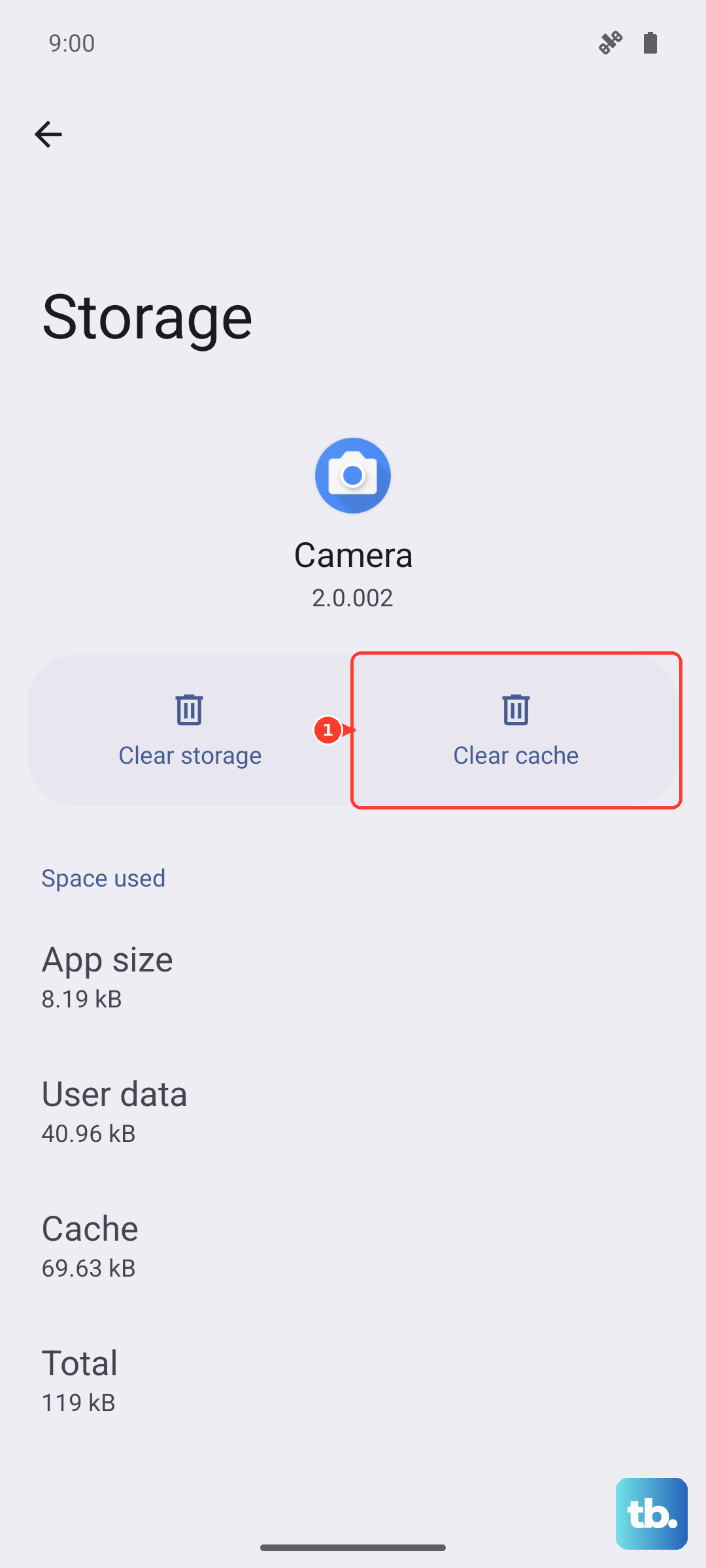
If the stuttering is happening in one specific app, its stored cache data might be corrupted. Clearing this forces the app to start fresh without deleting your account or downloaded videos.
Go to Settings > Apps > App management, find the problematic video app (like YouTube or your gallery), and tap on it. Select Storage usage, then tap Clear cache. If that doesn't work, you can try Clear data, but be aware this will reset the app to its default state and you may need to log in again.
Check for Overheating
The Dimensity 9400 is a performance beast, but it can run warm during sustained tasks like gaming or recording long 4K videos. If the phone gets too hot, it will intentionally throttle performance to cool down, which can cause stutter in any app.
If your phone feels unusually warm to the touch, give it a break. Close demanding apps, move it out of direct sunlight, and take it out of its case temporarily to help it cool down. Once the temperature drops, try playing your video again.
Try a Different Video Player
Sometimes the issue isn't with your phone, but with the default video player app struggling with a particular file's codec or resolution. The Find X8 Pro can handle very high-bitrate video, but some apps are better at it than others.
Download a robust third-party player like VLC or MX Player from the Play Store and try opening your stuttering video file there. These players support a wider range of formats and often have more advanced decoding settings that can smooth out playback.
Disable Special Video Enhancements
ColorOS includes features like video color boost or motion smoothing (often found in display settings) that post-process video in real-time. While these can make some content look better, they can sometimes conflict with certain videos and cause instability or stutter.
Go to Settings > Additional settings > Accessibility > Visibility enhancements and look for any video-related toggles. Also, check your display settings for options like "Video color boost" and try turning them off to see if playback smooths out.
Reset All Settings
If you've tried everything else and the stutter persists, a settings reset can help. This will revert all your system settings (like Wi-Fi passwords, wallpaper, and sound settings) back to default without deleting any of your personal photos, videos, or apps.
It's a useful step if a misconfigured system setting is causing the issue. You can find this option at Settings > Additional settings > Backup and reset > Reset phone > Reset all settings. You'll need to re-enter your Wi-Fi passwords and reconfigure some preferences, but it often clears up stubborn software glitches.