
When your OPPO Find X8 Pro goes silent on notifications, it's easy to miss important messages and alerts. This is a common hiccup with Android phones, especially on ColorOS, and it's usually something you can fix yourself in a few minutes.
If you are not sure whether it is the speakers or the software, run an online left and right speaker test first. Working test tones rule out a hardware fault in seconds.
I'd start with the simplest check. Swipe down from the top of your screen to open the Quick Settings panel. Look for the bell icon with a line through it, that's Do Not Disturb. Make sure it's turned off. Also, check the volume rocker on the side of your phone. Press the volume up button and tap the settings gear that appears to ensure your notification volume slider isn't all the way down.
Check App-Specific Notification Settings
Sometimes, the problem isn't with the phone but with an individual app. Open Settings and go to Notifications & Status Bar > App Notifications. Find the app that's not making a sound, like Messages or WhatsApp, and tap on it. Make sure "Allow Notifications" is toggled on. Then, tap Notification Categories and check that the specific type of alert (like "New messages") has Sound enabled.
ColorOS can be aggressive with battery management, which sometimes silences apps. In that same app notification menu, look for a setting called "Allow floating notifications in background" or "Background management." Ensure it's set to allow the app to run.
Restart Your OPPO Find X8 Pro
A quick restart clears out temporary glitches in the system that might be muting your notifications. Just press and hold the power button until the power menu appears, then tap "Restart." If the screen is unresponsive, you can force a restart by holding the power button down for about 10 seconds until you feel a vibration and see the OPPO logo.
Review Sound and Vibration Profiles
Your phone has different sound profiles that can affect notifications. Go to Settings > Sound & Vibration. First, ensure your ringtone volume is up. Then, look for a section called "Sound Mode" or similar. Make sure it's set to "Ring" or "Vibrate & Ring," not "Silent."
Also in the Sound settings, check for an option called "Do Not Disturb" rules. There might be a schedule set that automatically silences your phone during certain hours. You can turn these schedules off or adjust them to your liking.
Clear the Cache for the Messaging or Problem App
Corrupted temporary data in an app can stop sounds from playing. Go to Settings > Apps > App Management. Find the app that's having issues and tap on it. Select Storage Usage and then tap "Clear Cache." This won't delete any of your messages or personal data, just the temporary files.
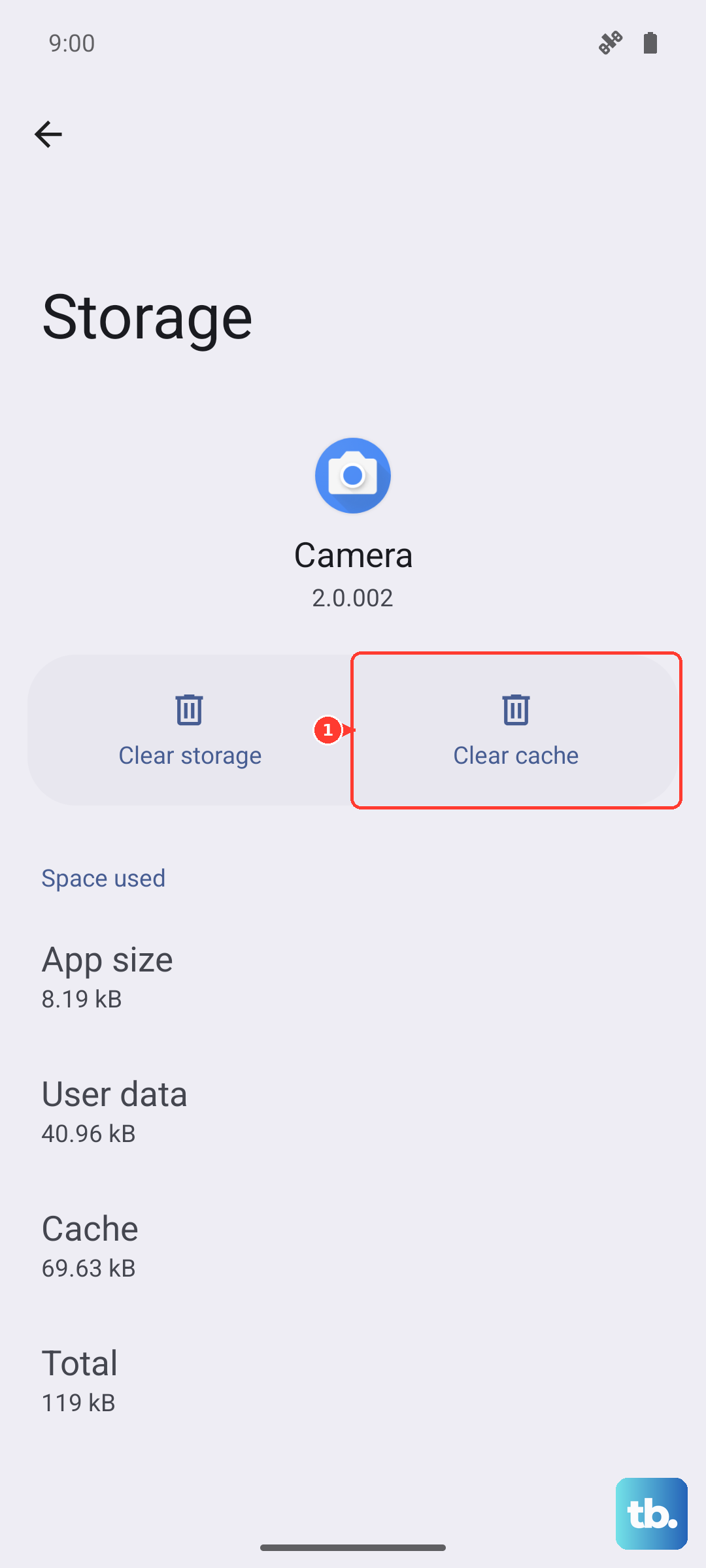
If that doesn't work, you can try "Clear Data," but be warned this will reset the app to its default state and you may lose saved preferences or login information. It won't delete your message history in apps like SMS, but it's a more nuclear option.
Check for a System Software Update
OPPO regularly releases updates for ColorOS that fix bugs, including audio and notification problems. It's worth checking if you're running the latest version. Go to Settings > About Device > Software Update. Tap "Check for Updates." If an update is available, I'd recommend installing it, as it often resolves these kinds of persistent glitches.
Reset App Preferences
This is a useful fix that resets all your app-related settings, like notifications, default apps, and background restrictions, without deleting any app data. Go to Settings > System Settings (you might need to tap "Additional Settings" first) > Backup & Reset > Reset App Preferences. Tap "Reset." After your phone reboots, you'll need to re-allow notifications for your apps, but this often clears up any conflicting rules that were causing silence.
Examine Battery Optimization Settings
ColorOS's battery saver features can sometimes be too effective. Go to Settings > Battery > More Battery Settings. Look for "High Performance Mode" and try enabling it temporarily to see if your notification sounds return. This rules out power-saving features as the culprit.
You can also manage optimization for specific apps. Go to Battery > App Battery Management. Find the problematic app and set it to "Allow background activity" or "Auto-manage" instead of "Restrict."
Verify the Default Notification Sound
It's possible the selected notification tone itself is the issue. Go to Settings > Sound & Vibration > Notification Sound. Tap on it and choose a different sound, then test to see if you hear it. If you hear the new one, the original sound file might have been corrupted.