
When your OnePlus Open doesn't show notifications, you can miss important messages, emails, and alerts. This is especially tricky on a foldable where you might be using different screens. The fixes below are tailored specifically for OxygenOS 14 on the OnePlus Open.
I'd start with the simplest solution first. A quick force restart can clear out temporary glitches that are blocking notifications. Just press and hold the Power button for about 10 seconds until you feel the phone vibrate and the screen goes black, then release it to let it reboot.
Check Your Focus and Battery Settings
OxygenOS has several features that can silently suppress notifications. First, pull down the Quick Settings panel from the top of your screen and make sure the "Zen Mode" or "Do Not Disturb" tile isn't active. These modes are designed to mute alerts.
Next, check your battery optimization settings. Go to Settings > Apps, select the app, and open its battery usage settings to manage battery optimization. Find the specific apps that aren't notifying you, tap on them, and select "Don't optimize". This ensures they can run background processes needed for alerts.
Verify App-Specific Notification Permissions
Each app manages its own notifications on Android. You need to check the settings for the problematic app itself. Long-press the app icon on your home screen and tap App info, or go to Settings > Apps and select the app.
Inside the app's settings, tap on Notifications. Make sure the toggle at the top is turned on. Then, review the different notification categories below, like "Messages" or "Alerts", and ensure they are all enabled and set to make a sound or vibrate.
Clear the Cache for the Problem App
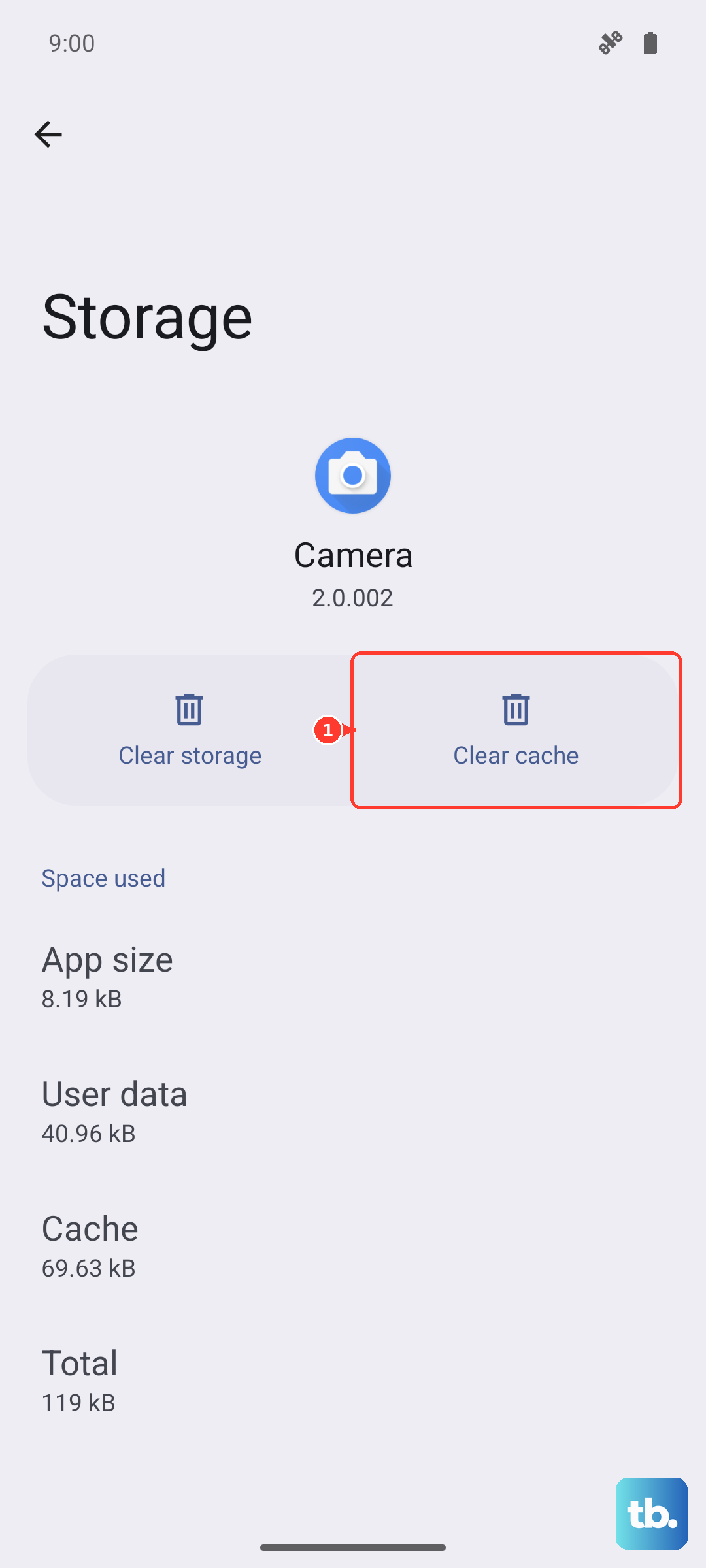
Corrupted temporary files can stop an app from working correctly. Clearing the cache is a safe first step that won't delete your login info or personal data. Go to Settings > Apps, select the app giving you trouble, then tap Storage & cache.
Tap "Clear cache". After doing this, force close the app by tapping "Force stop" on the same screen, then reopen it. This gives the app a fresh start and often resolves notification delivery issues.
Review OxygenOS's Special Notification Features
The OnePlus Open has some unique settings that can affect alerts. Go to Settings > Notifications & status bar. Look for options like "Lock screen notifications" and make sure they are configured to show content.
Also, check the "Manage notifications" section. Here, you might find a toggle for "Hide silent notifications in status bar". If this is on, notifications set to silent won't appear in your status bar, which could make it seem like you're getting nothing at all.
Disable Adaptive Notifications or Smart Hide
Some versions of OxygenOS include features that try to intelligently reduce notification clutter. These can sometimes be too aggressive. In your notification settings, look for any feature named "Adaptive notifications" or "Smart hide" and try turning it off temporarily to see if your alerts return.
This is a common fix for phones that learn your behavior and start hiding alerts from apps you don't interact with often. Turning it off gives you manual control again.
Check for Software Updates
OnePlus regularly releases updates that fix bugs, including notification problems. Connect to Wi-Fi and go to Settings > About device > OxygenOS version. Tap on the icon at the top right to check for an update.
If an update is available, install it. It's a good idea to do this while your phone is plugged into the included 67W SUPERVOOC charger to ensure the process isn't interrupted.
Reset App Preferences (A Broader Fix)
This resets all your app-related settings, like notification permissions, default apps, and background data restrictions, back to their factory defaults. It doesn't delete any app data. Go to Settings > Apps > See all apps.
Tap the three-dot menu in the top right and select Reset app preferences. Confirm your choice. Afterward, you'll need to re-grant notification permissions to your apps, but this can clear up system-wide conflicts.
Ensure Background Data is Unrestricted
If an app is restricted from using mobile data or Wi-Fi in the background, it can't receive new information to notify you about. Go to Settings > Apps, select the app, then tap Mobile data & Wi-Fi.
Make sure both "Background data" and "Unrestricted data usage" are enabled. This is particularly important for messaging apps like WhatsApp or Telegram that need a constant connection.
Inspect the Notification Log for Hidden Alerts
Android keeps a hidden log of every notification that has come in. You can check this to see if alerts are being received by the system but just not displayed. You'll need to add a special widget to your home screen.
Long-press on an empty area of your home screen, select "Widgets", and find the "Settings" widget. Drag it to your screen, and a menu will pop up. Select "Notification log" from the list. Tapping this new shortcut will show you a history of all notifications.
Boot into Safe Mode to Rule Out Third-Party Apps
If notifications work in Safe Mode, then a third-party app you installed is likely causing the conflict. To boot into Safe Mode, press and hold the Power button until the power menu appears.
Then, long-press the "Power off" option on your screen. A prompt will ask if you want to reboot to Safe Mode. Tap "OK". In Safe Mode, test if your notifications come through. If they do, you'll need to uninstall recently added apps one by one to find the culprit.
Consider a Backup and Factory Reset
If you've tried all else and the problem persists across multiple apps, a software glitch might be the cause. Before you do this, ensure all your important data is backed up to your Google account or copied to a computer.
For Xiaomi/Redmi/POCO, go to Settings > About phone > Factory reset > Erase all data; for OnePlus, go to Settings > Additional settings > Back up and reset > Reset phone. This will return your OnePlus Open to its out-of-box state. After setting it up again, test notifications before restoring all your apps to see if the core issue is resolved.