
Missing calls on your OnePlus Open can be a real headache, especially when you're expecting something important. You check your phone and see the missed call notification, but you never heard a thing. The good news is this is usually a simple setting or a minor software hiccup.
I'd start by checking the physical alert slider on the side of the phone. It's a signature OnePlus feature. If the slider is in the top position, your phone is in silent mode. Slide it down to the middle (vibrate) or bottom (ring) position and give it a test.
Check Your Do Not Disturb and Zen Mode Settings
OxygenOS has powerful focus tools that can silence calls. Swipe down from the top of your screen to open the Quick Settings panel. Look for the Do Not Disturb icon, which looks like a circle with a line through it. If it's highlighted, tap it to turn it off.
You should also check Zen Mode. This is OnePlus's deeper focus feature that can block all interruptions. Go to Settings > Special features > Zen Mode. Make sure no active Zen Mode session is running and review any schedules you might have set up.
Adjust Your Ringtone and Volume
Sometimes the issue is just volume. While your phone is unlocked, press the volume up button on the side. You'll see a volume bar appear. Make sure the bell icon above it isn't crossed out, which indicates silent mode. You can also dig into the settings.
Head to Settings > Sound & vibration > Ringtone. Try selecting a different default ringtone and see if it plays a preview. If it doesn't, there's a deeper issue. While you're there, go to Settings > Sound & vibration > Volume and ensure the call volume slider is all the way up.
Review Your Connected Bluetooth Devices
If your Open is connected to a smartwatch, wireless earbuds, or a car stereo, incoming call audio might be routing there instead of the phone's speaker. The simplest test is to turn Bluetooth off temporarily.
Swipe down for Quick Settings and tap the Bluetooth icon to disable it. Then, have someone call you. If it rings now, you know the issue is with audio routing. You can manage this per device in Settings > Connected devices.
Verify Call Blocking and Forwarding Settings
It's worth a quick check to make sure you haven't accidentally blocked the person trying to reach you. Open your Phone app, tap the three-dot menu, and go to Settings > Blocked numbers. Remove any numbers that shouldn't be there.
Call forwarding is another sneaky culprit. Open the Phone app, tap the menu, and go to Settings > Calling accounts > [Your Carrier] > Call forwarding. Make sure all forwarding options are set to "Turn off" or your carrier's default.
Disable Silence Unknown Callers
This helpful feature can sometimes be too aggressive. It sends calls from numbers not in your contacts straight to voicemail without a ring. To check it, go to Settings > Sound & vibration > Silence unknown callers. Toggle it off and see if your calls start coming through.
Remember, with the Open's large inner display, you have more screen real estate for call notifications. If the phone is open and on, you should see the call interface pop up even if it's not ringing audibly.
Perform a Simple Restart
A quick reboot clears out temporary glitches in the system that might be messing with the ringer. Press and hold the power button until the power menu appears, then tap "Restart." For a more forceful reset, press and hold the power button for about 10 seconds until the screen goes black and the OnePlus logo reappears.
Check for a Software Update
OnePlus regularly releases OxygenOS updates that fix bugs. Connect to Wi-Fi, then go to Settings > About device > OxygenOS version. Tap on the icon at the top right to check for updates. If one is available, download and install it. These updates often resolve audio and notification issues.
Reset Your App Preferences
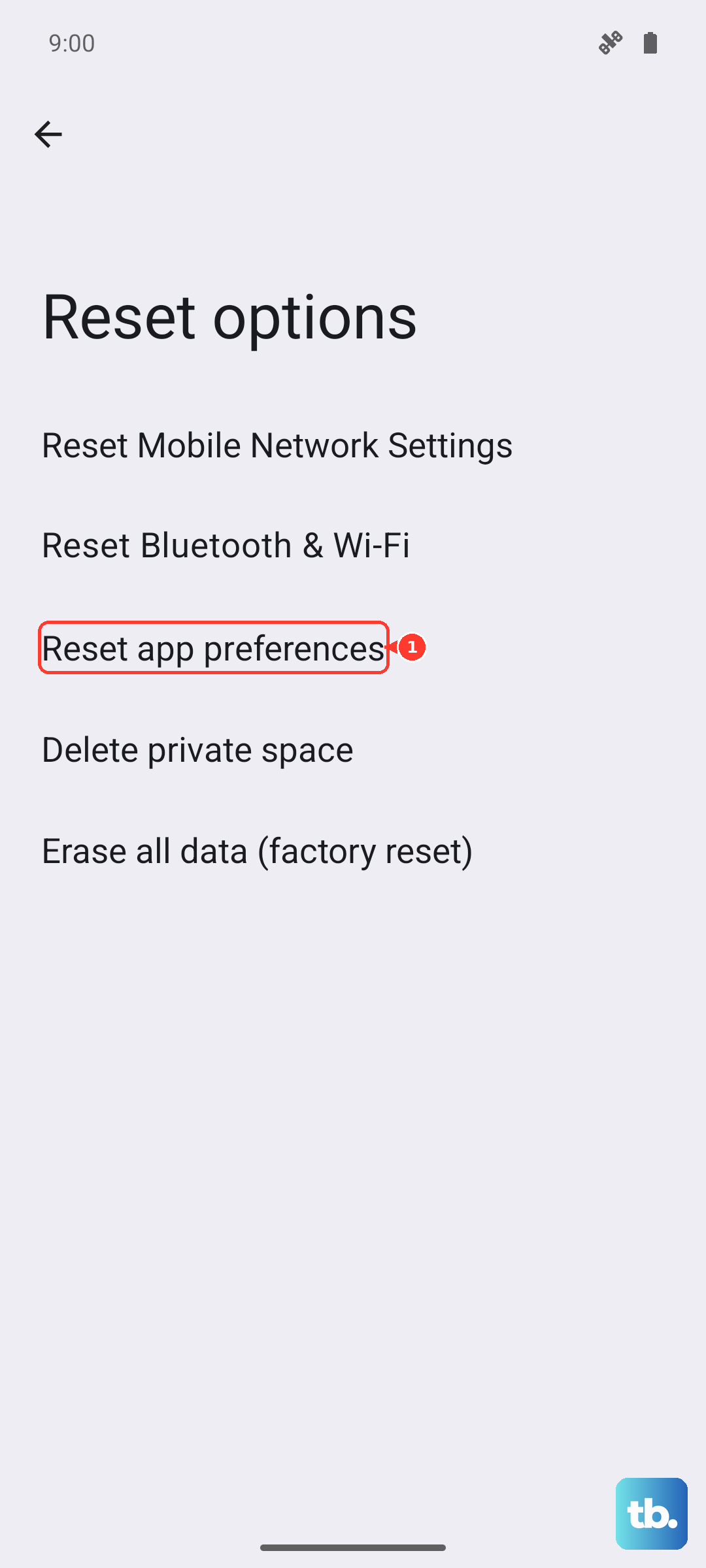
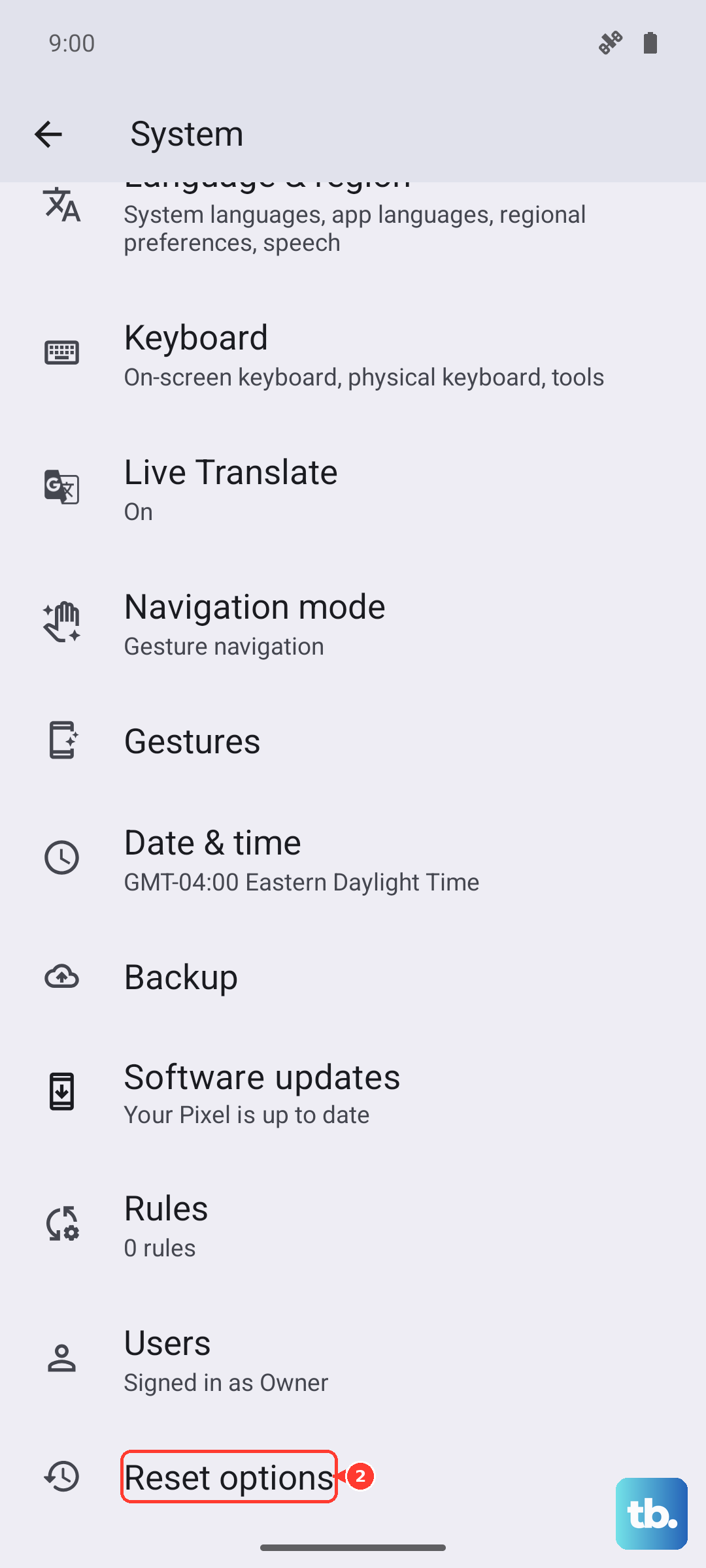
This is a less nuclear option than a full settings reset. It resets permissions, notification settings, and default apps without touching your personal data. Go to Settings > System > Reset options > Reset app preferences. Tap "Reset apps" to confirm. Afterward, you may need to re-allow phone and contacts permissions for your dialer app.
Inspect Your Notification Settings for the Phone App
Android's notification channels are detailed. The Phone app might have permission to notify, but the specific "Incoming call" channel could be blocked. Long-press on the Phone app icon and tap App info > Notifications.
Look for "Incoming calls" or a similar channel. Make sure it's toggled on, set to "Urgent" or with sound, and isn't minimized. Also, check that "Do Not Disturb" isn't overriding calls for this app.
Try Safe Mode
This boots your phone with all third-party apps disabled. If your ringer works in Safe Mode, a recently installed app is likely causing a conflict. To enter Safe Mode, press and hold the power button, then long-press the "Power off" option on your screen until you see a prompt to reboot to Safe Mode.
Test a call in this mode. If it rings, you'll need to uninstall apps one by one (starting with the most recent) to find the culprit. Common offenders are other dialer apps, sound modders, or aggressive battery savers.
Reset All Network Settings
This can help if the issue seems related to your carrier connection or VoIP apps like WhatsApp. It will reset Wi-Fi, mobile data, and Bluetooth settings. Go to Settings > System > Reset options > Reset Wi-Fi, mobile & Bluetooth. Confirm the reset. You'll need to reconnect to Wi-Fi networks and re-pair Bluetooth devices afterward.
Check for Hardware Issues
Before doing anything drastic, test the speaker. Play a YouTube video or a song at high volume. If you hear no sound at all from the earpiece or bottom speaker, you might have a hardware problem. Also, inspect the alert slider. Move it up and down a few times to ensure it's not stuck or loose.
With a foldable like the Open, ensure the inner display is fully opened when testing. Some software might behave differently when the phone is closed versus open, though call routing should remain consistent.
Perform a Factory Reset
This is your last resort. It will erase everything on your phone, so make a complete backup first. Go to Settings > System > Reset options > Erase all data (factory reset). Follow the prompts. After the phone reboots, set it up as new without restoring a backup immediately. Test a call right away.
If it rings on a fresh system, the problem was in your software configuration. If it still doesn't ring after a factory reset, the issue is likely with the hardware, and you should contact OnePlus support. Given the hinge mechanism on the Open, it's worth mentioning any physical damage when you seek support, as it could be related.