
When your OnePlus Open stops ringing for incoming calls, it can leave you feeling disconnected. This is a common hiccup with foldables, and it's usually something you can fix yourself without too much trouble. I'd start with the quick checks first, as they solve the majority of these issues.
Before we get into the deeper settings, let's cover the basics. Pull down from the top of your screen twice to open the full Quick Settings panel and make sure Airplane Mode is off. If it's on, tap it to turn it off, wait a few seconds, and then tap it on and off again to refresh the connection. Next, give your phone a quick restart by holding the Power button for about ten seconds until you see the OnePlus logo.
Also, take a quick glance at your signal bars. If you're in a basement or a building with thick walls, poor reception could be the simple culprit. Try moving to a window or stepping outside to see if your signal improves.
Check Your Do Not Disturb and Focus Modes
OxygenOS has several ways to silence your phone that are easy to activate by accident. Swipe down and check your Quick Settings for the Do Not Disturb icon. If it's highlighted, tap it to turn it off. For a more detailed look, go into Settings > Sound & vibration > Do Not Disturb.
Make sure no schedules are enabled that you didn't set up. Also, look at the "People" section within Do Not Disturb settings to ensure calls aren't being blocked from everyone or from unknown numbers. It's a good spot to check if you're only missing calls from certain contacts.
Review Call Blocking and Spam Protection
Your phone's built-in spam protection might be a little too aggressive. Open your Phone app and tap the three-dot menu in the top right, then go to Settings > Block numbers. Here, you can see a list of all manually blocked numbers.
Also, check the spam filter settings. In the same Phone app settings menu, look for "Caller ID & spam". Toggle off "See caller and spam ID" temporarily to see if a overzealous filter is blocking legitimate calls. You can always turn it back on later.
Disable Call Forwarding
If your calls are being silently sent to another number, you won't hear a ring. To check this on your OnePlus Open, open the Phone app and dial # # 002 # # and then tap the call button. This is a universal code to deactivate all call forwarding.
You can also check within settings. Go to Settings > Mobile network > SIM 1 (or SIM 2) > Call forwarding. Make sure all options like "Always forward" or "When busy" are set to "Disable".
Inspect Your SIM Card
A loose or faulty SIM card is a classic cause of call problems. You'll need the SIM ejector tool that came in the box. Gently push it into the small hole on the left side of the phone's frame to pop out the SIM tray.
Remove the SIM card, give the gold contacts a gentle wipe with a soft, dry cloth, and carefully re-seat it in the tray. Push the tray back in until it clicks. If you have another phone handy, testing your SIM card in it can quickly tell you if the problem is with the card or your OnePlus Open.
Reset Your Network Settings
This is a powerful step that clears out any corrupted network configuration. It will erase your saved Wi-Fi passwords, Bluetooth pairings, and mobile data settings, so be prepared to re-enter those. To do it, go to Settings > Additional settings > Back up and reset > Reset phone > Reset network settings.
Tap to confirm, and your phone will reboot. After it comes back on, you'll need to reconnect to your Wi-Fi and mobile network. This often resolves persistent calling and signal issues.
Update Your Software
OnePlus regularly releases updates that fix bugs, including ones related to calling and network connectivity. Make sure you're running the latest version of OxygenOS. Go to Settings > About device > OxygenOS version and tap on the top banner that says "Check for update".
If an update is available, connect to Wi-Fi and plug in your 67W SUPERVOOC charger to install it. Keeping your foldable updated is crucial for stability, especially with the unique dual-screen software.
Clear the Phone App's Cache and Data
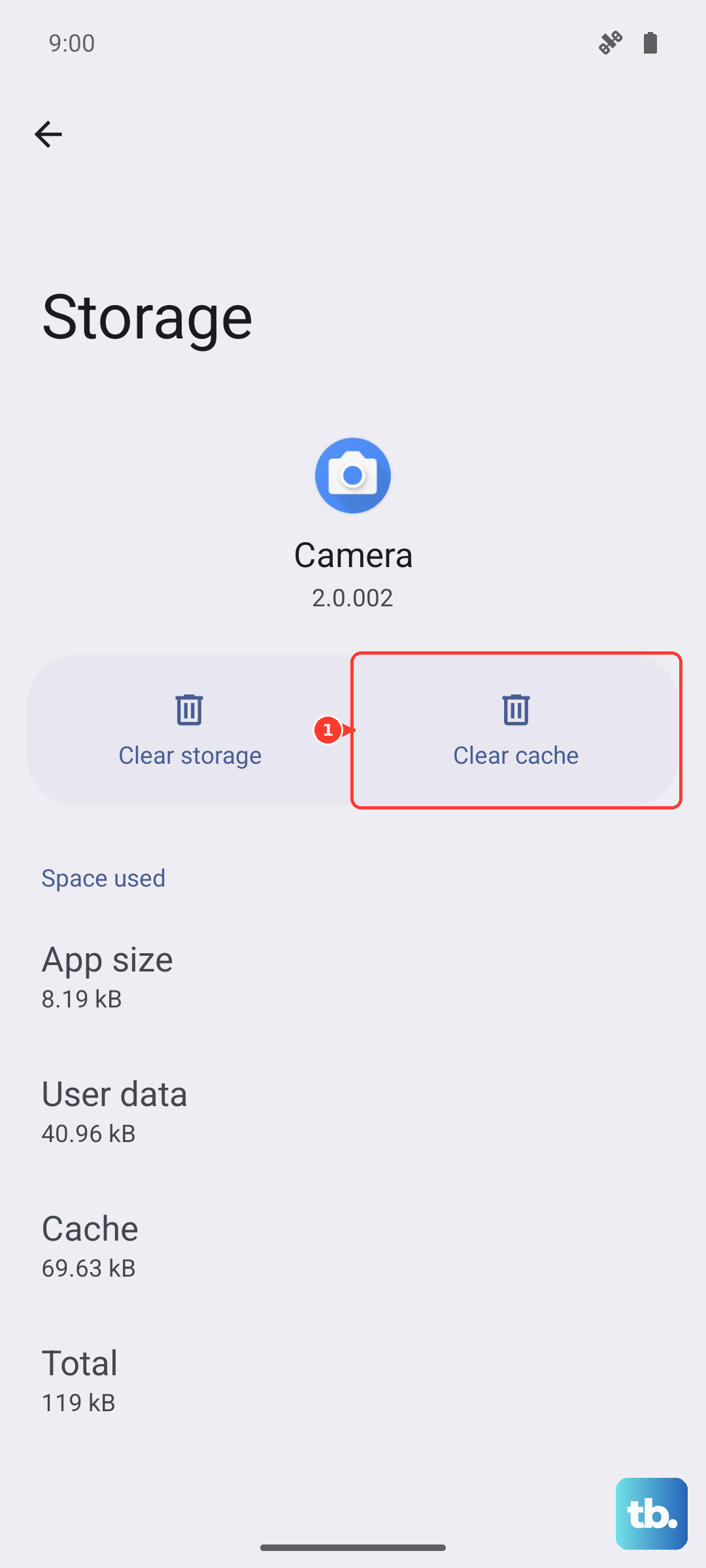
Sometimes the Phone app itself gets bogged down with temporary files. Go to Settings > Apps > App management and find "Phone" in the list. Tap on it, then select Storage usage.
Tap "Clear cache" first. If the problem persists, you can tap "Clear data". Just be aware that clearing data will reset the app to its default state, so you might lose your call log and any custom settings within the dialer.
Check for App Interference
A recently installed app could be interfering with call functions. Think about any new apps you downloaded around the time the calling issue started, especially call recorders, dialers, or security apps. Try uninstalling them one by one to test.
You can also boot your OnePlus Open into Safe Mode to disable all third-party apps temporarily. Press and hold the Power button, then tap and hold the "Power off" icon on your screen until you see the Safe Mode prompt. If calls work normally in Safe Mode, you know a downloaded app is the cause.
Contact Your Mobile Carrier
The issue might not be with your phone at all. There could be a network outage in your area, or there might be a problem with your account. Use another phone to call your carrier's customer service.
Ask them to check for outages and to verify your line is active and in good standing. They can also reprovision your connection on their network, which is like refreshing your account from their end. It's a simple step on their side that can make a big difference.
Perform a Factory Reset
This is your last resort before considering a hardware issue. A factory reset will erase everything on your phone, so it's absolutely critical to back up your photos, messages, and important data first. You can use OnePlus' built-in backup tool or Google's backup service.
Once backed up, go to Settings > Additional settings > Back up and reset > Erase all data (factory reset). Follow the prompts to reset the phone. After it completes and restarts, set it up as new without restoring a backup immediately to see if the calling function works on a clean system.