
If your OnePlus Open is refusing to send picture messages or group chats, it's a frustrating roadblock. The good news is, it's almost always a software or setting hiccup that you can fix yourself. Let's get your multimedia messages flowing again.
Start With a Quick Restart
Before diving into settings, give your phone a fresh start. Press and hold the Power button for about 10 seconds until you feel a vibration and see the OnePlus logo. This force restart can clear out temporary glitches that might be hanging up the messaging service.
Confirm Your Mobile Data Is On and Strong
MMS doesn't travel over WiFi like iMessage does. It requires your cellular data connection. Swipe down from the top of your screen to open the Quick Settings panel and make sure the mobile data icon is active.
Also, check your signal bars. If you're in a basement or a rural area with weak reception, the message might just be stuck trying to send. Moving to a location with better coverage often does the trick.
Verify the MMS Settings in Your App
Open your Messages app and tap the three-dot menu in the top-right corner. Go to Settings > Advanced.
Here, ensure that "Auto-download MMS" is turned on. If you're traveling, you might also want to enable "Auto-download MMS when roaming," but be mindful of potential charges.
Check Your APN Settings
This is a very common culprit. The Access Point Name (APN) is how your phone knows how to connect to your carrier's multimedia service. If these settings are wrong, MMS won't work.
Go to Settings > Mobile network > SIM (choose your active SIM) > Access Point Names. You should see an APN list, with one selected (usually your carrier's name).
Don't change anything here randomly. Instead, search online for "[Your Carrier] APN settings 2026" or contact their support directly to get the correct, current configuration. A single mistyped field can break MMS.
Clear the Cache for Your Messages App
Corrupted temporary files can cause all sorts of app misbehavior. Clearing the cache is safe and won't delete your messages.
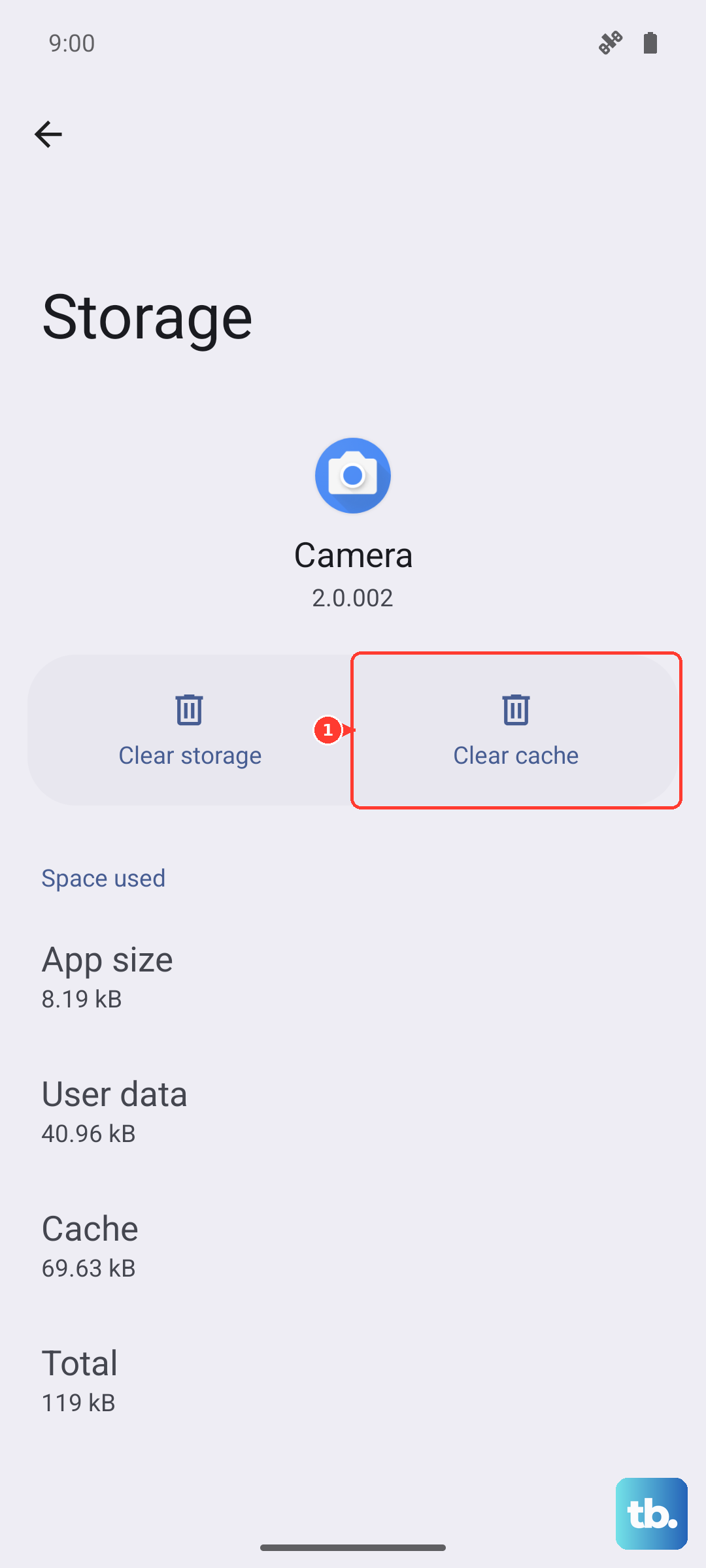
Head to Settings > Apps > Messages. Tap on Storage & cache and then hit Clear cache. Go back and try sending an MMS again.
Update Your Phone and Carrier Services
An outdated system can have bugs that affect messaging. Go to Settings > About device > OxygenOS version and tap on the icon to check for updates.
Also, open the Google Play Store, tap your profile icon, and go to Manage apps & device > Manage > Updates available. Look for an update to "Carrier Services" and install it, as this app is crucial for MMS and RCS functionality.
Reset Your Network Settings
If you're still stuck, this is a powerful step. It will wipe all your saved WiFi networks, Bluetooth pairings, and cellular settings back to default, but it often resolves deep-seated connection issues.
Go to Settings > Additional settings > Back up and reset > Reset phone. Here, select Reset Wi-Fi, mobile & Bluetooth. Confirm the reset, and your phone will reboot. You'll just need to reconnect to your WiFi and Bluetooth devices afterward.
Try Google Messages as Your Default App
The default messaging app on the OnePlus Open is good, but sometimes switching to Google Messages can bypass odd compatibility issues. Download Google Messages from the Play Store.
Once installed, open it and it will usually prompt you to set it as default. If not, go to Settings > Apps > Default apps > SMS app and select Google Messages. Test your MMS from within this new app.
Ensure You Have Enough Storage Space
Your phone needs a little free space to process and send multimedia files. If your storage is critically full, it can fail silently.
Go to Settings > About device > Storage to see your available space. If it's very low, consider deleting some old downloads, app caches, or unused apps to free up a few hundred megabytes.
Contact Your Carrier for Support
If you've tried everything here, the issue might be on your carrier's end. There could be a service outage in your area, or your line might need a provisioning refresh for MMS.
Give them a call or use their online chat. You can tell them you've already verified your APN settings and reset network settings, which will help them move to more advanced troubleshooting on their side.