Is your OnePlus Open feeling sluggish when you open apps or switch between screens? That's a frustrating experience with a premium foldable. The good news is, there are several straightforward things you can do to speed it up right now.
Performance lag on the Open can stem from a few common areas. These include background apps hogging the powerful Snapdragon chip, storage getting too full, or software that needs a quick refresh. I'd start with a simple restart, as it clears out temporary system glitches that can cause slowdowns.
Perform a Force Restart
If your Open is frozen or extremely slow to respond, a force restart is the quickest fix. Press and hold the Power and Volume Up buttons for at least 10 seconds. Keep holding it until you see the OnePlus logo appear on the screen, then release.
This forces a clean boot and can resolve temporary software hiccups instantly. It's different from a normal restart and is often more effective for performance issues.
Close Apps Running in the Background
Even on a phone with 16GB of RAM, having dozens of apps open can slow things down. To close them, swipe up from the bottom of the screen and hold to enter the recent apps view.
You can swipe up on individual app cards to close them, or tap the three-dot menu in the top-right corner and select "Close all." I'd recommend doing this every couple of days to keep things running smoothly.
Check and Free Up Storage Space
When your internal storage gets too full, it can seriously impact performance. Head to Settings > Storage to see what's taking up space. The Open comes with either 512GB or a massive 1TB, but it can still fill up.
Look for "Large files" or review categories like Apps, Videos, and Images. Consider moving photos and videos to Google Photos or another cloud service. Uninstalling apps you haven't used in months can free up a surprising amount of space and resources.
Update Your Apps and OxygenOS
Outdated apps and system software are common culprits for lag. First, open the Google Play Store, tap your profile icon, and go to "Manage apps & device." Install any pending app updates, as developers often release performance patches.
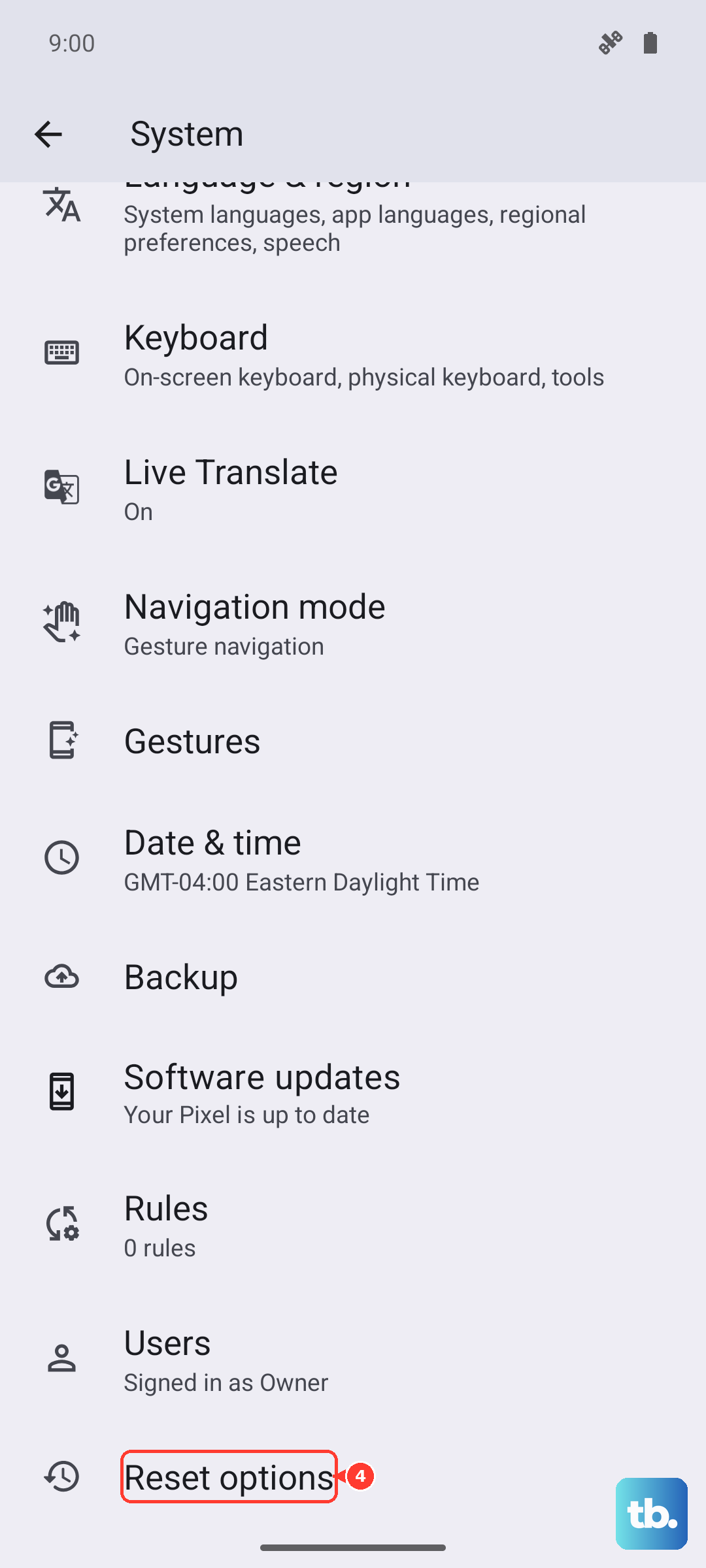
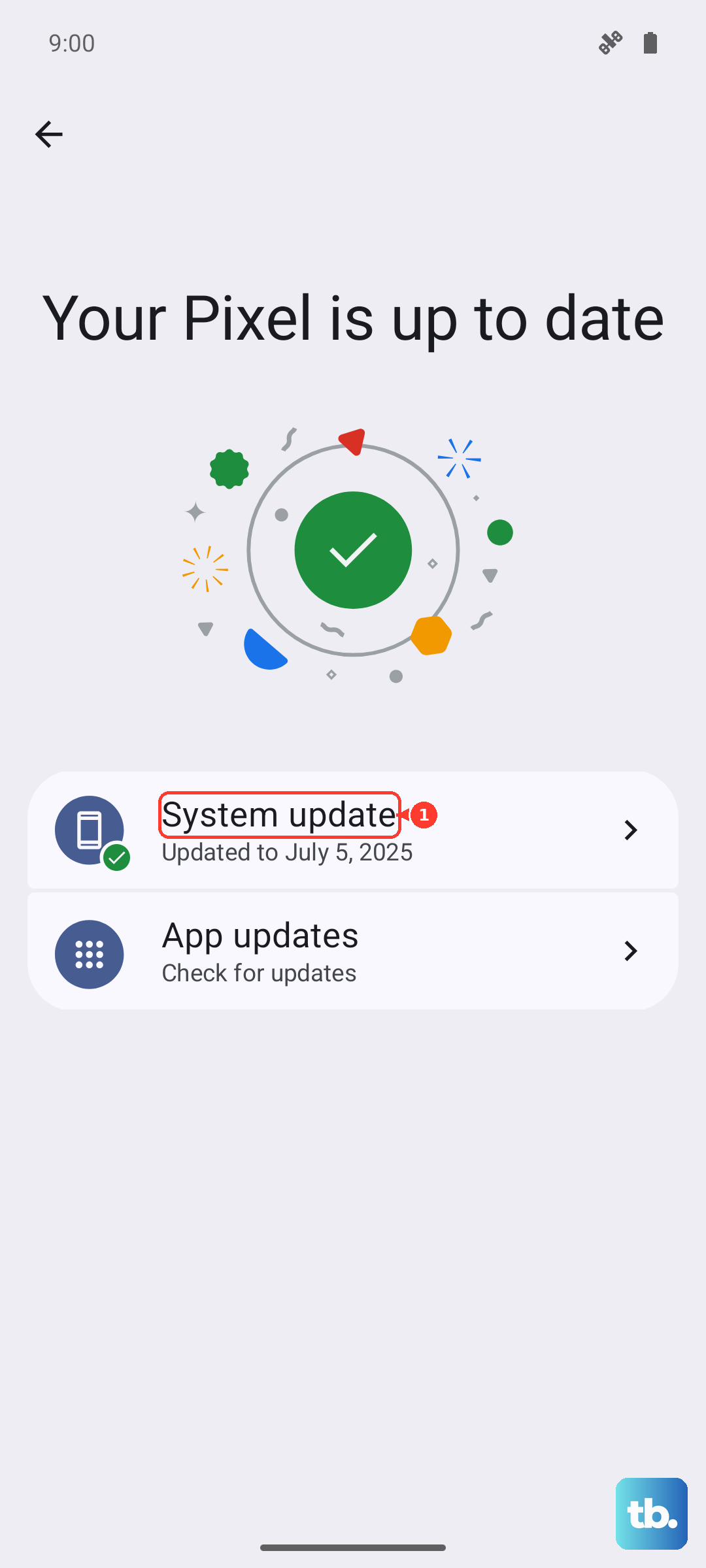
More importantly, check for a system update. Go to Settings > About device > OxygenOS version and tap on the icon at the top. OnePlus frequently releases updates that optimize performance and fix bugs specific to the foldable experience.
Clear App Caches
Over time, apps store temporary data (cache) that can become corrupted and slow things down. You can clear the cache for individual apps. Go to Settings > Apps > See all apps, select a problematic app, then tap "Storage & cache."
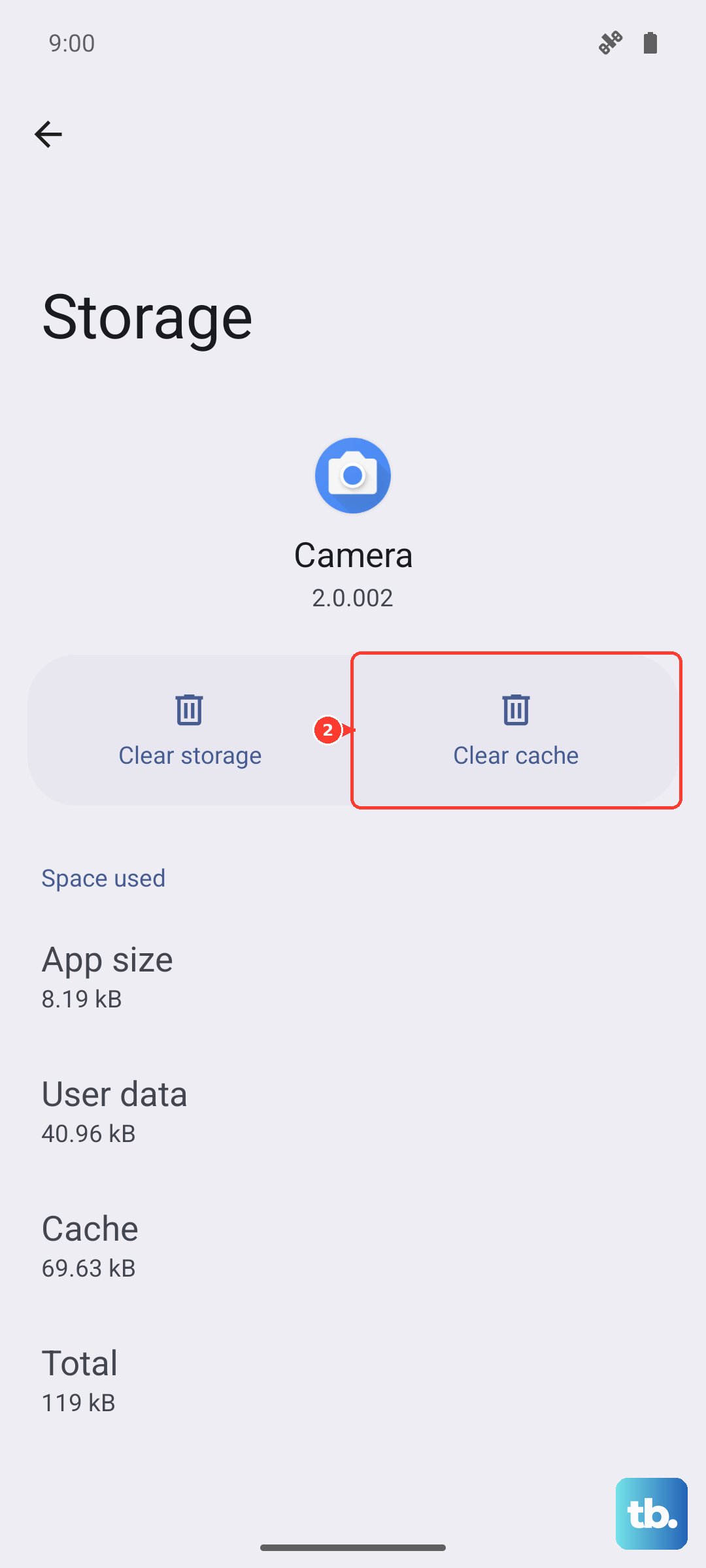
Choose "Clear cache." This won't delete your login info or saved data. It's a good maintenance step for apps like Chrome, social media apps, or games that feel slow.
Manage Background Processes and Notifications
Some apps are overly aggressive with background activity. You can restrict this to save battery and CPU cycles. Go to Settings > Apps, select the app, and open its battery usage settings to manage battery optimization.
Tap the three-dot menu, select "Advanced optimization," and you can enable features like "Sleep standby optimization." Also, review Settings > Notifications & status bar > App notifications to turn off unnecessary alerts, which can also wake the device and use resources.
Optimize Display and Animation Settings
The stunning 120Hz displays on the Open are smooth, but the animations can sometimes feel laggy if the system is struggling. You can speed up the perceived performance by reducing animation scale.
First, enable Developer Options by going to Settings > About device and tapping "Version" 7 times. Then, go back to Settings and into "System settings > Developer options." Scroll to the "Drawing" section and set "Window animation scale," "Transition animation scale," and "Animator duration scale" to "0.5x" or turn them off.
Check for Rogue or Problematic Apps
A single misbehaving app can drag down the entire system. Go to Settings > Battery and see which apps are using the most power in the last 24 hours. An app with high usage that you barely opened might be the problem.
You can also boot into Safe Mode to see if a third-party app is causing the slowdown. Hold the power button, then long-press the "Power off" option on-screen until you see the Safe Mode prompt. If your phone is fast in Safe Mode, you know a downloaded app is to blame.
Reset App Preferences or Network Settings
This is a less drastic reset that can help. Go to Settings > System settings > Reset options. Tapping "Reset app preferences" will reset permissions, default apps, and background restrictions without deleting any app data.
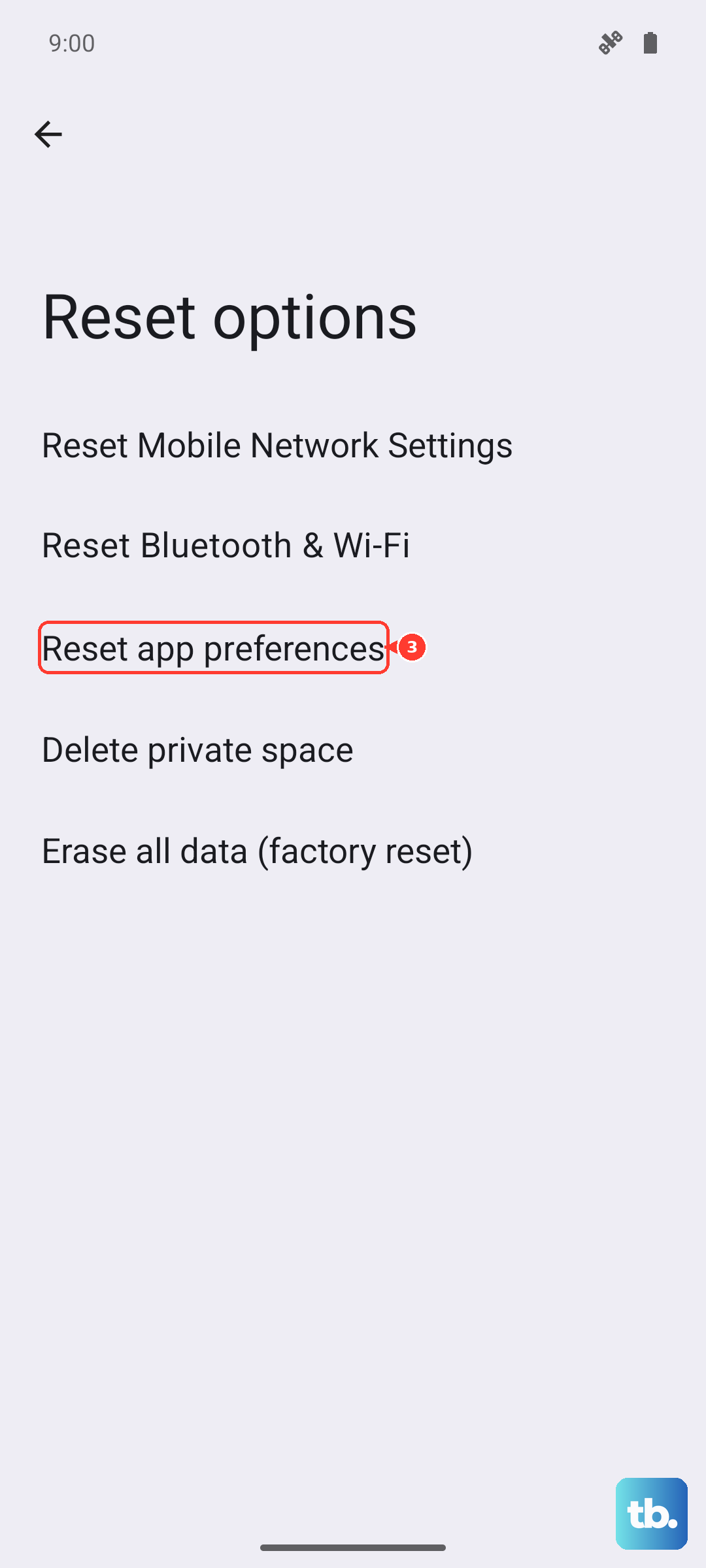
If your slowdown seems related to connectivity (like Wi-Fi or Bluetooth lag), you can try "Reset Wi-Fi, mobile & Bluetooth" from the same menu. You'll just need to reconnect to your networks and re-pair devices afterward.
Perform a Factory Reset (Last Resort)
If you've tried everything and the phone is still slow, a factory reset will wipe it back to its original state. This is a nuclear option, so you must back up everything important first. Use Google's backup or the OnePlus Clone Phone app.
Once backed up, go to Settings > System settings > Reset options > Erase all data (factory reset). Follow the prompts. After the reset, set up the phone as new instead of restoring a full backup, as sometimes corrupted data in a backup can reintroduce the problem.