You tap Install in the Google Play Store on your OnePlus Open, the icon spins for a second, and then the download stalls; the app sits on "Pending," throws an error code, or quietly refuses to finish. On a foldable you lean on for messaging, banking, and streaming across both the cover and inner screens, a Play Store that will not pull down apps turns a premium phone into a frustrating one.
The good news is that the OnePlus Open is a standard Google Play (Google Mobile Services) Android phone running OxygenOS, so almost every download failure traces back to a fixable software hiccup, whether that is a flaky connection, a full storage partition, a confused Play Store cache, or a stale sign-in. The fixes below go in order from the quickest and safest to the most drastic, so start at the top and stop as soon as your download completes.
Rule out the connection, storage, and clock first
Before you touch any app settings, clear the three conditions that silently block installs more often than anything else. These take a minute each and none of them risk your data.
A weak or dropped connection is the most common reason a download stops. Make sure you have a strong internet connection, and connect to a Wi-Fi network if you can, since a stable Wi-Fi signal tends to be more reliable than mobile data for large downloads.
Switching networks also clears the kind of temporary routing problem that leaves a download stuck on "Pending." Open Settings > Wi-Fi and tap Wi-Fi.
Select your Wi-Fi network from the list and connect.
Return to the Play Store and retry the download.
Next, check your free space. Low storage stops installs without always showing a clear warning, and your device needs at least 1 GB of available space to download and install apps.
Large apps and games can need several times that, so leave yourself room to spare. Open Settings and tap Storage.
Check how much space is free; if you are near full, delete unused apps, photos, or large files.
Try the download again once you have cleared room.
Finally, confirm the clock. A wrong date or time breaks the secure connection between your phone and Google's servers, which can fail downloads for no obvious reason.
Letting the phone set the time from the network keeps it accurate after travel or a long stretch powered off. Go to Settings > System > Date & time.
Turn on Set time automatically and the automatic time zone option.
Wait a few minutes, restart if needed, then retry the download.
Give the Play Store and the phone a fresh start
If the basics check out, the download session itself may be stuck. Closing and reopening the Play Store, then rebooting the phone, clears temporary glitches without changing any settings.
To force close the Play Store, swipe up from the bottom of the screen, hold, then release to see your open apps. Swipe up on Google Play Store to close it, then tap the Play Store icon to reopen it.
A clean launch often clears a frozen download and lets a stalled install pick back up.
If that alone does not work, restart the OnePlus Open. When the phone is powered on, press the power button and volume up button simultaneously, then tap Restart to reboot the device.
A reboot clears memory and restarts the background services that handle downloads.
Once it powers back up, open the Play Store and try the download once more.
Clear the cached data that stalls downloads
A corrupted Play Store cache is one of the most common causes of download problems, and clearing it is a standard fix. Clearing the cache is harmless and only removes temporary files; clearing storage may reset some Play Store settings, so use that step only if clearing the cache alone does not help.
- 1.Touch and hold the Google Play Store icon, then tap App info. On the OnePlus Open you can also reach this through Settings > Apps > App management > App list and selecting the app.
- 2.Tap Storage & cache, then Clear Cache.
- 3.If the problem continues, tap Clear storage, then Delete.
- 4.Reopen the Play Store and retry the download.
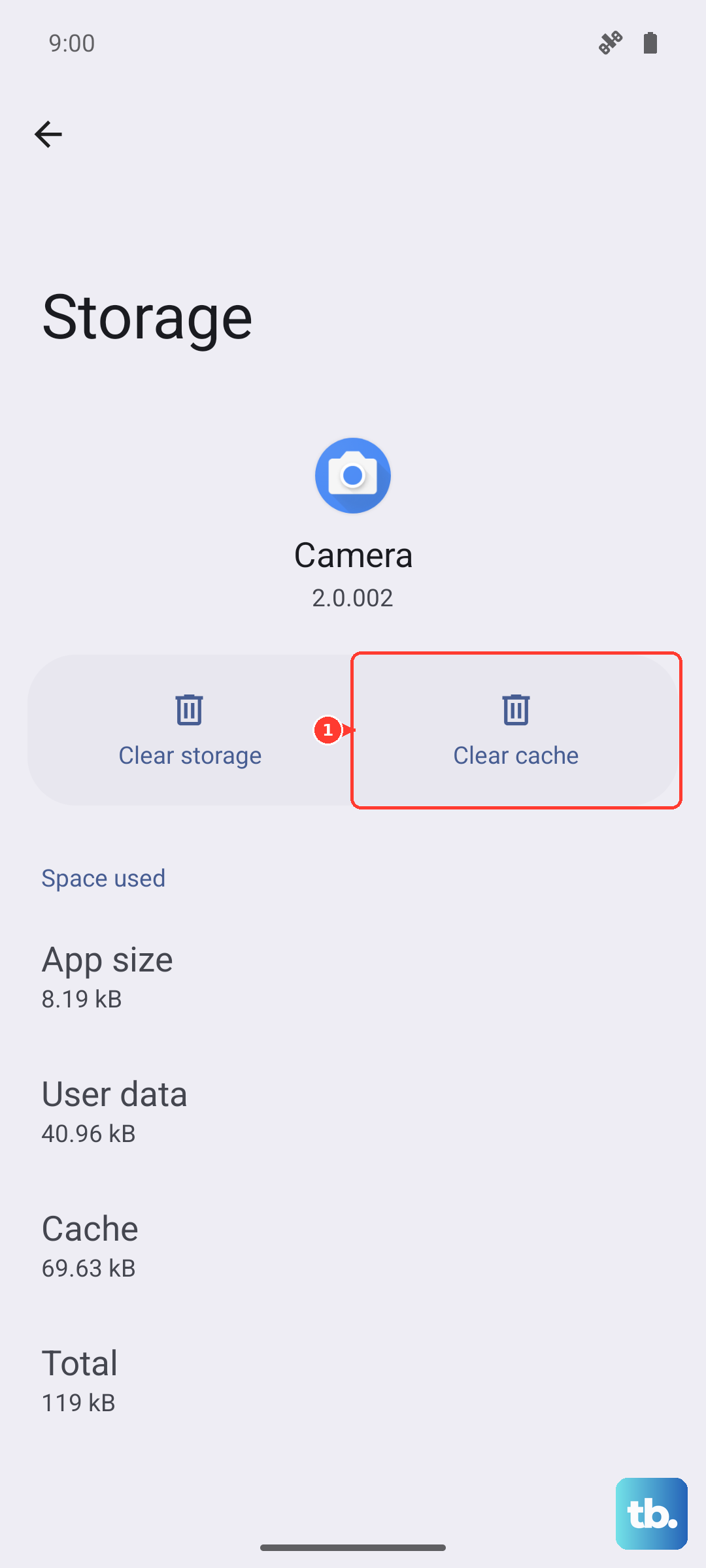
Google Play services runs downloads in the background, so a problem there can stop installs even when the Play Store itself looks fine. Clearing its data can remove saved passwords and payment information, so be ready to re-add those afterward.
Go to Settings > Apps > Google Play services > Storage & cache.
Tap Clear cache and test the download.
If it still fails, tap Clear storage > Clear all data > Delete, then try again.
Roll back a buggy Play Store and update OxygenOS
Sometimes a faulty Play Store build is the culprit. You can roll it back to the version that shipped with the phone and then let it update itself cleanly, which often resolves errors introduced by a bad update.
Touch and hold Google Play Store, then tap App info.
Tap More, then Uninstall updates, then OK.
To reinstall the latest version, open the Play Store and tap your Profile, then go to Settings > About and tap Update Play Store.
An out-of-date system can also cause install failures, so make sure OxygenOS is current. On the OnePlus Open, enter Settings > About device > Software update, and the system starts to check for updates; follow the instructions to download and update.
If your device is already up to date, no update prompt appears, and you can move on to the next step.
Refresh a stale Google Account
A stale or out-of-sync sign-in can block Play purchases and downloads even when everything else is working. The fix is to back up your data first, then remove your Google Account from the phone and add it back before trying the download again.
After you sign back in, give the account a moment to sync, then open the Play Store and attempt the install once more. Because this signs you out of Google services on the device, only do it once the simpler steps above have failed, and have your Google password and any verification method ready before you remove the account.
Force restart a frozen phone or Play Store
If the screen is unresponsive or the Play Store is completely frozen mid-download, a force restart cuts the power and brings the phone back cleanly. On the OnePlus Open, long press the power button and volume up button for 10 seconds; the phone will shut down, and then press the power button to turn the device on again.
Note that holding only the power button does not force restart this model, so be sure to hold power and volume up together for the full 10 seconds. A force restart does not erase any data; it just cuts power to an unresponsive system.
Once the phone reboots, open the Play Store and retry the download.
Factory reset as a last resort, then contact OnePlus Support
If none of the above works, a factory reset is the final software step. This is destructive, so treat it as a last resort.
Restoring factory settings will wipe all app data, contacts, text messages, and so on, so back up important data before you start.
Back up your contacts, messages, photos, and any other important data.
Go to Settings > Additional settings > Back up and reset > Reset phone.
Tap Reset phone, then enter your passcode if prompted.
Wait until the factory reset is complete, then set the phone up again and test a download.
If apps still will not download after a clean reset, the issue may be tied to your account or to the hardware, and it is time to escalate. Reach out to OnePlus Support for further help, and describe the steps you have already tried so they can pick up from there.
Frequently Asked Questions
Why won't my OnePlus Open download apps even on Wi-Fi?
A strong connection is only one piece. Even on Wi-Fi, a download can fail if your phone has less than 1 GB of free storage, if the date and time are not set automatically, or if the Play Store or Google Play services cache is corrupted. Work through the storage, clock, and cache fixes above and the download usually completes.
Will clearing Play Store storage delete my installed apps?
No. Clearing the Google Play Store cache is harmless, and clearing its storage does not remove apps you have already installed, though it may reset some Play Store settings. Clearing Google Play services storage is different, since it can remove saved passwords and payment information, so you will need to add those back.
How do I force restart a frozen OnePlus Open?
Long press the power button and volume up button together for 10 seconds until the phone shuts down, then press the power button to turn it back on. Holding only the power button will not force restart this model, so you must use the power and volume up combination.
Does a factory reset erase everything, and is it worth trying for download problems?
Yes, a factory reset wipes all app data, contacts, text messages, and more, so back up your important data first. It is a genuine last resort for stubborn download failures; if installs still fail after a reset, contact OnePlus Support, since the cause may be account-related or hardware-related.