
If your OnePlus Nord 4 feels sluggish online, you're not stuck with it. The metal unibody is great for heat dissipation, but slow internet is usually a software or network setting that you can adjust yourself.
I'd start with the quickest fixes first, like toggling your mobile data or restarting the phone. These often clear up temporary glitches that can bog down your connection.
Toggle Airplane Mode On and Off
This is the fastest way to refresh your Nord 4's connection to the cellular network. Swipe down from the top of your screen to open the Quick Settings panel and tap the Airplane icon.
Wait about 10 seconds, then tap it again to turn it off. Your phone will reconnect to the strongest available signal, which can instantly improve speeds if you were stuck on a weak tower.
Restart Your OnePlus Nord 4
A simple reboot clears out temporary system caches and stops any background processes that might be hogging bandwidth. Just press and hold the power button until the power menu appears, then tap restart.
If the screen is unresponsive, you can force a restart by holding the power button down for 10 seconds or more until you feel the phone vibrate and see the OnePlus logo.
Check Your Mobile Data Network Mode
Your Nord 4 might be clinging to a slower network type like 3G. You can force it to use the faster 4G or 5G networks. Go to Settings > Mobile network.
Tap on your SIM card, then select Preferred network type. Choose "5G/4G/3G/2G (Auto)" or, if you want to prioritize speed over battery, select "5G/4G/3G (Auto)". This tells your phone to avoid the slower 2G networks entirely.
Enable Data Saver on OxygenOS
OxygenOS has a built-in Data Saver that restricts background data for all apps. This frees up bandwidth for the app you're actively using. Go to Settings > Mobile network > Data usage.
Tap on Data saver and toggle it on. You can also tap "Unrestricted data" to allow specific apps, like your music streaming service, to bypass this restriction.
Clear the Cache for Chrome and Google Play Services
Over time, your browser and core Google services store temporary files that can become corrupted and slow things down. For Chrome, open the app, tap the three dots in the top right, and go to History > Clear browsing data.
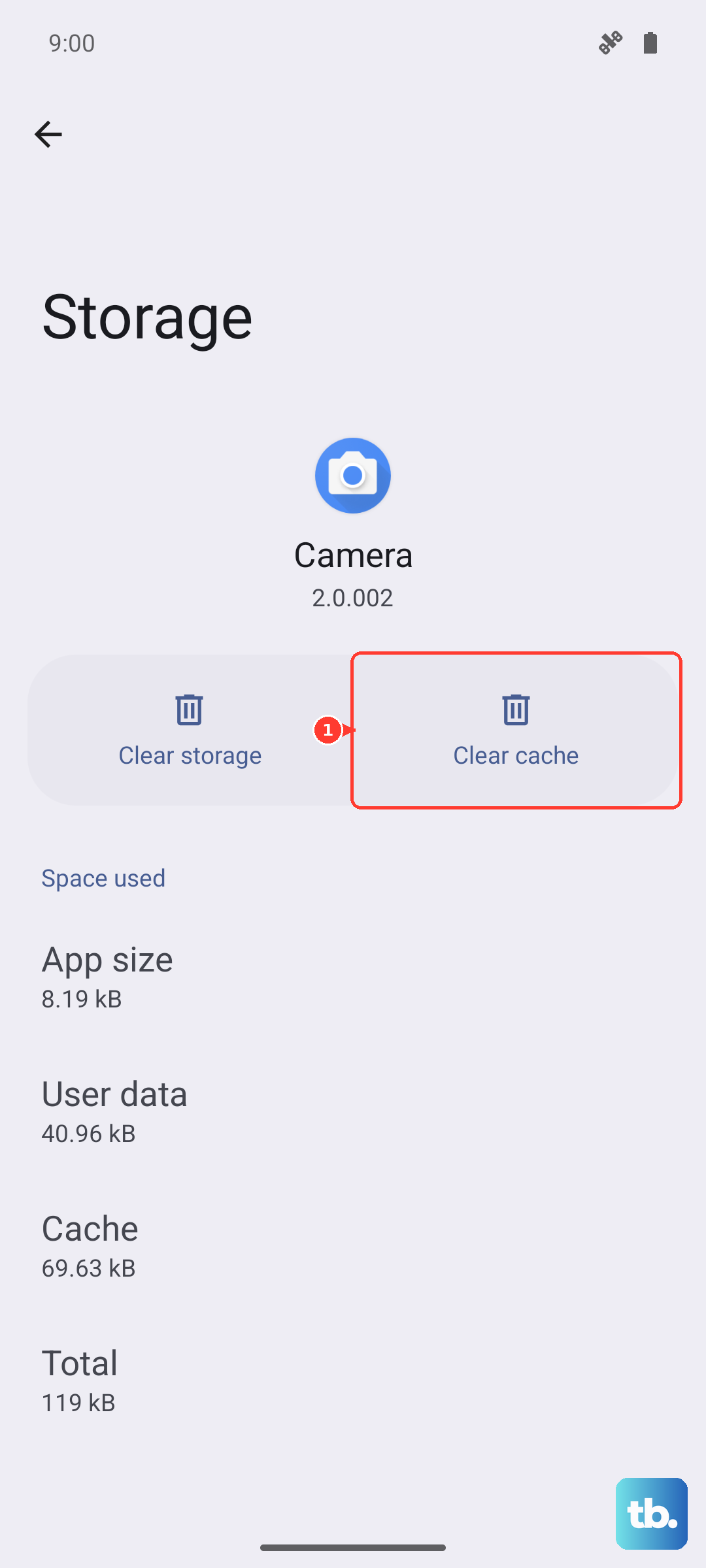
Select "Cached images and files" and tap "Clear data." For a deeper system clean, go to Settings > Apps > See all apps, find "Google Play Services," tap on it, then select Storage & cache > Clear cache.
Reset Your Network Settings
This will wipe all your saved WiFi passwords, Bluetooth pairings, and cellular network preferences, but it's a very effective fix for persistent issues. Go to Settings > Additional settings > Backup & reset.
Tap on Reset phone, then select Reset Wi-Fi, mobile & Bluetooth. Confirm the action. After the phone reboots, you'll need to reconnect to your WiFi and re-pair Bluetooth devices.
Check for App-Specific Data Restrictions
You might have accidentally told a specific app not to use mobile data. Go to Settings > Apps > See all apps and select the app that's running slow.
Tap on Mobile data & Wi-Fi. Make sure both "Allow background data usage" and "Allow data usage" are toggled on. If they're off, the app will only work on WiFi.
Update Your Software and Carrier Services
OnePlus regularly releases OxygenOS updates that include connectivity improvements and bug fixes. Go to Settings > About device > OxygenOS version and check for updates.
Also, open the Google Play Store, search for "Carrier Services," and update that app if available. It helps manage your connection to your mobile provider's network.
Disable Any VPN or Proxy Service
While VPNs are great for privacy, they route your traffic through another server, which almost always adds latency and reduces speed. Swipe down your Quick Settings panel and look for a VPN key icon.
If you see one, go to Settings > Network & internet > VPN and disconnect from any active VPN profile. Also, check Settings > Wi-Fi & internet > Private DNS and set it to "Off" to rule out a slow DNS server.
Use the Correct Cable for File Transfers
This is a Nord 4 specific tip. The phone comes with a USB-A to USB-C cable optimized for its 100W SuperVOOC charging. For the fastest data transfer speeds to a computer, you need a USB-C to USB-C cable.
Using the included charging cable for data can limit you to USB 2.0 speeds. I've seen this cause issues where cloud backups or large file uploads seem painfully slow.