
If your OnePlus Nord 4 is refusing to send picture messages or group chats, it's a frustrating roadblock. On OxygenOS 14, this usually comes down to a data setting, a glitch in the messaging app, or a carrier configuration that needs a tweak. Let's get your MMS working again.
Make Sure Mobile Data is On and Working
This is the most common fix. Unlike regular texts, MMS requires an active mobile data connection, even if you're on Wi-Fi. Swipe down from the top of your screen twice to open the Quick Settings panel and tap the mobile data icon to make sure it's enabled.
If it's on but you're still stuck, try turning Wi-Fi off completely for a moment. Some networks can interfere with the data path MMS needs. Send a photo using just your cellular connection to see if that's the issue.
Check Your Nord 4's MMS Settings
Open your Messages app and tap the three-dot menu in the top right, then go to Settings. Look for a section called Multimedia messages or Advanced.
Inside, ensure Auto-download MMS is turned on. You might also see a setting for maximum message size; if it's set very low, try increasing it. I've seen this trip people up when sending high-resolution photos from the Nord 4's capable camera.
Restart Your Phone
It sounds too simple, but a quick reboot clears out temporary software glitches that can hang up the messaging service. Just press and hold the power button until the power menu appears, then tap restart.
If the phone is completely unresponsive, you can force a restart by holding the power button down for about 10 seconds or more until you feel it vibrate and see the OnePlus logo.
Clear the Cache for Your Messages App
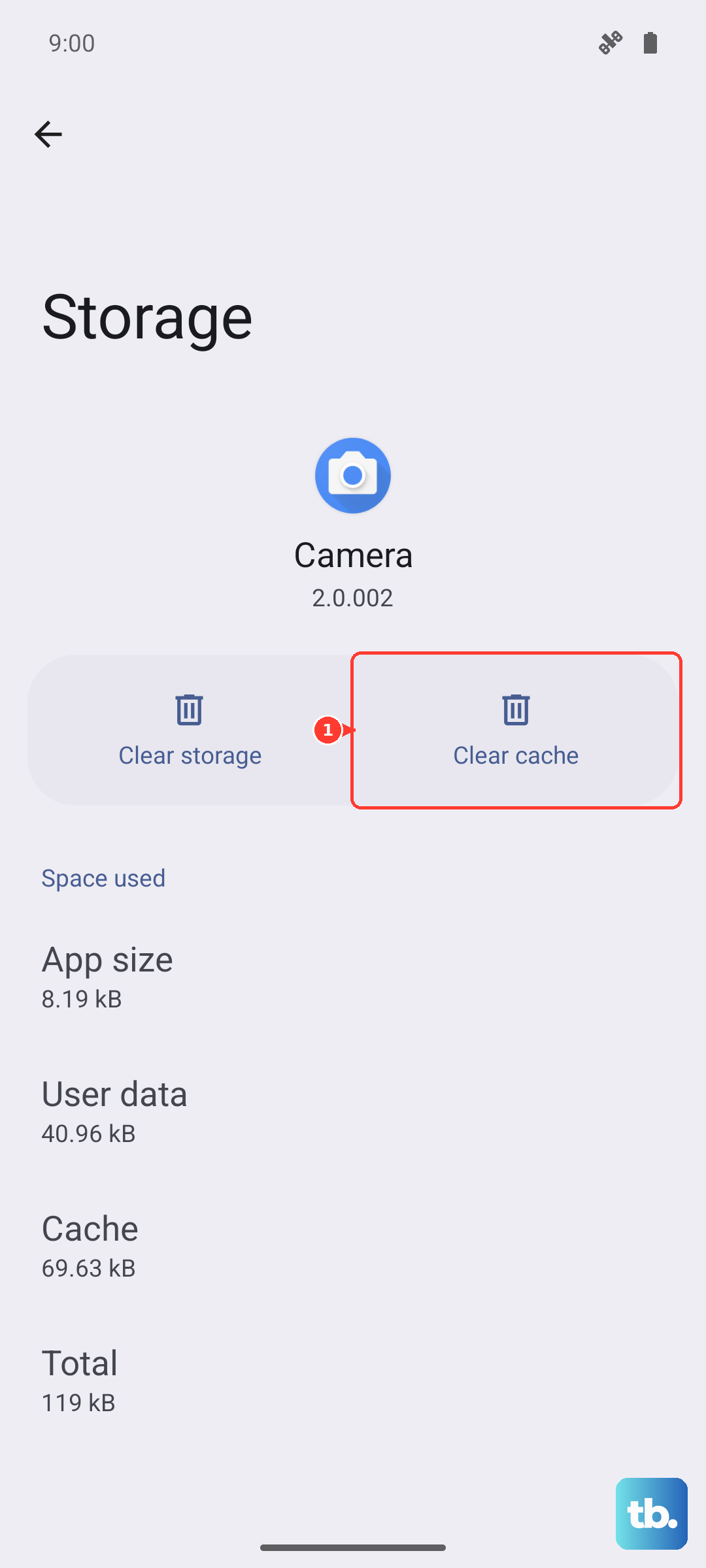
Corrupted temporary files can cause all sorts of app misbehavior. Go to Settings > Apps > See all apps. Find and tap on Messages, then select Storage & cache.
Tap Clear cache. This won't delete any of your actual texts or conversations. Give it a try and then test an MMS. If that doesn't work, you can try the more nuclear option of Clear storage or Clear data, but be warned this will erase your entire message history.
Verify Your APN Settings
Access Point Name settings are how your phone talks to your carrier's data and MMS network. If they're wrong, MMS will fail. Go to Settings > Mobile network.
Tap on your SIM card, then select Access Point Names. You should see a list with at least one APN selected (indicated by a filled-in circle). Tap on it to view the details.
You need to check that the MMSC (Multimedia Messaging Service Center), MMS proxy, and MMS port fields are filled in correctly. The exact values are unique to your carrier. A quick web search for "[Your Carrier] APN settings 2024" or a call to their support will get you the right info to enter.
Update Your Software
An outdated system can have bugs that break MMS. OnePlus regularly pushes updates for the Nord 4 that fix these kinds of issues. Go to Settings > About device > OxygenOS version.
Tap on the icon at the top right and select Download and install. If an update is available, let it download and install. Your phone will restart, and it's worth testing your messages again afterward.
Reset Network Settings
This is a deeper fix that resets all connectivity back to factory defaults. It will erase saved Wi-Fi networks, Bluetooth pairings, and cellular settings (including any custom APNs you've entered).
To do it, navigate to Settings > Additional settings > Backup & reset. Tap on Reset phone, then choose Reset network settings. Confirm and let the phone restart. Afterward, you'll need to reconnect to Wi-Fi and re-pair Bluetooth devices, but it often clears up stubborn MMS problems.
Check Your Phone's Storage Space
The Nord 4 needs a bit of free space to process and send multimedia messages. If your storage is critically full, it can fail. Go to Settings > About device > Storage to see how much space you have left.
If you're running low, try clearing out some old downloads, app caches, or unused apps. Deleting very old message threads with lots of photos and videos can also free up a surprising amount of room.
Try Google Messages as Your Default App
Sometimes the issue is with the default messaging app itself. A great troubleshooting step is to install Google Messages from the Play Store. It's highly reliable and often receives MMS compatibility updates faster.
Once installed, open it and set it as your default app when prompted. Then, try sending your picture message again. If it works, you can stick with Google Messages or use its success to confirm the problem is with the original app.
Contact Your Mobile Carrier
If you've tried everything here, the issue might be on your carrier's end. Give their technical support a call. They can check if there's an outage affecting MMS in your area, verify your account is properly provisioned for multimedia messaging, and give you the exact, up-to-date APN settings for your OnePlus Nord 4.
Be sure to tell them you're using a OnePlus Nord 4 on OxygenOS 14, as settings can vary by device. They may even be able to refresh your connection to their network from their side, which can sometimes resolve the issue immediately.