
Seeing that "MMS download failed" message on your OnePlus Nord 4 when someone sends you a picture or video is a common annoyance. It usually comes down to a setting that got switched off, a network hiccup, or a temporary glitch in the messaging app itself.
Let's get those photos and group chats flowing again. I'd start with the quick checks at the top, as they fix the issue more often than not.
Restart Your OnePlus Nord 4
It sounds too simple, but a force restart clears out temporary software bugs that can block MMS. Press and hold the power button for about 10 seconds until you feel the phone vibrate and the OnePlus logo appears on screen.
This is different from a normal restart and can clear deeper system caches. Give it a try before moving to more involved steps.
Check Your Mobile Data Connection
MMS doesn't download over Wi-Fi on most carriers, it needs an active mobile data connection. Swipe down from the top of your screen to open the Quick Settings panel and make sure the mobile data icon is lit up.
Also, take a glance at your signal bars. If you're in a spot with very low signal, try moving to a different area or near a window. A weak connection can time out before the multimedia file finishes downloading.
Verify MMS Auto-Download Settings
The most common culprit on OxygenOS is the auto-retrieve setting being disabled. Open your default Messages app, tap the three-dot menu in the top right, and go to Settings > Multimedia messages.
Here, make sure Auto-retrieve MMS is turned on. If you're traveling, you might also need to enable Auto-retrieve when roaming. With these on, your Nord 4 should grab MMS files as soon as they arrive.
Update Your Messages App and Carrier Services
An outdated messaging app can cause download failures. Open the Google Play Store, tap your profile icon, and go to Manage apps & device > Manage > Updates available.
Look for updates to "Google Messages" if that's your default app, or "Carrier Services." Installing these updates can resolve compatibility issues with your network's MMS system.
Clear the Cache for Your Messaging App
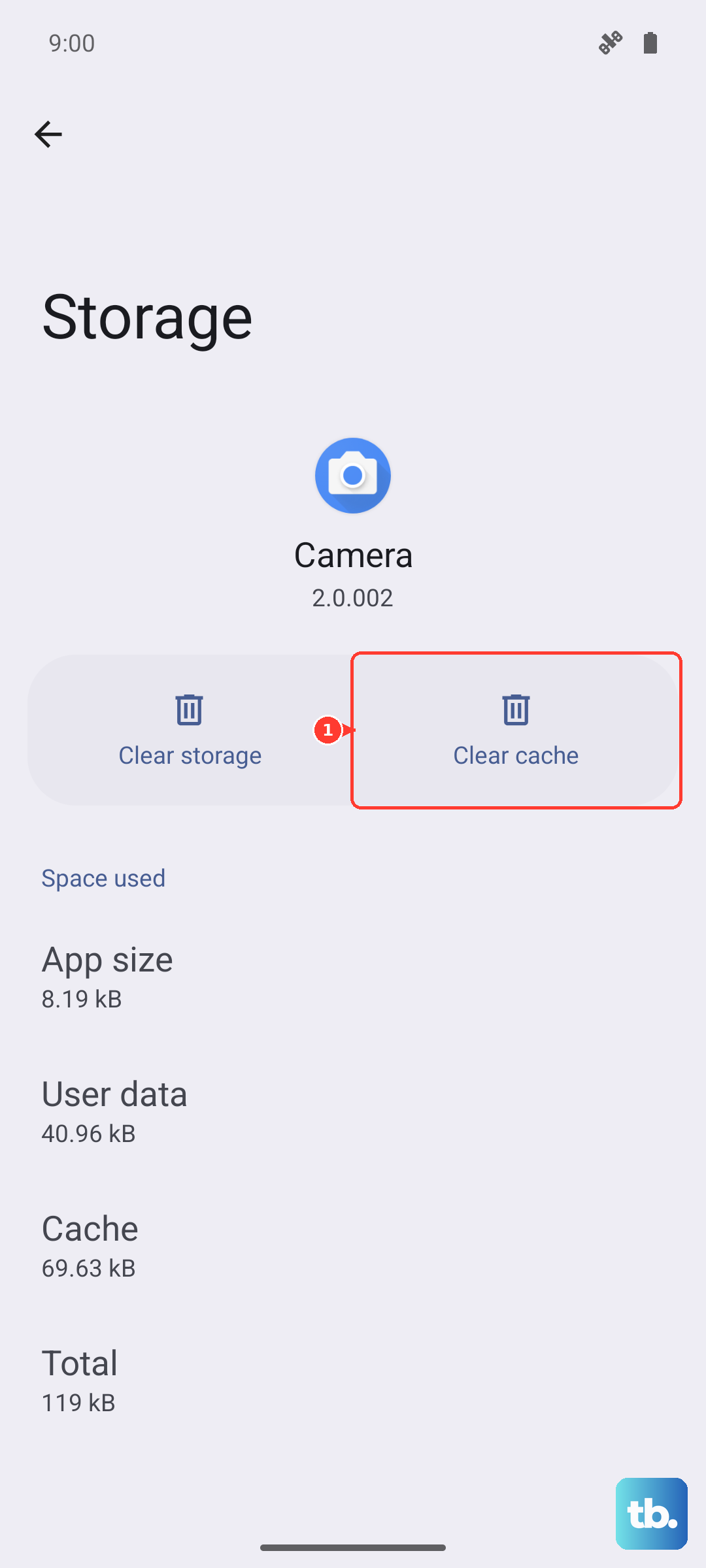
Corrupted temporary files in the app's cache can break MMS. Go to your Nord 4's Settings > Apps > Manage apps. Find and tap on your messaging app (like "Messages").
Tap Storage usage and then Clear cache. This won't delete your actual texts or media, just the temporary data. After clearing, force close the app and reopen it to see if downloads work.
Review Your APN Settings
Incorrect Access Point Name (APN) settings will block MMS. These are specific to your mobile carrier. Go to Settings > Mobile network > SIM (choose your active SIM) > Access Point Names.
Tap the APN you're using (it should have a filled circle next to it). You need to verify the MMSC field is correct. The exact address is different for every carrier, like T-Mobile, Verizon, or AT&T.
The best move here is to contact your carrier's support or visit their website for the exact, updated APN details for your OnePlus Nord 4. A single typo in this field can cause the failure.
Reset Your Network Settings
This will wipe all your saved Wi-Fi networks, Bluetooth pairings, and mobile network settings back to default, which can fix deeper configuration errors. Go to Settings > Additional settings > Back up and reset > Reset phone.
Tap Reset Wi-Fi, mobile & Bluetooth. Confirm the reset. Your phone will reboot, and you'll need to reconnect to Wi-Fi and re-pair Bluetooth devices, but it often clears persistent MMS issues.
Check for a System Software Update
OxygenOS updates from OnePlus frequently include bug fixes for connectivity and messaging. Go to Settings > About device > OxygenOS version.
Tap the top banner to check for updates. If one is available, download and install it. Make sure your phone is connected to Wi-Fi and has at least a 50% charge, or better yet, plug in that included 100W SuperVOOC charger.
Try a Different Messaging App
If the problem persists only in your current app, it might be the app itself. Download a popular alternative like Google Messages from the Play Store and set it as your default.
See if MMS downloads work in the new app. If they do, the issue is with your previous messaging application. You can stick with the new app or use this to confirm the problem is app-specific before taking more drastic steps.