Your OnePlus Nord 4 is locked up. The screen will not respond to taps, the display may be stuck on the OnePlus logo, or it has gone completely black and ignores every press. Because the Nord 4 uses a sealed metal unibody with a non-removable battery, you cannot pop the back off and pull the cell to force a reboot the old-fashioned way. The good news is that this model has built-in hardware recovery paths that work even when the touchscreen is dead, and most freezes clear with a couple of minutes of effort.
A freeze is usually a software hiccup rather than a broken phone, often triggered by a stalled app, a drained battery, or a pending system update that has not installed yet. Work through the fixes below in order, starting with the easiest and safest, and stop as soon as your phone is responsive again. The steps move from a simple charge and a forced restart up to a full factory reset, so you only reach the data-erasing options if the gentler ones fail.
Rule Out a Drained Battery First
A phone that looks frozen on a black screen is sometimes just out of power, especially if it shut down on its own and now refuses to wake. OnePlus support is explicit about this. If your phone cannot be turned on or indicates low battery capacity when turning on, charge it for a while to make sure it has enough battery to power up. This is the lowest-risk thing you can try, and it costs you nothing but a short wait.
Plug the Nord 4 into the 100W SUPERVOOC charger, since this model charges over the wired SUPERVOOC connection only and does not support wireless charging. Leave it connected for a while before you attempt to power it on again, and use a working wall outlet rather than a weak power source so the battery actually gains charge. A charging indicator or the boot animation appearing after a flat-battery shutdown often means there was never a software freeze at all, just an empty battery.
Force a Restart When the Touchscreen Will Not Respond
If the screen is frozen or unresponsive, a forced restart cuts power to the system and reboots it without touching your data. The Nord 4 belongs to the "OnePlus 6T and subsequent products" group, which has its own button combination that differs from older OnePlus phones.
- 1.Press and hold the Volume Up button and the Power button together.
- 2.Keep holding both for 10 seconds.
- 3.Release the buttons and check whether the phone is turning on.
Do not reach for the power-button-only trick you may have used on an older handset. Holding Power alone for 7 seconds is documented only for the OnePlus 6 and earlier, not for the Nord 4, so on this model it will not reliably force the restart. If nothing happens on the first try, plug the phone in and repeat the 10-second hold, since a very low battery can stop a restart from completing.
Install a Pending Software Update
Once the phone is responsive again, check for a system update. Freezing is frequently caused by a software bug, and OnePlus ships fixes for these problems through OxygenOS updates, so installing the latest build is one of the most effective ways to stop the freezes from coming back.
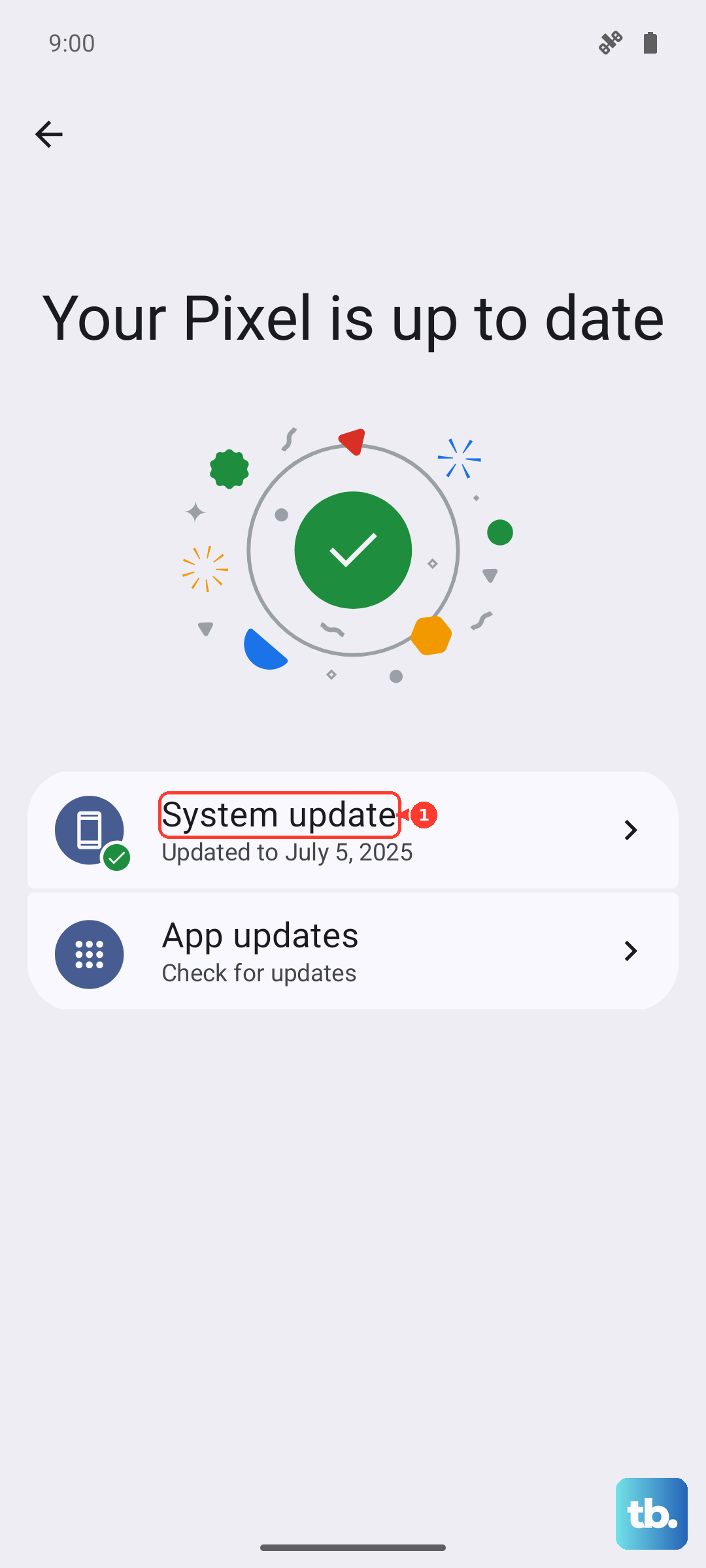
On OxygenOS 14.1 and above, go to Settings > System & update > Software update. On newer OxygenOS builds, the path is Settings > About device, where you tap the OxygenOS card at the top to check for updates. Connect to stable Wi-Fi and keep the phone charged before you start, and if you are already current the phone will tell you no update is available.
Clear a Stuck Boot Using Recovery Mode
Sometimes the phone powers on but hangs on the OnePlus logo or the boot animation and never reaches the home screen. For that specific symptom, OnePlus directs you into Recovery Mode to clear the system data that can cause a boot hang.
Turn off the device.
Press the Power button and the Volume Down button at the same time for a few seconds to enter Recovery Mode.
Select "Wipe data and cache - Reset system setting."
This clears system data that can leave the phone stuck during startup. Because the option is named with "Wipe data," treat it as a step that can erase personal data, and make sure you have a recent backup in place before you confirm it. That backup is the next step.
Back Up Your Files Before You Erase Anything
The remaining fix is a factory reset, and a reset erases everything on the phone, so a backup is not optional. OnePlus points you to your Google account for this, which keeps a copy off the device and out of reach of the wipe.
Open Settings > Google > Backup.
Toggle on "Back up to Google Drive."
Choose or add your Google account.
Tap "Back up now."
Also export anything truly important to a computer. On-device backup files are stored on the phone itself, which means a factory reset clears them along with everything else, so a copy that lives only on the handset will not survive. Photos, contacts, and account logins are the items people most often lose, so confirm those are safe first.
Perform a Factory Reset as the Last Software Step
If the Nord 4 keeps freezing after updating and clearing the cache, a factory reset returns the software to a clean state. Treat this as a last resort because it wipes all personal data on the phone, and only run it once your backup from the previous step is complete.
Open Settings > System settings, which is labeled "Additional settings" on some OxygenOS versions.
Tap Back up and reset.
Tap Reset phone.
Tap Erase all data.
Confirm only when you are certain your photos, accounts, and files are safely backed up. Once the erase begins, the data on the phone is gone, and there is no undo after it starts. When the phone reboots, sign back in with the same Google account to restore the backup you made.
When to Hand the Phone to OnePlus Support
There is one symptom that signals the problem is hardware rather than software, and no amount of restarting or resetting will fix it. According to OnePlus, if your phone has no response or no display but vibrates when you force-restart it, you should contact after-sales support instead of continuing with DIY steps.
That telltale buzz on a dead screen usually points to a fault best handled by a OnePlus Service Center. Stop troubleshooting at that point so you do not risk making a hardware issue worse, and let a technician assess the device. If the phone is still under warranty, hold off on any further teardown attempts so you do not void your coverage.
Frequently Asked Questions
Will a force restart delete the data on my OnePlus Nord 4?
No. Holding Volume Up and Power for 10 seconds simply reboots the phone the same way a normal restart would, and it does not erase your photos, apps, or settings. Only the Recovery Mode wipe and the factory reset remove data.
Can I remove the battery to fix a freeze?
No. The Nord 4 has a sealed metal unibody with a non-removable battery, so there is no battery-pull option. The forced restart with Volume Up and Power held for 10 seconds is the equivalent step on this model.
Why does holding just the Power button not restart my Nord 4?
The power-button-only method, holding Power for 7 seconds, is documented only for the OnePlus 6 and earlier. The Nord 4 falls in the "OnePlus 6T and subsequent products" group, which uses Volume Up and Power together for 10 seconds instead.
Which buttons open Recovery Mode on the Nord 4?
Turn the phone off first, then press and hold the Power button and the Volume Down button together for a few seconds. This is the menu OnePlus points to when the phone is stuck on the OnePlus logo or boot animation.
My Nord 4 vibrates when I force-restart it but the screen stays black. What should I do?
That combination of a vibration with no display points to a possible hardware fault. OnePlus advises contacting after-sales support in this exact case, so reach out to a OnePlus Service Center rather than attempting further fixes yourself.