You framed a shot on your OnePlus Nord 4, pressed the shutter, and the photo came back soft, smeary, or stubbornly out of focus. Maybe the preview itself looks hazy, the camera hunts back and forth without locking on, or a quick snap of a moving subject turns into a blur. The good news is that most blurry-photo complaints on the Nord 4 come from something simple and fixable, not a broken sensor.
It helps to know what this phone actually has. OnePlus lists a 50MP main "Sony LYTIA" sensor (f/1.8) with Multi Autofocus (CAF+PDAF) and OIS support, plus an 8MP ultra-wide (f/2.2, 112 degrees) and a 16MP front camera (f/2.4). Only the main camera has autofocus and optical stabilization; the ultra-wide and selfie cameras are fixed-focus, so tapping to focus only changes the main shooter. Work through the fixes below in order, starting with the safest and easiest.
Start by wiping the rear camera lens
A fingerprint, a speck of dust, or an oily smudge on the rear glass is the single most common reason photos look soft or foggy. Even a thin film you can barely see will scatter light and rob your shots of detail. Wipe the rear camera lens gently with a clean, soft cloth, then take another photo to compare.
This is the symptom that OnePlus's official "Camera cannot focus" support guidance addresses, so it is worth ruling out before anything more involved. If your shots sharpen up right away, you are done.
Take off any case, cover, or stick-on lens protector
A case lip, a third-party cover, or a stick-on lens protector that overlaps the rear glass can soften every photo and even confuse autofocus. Cheap glass or plastic protectors over the camera are a frequent culprit because they add an extra layer the lens has to shoot through.
Remove any case, cover, or stick-on lens protector that sits over or near the lens, then re-test the camera. If the blur disappears, the accessory was the problem, and you can leave it off or replace it with one cut cleanly around the camera.
Tap your subject so the main camera locks focus
The Nord 4's main 50MP camera uses Multi Autofocus (CAF+PDAF), but it still needs to know what you want sharp. In the OnePlus camera app, tap the part of the scene you want in focus so the main camera locks onto it, then take the shot.
Keep one limitation in mind. Tap-to-focus only affects the main camera. The ultra-wide and the front selfie camera are fixed-focus, so tapping the screen will not refocus those lenses. If close-up subjects look soft on the wide or selfie camera, that is the fixed-focus design rather than a fault.
Hold the phone steady to stop motion blur
Not all blur is a focus problem. If your hand moves while the shutter fires, especially in dim light, you get motion blur even when focus is perfect. The main camera's OIS helps, but the ultra-wide and selfie cameras have no stabilization, so steadiness matters most on those.
Brace your elbows, hold the phone with both hands, and stay still for a moment after you tap to focus and before you press the shutter. Giving the autofocus a beat to settle, then holding steady, removes a surprising amount of everyday blur.
Close the camera app and open it again
If the preview is blurry, frozen, or showing a black screen, the camera app itself may have glitched. OnePlus has an official "Camera stuck, failed to open or black screen" article covering exactly this behavior.
Close the camera app from the Recent apps view, then open it fresh. A clean relaunch clears a hung session and often restores a sharp, responsive preview without anything more drastic.
Restart the Nord 4
When reopening the app is not enough and the camera stays stuck or soft, a normal restart clears temporary system glitches that a single app relaunch cannot. A restart is a standard next step for a camera that will not behave.
Power the phone off and back on the usual way, then open the camera and take a test photo. A reboot frees up memory and resets background processes that may have been interfering with the camera.
Force restart when the camera freezes or goes black
If the screen is frozen, black, or unresponsive and a normal restart will not go through, use OnePlus's official force-restart method for the OnePlus 6T and later, which includes the Nord 4.
- 1.Press and hold the Volume Up button and the Power button together.
- 2.Keep holding both for 10 seconds until the phone restarts.
- 3.Let go, wait for it to boot, then open the camera and test a photo.
Use this combination rather than holding the Power button alone; the Volume Up plus Power sequence is the method OnePlus documents for this phone.
Install the newest OxygenOS update
Camera focus and image-quality bugs are frequently patched in software updates. The Nord 4 shipped with OxygenOS 14.1 based on Android 14 and has since received OxygenOS 15 and OxygenOS 16 stable updates, so staying current can directly fix a blur-causing bug.
- 1.Connect to Wi-Fi and keep the phone charged.
- 2.Open Settings > System & update > Software update to check for and install any update.
- 3.Reopen the camera once the phone restarts and take a test shot.
If that menu does not show an update, you can also try the alternative path of Settings > About device, then tap the OxygenOS card to check.
Back up your data, then factory reset
If photos are still blurry after everything above, a factory reset clears deeper software problems as a last resort before you suspect hardware. This erases the phone, so a backup first is essential.
OnePlus warns that a factory reset wipes all of your personal data, so back it up before you start.
- 1.Back up your photos and data with OnePlus Switch and/or copy your files to a PC.
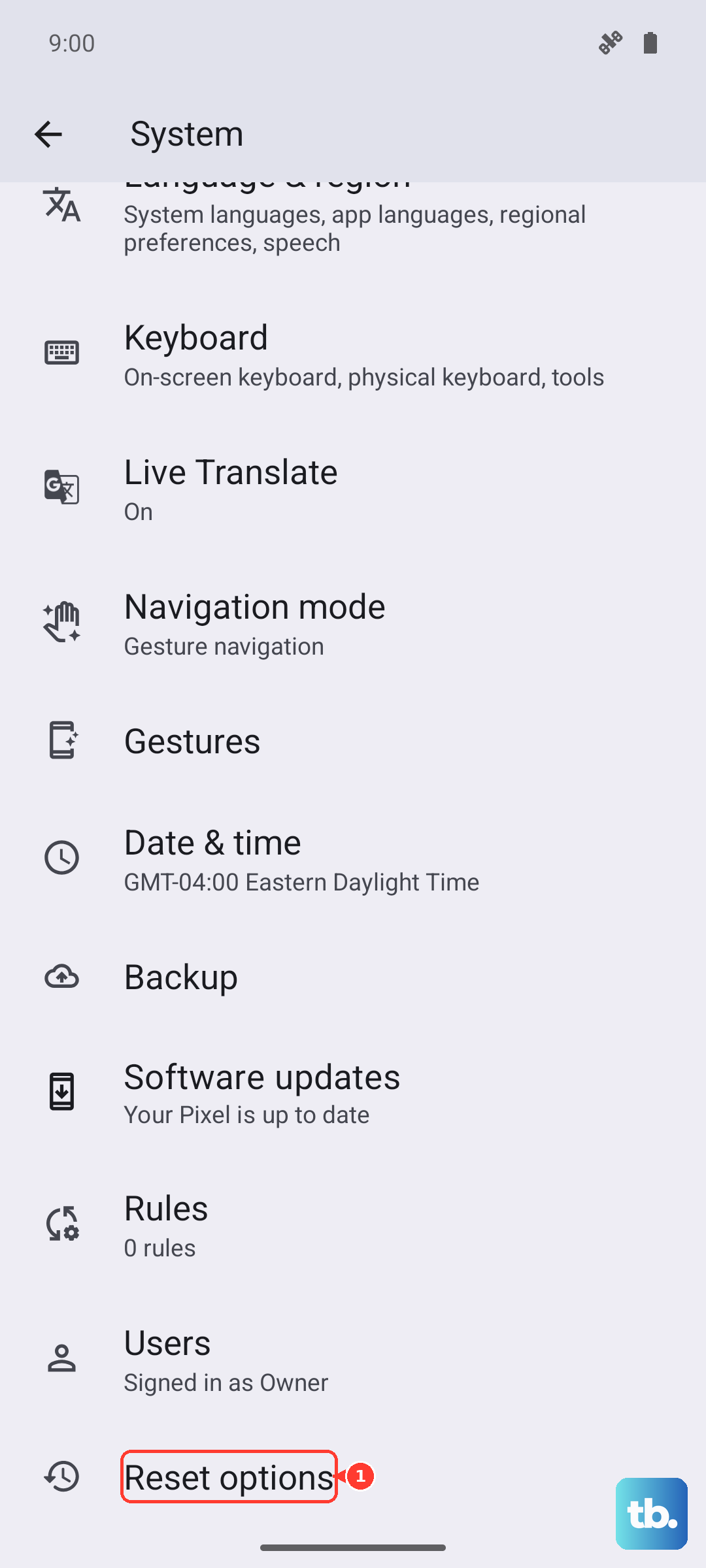
- 2.Open Settings > System > Reset options > Erase all data (Factory reset).
- 3.Follow the on-screen prompts to confirm, then test the camera once the phone restarts.
Book a repair if the camera is still soft
If the camera remains blurry even after a clean factory reset, the cause is likely a hardware fault such as a damaged lens or a failing OIS module, not something you can fix from a settings menu. At that point, the right move is to get it looked at officially.
Contact OnePlus official support or book a repair through the OnePlus Support site, and describe exactly when the blur appears (every shot, only low light, only one camera) so the technician can diagnose it faster.
Frequently Asked Questions
Why is my selfie or ultra-wide shot blurry when the main camera looks fine?
On the Nord 4, only the 50MP main camera has autofocus and OIS. The 8MP ultra-wide and the 16MP front camera are fixed-focus, so tapping to focus will not sharpen them. Make sure those lenses are clean and hold the phone steady, since they have no stabilization to smooth out hand shake.
Does the Nord 4 have a macro mode for close-up photos?
OnePlus's official specs list only a 50MP main camera and an 8MP ultra-wide, with no dedicated macro lens and no macro mode. For close-ups you rely on the main camera's autofocus, so tap your subject on screen to lock focus and hold the phone steady.
Will a factory reset fix a blurry camera?
A factory reset can clear software causes of blur, but it erases the phone, so back up first using OnePlus Switch and/or by copying files to a PC. If photos are still soft after the reset, the problem is likely hardware, and you should contact OnePlus support.
How do I force restart the Nord 4 if the camera is frozen?
Press and hold the Volume Up button and the Power button together for 10 seconds until the phone restarts. This is OnePlus's official force-restart method for the OnePlus 6T and later, which includes the Nord 4, and it works even when the screen is black or unresponsive.