
If your OnePlus Nord 4 won't connect to your wireless earbuds, car, or speaker, it can be incredibly frustrating. The good news is that most Bluetooth problems on the Nord 4 are software glitches that you can fix yourself. I'd start with the quick toggle and restart, as that resolves the issue more often than not.
Check These Simple Things First
Before we get into the step-by-step fixes, run through this quick mental checklist. Make sure both your Nord 4 and the device you're trying to connect to have enough battery, ideally above 20%. Pull down the quick settings shade from the top of your screen and confirm the Bluetooth icon is blue and active.
Also, ensure the other device is actually in pairing mode, not just powered on. Its LED light should usually be blinking. Keep the devices within a few feet of each other to rule out distance as the problem. Finally, try pairing your Nord 4 with a different Bluetooth gadget to see if the issue is with your phone or the specific accessory.
Toggle Bluetooth and Restart Your Phone
This is the digital equivalent of "turn it off and on again," and it works surprisingly often. Swipe down from the top of your Nord 4's screen twice to open the full quick settings panel. Tap the Bluetooth icon to turn it off, wait about 10 seconds, then tap it again to turn it back on. Immediately try the pairing process again.
If that doesn't do it, a full restart is the logical next step. Press and hold the Power button on the right side of your phone for about 10 seconds, until you feel it vibrate and the OnePlus logo appears. This force restart can clear out temporary system bugs that might be blocking the Bluetooth radio.
Forget and Re-Pair the Problem Device
Sometimes the pairing information gets corrupted. The fix is to remove that device from your phone's memory and start fresh. Open the Settings app and go to Bluetooth & device connection > Bluetooth.
Find the troublesome device in your list of previously paired gadgets. Tap the settings icon (it looks like a little gear) next to its name. On the next screen, select Forget or Unpair. Once it's removed, put the other device back into pairing mode and select it from the "Available devices" list on your Nord 4 to create a new connection.
Clear the Bluetooth System Cache
Android's Bluetooth service stores temporary data to help it run faster. If this cache gets corrupted, it can cause all sorts of connection problems. Clearing it is safe and won't delete your paired devices. Go to Settings > Apps.
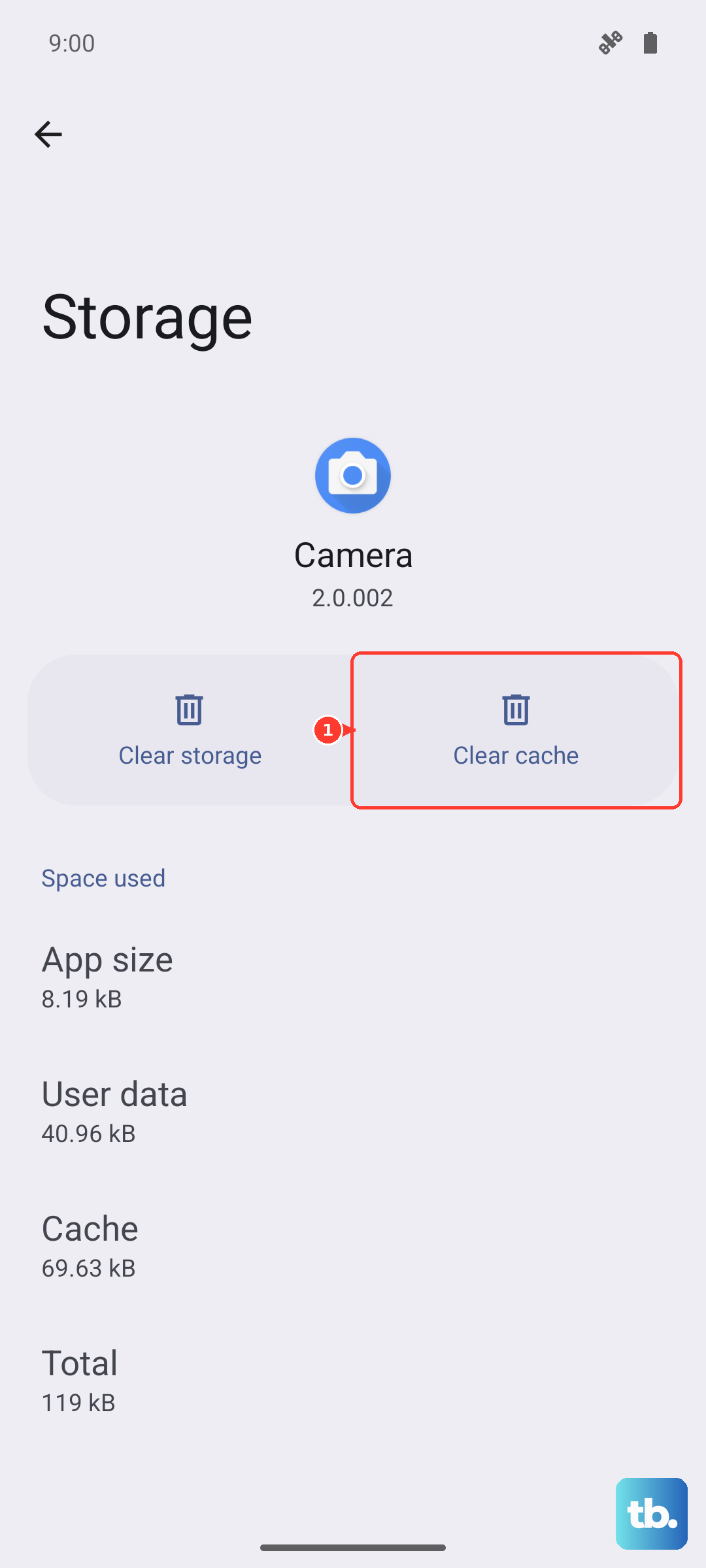
Tap on "See all apps" if necessary. In the app list, find and tap on Bluetooth. If you don't see it, tap the three-dot menu in the top right and select "Show system." On the Bluetooth app info screen, go to Storage & cache. Tap Clear cache. After doing this, restart your phone and test Bluetooth again.
Reset Your Nord 4's Network Settings
This is a more comprehensive step that resets all wireless communications back to their factory state. It will erase all your saved Wi-Fi networks, Bluetooth pairings, and mobile data settings, so you'll need to re-enter Wi-Fi passwords and re-pair devices afterward.
To do it, navigate to Settings > Additional settings > Back up and reset. Tap on Reset phone, and then select Reset Wi-Fi, mobile & Bluetooth. Confirm your lock screen PIN or pattern when prompted. Your phone will reset and reboot. Once it's back on, you can set up your connections from scratch.
Check for a Software Update
OnePlus regularly releases OxygenOS updates that fix bugs and improve device compatibility. An outdated system could be the reason your Nord 4 isn't playing nice with a newer Bluetooth accessory. Connect to Wi-Fi and go to Settings > About device > OxygenOS version.
Tap on the icon at the top to check for an update. If one is available, tap Download and install. It's also worth checking if the Bluetooth device itself has a firmware update, usually through its own companion app on the Play Store.
Boot Into Safe Mode to Check for App Conflicts
A recently installed third-party app could be interfering with the Bluetooth stack. Booting into Safe Mode temporarily disables all apps you've downloaded, letting you test the core system. Press and hold the Power button until the power menu appears.
Then, tap and hold the "Power off" option on your screen. You'll get a prompt to reboot to Safe Mode. Tap OK. Your phone will restart, and you'll see "Safe mode" in the bottom corner. Try pairing your Bluetooth device now. If it works, a third-party app is the culprit. Restart normally and try uninstalling recent apps one by one to find the offender.
Address Specific Connection Scenarios
For car Bluetooth that won't connect, you often need to clear the pairing from both sides. Forget the car from your Nord 4's Bluetooth list, and also delete your phone from your car's infotainment system memory. Then, initiate the pairing process from your car's menu, not your phone.
If Bluetooth simply won't turn on at all, the combination of clearing the Bluetooth cache (as shown earlier) followed by a force restart usually gets it going again. For persistent issues with audio cutting out, try disabling the HD audio or AAC codec options in the Bluetooth settings for that specific device, as some accessories have spotty support for these advanced features.