You set your OnePlus 13 down on its wireless pad expecting the charging animation, and either nothing happens or the battery creeps up far slower than the 50W AIRVOOC speed the phone is rated for. Wireless charging is fussier than plugging in a cable, so the cause is often something small, like an underpowered adapter, a thick case, a stray magnetic card, or the phone sitting slightly off the coil. The fixes below start with the quickest, safest checks and move toward a full reset and official repair only if nothing else works.
Confirm it is a wireless-only problem first
Before you chase a wireless fault, make sure the phone can charge at all. Plug the OnePlus 13 in with the official USB-C cable and adapter and watch whether it charges normally.
If wired charging also fails or runs slowly, you are dealing with a general charging issue rather than a wireless-only one. In that case, check the cable and adapter, inspect the USB-C port for lint or debris, and test with another known-good OnePlus charger to work out whether the fault is the charger or the phone itself.
Only once wired charging behaves normally does it make sense to focus on the wireless pad.
Use the right OnePlus charger with enough power behind it
The OnePlus 13 charges wirelessly at up to 50W AIRVOOC, which is OnePlus's own magnetic wireless standard rather than a generic pad spec. An underpowered or incompatible adapter can slow wireless charging dramatically or stop it from starting.
To reach the full 50W, make sure you have a OnePlus phone that supports 50W wireless charging, which the OnePlus 13 does.
Next, use the OnePlus AIRVOOC 50W wireless charger.
Then confirm the charger and cable support the 65W PD protocol and above to feed that wireless charger.
If you are powering the wireless stand from a weak wall plug or a low-wattage cable, swap in an adapter that meets the 65W PD requirement and try again.
Clear away thick cases and stray metal
Cases and small metal objects are among the most common reasons a OnePlus 13 refuses to charge wirelessly. If a foreign object sits between the phone and the pad, the charger's foreign-object detection can shut charging down to stay safe.
Before you set the phone back on the pad, confirm any case you use is under 2mm thick, has a smooth surface, and contains no metal parts.
After that, remove any metal objects, metal protective cases, magnets, or magnetic cards from between the phone and the charger.
Also make sure nothing else, such as a coin, a card, or a metal popsocket, is resting on the pad surface.
If charging starts the moment you take the case off, the case is the culprit, and you can switch to a thinner, metal-free one.
Center the phone on the charging base
Wireless charging only works when the coil in the phone lines up with the coil in the pad, so placement matters more than people expect. Poor alignment is a frequent reason charging either does not begin or runs slowly.
Place the phone in the center of the wireless charging base, either vertically or horizontally, so the coils sit directly over one another.
Nudge the phone a little and watch for the charging indicator to confirm you have found the sweet spot, then leave it undisturbed.
Force restart a frozen OnePlus 13
If the screen is black, frozen, or unresponsive and the phone will not react to the pad, a forced restart can clear a temporary software hang. This sequence applies to the OnePlus 6T and subsequent products, which includes the OnePlus 13.
Press and hold the Volume Up button and the Power button together.
Keep holding for 10 seconds until the phone restarts.
Once it boots, set it back on the wireless charger and check whether charging resumes.
If the phone gives no response and no display but vibrates when you try the force restart, that points to a hardware fault, and you should contact OnePlus after-sales support rather than continuing with software fixes.
Install the latest OxygenOS update
Charging-related bugs are sometimes resolved in software, so installing any pending OxygenOS update is worth doing before you take more drastic steps. The OnePlus 13 ships on OxygenOS 15.0 based on Android 15.
To check for an update, open Settings > About device and tap the OxygenOS card to look for a new version.
On some OxygenOS versions the path is instead Settings > System & update > Software update, since the exact label varies by version.
Connect to stable Wi-Fi before you start, and keep in mind that updates can roll out in regional batches, so a new version may not appear for everyone on the same day.
Review your fast-charging settings
Charging speed can be held back by the phone's own battery features, not just by the hardware on the pad. Battery-optimization behavior and device temperature can both slow charging.
Open the phone's battery settings and confirm that fast or optimized charging behavior is active, since checking the fast-charging setting is part of OnePlus charging troubleshooting.
If the phone is warm, let it cool down before testing again, because heat can reduce charging speed on its own.
Back up your data, then factory reset
If wireless charging still fails after everything above, a factory reset can clear a persistent software fault that ordinary troubleshooting cannot reach. This step erases everything on the phone, so treat it as a last software resort.
Warning: a factory reset erases all data on the phone. Back up to your Google account or other storage before you begin.
- 1.Back up your photos, messages, and app data first.
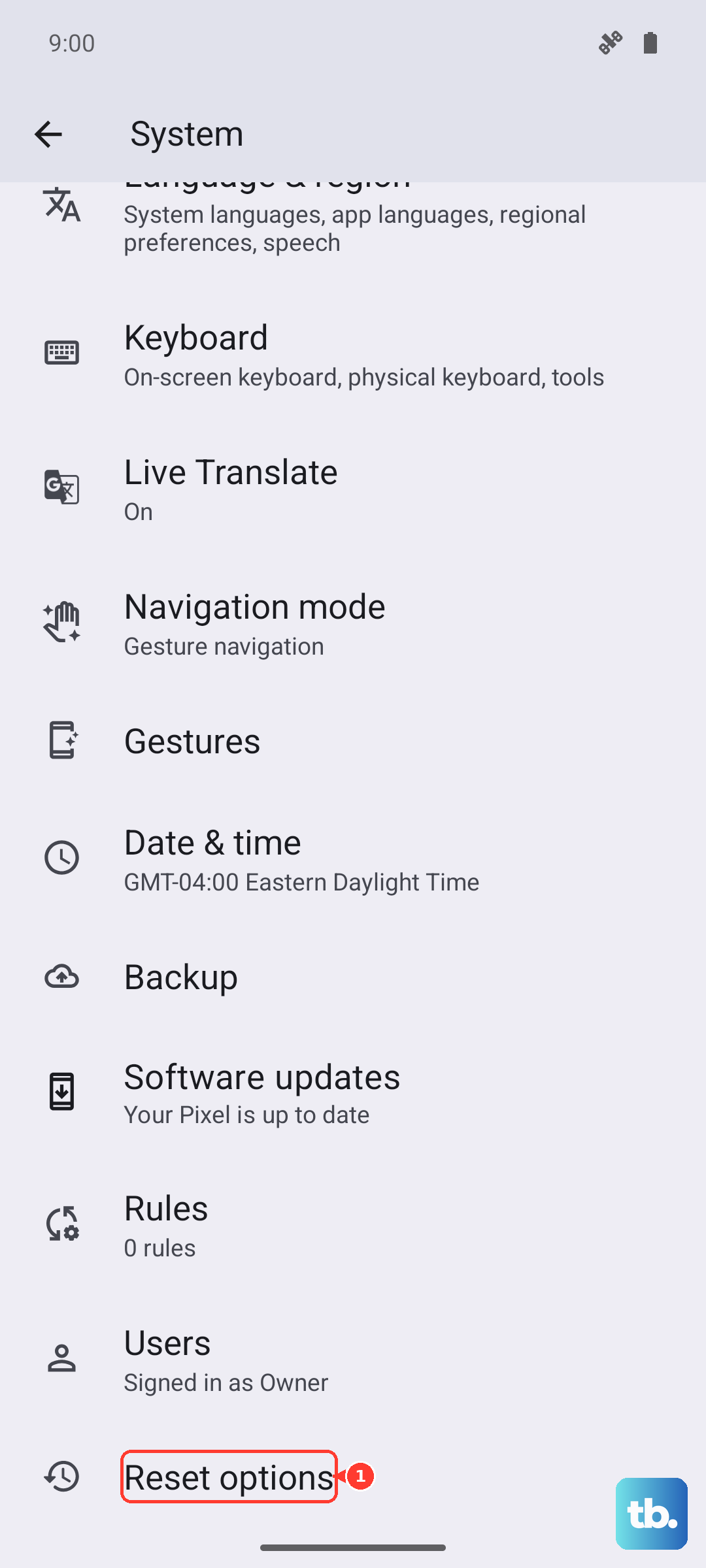
- 2.Go to Settings > System > Reset options > Erase all data (factory reset).
- 3.On some versions, the path is Settings > Additional settings > Back up & reset > Reset phone > Erase all data instead.
- 4.Follow the on-screen prompts to complete the reset, then test wireless charging on a clean setup.
When to hand it to OnePlus support
If wireless charging still does not work after a reset, or the phone shows no display but vibrates during a force restart, the problem is likely hardware rather than software. At that point, on-device fixes have run their course.
Contact OnePlus or book a repair through the official OnePlus Support site for after-sales service. Describe exactly what you have already tried, including the charger and adapter you used, so the support team can move straight to a diagnosis.
Frequently Asked Questions
Does the OnePlus 13 support wireless charging?
Yes. OnePlus's official specs list 50W AIRVOOC wireless charging, which is OnePlus's proprietary magnetic wireless standard, alongside 80W SUPERVOOC wired charging.
Can I use any generic wireless pad with the OnePlus 13?
The official specs page lists only 50W AIRVOOC and does not state Qi or Qi2 compatibility, so behavior or wattage on a generic pad cannot be confirmed from official sources. For a known result, use a OnePlus AIRVOOC wireless charger.
How do I get the full 50W wireless charging speed?
You need a OnePlus phone that supports 50W, which the OnePlus 13 does, the OnePlus AIRVOOC 50W charger, and a charger and cable that support the 65W PD protocol and above. If any one of those is underpowered, wireless charging can slow down or stop.
Will my case stop wireless charging?
It can. OnePlus says a case used for wireless charging must be under 2mm thick, have a smooth surface, and contain no metal parts. Metal cases, magnets, and magnetic cards between the phone and charger can trigger foreign-object detection and stop charging.
Why does my OnePlus 13 charge wirelessly but very slowly?
Slow wireless charging usually comes down to alignment, an underpowered adapter, or temperature. Center the phone on the pad, use the AIRVOOC 50W charger with a 65W PD adapter, and let the phone cool if it feels warm, since heat and battery-optimization features can both reduce speed.