If your OnePlus 13 videos are stuttering, freezing, or dropping frames, it can really ruin the experience on that beautiful display. This is a common hiccup that can pop up for a few different reasons, but the good news is you can usually fix it yourself without too much hassle.
A browser based Hz test shows the real Hz your display is delivering right now. Many stutter complaints turn out to be a monitor silently running at 60 Hz.
Restart Your OnePlus 13
This is always the best place to start. A simple restart clears out temporary system glitches and refreshes all your apps. Just press and hold the Volume Down button and the Power button together for about 10 seconds until you feel the phone vibrate and the OnePlus logo appears.
If the phone is completely unresponsive, that same button combo will force a restart. It's quick, easy, and solves a surprising number of playback issues right off the bat.
Check Your Internet Connection for Streaming
If you're watching videos on YouTube, Netflix, or another streaming app, a weak or unstable connection is the most likely culprit for buffering and lag. Try switching between Wi-Fi and your mobile data to see if the problem goes away.
You can also run a quick speed test. For a more thorough check, go to Settings > Wi-Fi & network > Wi-Fi and tap on your connected network to see its signal strength. Sometimes just forgetting the network and reconnecting can help.
Update OxygenOS and Your Apps
Since the OnePlus 13 is new with OxygenOS 15, early software builds can have bugs that affect performance, including video playback. OnePlus is typically quick to release patches.
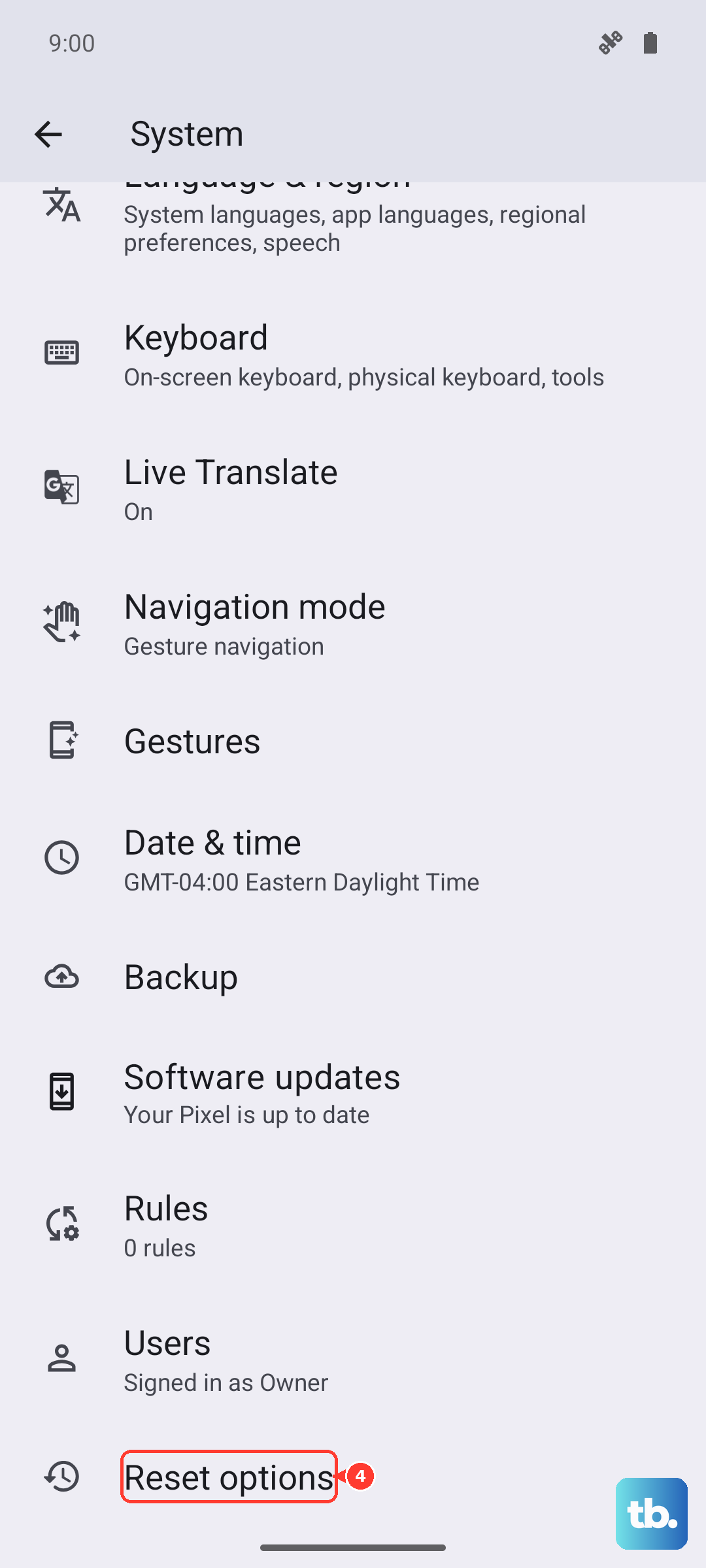
Head to Settings > About device > OxygenOS version to check for a system update. Don't forget to also update the specific app you're having trouble with through the Google Play Store. I've seen app-specific updates resolve stuttering more often than not.
Free Up Storage Space
When your phone's storage is nearly full, it can struggle to read and write data smoothly, which can cause video apps to stutter. The OnePlus 13 needs some breathing room to perform at its best.
Go to Settings > Storage to see how much space you have left. If it's getting low, clear cached data from apps like YouTube or Netflix, or offload some old photos and videos to cloud storage. Aim to keep at least 10-15GB free.
Close Background Apps and Check for Overheating
Having too many apps running in the background can drain system resources. Swipe up from the bottom and hold, then swipe away apps you aren't using. Also, if your phone feels warm to the touch, it might be thermally throttling.
The OnePlus 13 can get warm during intensive tasks like gaming or fast charging. If it's hot, let it cool down for a few minutes. Playing a video while the phone is charging, especially with the 100W charger, can sometimes trigger this.
Clear the App's Cache and Data
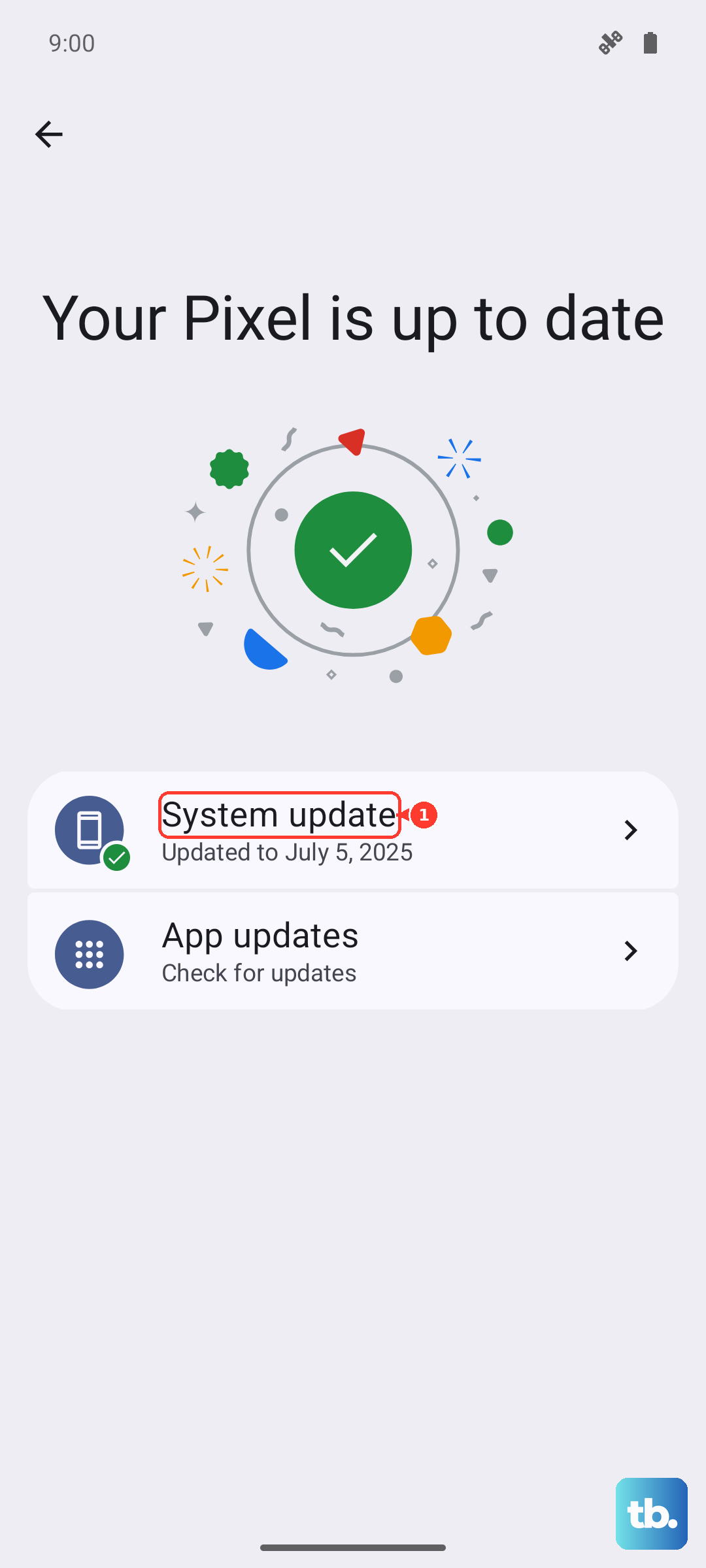
If the problem is only happening in one specific app, its stored data might be corrupted. Clearing the cache is safe and won't delete your login info or saved videos.
Go to Settings > Apps > [App Name] > Storage usage. Tap "Clear cache." If that doesn't work, you can try "Clear data," but be aware this will reset the app to its default state and you'll need to log back in.
Disable Battery Optimization for the Video App
Battery optimization is great for longevity, but it can sometimes be too aggressive and limit background processes for apps you're actively using. This can interfere with smooth video playback.
Navigate to Settings > Apps > [App Name] > Battery. Here, change the optimization setting from "Optimize" to "Don't optimize." This tells the system to let the app run without restrictions.
Check Video Resolution and Codec Settings
Some high-resolution video files, especially those in formats like HDR10+ or at very high frame rates, can be demanding to decode. If you're playing a local file, try a different video player app like VLC or MX Player.
Within apps like YouTube, you can manually lower the playback quality. Tap the three dots or the gear icon during playback and select a lower resolution like 1080p instead of 4K to see if the stuttering stops.
Reset App Preferences
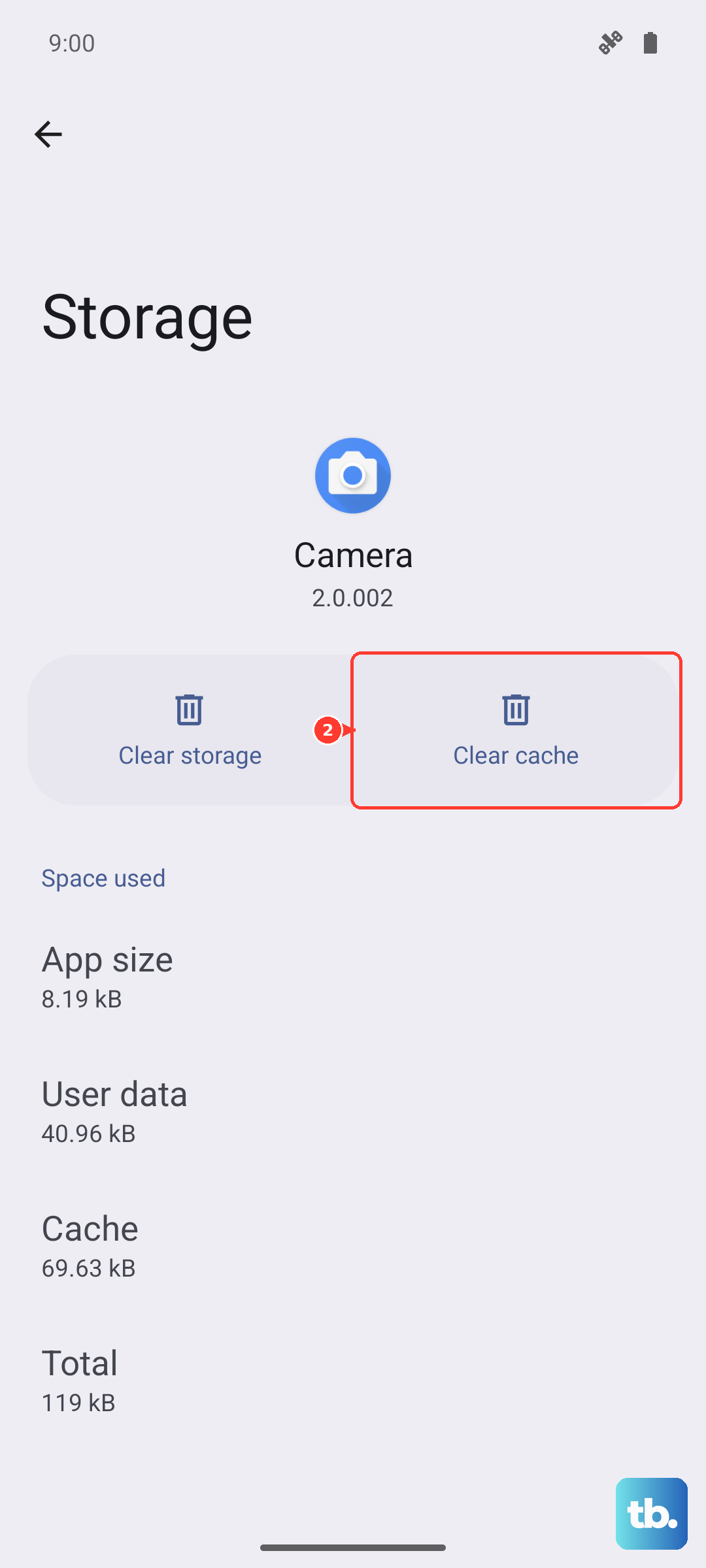
This is a broader fix than clearing a single app's data. It resets all your app permissions, default apps, and background restrictions to their factory defaults without deleting any of your personal data.
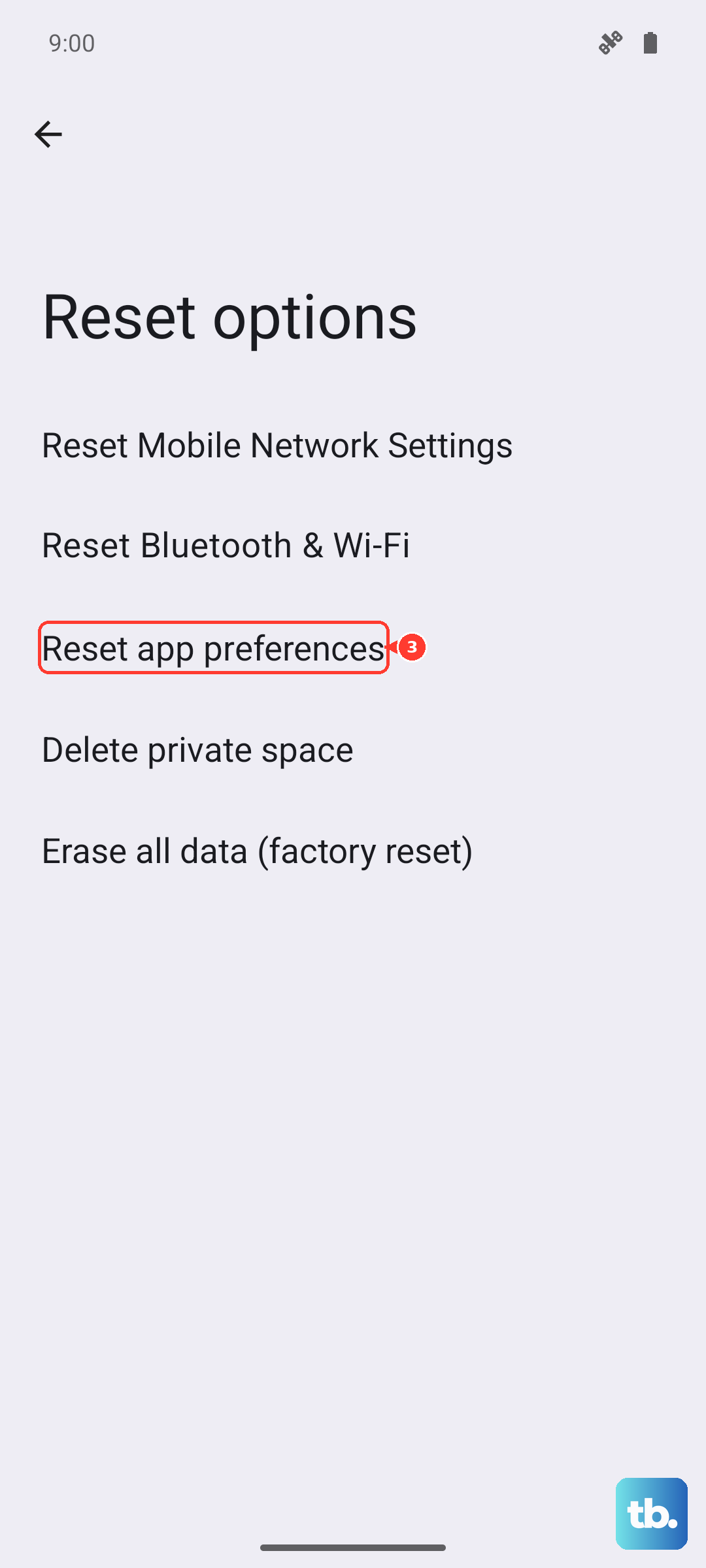
You can find this option at Settings > System > Reset options > Reset app preferences. After doing this, you'll just need to re-grant permissions to apps when you use them next.
Perform a Factory Reset
If you've tried everything else and the stuttering persists across multiple apps, a factory reset is the final software step. This will erase everything on your phone, so it's crucial to back up your data first.
You can initiate a backup in Settings > System > Backup. Once that's done, go to Settings > System > Reset options > Erase all data (factory reset). After the phone reboots, set it up as new to see if the problem is resolved before restoring your backup.