
When your OnePlus 13 Pro stops listening for "Hey Google" or your voice assistant of choice, it feels like a step backwards. The phone that's supposed to be smart suddenly isn't. Here's how to get your voice assistant responding again on OxygenOS 15.
Verify Your Assistant is Enabled and Listening
First, let's make sure the basic feature is even turned on. It's the most common oversight and the quickest fix. Open your Settings app and head to Google or Assistant settings, depending on your default.
For Google Assistant, tap on Hey Google & Voice Match. Ensure "Hey Google" is toggled on. You should also check that your voice model is set up. If you see an option to retrain your voice model, that's a good next step.
If you're using a different assistant, like Bixby or Alexa, you'll need to find its specific settings within the app or your phone's settings search. The principle is the same, make sure the wake word detection is active.
Check for Audio Interference and Modes
Several system features can inadvertently block the microphone from listening for your command. The first one to check is Silent Mode. If your alert slider is set to silent or vibrate, try moving it to ring.
Do Not Disturb or Focus modes can also interfere. Swipe down from the top of your screen to open the Quick Settings panel and look for any active DND or Focus icons. Tap to turn them off temporarily and test your voice command again.
Also, take a look at any connected Bluetooth devices. While your assistant should work through headphones or earbuds, a glitchy connection can sometimes cause the phone's own microphones to be ignored. Disconnect any accessories and try the wake word directly to the phone.
Inspect Your Microphones and Clean the Ports
The OnePlus 13 Pro has multiple microphones for noise cancellation and clear audio. If they're blocked, your phone literally can't hear you. Check the primary microphone at the bottom of the phone, near the USB-C port, and the secondary ones near the top edge or camera module.
Look for any lint, dust, or case obstruction. A soft-bristled brush, like a clean toothbrush, is perfect for gently clearing these tiny ports. Avoid using compressed air or sharp objects, as you could push debris further in or cause damage.
Retrain Your Voice Model
Background noise, a change in your voice, or just a software hiccup can confuse the voice model. Retraining it is straightforward. For Google Assistant, go to Settings > Google > Settings for Google apps > Search, Assistant & Voice > Voice.
Under "Hey Google," tap on Voice Match. You'll see an option to retrain the voice model. Tap it and follow the prompts, clearly saying "Hey Google" and "Ok Google" a few times in a quiet room. This refreshes how the phone recognizes you.
Review App Permissions and Battery Optimization
Your assistant app needs the right permissions to function. Go to Settings > Apps and find your assistant app (Google, Bixby, etc.). Tap on it and select Permissions.
Ensure that the Microphone permission is granted. While you're there, check Notifications to make sure it can alert you. Next, tap on Battery and set the optimization to "Don't optimize" or "Unrestricted." This prevents the system from putting the assistant to sleep in the background.
Perform a Force Restart
A simple restart clears out temporary glitches that can affect system processes like the voice detection service. For the OnePlus 13 Pro, press and hold the Volume Down button and the Power button simultaneously for about 10 seconds.
You'll feel the device vibrate and see the OnePlus logo appear. Release the buttons and let the phone boot up completely. This is different from a normal power off and on, as it clears the system cache in RAM.
Update Your Software
OxygenOS updates frequently include bug fixes for system services, including audio and voice recognition. An outdated OS could be the culprit. Go to Settings > About device > OxygenOS version and tap on the top banner to check for updates.
If an update is available, download and install it. I'd recommend doing this over Wi-Fi and ensuring your phone has at least a 50% charge. After the update, give your assistant another try.
Clear the Assistant App's Cache and Data
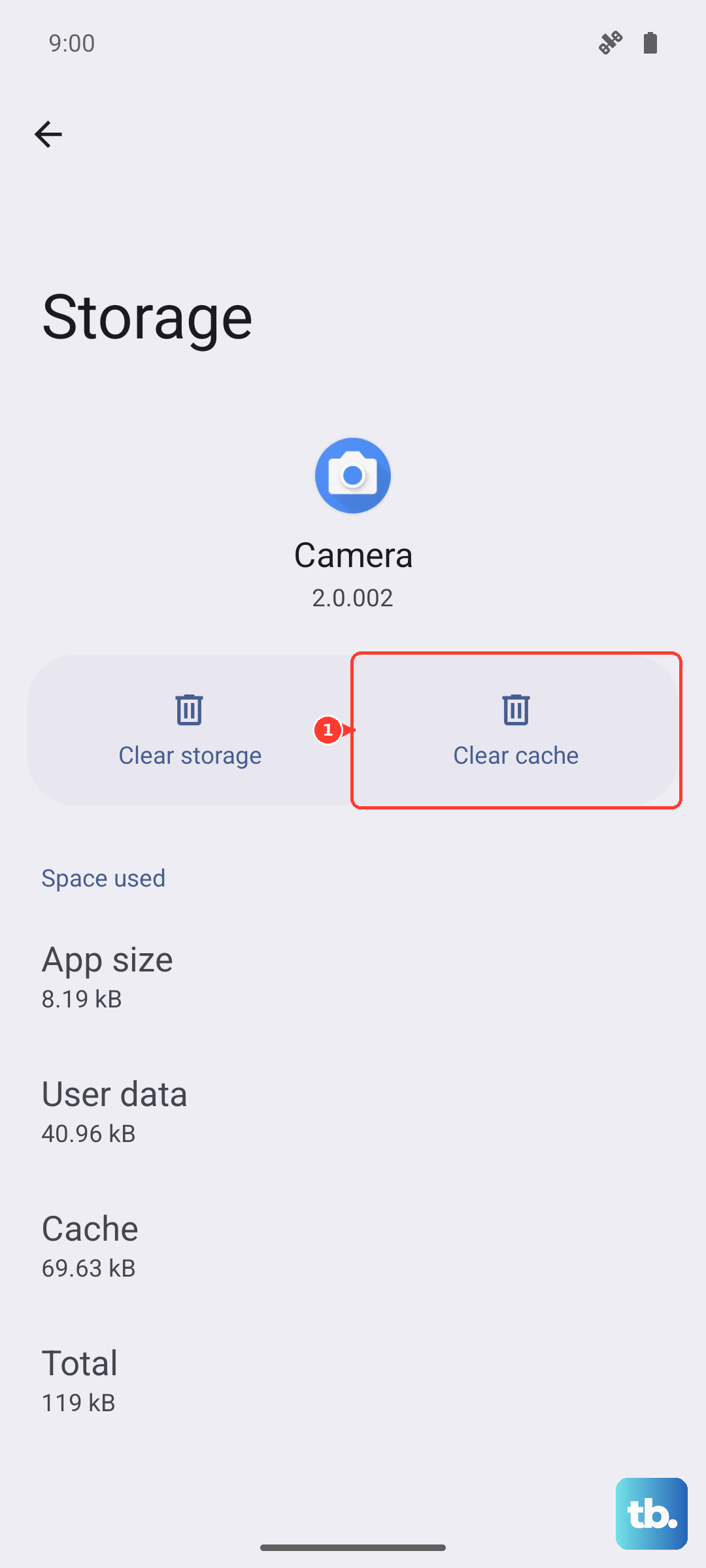
Corrupted temporary files can cause all sorts of odd behavior. Clearing the cache is safe and won't delete your personal data or accounts. Go to Settings > Apps, find your assistant app, and tap on it.
Select Storage & cache. Tap Clear cache first and test the assistant. If it still doesn't work, you can tap Clear storage or Manage storage > Clear all data. Be aware this will reset the app, so you'll need to log back in and set up "Hey Google" again.
Check for Conflicting Accessibility Services
Some accessibility features, like Voice Access or Select to Speak, can take priority over the standard "Hey Google" detection. Go to Settings > Accessibility and review the list of installed services.
If you have any screen reader or voice control services enabled, try turning them off temporarily to see if your regular assistant starts working. You can always turn them back on afterward.
Reset All System Settings
If you've tried everything else, a settings reset can fix deeper configuration conflicts without touching your personal photos, messages, or apps. This will revert Wi-Fi passwords, Bluetooth pairings, and system preferences back to default.
Go to Settings > Additional settings > Back up and reset. Tap on Reset phone and then select Reset all settings. Confirm your PIN or password. After the phone reboots, you'll need to re-enable "Hey Google" and retrain your voice model, but this often resolves stubborn issues.