
If your OnePlus 13 Pro is making videos look choppy or causing them to buffer endlessly, it can ruin the experience on that beautiful display. The good news is that this is usually a software hiccup you can sort out yourself.
Let's jump straight into the most common fix. A simple restart can clear out temporary glitches that might be bogging down the video decoder. Just press and hold the Volume Down button and the Power button together for about 10 seconds until you feel the phone vibrate and restart.
Check Your Internet Connection for Streaming
If you're watching videos on YouTube, Netflix, or other streaming apps, a weak connection is the prime suspect. The OnePlus 13 Pro supports the latest Wi-Fi standards, but your router or signal strength might not be keeping up.
Try switching between Wi-Fi and your mobile data to see if the problem goes away. If you're on Wi-Fi, a quick router restart can often work wonders. For local videos stored on your phone or an SD card, you can skip this step.
Free Up Storage Space on Your Device
When your phone's storage is nearly full, the system struggles to allocate memory smoothly for tasks like video playback. This can lead to stuttering and frame drops, especially with high-resolution files.
Head to Settings > Storage to see how much space you have left. I'd recommend keeping at least 10-15GB free for comfortable operation. You can clear app caches, delete downloaded movies you've already watched, or move photos to cloud storage.
Update OxygenOS and Your Apps
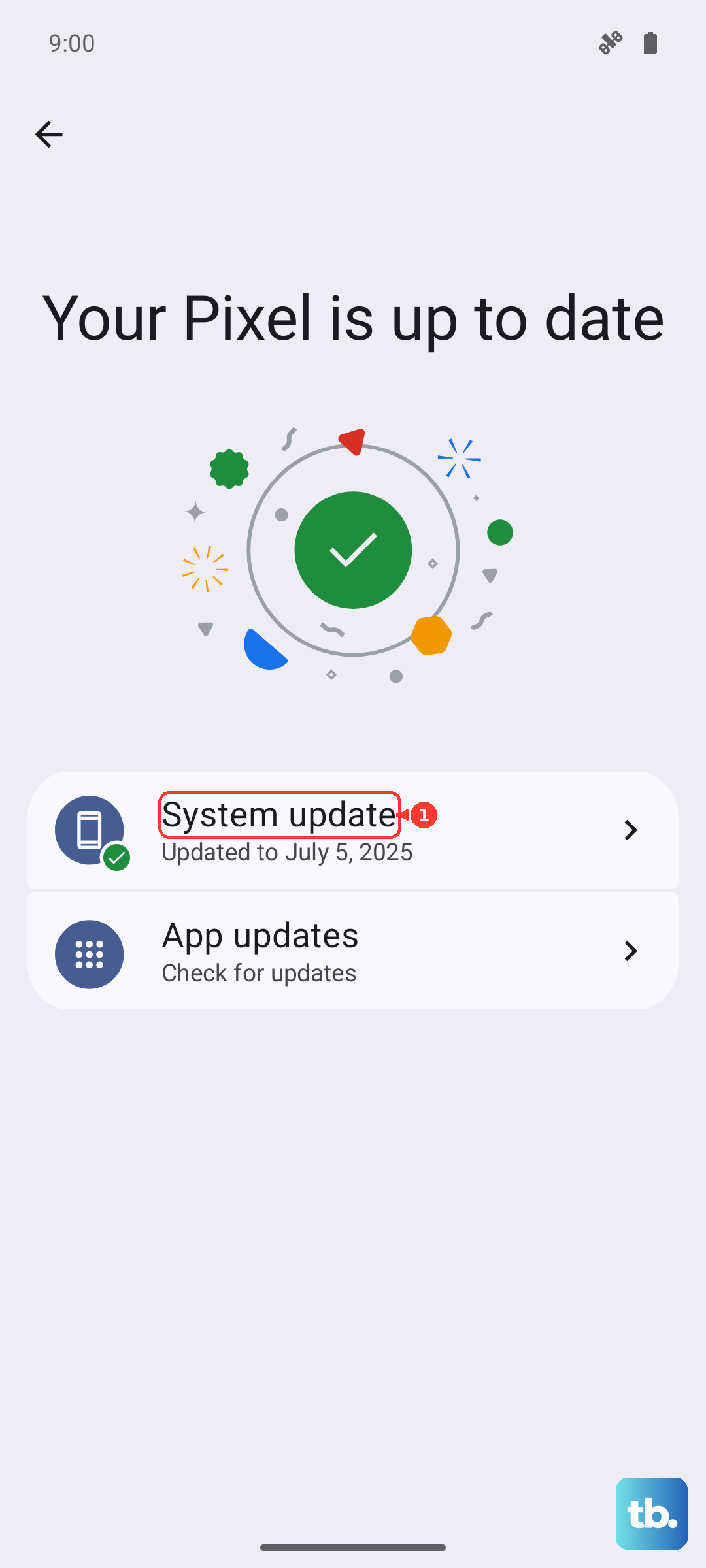
Running an outdated version of OxygenOS 15 or having buggy video apps is a common culprit. OnePlus regularly releases updates that include performance optimizations and fixes for media playback issues.
Go to Settings > About device > OxygenOS version to check for a system update. Then, open the Google Play Store, tap your profile icon, and select "Manage apps & device" to update all your apps, especially the ones you use for video.
Close Background Apps and Processes
Too many apps running in the background can consume RAM and CPU resources, leaving little for smooth video decoding. This is easy to check and fix.
Swipe up from the bottom of the screen and hold to enter the recent apps view. Swipe away any apps you don't need. For a more thorough cleanup, you can restart your phone using the force restart method mentioned earlier.
Check for Overheating
The powerful chipset in the OnePlus 13 Pro can get warm during extended use. If the device gets too hot, it may throttle performance to cool down, which can affect video playback.
If your phone feels unusually warm, take it out of its case for a bit, avoid direct sunlight, and close demanding apps. Let it cool down for a few minutes and try playing the video again.
Try a Different Video Player or App
Sometimes the issue is isolated to a single app. If videos are stuttering in Google Photos but play fine in VLC, or vice versa, you know the problem is app-specific.
Try playing the same video file in a different player. For streaming, see if the issue happens across Netflix, Disney+, and YouTube, or just on one service. This helps narrow down where the fault lies.
Clear the App Cache and Data
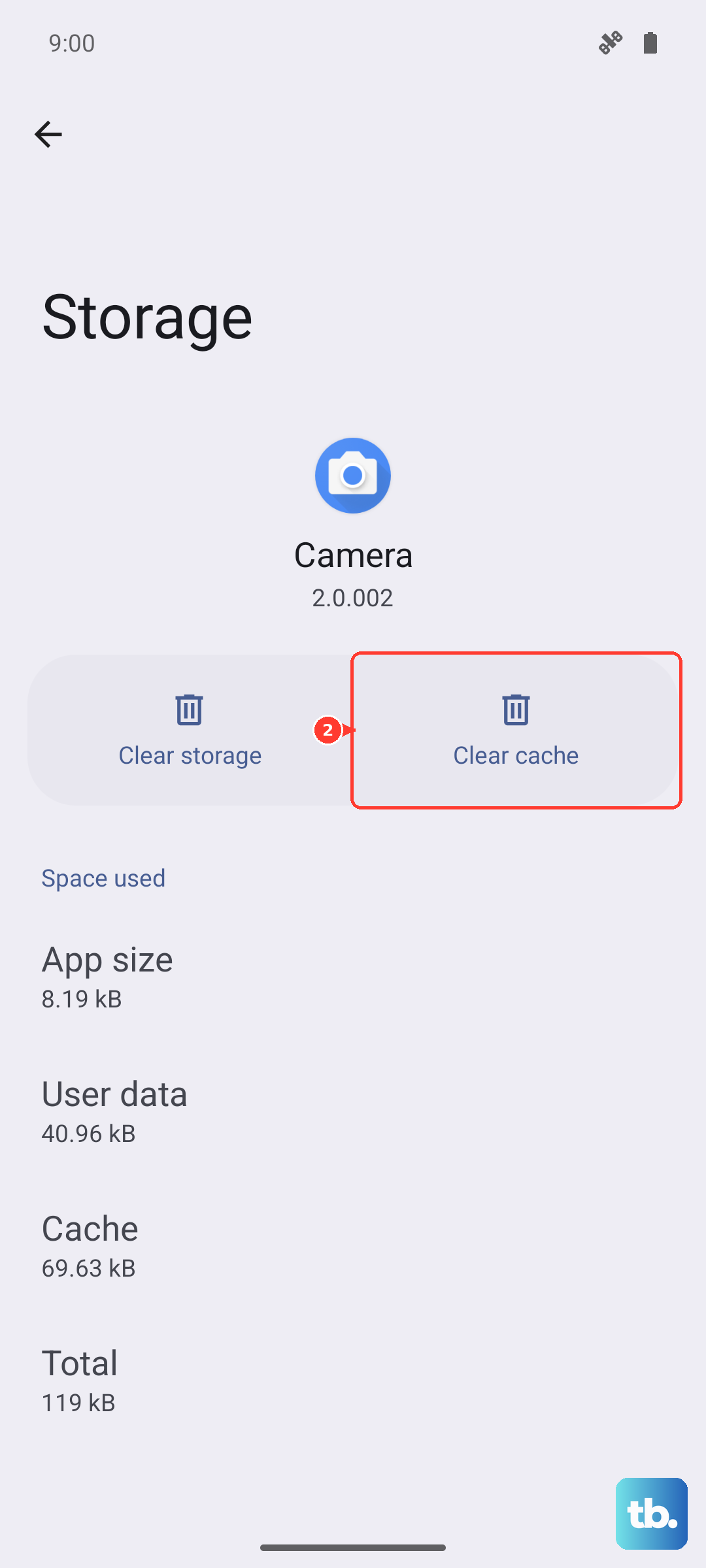
If a specific app is acting up, its stored cache data might be corrupted. Clearing it forces the app to rebuild this data from scratch, which can resolve playback glitches.
Go to Settings > Apps > [App Name] > Storage & cache. Tap "Clear cache" first. If that doesn't help, you can try "Clear storage" or "Clear data," but be aware this will log you out and reset the app to its default state.
Reset All Settings
If you're still having issues, a deeper software reset can help without deleting your personal files. This will revert all your system settings, like Wi-Fi passwords, Bluetooth connections, and display preferences, back to factory defaults.
You can find this option by going to Settings > Additional settings > Backup & reset > Reset phone > Reset all settings. Confirm your PIN, and the phone will restart. You'll need to reconfigure your preferences, but your photos, videos, and apps will remain intact.