
When your OnePlus 13 Pro stops buzzing for calls or notifications, it can be easy to miss important alerts. The good news is that this is usually a quick software or settings fix you can handle yourself.
Restart Your Phone
Before diving into settings, give your phone a quick reboot. This clears out any temporary glitches that might be affecting the vibration motor. Press and hold the Volume Down button and the Power button together for about 10 seconds until you feel a vibration and see the phone restart.
Check Your Sound and Alert Slider
The OnePlus Alert Slider is the first place to look. Make sure it's not set to Silent, which disables all sounds and vibrations. Slide it to the top position for Ring mode. Next, open Settings and go to Sounds & vibration. Ensure the "Vibrate for calls" toggle is switched on.
Sometimes, the setting gets stuck. If it's already on, try turning it off, exiting the menu, and then going back to turn it on again. This can refresh the connection to the hardware.
Review Your Vibration Intensity
If the vibration feels weak or non-existent, the intensity might be turned down. In Settings, navigate to Sounds & vibration and look for Vibration intensity. Here, you'll find separate sliders for calls, notifications, and touch feedback.
Drag each slider to the right to increase the strength. Test it as you adjust to find a level you can reliably feel. I've found that some cases can dampen the vibration, so a higher setting might be necessary.
Verify App Notification Settings
If the problem is only with specific apps like WhatsApp or your messaging app, the issue is likely in their notification settings. Go to Settings > Apps, select the app in question, and tap on Notifications.
Look for the specific notification category (like "Messages" or "Incoming calls") and make sure it's allowed to make sound and vibrate. Some apps have these settings buried within their own in-app menus as well, so it's worth a double-check.
Test in Safe Mode
A third-party app you installed could be interfering with system functions. Booting into Safe Mode temporarily disables all downloaded apps. To enter Safe Mode on your OnePlus 13 Pro, press and hold the Power button until the power menu appears.
Then, tap and hold the "Power off" option on your screen. You'll get a prompt to reboot to Safe Mode; tap OK. If vibration works normally in Safe Mode, you'll need to uninstall recently downloaded apps one by one to find the culprit.
Update OxygenOS
Software bugs can occasionally affect hardware components like the vibration motor. OnePlus regularly releases updates that include fixes for these kinds of issues. Go to Settings > System > System updates and tap Check for updates.
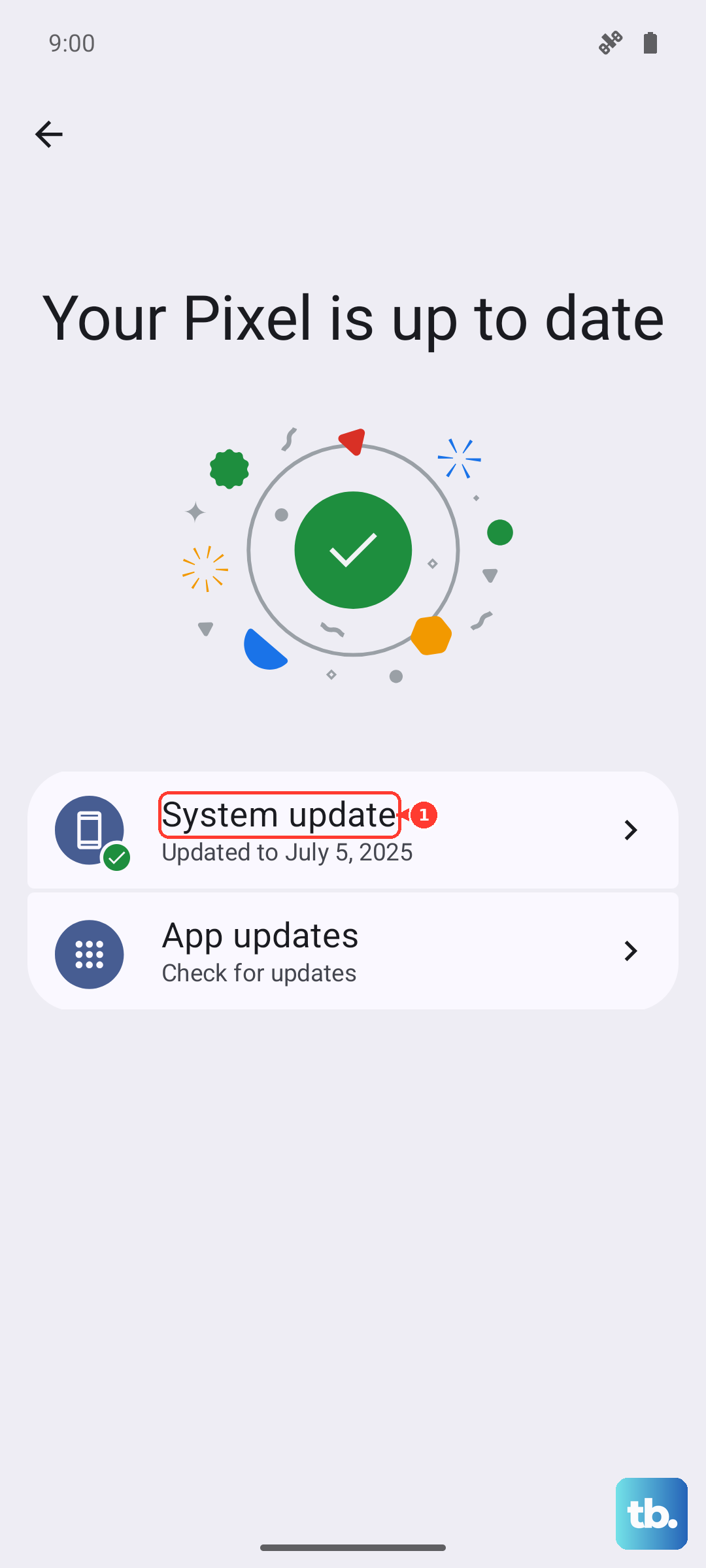
If an update is available, install it. Keeping your OnePlus 13 Pro on the latest version of OxygenOS 15 is one of the best ways to ensure all features work as intended and to get the latest security patches.
Check Accessibility and Battery Settings
Some features designed to conserve battery or assist with accessibility can override vibration. Go to Settings > Battery and look for any power-saving modes that are active, like Power saving or Super power saving. These modes often reduce or disable vibration to save energy.
Also, visit Settings > Additional settings > Accessibility. Look for options like "Turn off all sounds" or "Vibration & haptic strength" to ensure nothing here is configured to mute haptic feedback.
Reset App Preferences or Network Settings
This is a lighter reset that won't delete your personal data. It resets permissions, background data restrictions, and notification settings for all apps. Go to Settings > System > Reset options and tap Reset app preferences. Confirm the action.
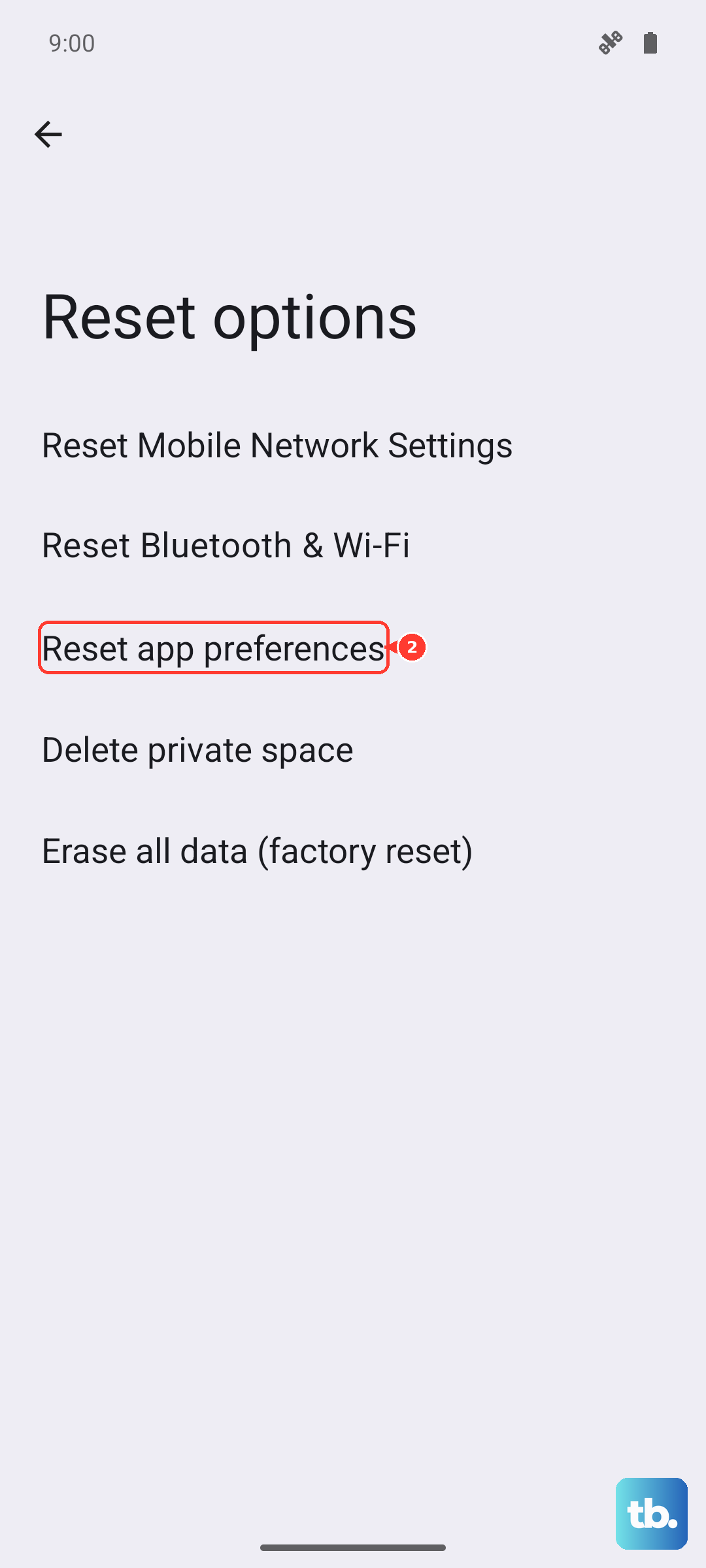
After the reset, you'll need to re-allow notification permissions for your apps, but it can clear up conflicts causing the vibration to fail. In the same menu, "Reset Wi-Fi, mobile & Bluetooth" can sometimes help if the issue is tied to call vibrations over specific networks.
Use the OnePlus Diagnostic Tool
OnePlus includes a built-in diagnostic tool to test hardware. Open your Phone dialer and enter *#808#. This will launch the engineering mode test suite. Look for an option labeled "Vibrator test" or something similar.
Running this test will command the motor to vibrate independently of the software settings. If it vibrates here, you've confirmed the hardware is functional and the problem is purely software-based. If it doesn't vibrate at all during this test, there may be a hardware fault.
Perform a Factory Reset
This is the last resort and will erase all data from your phone. Before you proceed, ensure you have a complete backup. If you're certain the hardware is fine but no software fix has worked, a factory reset can wipe a deep-seated software corruption.
Go to Settings > System > Reset options and select Erase all data (factory reset). Follow the prompts to reset your OnePlus 13 Pro. After setup, test the vibration immediately before restoring your apps to see if the issue is resolved.