
Missing important calls because your OnePlus 13 Pro stays silent is a real headache. You might see the notification pop up or find a missed call alert later, even though you were right next to your phone. The good news is this is almost always a settings issue or a minor software hiccup that you can fix yourself.
On OxygenOS 15, the most common reasons for a silent ringer are the Alert Slider being set to silent, a Focus mode being active, or the volume simply being turned all the way down. Sometimes, connecting to a Bluetooth device or a recent software update can also redirect or mute your ringtone.
Check the Alert Slider First
Your OnePlus 13 Pro has a physical Alert Slider on the right side of the frame. This is the very first thing to check. Slide it down to the bottom position for Ring mode. If it's in the middle (Vibrate) or top (Silent) position, your phone won't ring for calls.
You'll feel a haptic click and see a quick on-screen icon confirming the mode change. Give it a test by having someone call you or using a second phone. I'd start with this one, as it's the easiest fix and a very common oversight.
Turn Off Zen Mode and Focus Features
OnePlus's Zen Mode and the Android Focus features built into OxygenOS 15 are designed to minimize distractions. When active, they can silence all incoming calls or allow only specific contacts through.
Pull down the Quick Settings panel from the top of your screen and look for the Zen Mode tile (it looks like a crossed-out bell). If it's highlighted, tap it to turn it off. You should also swipe down again to expand the full panel and check for any other Focus mode icons.
For a more thorough check, go into Settings > Digital Wellbeing & parental controls > Zen Mode. Make sure it's not scheduled to turn on automatically. Also, check Settings > Sound & vibration > Do Not Disturb to review any rules or schedules that might be silencing your ringer.
Increase Your Ringtone Volume
Your media volume and ringer volume are controlled separately on Android. Even if your videos are loud, your call ringtone might be set to minimum.
Unlock your phone and press the Volume Up button on the side. A volume slider will appear on screen. Before you adjust it, tap the little settings gear icon or the three-dot menu next to the slider. This lets you see and control all volume channels independently.
Make sure the "Ringtone" or "Call" volume slider is pushed all the way to the right. You can also set it from Settings > Sound & vibration > Volume and adjust the Call volume slider there.
Change or Reset Your Ringtone
A corrupted ringtone file can cause issues. Try switching to a different one to see if that's the problem. Go to Settings > Sound & vibration > Phone ringtone (on OnePlus phones, the option is labeled Ringtone).
Pick a new built-in tone from the list and tap "OK" to set it. Immediately test with an incoming call. If it works, you can try switching back to your preferred tone later. Sometimes simply selecting a new one clears the glitch.
Disconnect Bluetooth Accessories
If your OnePlus 13 Pro is connected to wireless earbuds, a speaker, or a car stereo via Bluetooth, incoming call audio is often routed to that device instead of your phone's speaker.
Swipe down to open the Quick Settings panel and tap the Bluetooth icon to turn it off temporarily. You can also go to Settings > Connected devices > Connection preferences > Bluetooth and toggle the main switch off. Now test a call to see if the ringtone plays through the phone's speaker.
Review Your Blocked Numbers List
Calls from blocked numbers won't ring. It's worth checking to make sure you haven't accidentally added someone important to the block list. Open your Phone app and tap the three-dot menu in the top right corner.
Go to Settings > Blocked numbers. Look through the list to see if the number trying to reach you is there. You can tap the "X" next to any entry to unblock it.
Disable Call Forwarding
If call forwarding is active on your line, incoming calls are sent directly to another number without ever ringing your OnePlus. You can check this within the Phone app settings.
Open the Phone app, tap the three-dot menu, and go to Settings > Call settings > SIM card settings (select your active SIM if you have two). Look for "Call forwarding" and tap it. Ensure all forwarding options (like "Always forward" or "When busy") are set to "Turn off" or your carrier's equivalent.
Check Silence Unknown Callers Settings
This helpful feature for stopping spam can also silence legitimate calls from numbers not saved in your contacts. Go to your Phone app, tap the three-dot menu, and select Settings > Blocked numbers.
Look for the "Silence unknown callers" or "Block unknown callers" toggle. If it's on, turn it off. Remember, with this off, you will hear rings from all numbers, so you might get more spam calls until you turn it back on.
Perform a Force Restart
A quick force restart can clear out temporary system glitches that might be affecting the ringer service. On the OnePlus 13 Pro, press and hold the Volume Down button and the Power button simultaneously.
Keep holding both for about 10 seconds until you feel the device vibrate and the OnePlus logo appears on the screen. This doesn't erase any data, it just gives the system a fresh start. Test a call once it boots back up.
Update OxygenOS
OnePlus regularly releases updates that fix bugs, including audio and calling issues. Make sure your phone is connected to Wi-Fi and has at least a 50% charge.
Go to Settings > About device > OxygenOS version and tap on the "Check for update" button. If an update is available, download and install it. After the update completes, check if your ringer is working again.
Reset App Preferences
This is a less drastic step than a full settings reset. It resets permissions, background data restrictions, and notification settings for all apps back to their defaults without touching your personal data.
Go to Settings > System > Reset options. Tap on "Reset app preferences" and confirm. You'll need to re-grant permissions to apps when you use them next, but it can resolve conflicts that stop the Phone app from ringing properly.
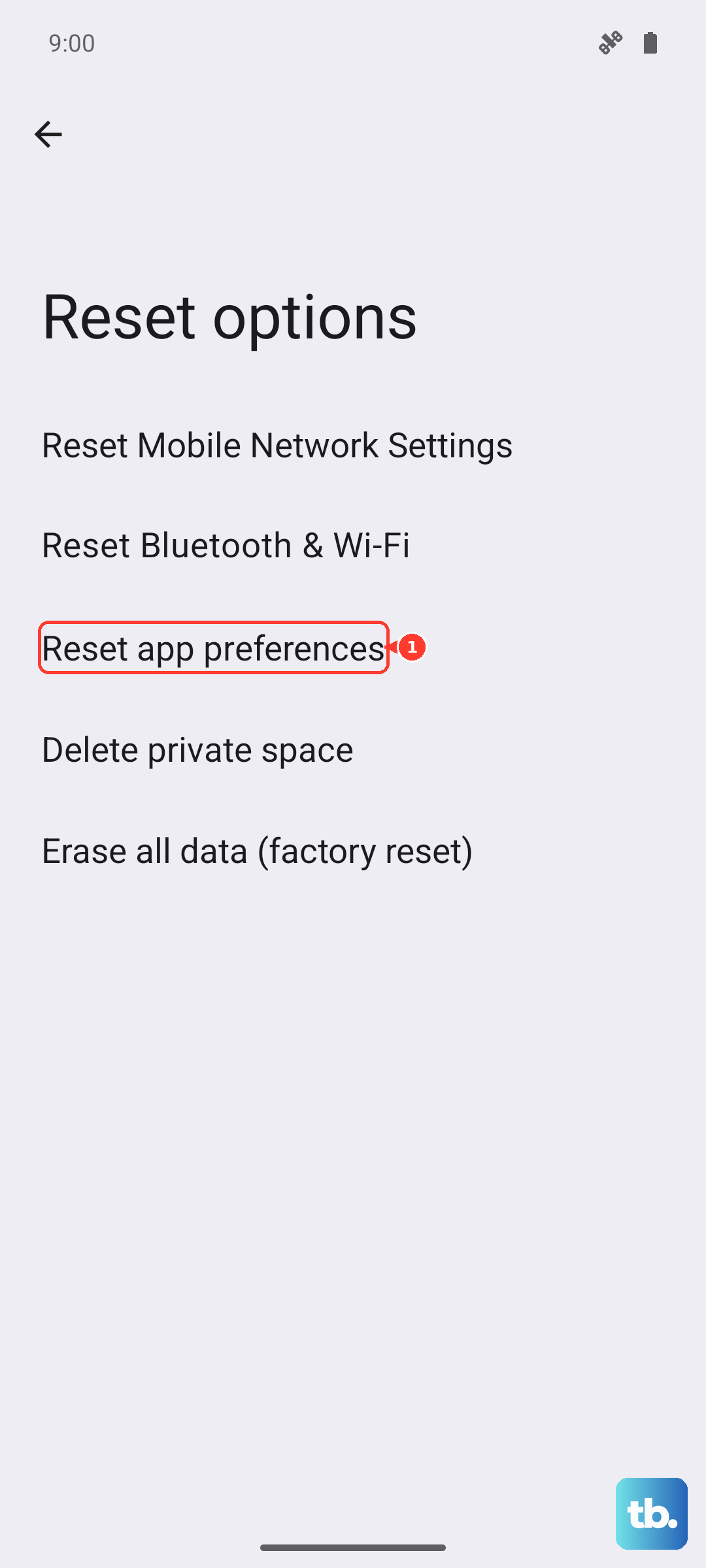
Clear the Phone App's Cache and Data
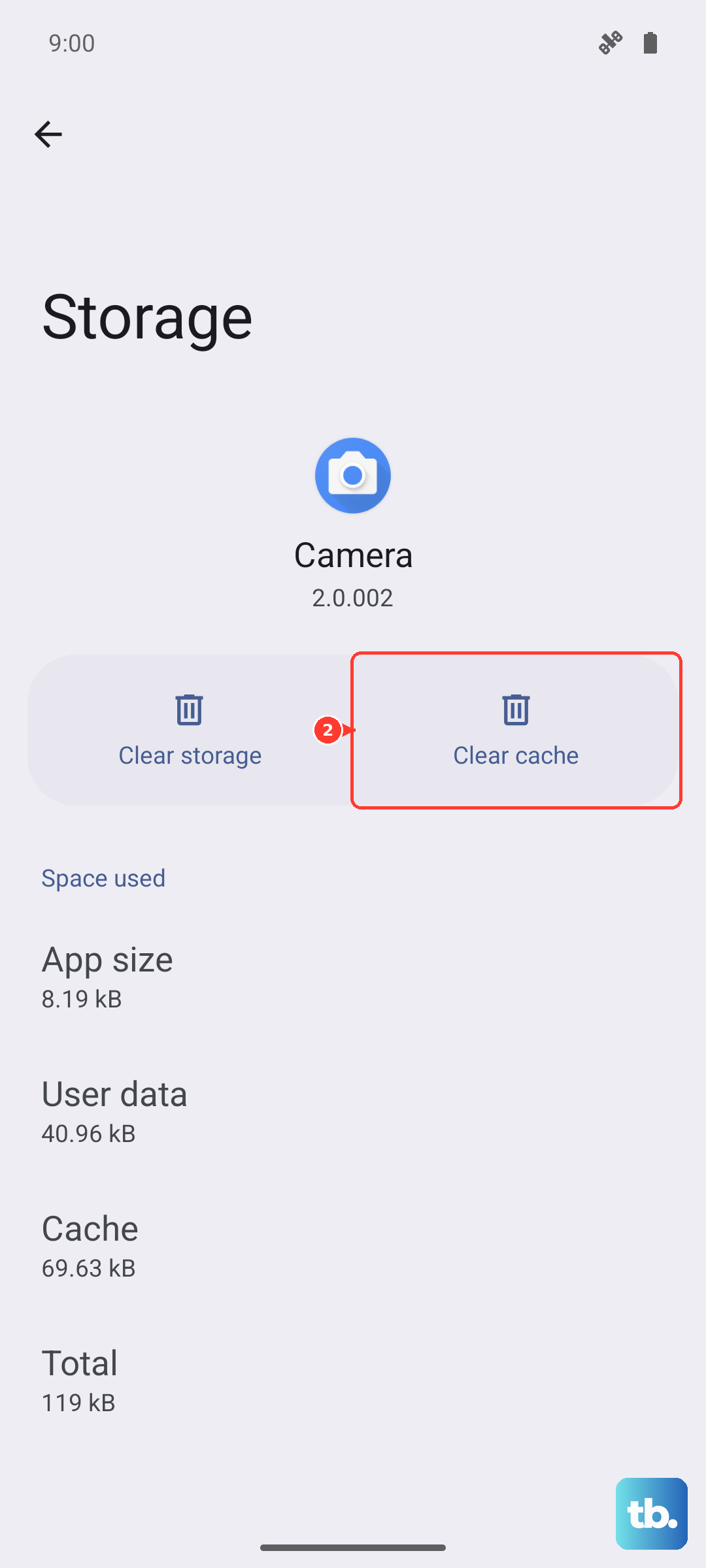
If the issue seems specific to the Phone app, clearing its cached data can help. Go to Settings > Apps > See all apps. Find and tap on "Phone" in the list.
Select Storage & cache. Tap "Clear cache" first and test. If the problem persists, you can tap "Clear storage" or "Clear data". A warning will note this resets the app to its default state, but it won't delete your call history or contacts stored in your Google account.
Check for App-Specific Notification Settings
If calls from apps like WhatsApp, Telegram, or Facebook Messenger aren't ringing, the issue is with that app's notifications, not your system ringer. Open the problematic app and dive into its in-app notification settings.
Also, go to Settings > Apps > [App Name] > Notifications. Make sure notifications are turned on for that app, and that the "Incoming calls" or "Voice calls" channel is set to "Sound" and marked as "Important" so it can break through Do Not Disturb.
Reset All Network Settings
This step resets Wi-Fi, mobile data, and Bluetooth connections. It's useful if the issue seems related to your carrier connection or VoIP calls. Go to Settings > System > Reset options.
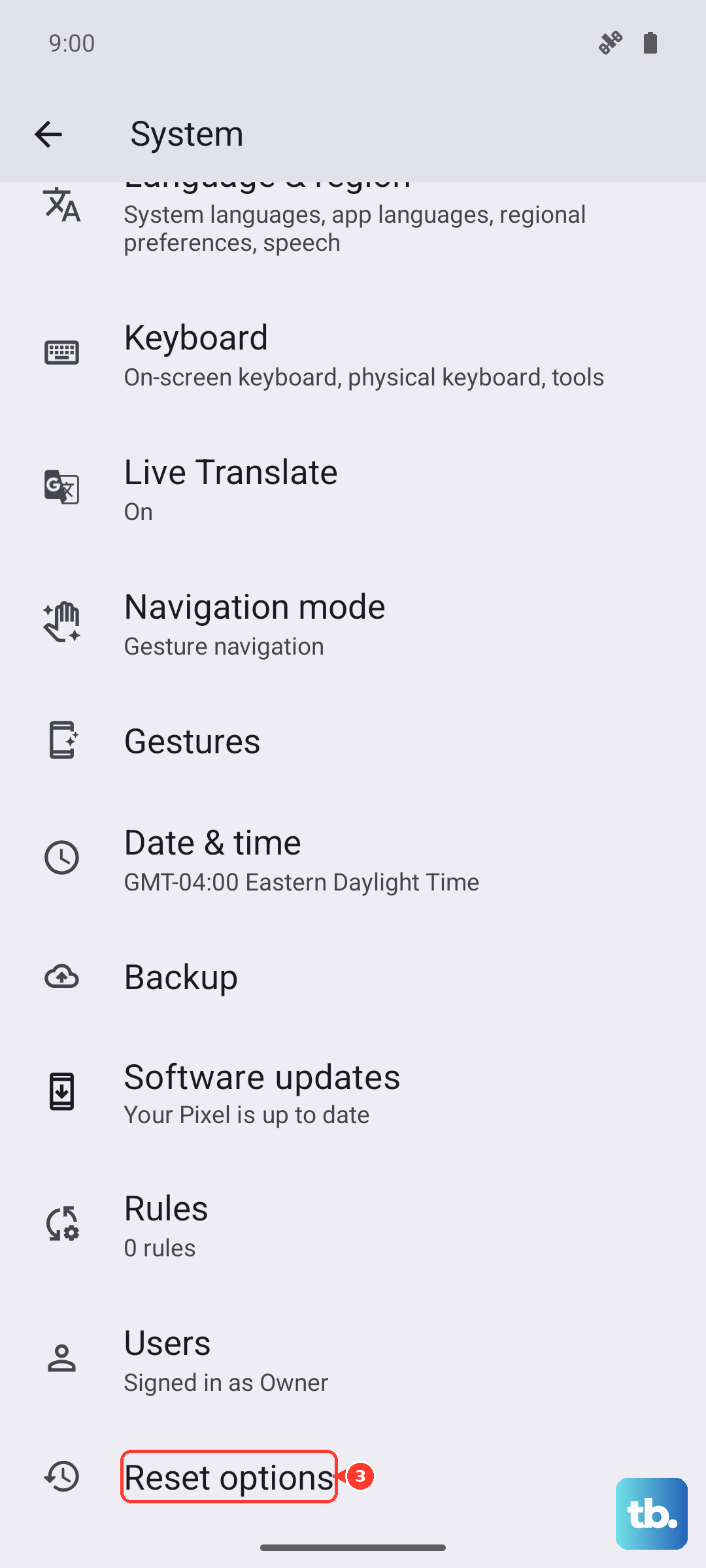
Tap "Reset Wi-Fi, mobile & Bluetooth". Confirm and enter your lock screen PIN if prompted. Your phone will reboot. Afterward, you'll need to reconnect to Wi-Fi networks and re-pair Bluetooth devices, but your call functionality will be refreshed.