
When your OnePlus 13 Pro stops ringing for incoming calls, it can leave you feeling disconnected. This problem on OxygenOS 15 can stem from a simple toggle you accidentally enabled or a deeper network hiccup. The good news is you can usually get your phone back to normal with a few targeted checks.
Before we get into the specifics, let's run through a quick diagnostic. Start by checking your signal bars. If you're in a low-coverage area, that's the most likely culprit. Next, pull down the Quick Settings shade from the top of your screen and make sure Airplane Mode isn't active. A simple force restart can also clear out temporary glitches. Just press and hold the Volume Down button and the Power button together for about 10 seconds until the phone vibrates and reboots.
Check Your Do Not Disturb and Focus Modes
OxygenOS has several ways to silence calls that are easy to turn on by mistake. Swipe down twice to open your full Quick Settings panel and look for the Do Not Disturb or Zen Mode icon. If it's highlighted, tap it to turn it off.
You should also check the more granular settings. Go to Settings > Sound & vibration > Do Not Disturb. Here, review the rules and schedules to make sure one isn't active. Also, look at Settings > Digital Wellbeing & parental controls > Focus modes to ensure a focus mode isn't blocking your calls.
Review Call Blocking and Spam Protection
The built-in spam protection is great for stopping robocalls, but it can sometimes be too aggressive. Open your Phone app and tap the three-dot menu in the top right, then go to Settings > Call blocking & identification.
Take a look at the "Blocked numbers" list to see if any important contacts were added accidentally. You can also toggle off features like "Caller ID & spam" temporarily to see if that's what's preventing calls from coming through. I've seen this fix the issue when calls from new business contacts weren't getting through.
Verify Your SIM Card and Network Connection
A loose or faulty SIM card is a classic cause of call problems. You'll need the SIM ejector tool that came with your OnePlus 13 Pro. Gently remove the SIM tray, take out the card, and then reinsert it firmly.
Once the phone reboots, see if your signal returns. If you see "No service" or "Emergency calls only," the issue is likely with your network connection. Try toggling Airplane Mode on for 30 seconds and then off again to force the phone to re-register with the cellular network.
Disable Call Forwarding and Barring
Call forwarding can silently send your calls to another number without you realizing it. To check, open the Phone app, tap the three-dot menu, and go to Settings > Calling accounts > [Your Carrier].
Look for "Call forwarding" and "Call barring" options. Inside "Call forwarding," make sure all options like "Always forward" or "When busy" are set to "Disable." Similarly, in "Call barring," ensure no restrictions are placed on incoming calls.
Reset Your Network Settings
If you're still having issues, a network settings reset can clear out any corrupted connection data. Go to Settings > System > Reset options. Tap on "Reset Wi-Fi, mobile & Bluetooth."
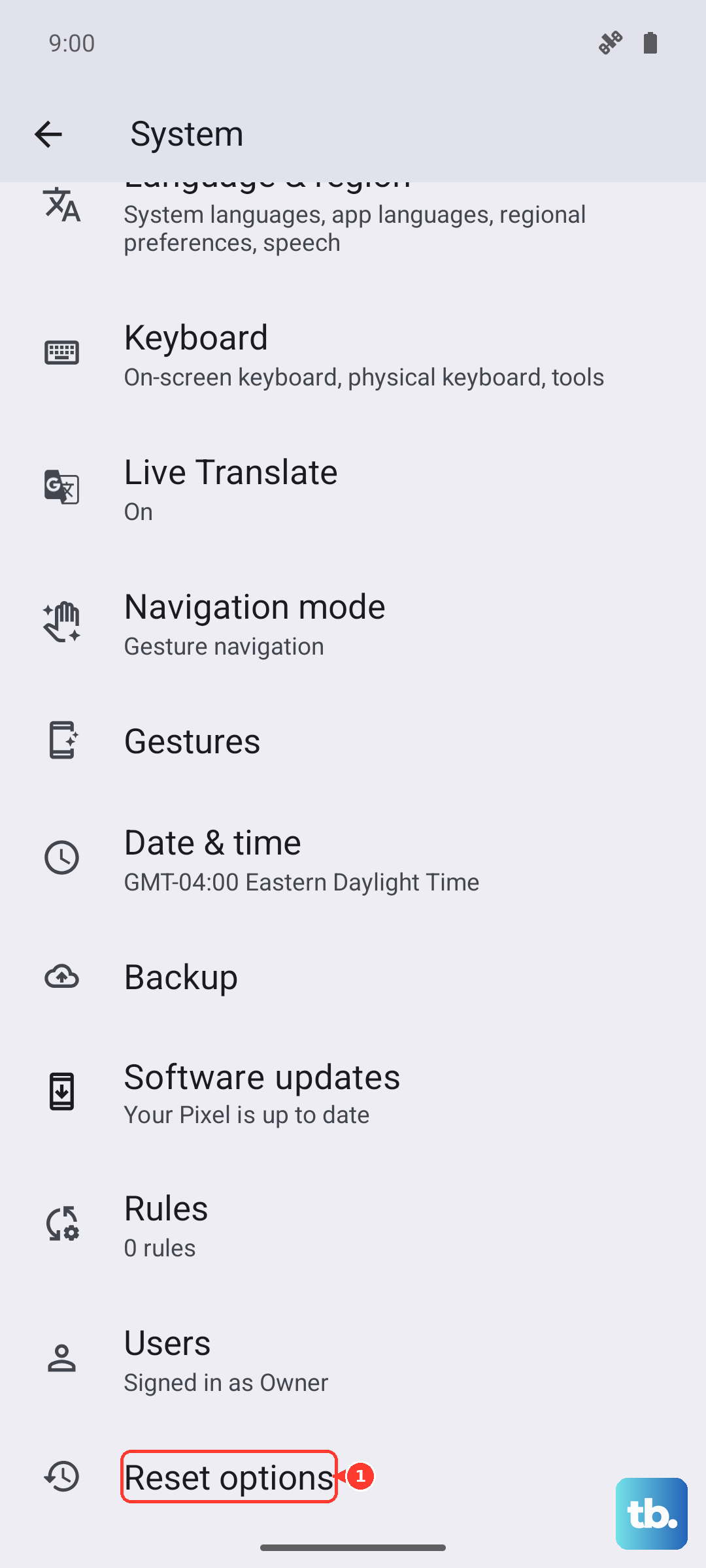
This will erase all saved Wi-Fi networks, Bluetooth pairings, and cellular network preferences. Your phone will reboot, and you'll need to reconnect to Wi-Fi and pair Bluetooth devices again, but it often resolves persistent calling issues.
Update Your OnePlus 13 Pro Software
Software bugs can interfere with calling functions, and OnePlus frequently releases updates with fixes. Keeping your device updated is one of the best ways to ensure stability. Go to Settings > About device > OxygenOS version and tap on the icon to check for updates.
If an update is available, download and install it. Make sure your phone is connected to Wi-Fi and has at least a 50% charge, or better yet, plug it into its 100W charger during the update process.
Clear the Phone App's Cache and Data
Corrupted data within the Phone app itself can cause problems. This won't delete your call history or contacts, but it will reset the app's preferences. Navigate to Settings > Apps > See all apps and find "Phone" in the list.
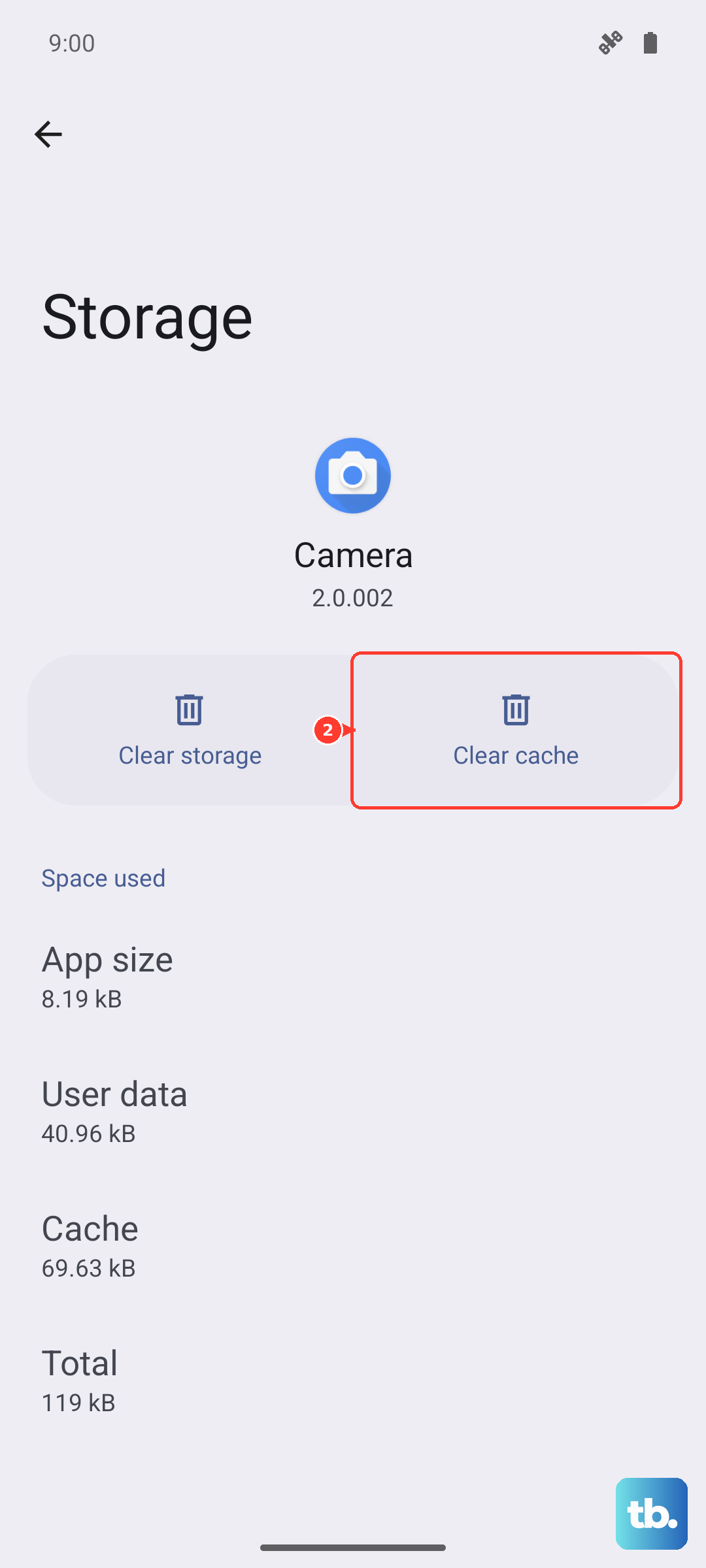
Tap on it, then go to Storage & cache. Tap "Clear cache" first. If the problem persists, go back and tap "Clear storage" or "Manage storage > Clear all data." After doing this, you may need to re-grant permissions to the app when you open it again.
Check for Problematic Third-Party Apps
Sometimes, an app you installed can interfere with telephony services. Think about any call-related apps, dialers, call blockers, or even battery savers you've installed recently. Try booting your OnePlus 13 Pro into Safe Mode to see if the problem goes away.
To enter Safe Mode, press and hold the Power button until the power menu appears. Then, press and hold the "Power off" option on your screen until you see a prompt to reboot to Safe Mode. If calls work normally in Safe Mode, a third-party app is the culprit. You'll need to uninstall apps one by one to find the offender.
Contact Your Mobile Carrier
The issue might not be with your phone at all. There could be a network outage in your area, a problem with your account, or a feature like call blocking that was enabled on the carrier's side. Use another phone to call your carrier's customer service.
Ask them to check your line for any outages, confirm your account is in good standing, and verify that no network-level call blocking (like spam filters) is active. They can also sometimes reprovision your line, which is like refreshing your connection to their network from their end.
Perform a Factory Reset
If every other step has failed, a factory reset is the final software solution. This will erase everything on your phone, so it's absolutely critical to back up your data first. Use Google's backup service or the OnePlus Switch app to save your photos, messages, and settings.
Once backed up, go to Settings > System > Reset options > Erase all data (factory reset). Follow the prompts to complete the reset. After the phone restarts, set it up as new without restoring a backup immediately to see if the calling function works. If it does, the issue was with your previous software configuration.