
When your OnePlus 13 Pro's keyboard disappears or you get an error message, it can stop you in your tracks. The good news is this is usually a quick software hiccup, not a hardware problem. I'd start by simply restarting the app.
Head to Settings > Apps > Manage apps. Find your keyboard here, it might be listed as "OnePlus Keyboard," "Gboard," or the name of a third-party app you installed. Tap on it and select Force stop. This shuts it down completely. Open any app that uses typing, like Messages, and the keyboard should restart fresh.
Give Your Phone a Quick Reboot
If force stopping didn't help, a full restart of your OnePlus 13 Pro is the next logical step. This clears out any temporary system glitches that might be interfering with the keyboard. Just press and hold the power button, then tap "Restart."
For a more thorough refresh, you can perform a force restart. Press and hold the Volume Down button and the Power button together for about 10 seconds. You'll feel the device vibrate and see the OnePlus logo as it boots back up. This is often enough to get things working again.
Clear the Keyboard's Cache and Data
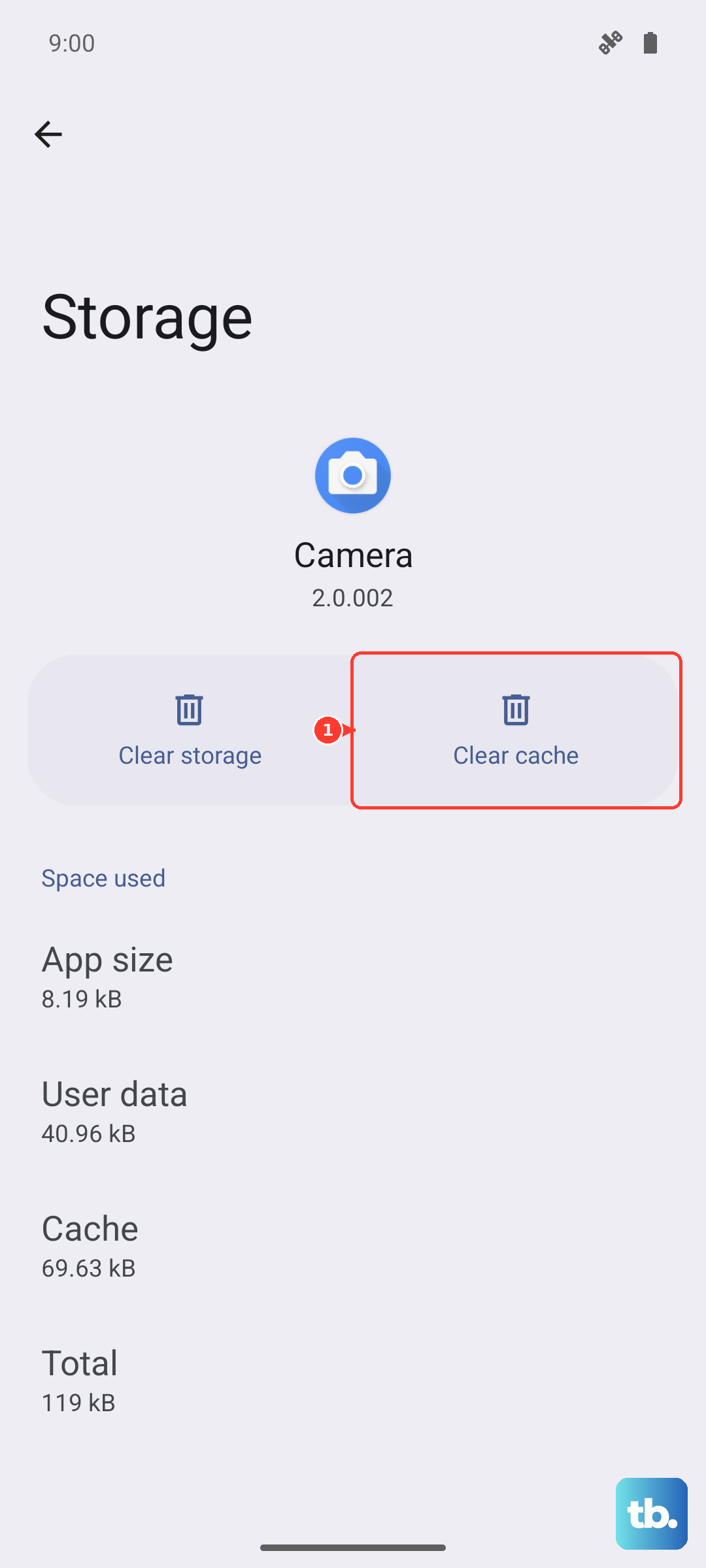
Sometimes, the temporary files (cache) or settings (data) your keyboard app stores get corrupted. Clearing them gives the app a clean slate. Go back to Settings > Apps > Manage apps and select your keyboard.
Tap on Storage & cache. First, hit Clear cache. This is safe and won't delete your personal dictionary or saved words. If the problem persists, you can try Clear data. Be aware this will reset the keyboard to its default settings, so you'll lose any customizations like your saved words or layout preferences.
Check for App and System Updates
An outdated keyboard app can have bugs that cause crashes. Open the Google Play Store, tap your profile icon, and go to Manage apps & device. Under "Updates available," see if your keyboard app is listed. If it is, update it.
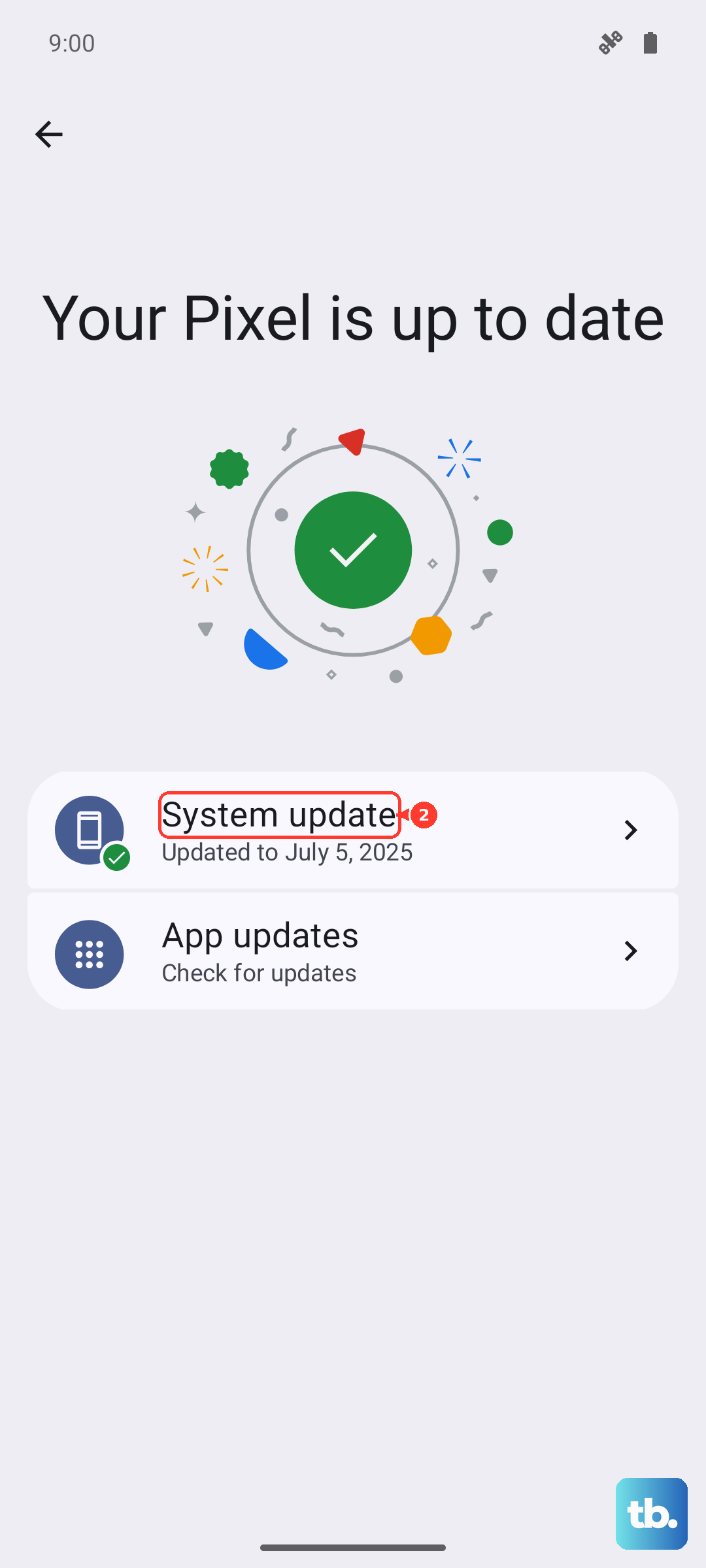
It's also crucial to keep OxygenOS itself updated. System updates frequently include patches for app compatibility issues. Check by going to Settings > About device > OxygenOS version and tap on the check for update button. Installing the latest software can resolve a lot of these background conflicts.
Try a Different Keyboard App
If your default keyboard is being stubborn, installing a different one from the Play Store is a great workaround. Apps like Gboard or SwiftKey are excellent alternatives. Once installed, you'll need to enable it.
Go to Settings > System settings > Keyboard & input method > Virtual keyboard. Tap on Manage keyboards and toggle on your newly installed keyboard. Then, you can set it as your default input method. This can immediately bypass the issue while you figure out what's wrong with the original app.
Boot Into Safe Mode to Find a Bad App
If the keyboard only fails in certain apps or started after you installed something new, a third-party app might be the culprit. Booting into Safe Mode temporarily disables all apps you've downloaded. On the OnePlus 13 Pro, press and hold the power button until the power menu appears.
Then, tap and hold the "Power off" option on your screen. A prompt will appear asking if you want to reboot to Safe Mode. Tap "OK." If your keyboard works perfectly in Safe Mode, you know a downloaded app is causing the conflict. Start by uninstalling apps you added around the time the problem began.
Reset Your App Preferences
This is a useful middle-ground step before considering a factory reset. It resets all your app-related settings, like notification permissions, default apps, and background data restrictions, back to their original state. It won't delete any of your personal data or apps themselves.
Navigate to Settings > Apps > Manage apps. Tap the three-dot menu in the top right and select Reset app preferences. Confirm your choice. After your phone resets, you'll need to re-grant permissions to apps and set your default keyboard again, but it can clear up persistent conflicts.
Check for Language & Input Conflicts
Incorrect input settings can sometimes cause the keyboard to malfunction. Go to Settings > System settings > Languages & input. Under "Keyboards," ensure your preferred keyboard is listed and enabled.
Also, look at the "Spell checker" and "Personal dictionary" options. If these system components have issues, they can affect the main keyboard. You can try clearing the cache for the "Android System Intelligence" app or the "Personal dictionary" app in your Apps list as an additional step.
Consider a Factory Reset (Last Resort)
If you've tried everything else and the keyboard is still unusable, a factory reset will wipe the phone back to its original out-of-box state. This will erase all your data, so it's absolutely essential to back up everything important first using Google One or your preferred method.
To perform the reset, go to Settings > Additional settings > Back up & reset > Erase all data (factory reset). Follow the on-screen instructions. After the reset and setup, test the keyboard immediately before restoring your apps to see if the issue is truly gone.