
When the predictive text on your OnePlus 13 stops working, it can feel like you're typing with one hand tied behind your back. The suggestions might vanish, autocorrect could start making bizarre changes, or the keyboard might just seem slow and unhelpful. The good news is this is almost always a software hiccup you can fix yourself.
Restart Your OnePlus 13
Before diving into settings, give your phone a fresh start. A simple restart clears out temporary glitches in memory that can affect the keyboard and its predictive engine. Just press and hold the power button, then tap 'Restart'.
If the phone is unresponsive, you can force a restart. Press and hold the Volume Down button and the Power button together for about 10 seconds until you feel the device vibrate and the OnePlus logo appears.
Toggle Predictive Text Off and On
Sometimes the feature just needs a quick refresh. Open any app that uses the keyboard, like Messages or Notes, and bring up the keyboard. Look for the settings gear icon on the top row of the keyboard and tap it.
In the menu that pops up, find the switch for 'Predictive text' and turn it off. Wait a second, then tap it again to turn it back on. This resets the connection without affecting your personal dictionary.
Clear the Gboard App Cache
Your OnePlus 13 uses Google's Gboard as its default keyboard. Clearing its cache removes temporary files that might have become corrupted. Go to Settings > Apps > See all apps.
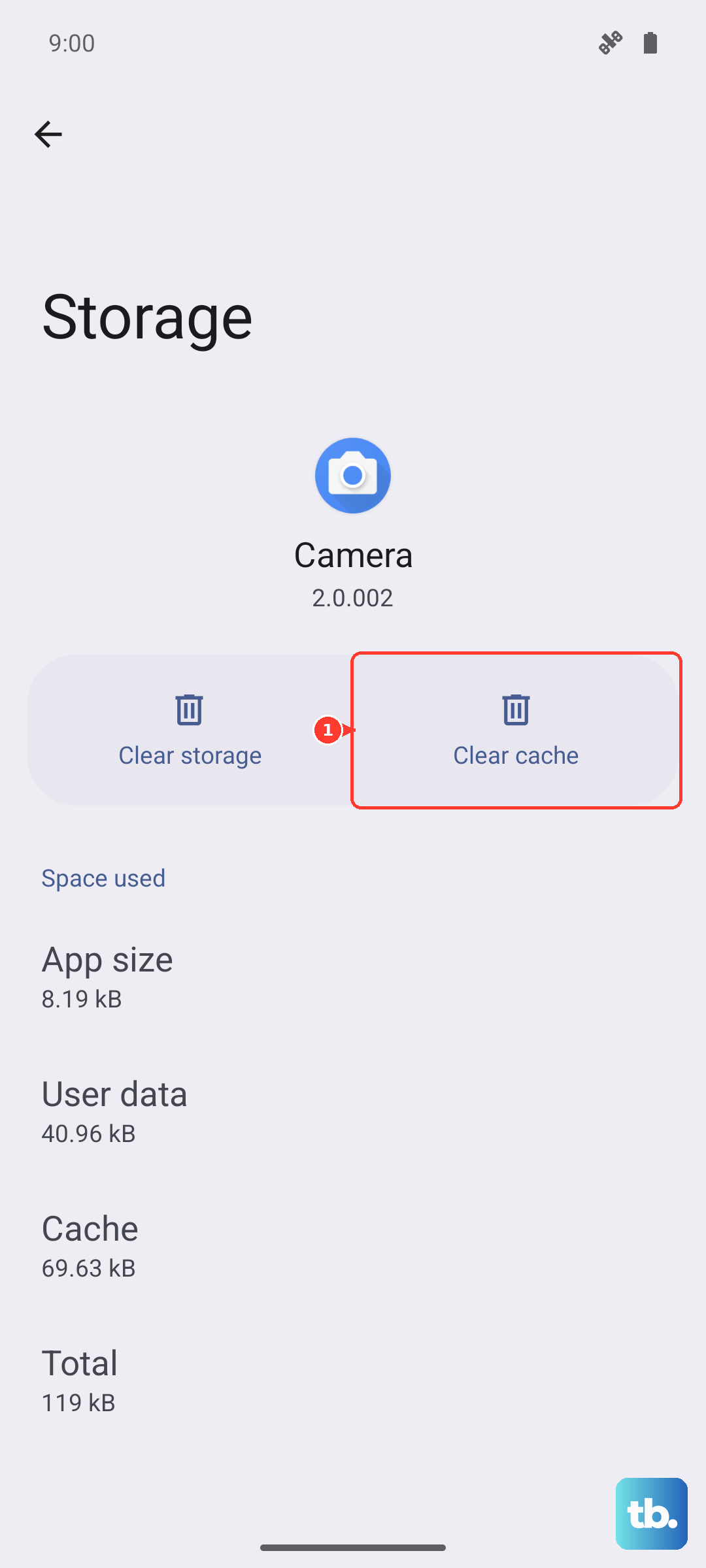
Find and tap on 'Gboard' in the list. Then, tap Storage & cache. On the next screen, tap the 'Clear cache' button. This is a safe first step that won't delete your saved words or personal settings.
Check Your Gboard Language Settings
Predictive text needs to know which language you're typing in to work properly. Open Gboard's settings by long-pressing the comma or globe key on the keyboard and selecting the gear icon, or go through Settings > System > Keyboard & input methods > On-screen keyboard > Gboard.
Tap on 'Languages'. Make sure the language you're using (like English - US) is listed and toggled on. If you only have one language enabled, try adding a second one and then removing it again, as this can refresh the language pack.
Update Gboard and OxygenOS
An outdated app or system software is a common culprit, especially with early builds. Open the Google Play Store, search for 'Gboard', and see if an update is available. Tap 'Update' if it is.
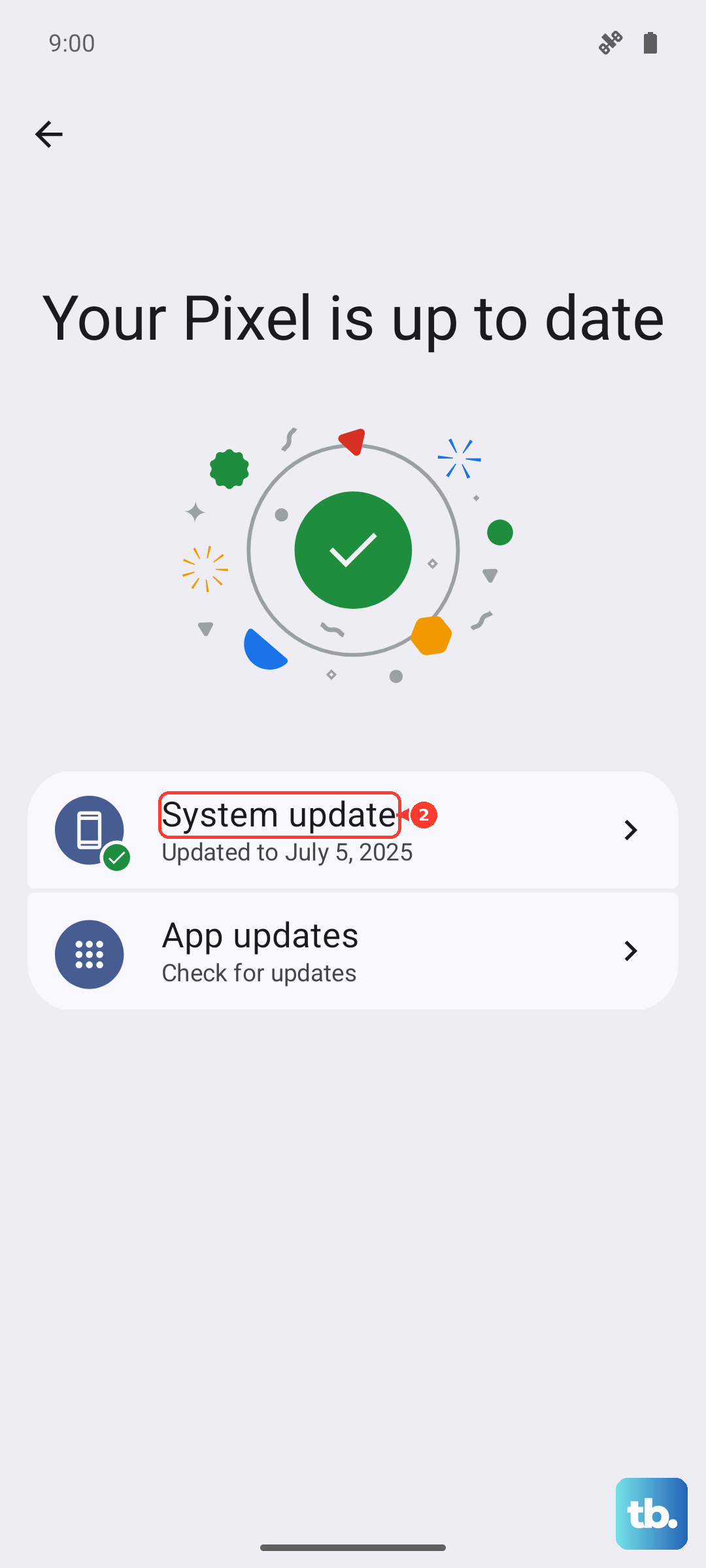
Next, check for a system update. Go to Settings > About device > OxygenOS version and tap 'Check for update'. Installing the latest OxygenOS update can fix a wide range of software bugs, including keyboard issues. I've seen this resolve problems on several new OnePlus models.
Reset Gboard to Its Default Settings
If predictive text is still broken, resetting the keyboard will wipe its settings and start fresh. This will erase any custom dictionaries, themes, or preferences, so it's a last resort. Go to Settings > System > Keyboard & input methods > On-screen keyboard > Gboard.
Tap 'Advanced' at the bottom, then look for the option labeled 'Reset to default settings' or 'Delete learned words & data'. Confirm the reset. Afterward, you'll need to go back into Gboard settings and re-enable features like glide typing and sound on keypress.