
When your OnePlus 13 suddenly stops ringing for incoming calls, it can leave you feeling disconnected and anxious. This problem often stems from a simple setting or a temporary software hiccup, especially with new devices running early builds of OxygenOS 15. I'd start with the quick fixes below, as they resolve the majority of these issues in just a few minutes.
Check Do Not Disturb and Silent Mode
This is the most common culprit. Your phone might be in a focus mode that silences calls. Swipe down from the top of your screen twice to open the full Quick Settings panel. Look for the Do Not Disturb icon (a circle with a line through it) and the Silent mode icon (a bell with a slash). If either is highlighted, tap it to turn the feature off.
You can also check the schedules. Go to Settings > Sound & vibration > Do Not Disturb. Make sure it's toggled off and review any automatic rules that might be activating.
Perform a Force Restart
A quick reboot can clear out temporary glitches that affect the phone app or radio. For the OnePlus 13, press and hold the Volume Down button and the Power button simultaneously for about 10 seconds. You'll feel a vibration and see the OnePlus logo as the device restarts. This is different from a normal restart and often fixes odd software behavior.
Verify Your Network Connection
Poor signal or a network outage will obviously block calls. First, check the signal bars in your status bar. If they're low or showing an "X," try moving to a different location. Toggle Airplane mode on and off from the Quick Settings panel to force the modem to reconnect to the network.
It's also worth checking with your carrier. You can use their app, website, or call from another phone to ask if there are any service disruptions in your area or issues with your account.
Review Call Blocking and Spam Settings
OnePlus's Phone app has built-in spam protection that can sometimes be overzealous. Open your Phone app, tap the three-dot menu in the top right, and go to Settings. Look for options like Caller ID & spam or Blocked numbers.
Inside, you can review your blocked numbers list to make sure no important contacts are there. You can also temporarily disable the spam filter to see if that's what's silently blocking incoming calls.
Disable Call Forwarding
If call forwarding is accidentally enabled, all your calls are being sent to another number. To check, open the Phone app, go to the three-dot menu > Settings > Call settings. Tap on Call forwarding.
You'll see options for different forwarding scenarios. Make sure each one is set to "Turn off" or "Never forward." If any are active, tap on them and disable the forwarding.
Inspect Your SIM Card
A loose or faulty SIM card can cause intermittent call failures. Power off your OnePlus 13 completely. Use the SIM ejector tool that came in the box to pop out the SIM tray. Carefully remove the SIM card, inspect the gold contacts for any dirt or damage, and then reseat it firmly in the tray.
Push the tray back in until it clicks. Power the phone back on and wait for it to register on the network. If you have access to another compatible phone, testing your SIM card in it can tell you if the problem is with the card itself.
Reset Your Network Settings
This clears all network-related configurations, which can resolve persistent calling issues. Go to Settings > System > Reset options. Tap on Reset Wi-Fi, mobile & Bluetooth.
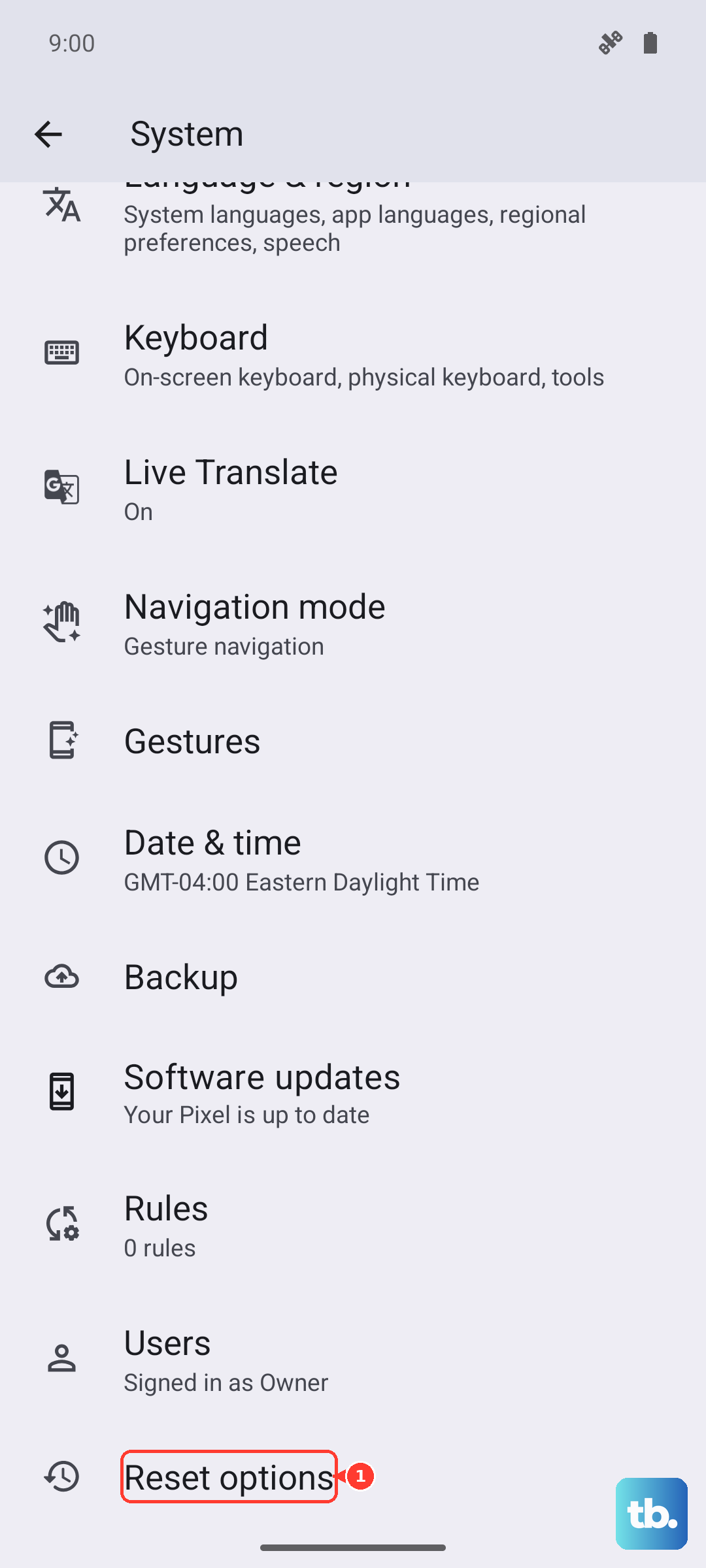
Confirm the action. Be aware this will erase all saved Wi-Fi passwords, Bluetooth pairings, and mobile network preferences, so you'll need to reconnect to your wireless networks and re-pair accessories afterward.
Update Your OnePlus 13 Software
Since the OnePlus 13 is a new device, early OxygenOS builds may have bugs that affect calling stability. Keeping your phone updated is crucial. Go to Settings > About device > OxygenOS version and tap on the icon at the top to check for updates.
If an update is available, download and install it. It's best to do this while connected to Wi-Fi and with your phone charged above 50%. I've seen many early-adopter issues resolved by the first few post-launch updates.
Clear the Phone App's Cache and Data
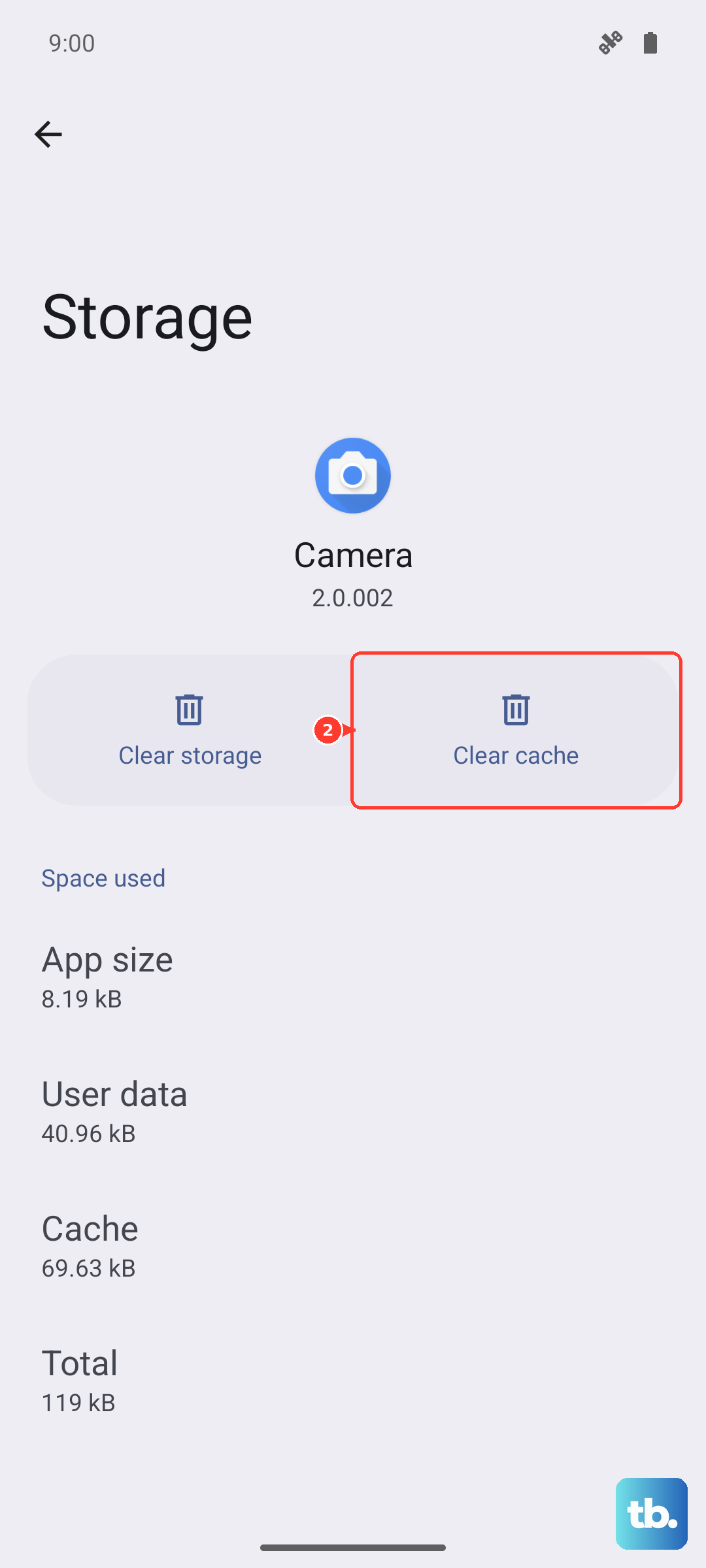
Corrupted data within the Phone app itself can cause it to malfunction. Go to Settings > Apps > See all apps. Find and tap on "Phone" in the list. Select Storage & cache.
Tap Clear cache first. If the problem persists, you can try Clear storage or Clear data. This will reset the app to its default state, so you may lose your call log and any custom settings within the dialer.
Check for Problematic Third-Party Apps
An app with permission to manage calls could be interfering. Think about any call recorder, dialer, or security apps you've installed recently. Try booting your phone into Safe Mode to disable all third-party apps temporarily.
To enter Safe Mode, press and hold the power button until the power menu appears. Then, press and hold the "Power off" option on your screen until you see a prompt to reboot to Safe Mode. If calls work normally in Safe Mode, a downloaded app is likely the cause. You'll need to uninstall apps one by one to find the culprit.