
If your OnePlus 13 is starting to feel sluggish, you're not stuck with it. Even a brand new phone can slow down if it's bogged down by background tasks, storage issues, or early software bugs. The good news is that OxygenOS gives you a lot of control to tune things back up.
I'd start with a simple restart. It's the quickest way to clear out temporary glitches and stop any runaway processes that might be hogging resources.
Just press and hold the Volume Down button and the Power button together for about ten seconds. You'll feel a vibration, and the phone will reboot. It takes thirty seconds and often solves the problem right away.
Free Up Storage Space
When your phone's storage is nearly full, everything slows down. Head to Settings > Storage to see what's taking up space. Look for large video files, downloaded documents, or apps you haven't used in months.
For photos and videos, consider using Google Photos or OnePlus Cloud to back them up and then remove the local copies. You can also use the built-in cleaning tool in the Storage menu to find and delete junk files and cache data with a single tap.
Update Everything
This is crucial, especially for a new device like the OnePlus 13. Early OxygenOS builds can have bugs that impact performance. Go to Settings > About device > OxygenOS version and tap on the top banner to check for updates.
Don't forget your apps, too. Open the Google Play Store, tap your profile icon, and go to Manage apps & device > Updates available. Keeping software current ensures you have the latest performance optimizations and bug fixes.
Manage Background Apps and Processes
Apps running in the background can drain your battery and slow your phone. You can view and close recent apps by swiping up from the bottom and holding, then swiping apps away.
For more control, go to Settings > Battery > Battery optimization. Here, you can see which apps are using power and optimize them to restrict background activity. You can also manage Background App Refresh for individual apps in their info pages within Settings.
Check for Rogue Apps
Sometimes, one misbehaving app is the culprit. Go to Settings > Battery and check the usage graph. Tap on it to see a breakdown by app over the last 24 hours.
If you see an app using a surprisingly high percentage of battery, it might also be causing lag. Try force-stopping it from its App Info page or consider uninstalling it to see if performance improves.
Optimize Your Display and Animations
Fancy visual effects require processing power. You can tone them down for a snappier feel. Go to Settings > Additional settings > Accessibility.
Look for options like Remove animations or toggle off Window animation scale, Transition animation scale, and Animator duration scale in the Developer Options. To unlock Developer Options, go to About device and tap "Build number" seven times.
Clear App Caches
Over time, apps store temporary data that can become corrupted or bloated. You can clear the cache for individual apps without losing your login info or personal data.
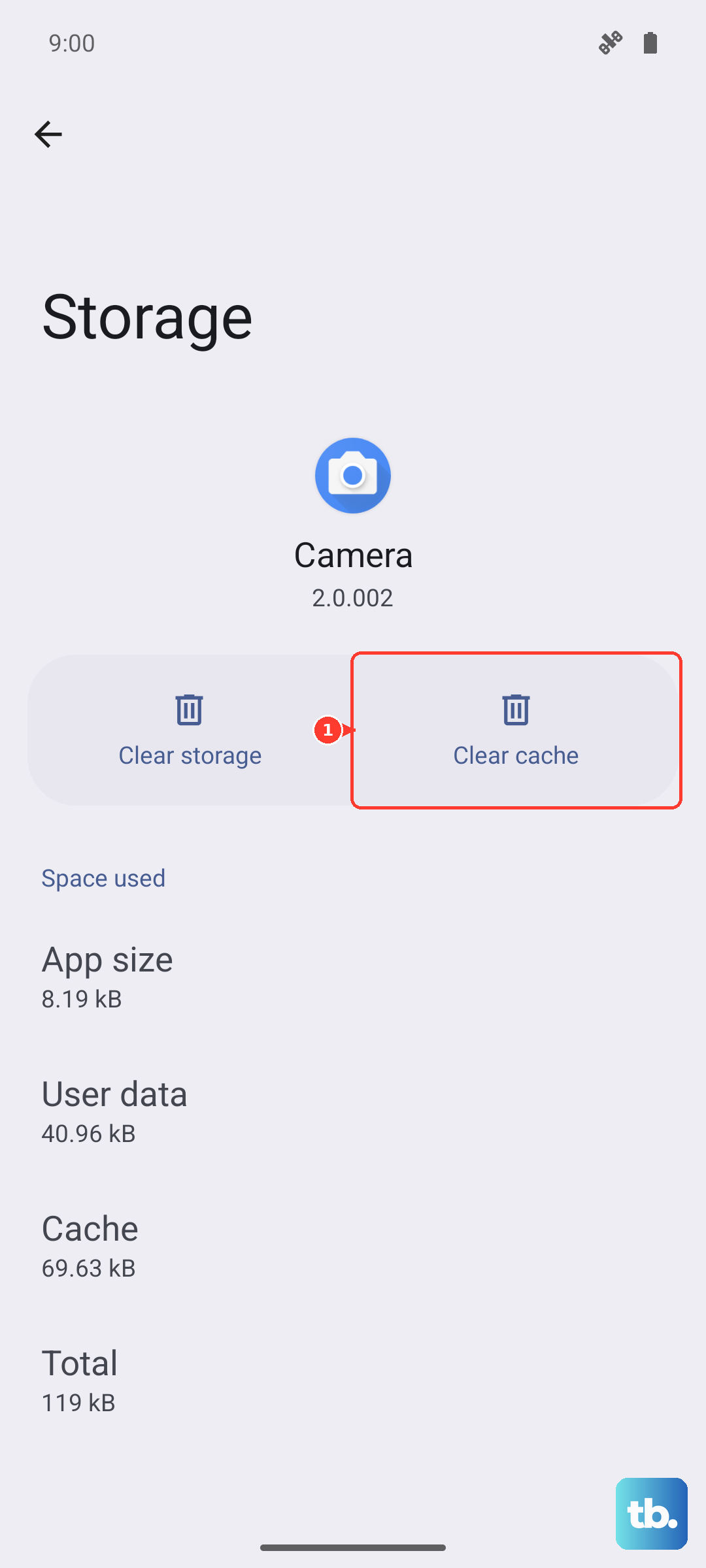
Go to Settings > Apps > See all apps, select the app, then tap Storage & cache > Clear cache. Do this for apps you use frequently, especially social media and web browsers.
Review Your Home Screen Setup
Widgets that update constantly and live wallpapers can use more system resources than you might think. If you're using a dynamic or video wallpaper, try switching to a static image.
Take a look at your widgets, too. Long-press on any widget and remove the ones you don't actively need. A simpler home screen can contribute to a smoother overall experience.
Enable High-Performance Mode
The OnePlus 13 has a dedicated mode to prioritize speed. Swipe down twice from the top of the screen to open the Quick Settings panel, then look for the High Performance Mode tile. If you don't see it, tap the pencil icon to add it.
Turning this on will maximize CPU and GPU performance. Keep in mind it will use more battery, so it's best for when you're gaming or need that extra boost and are near a charger.
Perform a Soft Reset on Settings
If you've tried everything and things still feel off, a settings reset can help. This won't delete your photos, apps, or personal files, but it will reset all your system settings to default.
You'll need to reconnect to Wi-Fi and re-adjust things like ringtones and display brightness. Go to Settings > Additional settings > Back up and reset > Reset phone > Reset all settings. Enter your PIN if prompted, and confirm. It's a deeper clean that often resolves persistent software-related slowdowns.