You swipe down, tap Personal hotspot on your OnePlus 13, and watch your laptop or tablet spin endlessly without ever connecting; or it connects for a minute and then drops, leaving the other device with no internet. A hotspot that refuses to broadcast, asks for a password that suddenly seems wrong, or quietly switches itself off is one of the more frustrating snags on an otherwise fast 5G phone. The good news is that almost every cause is a setting, a toggle, or a software hiccup you can sort out yourself. Work through the fixes below in order, since the early ones are the quickest and safest and the later ones are reserved for stubborn cases.
Start With Your Carrier Plan and a Quick Hotspot Toggle
Your hotspot shares the same mobile data your phone uses, so the first thing to rule out is the plan itself. According to official Android guidance, some mobile carriers limit or charge extra for tethering, so it is worth checking with your carrier that hotspot use is included on your plan before you assume the phone is at fault.
Once you have confirmed that, give the feature a clean restart from the toggle. On the OnePlus 13, go to Settings > Connection & sharing > Personal hotspot and turn 'Personal hotspot' off and then back on. When it is on, nearby devices can discover it and connect by entering its password.
Confirm Mobile Data Is Live and Airplane Mode Is Off
If the phone has no working mobile connection, there is nothing for the hotspot to share. Make sure mobile data is switched on and that you are not stuck in Airplane mode, which silences the mobile, Wi-Fi, and Bluetooth radios all at once.
To check and reset the radios, go to Settings > Connection & sharing (or swipe down to Quick Settings) and confirm 'Airplane mode' is off. If it is already off, toggling Airplane mode on for a few seconds and then back off re-establishes the mobile, Wi-Fi, and Bluetooth radios, which often revives a hotspot that simply lost its data connection.
Recheck the Hotspot Password and the 10-Minute Auto-Off
If other devices can see your hotspot in their Wi-Fi list but cannot actually join it, a mismatched password is the usual culprit. Go to Settings > Connection & sharing > Personal hotspot and tap 'Hotspot settings' to view or change the hotspot name and password; you can also set the network as hidden here if you want to improve security.
There is also a built-in power-saving behavior worth knowing about. The official manual notes that when no devices are connected for 10 minutes, Personal hotspot will be turned off to save power, so if the hotspot seems to have switched off by itself, simply re-enable it and connect your other device promptly.
Look Inside Connection Management for Blocks and Limits
When some devices connect but others are refused, the problem may be a connection cap or a blocked device rather than the hotspot itself. Open Settings > Connection & sharing > Personal hotspot and tap 'Connection management', where you can set the maximum number of connections, limit mobile data usage, and manage blocked devices. If a device you trust appears in the blocked list, remove it from there and try connecting again.
If you suspect an old or shared password is the real problem, this is also a good moment to open 'Hotspot settings' and set a fresh name and password, then reconnect each device with the new credentials so none of them is trying to join with stale details.
Switch to Bluetooth or USB Tethering to Narrow It Down
If the Wi-Fi hotspot keeps failing, testing another sharing method tells you whether the issue is with Wi-Fi specifically or with tethering as a whole. The OnePlus 13 supports both Bluetooth tethering and USB tethering alongside the Wi-Fi hotspot.
- 1.For Bluetooth, go to Settings > Connection & sharing > Personal hotspot, turn on 'Bluetooth tethering', and then pair the other device.
- 2.For USB, connect the phone to the other device with a USB cable first, then go to Settings > Connection & sharing > Personal hotspot and turn on 'USB tethering'.
Note that the USB tethering switch can be toggled only after a USB connection is established; if it appears grayed out, reconnect the cable and try again. If one of these alternate methods works while Wi-Fi does not, you have narrowed the problem to the Wi-Fi hotspot rather than your data plan.
Give the Phone a Normal Restart
A standard restart clears the temporary glitches that can stop a hotspot from broadcasting. On the OnePlus 13, press and hold the Power button until the Power Menu pops up, then tap 'Restart'.
If the long-press opens the voice assistant instead of the Power Menu, you can change that behavior under Settings > Additional settings > Power Button > Press and hold the power button, then choose 'Power Menu'. After that, the press-and-hold gesture will bring up the menu with the Restart option.
Force Restart a Frozen OnePlus 13
Sometimes the phone becomes unresponsive and will not even reach the Power Menu. For that situation, the official OnePlus manual says to force restart the phone by pressing and holding the Power and Volume Up buttons for more than 10 seconds.
Use the Power button together with Volume Up, not Volume Down, and keep holding for the full duration until the phone reboots. This is safe for your data and only forces the device to power-cycle when a normal restart is not possible.
Update OxygenOS to Clear Known Bugs
System updates can fix some known issues and improve system performance and stability, so an outstanding OxygenOS update is well worth installing if your hotspot is misbehaving. Go to Settings > About device and tap the version number at the top to check for updates, then download any update that is available.
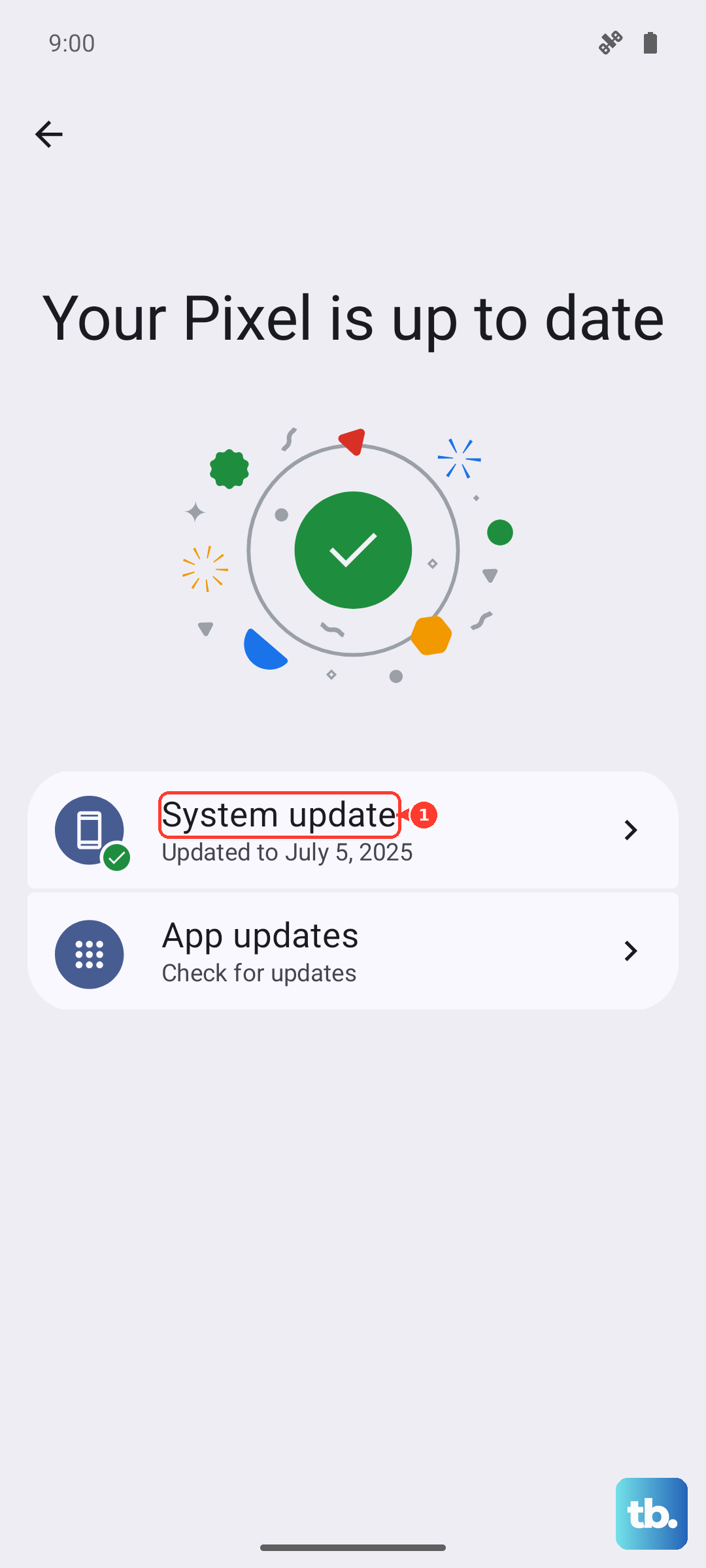
For a smooth update, connect to Wi-Fi, keep the phone charged, and do not press the Power button while the update is installing. Once it finishes, test the Personal hotspot again before moving on to the more involved fixes.
Reset the Network Settings Without Wiping Your Phone
If the hotspot still fails, resetting just the network configuration is the next step and it is far less drastic than a full wipe. Go to Settings > Additional settings > Back up and reset > Reset phone, then follow the onscreen instructions and choose the option to reset network settings.
This clears your Wi-Fi, mobile, and Bluetooth configuration and lets the phone rebuild those connections from scratch, without erasing your photos, apps, or other personal data. After it completes, re-enable mobile data, set your hotspot password again, and try connecting another device.
Erase and Rebuild, Then Reach OnePlus Support
A factory reset is the last resort, because it removes everything, so back up your data first. The manual is explicit about the consequences of choosing this option, and it should only be used once the steps above have failed.
- 1.Back up anything you want to keep, since the reset cannot be undone.
- 2.Go to Settings > Additional settings > Back up and reset > Reset phone > 'Erase all data'.
The manual warns that "your phone will be restored to factory settings and all your data will be erased. Please act with caution." If the hotspot is still broken even after a factory reset, the issue may be carrier provisioning or hardware, so contact OnePlus support at service.oneplus.com for further help.
Frequently Asked Questions
Why does my OnePlus 13 hotspot keep turning itself off?
This is usually the built-in power-saving feature rather than a fault. The official manual explains that when no devices are connected for 10 minutes, Personal hotspot will be turned off to save power, so re-enable it and connect your other device quickly.
Why is USB tethering grayed out on my OnePlus 13?
The USB tethering switch can be toggled only after a USB connection is established. If it appears grayed out under Settings > Connection & sharing > Personal hotspot, reconnect the cable to the phone and the other device, then try the toggle again.
Does resetting network settings delete my photos and apps?
No. Resetting network settings clears only your Wi-Fi, mobile, and Bluetooth configuration without erasing personal data. A factory reset is the option that wipes everything, and the manual warns that all your data will be erased, so only use that as a last resort.
Will my carrier charge extra for using the hotspot?
It depends on your plan. Official Android guidance notes that some mobile carriers limit or charge extra for tethering, so it is best to check with your carrier to confirm hotspot use is included before troubleshooting the phone further.