If your OnePlus 12 videos are stuttering, freezing, or dropping frames, it can really ruin the experience on such a powerful phone. The good news is that this is usually a software hiccup you can fix yourself.
Let's start with the quickest fix. A simple force restart can clear out temporary glitches that might be causing the lag. Just press and hold the Power button for 10 to 15 seconds until you feel the phone vibrate and the screen goes black, then wait for it to boot back up.
Free Up Storage Space
Your OnePlus 12 needs breathing room to process video smoothly. When storage is critically low, the system struggles to cache video data, which leads to choppy playback. Head to Settings > Storage to see how much space you have left.
If you're under 5GB free, it's time for a cleanup. I'd start by clearing the cache of your video apps like YouTube, Netflix, or your gallery. You can also move photos and videos to Google Photos or another cloud service to free up space locally.
Check Your Internet Connection
For streaming videos, a weak or unstable connection is the most common culprit for buffering and lag. This is true even on a fast phone like the OnePlus 12. Try switching between Wi-Fi and your mobile data to see if the problem is network-specific.
If you're on Wi-Fi, try moving closer to your router or restarting it. For a more thorough check, you can run a speed test directly from your phone's settings to confirm you're getting the bandwidth you expect.
Update OxygenOS and Your Apps
Running an outdated version of OxygenOS can lead to compatibility issues with video codecs and apps. OnePlus regularly releases updates that include performance optimizations and bug fixes. Go to Settings > About device > OxygenOS version and tap on the top banner to check for updates.
Don't forget about your apps, too. Open the Google Play Store, tap your profile icon, and go to Manage apps & device > Updates available. Update all your video streaming and playback apps, as developers frequently patch playback bugs.
Close Background Apps and Check RAM
The OnePlus 12 has plenty of RAM, but having too many apps running in the background can still consume system resources needed for smooth video decoding. Swipe up from the bottom and hold to enter the recent apps view, then swipe each app away to close it.
For a more detailed look, you can enable Developer Options and check running services. Go to Settings > About device and tap "Build number" seven times. Then, go back to Settings, find System > Developer options, and look at "Running services" to see if anything is using excessive memory.
Disable Battery Optimization for Video Apps
OxygenOS's battery optimization is great for longevity, but it can sometimes be too aggressive and throttle app performance, including video players. You can exclude specific apps from this optimization to ensure they run at full speed.
Go to Settings > Battery > Battery optimization. Tap the dropdown menu and select "All apps." Find your video app (like YouTube, VLC, or Netflix), tap on it, and select "Don't optimize." This tells the system not to restrict that app's background activity.
Clear App Cache and Data
If the lag is happening in one specific app, corrupted cache files could be the issue. Clearing the cache is safe and won't delete your login info or saved data. Go to Settings > Apps > See all apps, select the problematic app, then tap Storage & cache > Clear cache.
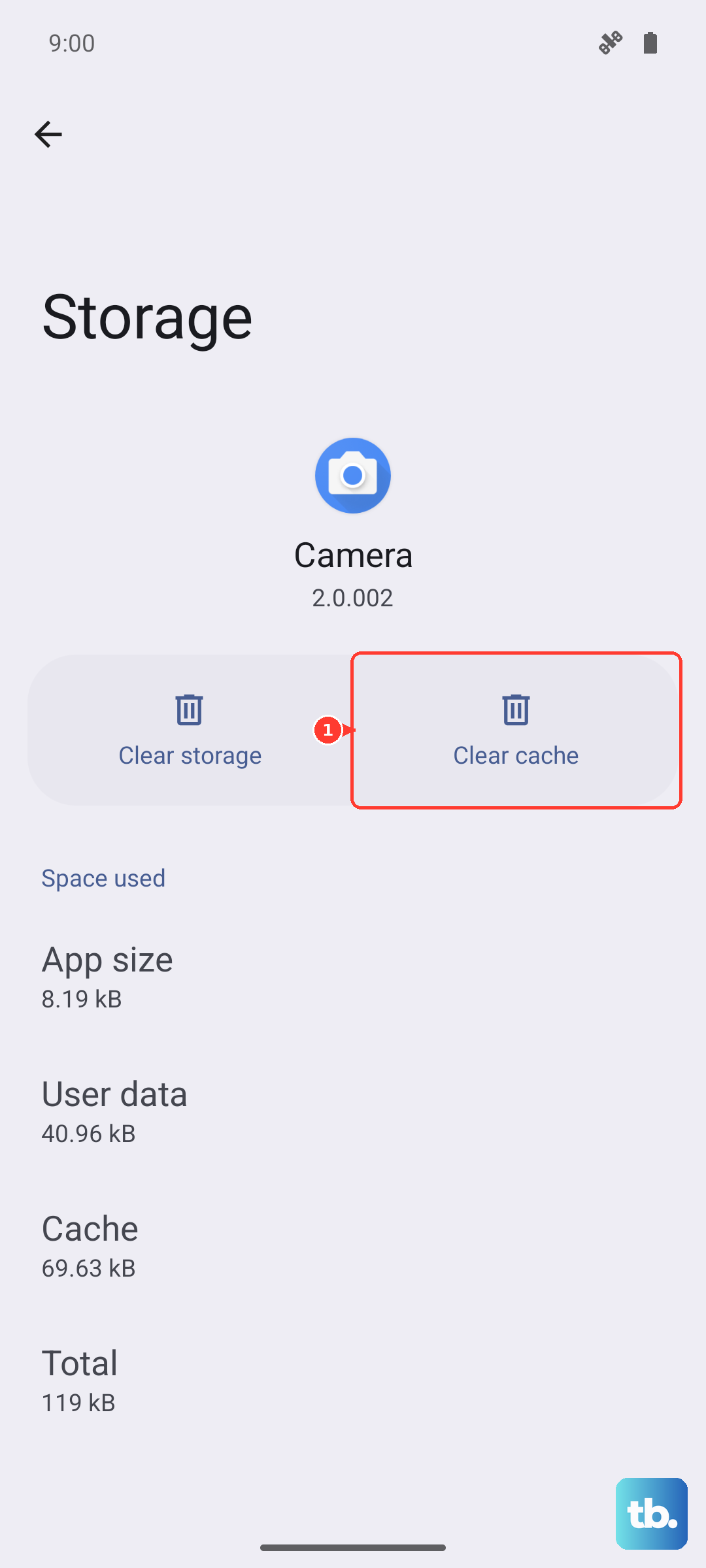
If clearing the cache doesn't help, you can try "Clear storage" or "Clear data." Be warned, this will reset the app to its default state and sign you out, so only do this if you're comfortable logging back in and reconfiguring the app's settings.
Check for Overheating
While the OnePlus 12 has a robust cooling system, prolonged 4K recording or gaming in a hot environment can cause thermal throttling. When the phone gets too hot, the processor slows down to cool off, which can lead to video lag.
If your phone feels warm to the touch and the video starts stuttering, give it a break. Close demanding apps, take it out of its case if it has one, and let it cool down in a well-ventilated area. Avoid using it while it's charging with the 100W SUPERVOOC charger, as fast charging generates additional heat.
Adjust Video Playback Settings
Sometimes the issue is with the video file or stream itself. If you're playing a local file, try using a different video player like VLC or MX Player, which often have better codec support than the default gallery app.
In streaming apps like YouTube or Netflix, try lowering the playback quality manually. A stream might be trying to play in 4K HDR when your connection can't handle it consistently, causing constant buffering and stutter. Lowering it to 1080p can often provide a perfectly smooth experience.
Reset App Preferences or All Settings
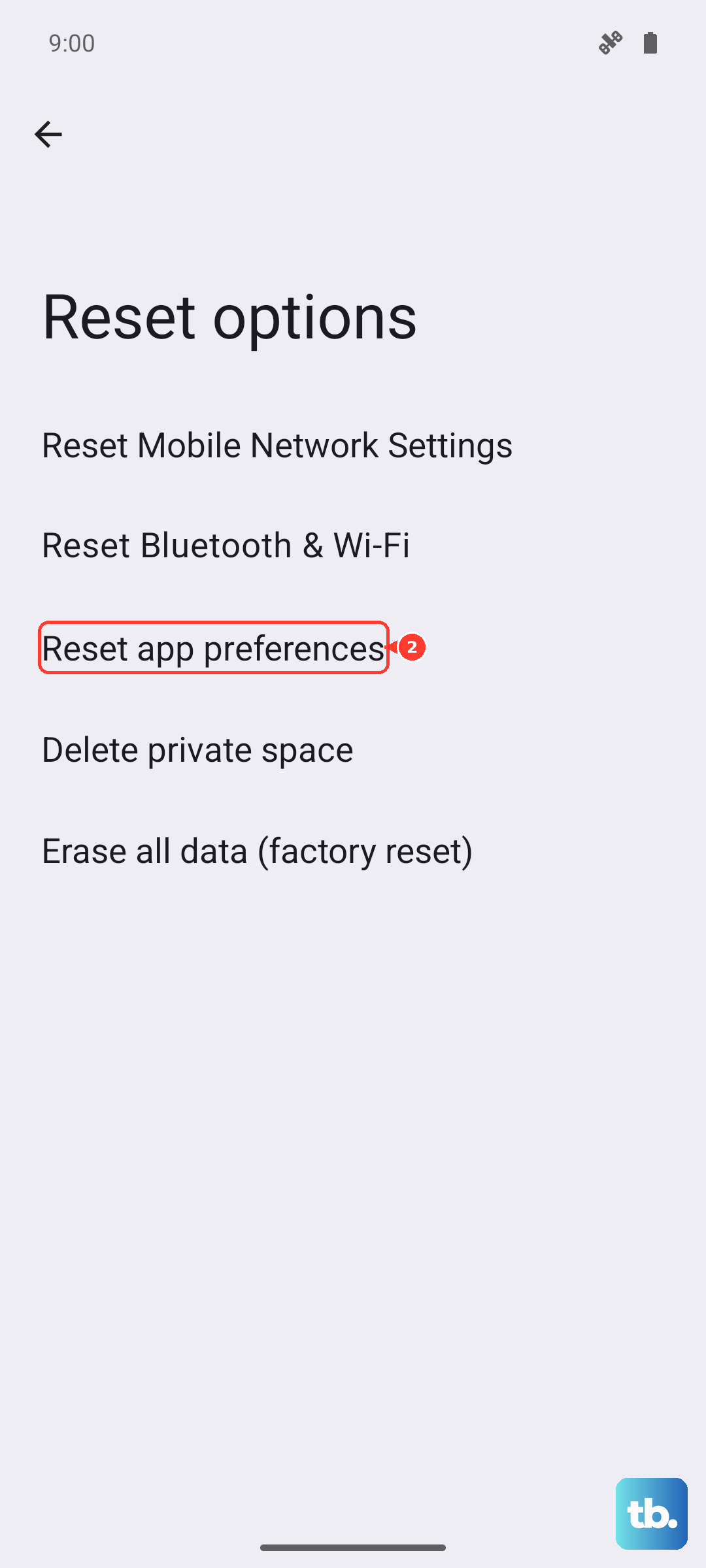
If you've tried everything app-specific, a broader reset can help. Resetting app preferences will revert all your app permissions, default apps, and background restrictions to their factory defaults without deleting any personal data.
Go to Settings > System > Reset options > Reset app preferences. If the problem is still there, you can take the more comprehensive step of resetting all settings. This will wipe your Wi-Fi passwords, Bluetooth pairings, and custom system settings, but your photos, apps, and files will remain. You can find this under Settings > System > Reset options > Reset all settings.