
Seeing the "Settings has stopped" error pop up on your OnePlus 12 can really stop you in your tracks. This usually means the Settings app has crashed or run into some corrupted data. The good news is, there are several straightforward ways to get it working again.
Force Restart Your OnePlus 12
This is almost always my first move. A force restart clears out temporary system glitches and memory issues that can cause apps like Settings to crash. It's quick and doesn't delete any of your data.
Just press and hold the Power button on the side of your phone for about 10 to 15 seconds. Keep holding it until you see the OnePlus logo appear on the screen, then let go. Your phone will boot up fresh, and you can check if the Settings app opens normally.
Clear the Settings App Cache
Over time, the temporary cache files that help the Settings app load quickly can become corrupted. Clearing them forces the app to rebuild these files from scratch, which often fixes the crash.
Since you can't open the main Settings app, you'll need to get to this menu another way. Pull down the notification shade and tap the gear icon in the top right. If that also crashes, go to your app drawer and find the "Settings" app icon. Long-press on it and tap the "i" icon or "App info" from the pop-up menu.
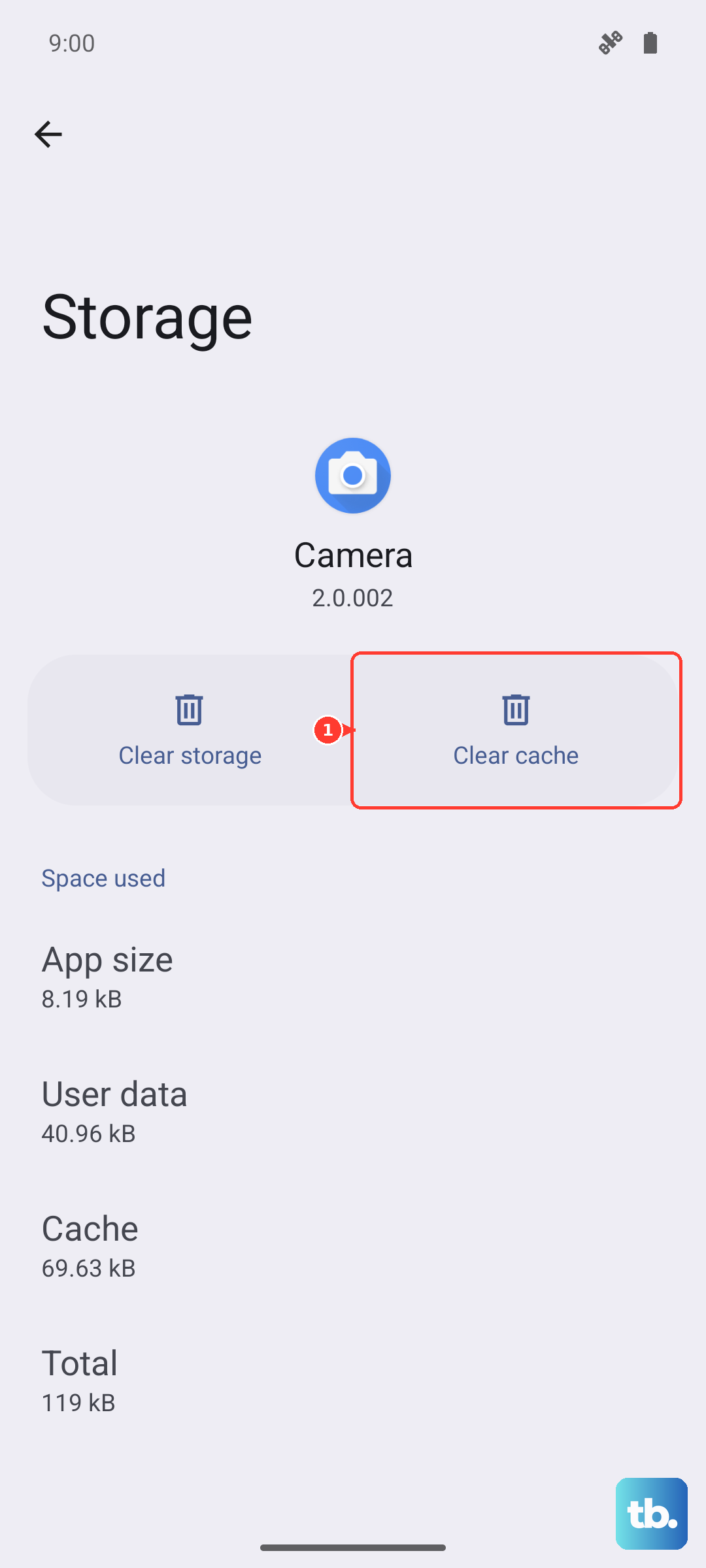
Once you're in the App info screen for Settings, tap on "Storage & cache". Then, tap the "Clear cache" button. Don't tap "Clear storage" or "Clear data" here, as that's a more drastic step we'll save for later if needed.
Force Stop and Update Settings
Sometimes the app just gets stuck in a bad state. Force stopping it closes all its processes completely, so it can start fresh the next time you open it. From the same App info screen for Settings, you'll see a "Force stop" button. Tap it and confirm if prompted.
While you're there, scroll down and tap "App details in Store". This opens the Google Play Store page for the Android System Intelligence or Device Personalization Services, which power parts of Settings. See if there's an "Update" button available. Installing any pending updates can resolve compatibility bugs.
Check for a System Update
Outdated system software is a common culprit for app crashes. OnePlus frequently releases OxygenOS updates that include bug fixes for issues just like this. You need to check for these updates, even if the main Settings app is broken.
You can often find the updater by searching for "Software update" in your app drawer or via the search bar on your home screen. If that works, open it and tap "Check for updates". If an update is available, download and install it. Your phone will restart, and the new software could clear up the problem.
Manage Google Play Services
Google Play Services is a background app that handles core functions for many other apps, including system ones. If it has an issue, it can easily cause Settings to crash. Let's check its status.
Go to your Apps list in Settings (using the long-press method on its icon if needed) and find "Google Play Services". Tap on it, then go to "Storage & cache". Tap "Clear cache" first. If the problem continues, go back and tap "Manage space", then "Clear all data". Don't worry, this will reset some Google-related settings, but it won't delete your personal files.
Boot Into Safe Mode
If you're still seeing the error, a third-party app you installed might be causing a conflict. Booting into Safe Mode temporarily disables all downloaded apps, letting you see if the problem is with the phone's core software or something you added.
To enter Safe Mode on the OnePlus 12, press and hold the Power button until the power menu appears. Then, long-press the "Power off" option on your screen. A prompt will ask if you want to reboot to Safe Mode. Tap "OK".
If the Settings app works perfectly in Safe Mode, you know a downloaded app is the cause. You'll need to restart normally and then uninstall recent apps one by one to find the culprit.
Reset App Preferences or Perform a Factory Reset
If Safe Mode didn't help, the issue is with the system itself. A less drastic step is to reset all your app preferences. This won't delete any app data, but it will reset permissions, default apps, and background restrictions.
You can find this option by going to Settings > Apps > See all apps > Menu (three dots) > Reset app preferences. Confirm the action. For a persistent system software corruption, a factory reset might be the final solution.
Remember, this erases everything on your phone. Before you do this, ensure you have a recent backup. You can initiate it by going to Settings > Additional settings > Back up and reset > Erase all data (factory reset). After the reset, set up your phone as new to see if the issue is resolved.