
Missing notifications on your OnePlus 12 can make you feel out of the loop. You might be waiting for an important message or app alert that never shows up, even though your friends are getting theirs. This is a common hiccup with OxygenOS, but it's usually something you can fix yourself without too much trouble.
Let's start with the quickest fix that often works. A simple force restart can clear out temporary glitches in the notification system. Press and hold the Power and Volume Up buttons for more than 10 seconds until the phone restarts. This is different from a normal restart and can resolve many software hiccups.
Check Your Focus and Battery Settings
OxygenOS has several features designed to minimize distractions and save power, but they can sometimes be a little too aggressive. First, swipe down from the top of your screen twice to open the Quick Settings panel. Look for Do Not Disturb or Power saving mode. If either is highlighted, tap it to turn it off. If you're using Zen Space, open Zen Space and exit Light Zen if available; Deep Zen cannot be exited once started.
You should also dive into the settings. Go to Settings > Battery > More settings. Here, check "Sleep standby optimization," which OnePlus says can reduce the frequency of push notifications while you sleep. Try turning it off temporarily to see if your notifications start coming through. You can always turn it back on later.
Review App-Specific Notification Permissions
Sometimes, the issue isn't with the system but with individual apps. OxygenOS gives you fine-grained control over which apps can notify you and how. Open Settings > Notifications & status bar > App notifications.
Find the app that's not alerting you, like Messages, WhatsApp, or Gmail. Tap on it. Make sure the toggle at the top is switched on. Then, check that all the notification categories below, such as "New messages" or "Primary," are also enabled. Some apps let you choose between "Alert" and "Silent" notifications, so ensure the important ones are set to "Alert."
Disable Battery Optimization for Key Apps
To extend battery life, Android and OxygenOS will restrict what apps can do in the background. This is great for battery stats but terrible for getting timely notifications from messaging or email apps. You need to tell the system to leave these specific apps alone.
Go to Settings > Battery > More settings > App battery management. Select the critical app, then review "Allow foreground activity" and "Allow background activity" for apps that need timely notifications. OnePlus warns that restricting app activity can delay notifications, while allowing more background activity may use more battery.
Clear the Cache for the Problem App
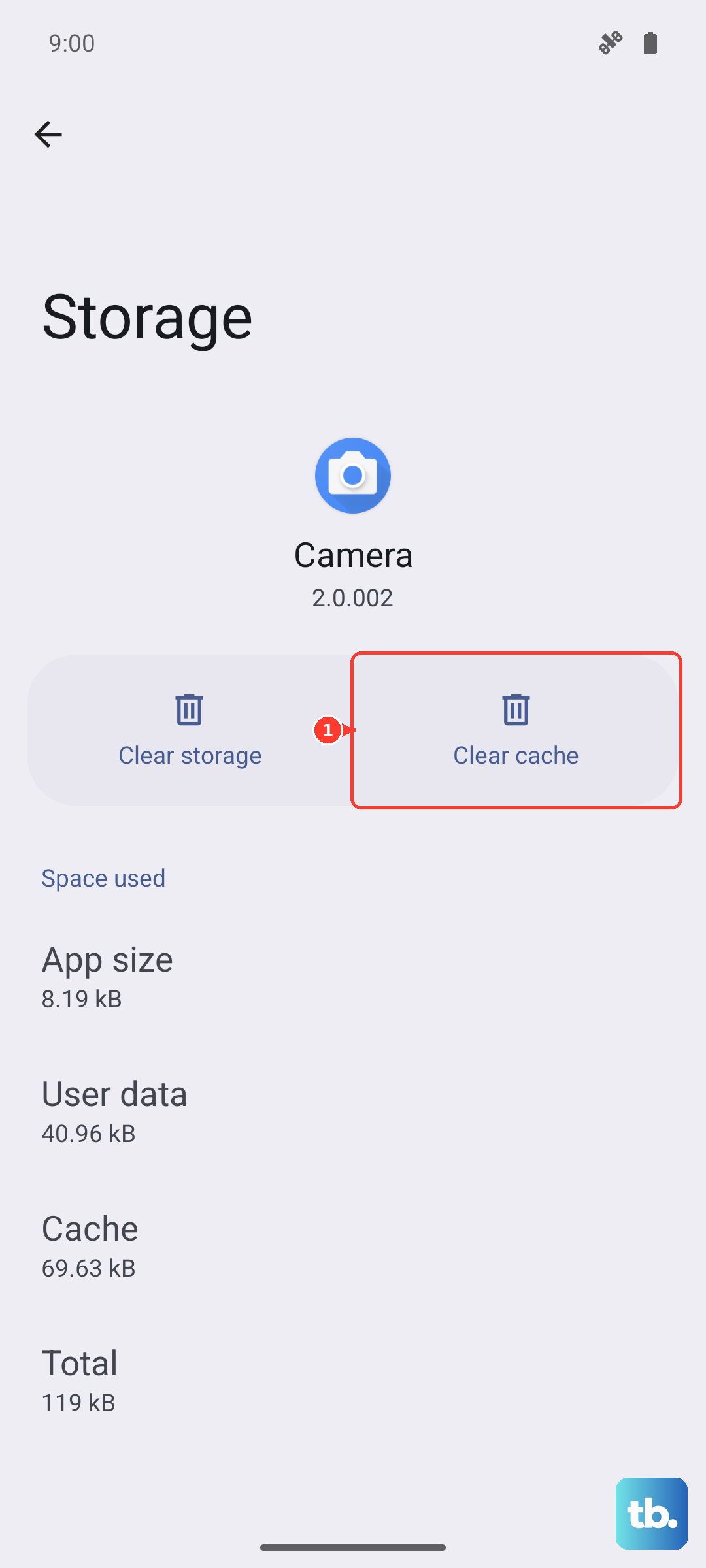
Corrupted temporary data can cause an app to malfunction silently. Clearing its cache is a safe first step that won't delete your login info or personal data within the app. Head to Settings > Apps > App management.
Locate the troublesome app in the list and tap on it. Open Storage usage, then tap the "Clear cache" button. After doing this, close the app by swiping it away from your recent apps screen, then open it again. This gives it a fresh start.
Check for Pending Software Updates
Software bugs that affect notifications are often patched in system updates. OnePlus regularly releases updates for OxygenOS that include stability improvements. It's a good idea to make sure you're running the latest version.
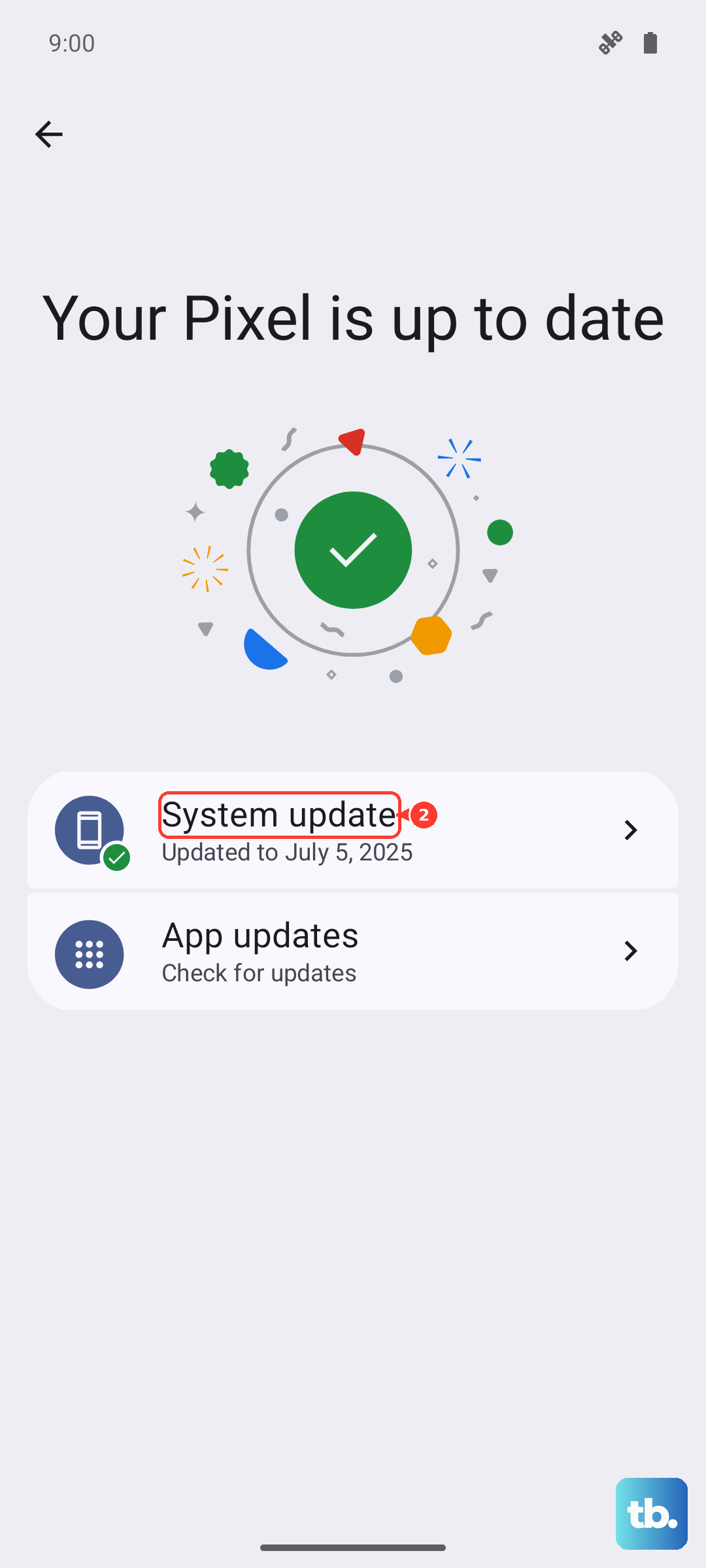
Open Settings > About device > OxygenOS version. Your phone will check for an update. If one is available, I'd recommend installing it, especially if it's a security patch or a larger version update. These updates can resolve underlying system issues causing notification delays or failures.
Verify Background Data and Mobile Data Settings
If you're only missing notifications when you're not on Wi-Fi, your mobile data settings might be the culprit. OxygenOS can restrict background mobile data, which OnePlus says can prevent background apps such as mail or messaging apps from receiving new messages. Go to Settings > Mobile network > Data usage.
Tap "Data usage by app" and find your app. Make sure "Allow in the background" is turned on. Also, in Settings > Mobile network, make sure mobile data is enabled for the SIM you're using.
Reset App Preferences (A Broader Fix)
This is a more comprehensive step that resets all your app-related settings back to default without deleting any app data. It will revert permissions, background restrictions, and default app assignments. If a misconfigured system setting is causing the block, this can clear it.
Navigate to Settings > Apps > See all apps. Tap the three-dot menu in the top right and select "Reset app preferences." Confirm your choice. Afterward, you'll need to re-grant notification permissions to your apps, but this often clears up persistent notification issues.
Examine Notification Channels and Importance
Android and OxygenOS use a system called "notification channels" for each app. A single app like Gmail might have separate channels for "Primary," "Social," and "Promotions." You might have accidentally set an important channel to "Silent."
To check, go to Settings > Notifications & status bar > App notifications and select your app. Tap on a notification category. Look for the "Importance" setting. For alerts you want to see and hear, set this to "High" or "Urgent." This ensures they make a sound and appear prominently.
Review Any Third-Party Theme or Launcher
If you're using a custom launcher like Nova or Niagara, or have applied a heavy third-party theme from the Play Store, it could be interfering with the normal notification flow. These apps sometimes have their own notification management systems that can conflict with OxygenOS.
As a test, try switching back to the default OnePlus launcher from Settings > Apps > Default apps, then choose "Launcher" and select OnePlus's default launcher. Also, remove any non-standard themes. See if your notifications return to normal. If they do, you'll know the third-party app was the cause, and you can adjust its settings accordingly.
Perform a Network Settings Reset
This step resets all your network configurations, including Wi-Fi, mobile data, and Bluetooth. It's useful if the problem seems related to how your phone is connecting to the internet to fetch notifications. You will need to re-enter Wi-Fi passwords and re-pair Bluetooth devices afterward.
To do this, go to Settings > Additional settings > Back up and reset. Tap on "Reset phone" and then select "Reset Wi-Fi, mobile & Bluetooth." Confirm the reset. Once your phone reboots, reconnect to your networks and test if notifications start working.