
When your OnePlus 12's GPS stops locking on, it can leave you stranded in more ways than one. Whether you're trying to navigate a new city or just tag a photo, a flaky location signal is a real headache. The good news is that most of the time, this is a software hiccup you can fix yourself.
I'd start with the quick refresh. Pull down the notification shade twice to open the full Quick Settings panel and tap the Location icon to turn it off. Wait about ten seconds, then tap it again to turn it back on. This simple reset clears the temporary connection to the satellites and often gets things working again immediately.
Restart Your OnePlus 12
If toggling GPS didn't help, a full restart is your next best move. This clears out any minor system glitches that could be interfering with the location services. Just press and hold the power button until the power menu appears, then tap "Restart." Let the phone boot up completely before testing Maps or another navigation app again.
For a more forceful reset, you can perform a force restart. Press and hold the power button for 10 to 15 seconds until you feel the phone vibrate and the screen goes black, then release it. The OnePlus logo will appear as it boots up normally.
Check Your Location Mode and Permissions
OxygenOS has a few different location modes, and if it's set to save battery, your GPS accuracy will suffer. Open Settings and go to Location. At the top, make sure the master switch is on. Then, tap "Location services" or "Location mode."
You want to select "High accuracy." This mode uses GPS, Wi-Fi, and mobile networks together to give you the fastest and most precise lock. Also, while you're in Settings, go to Apps, select your navigation app (like Google Maps or Waze), then tap Permissions and ensure "Location" is set to "Allow all the time" or "Allow only while using the app."
Disable Battery Optimization for GPS Apps
This is a common culprit on OnePlus devices. The aggressive battery optimization can sometimes put your navigation app to sleep in the background, killing its access to the GPS. Go to Settings > Battery > Battery optimization.
Tap the three-dot menu and select "All apps." Find your maps app in the list, tap on it, and choose "Don't optimize." This tells the system to leave that app alone and lets it maintain a steady connection to location services.
Update Your Apps and OxygenOS
An outdated version of Google Maps or your preferred navigation app can have bugs that break GPS functionality. Head to the Play Store, tap your profile icon, and select "Manage apps & device." Install any pending updates, especially for mapping apps.
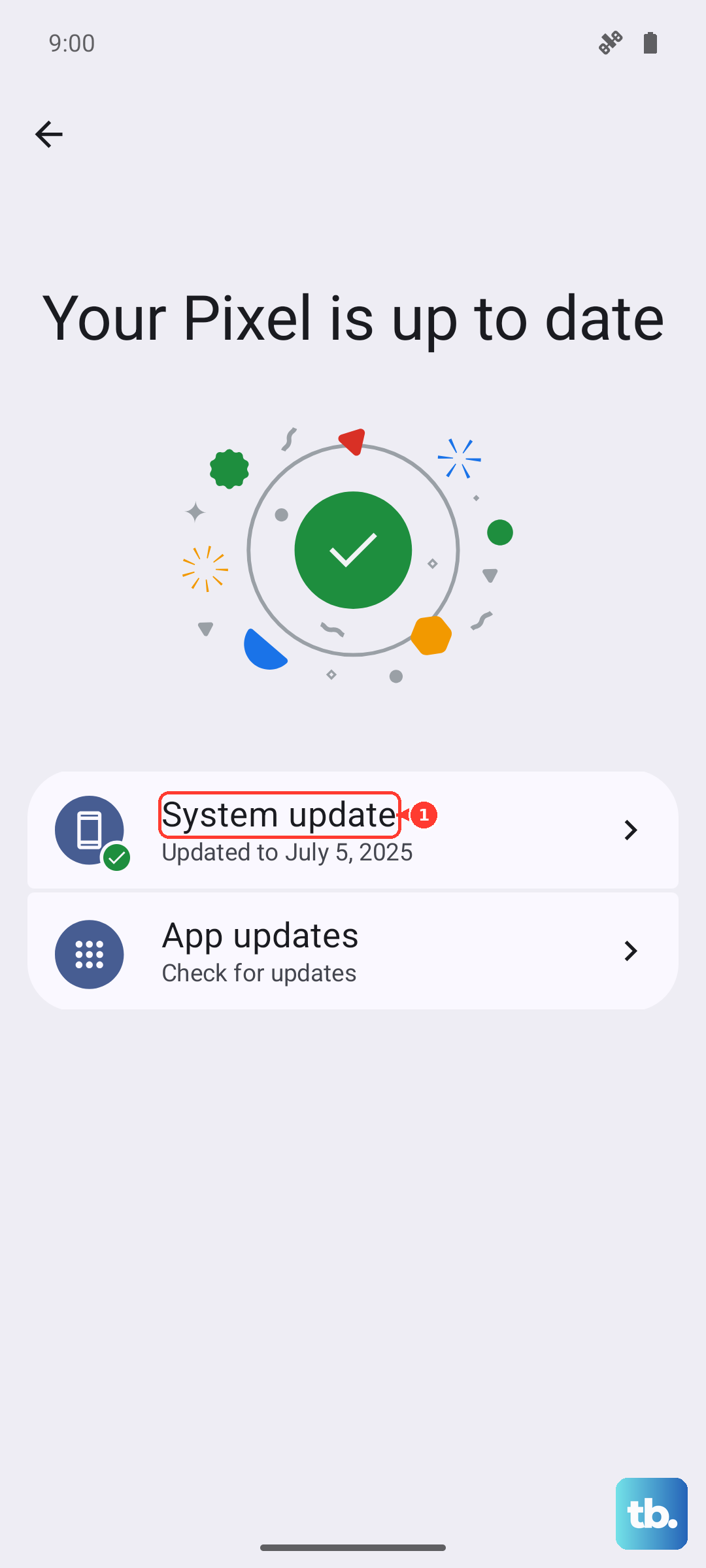
Next, check for a system update. Go to Settings > About device > OxygenOS version and tap on the icon to check for updates. OnePlus frequently releases updates that include fixes for connectivity issues, including GPS performance.
Clear the App Cache and Data
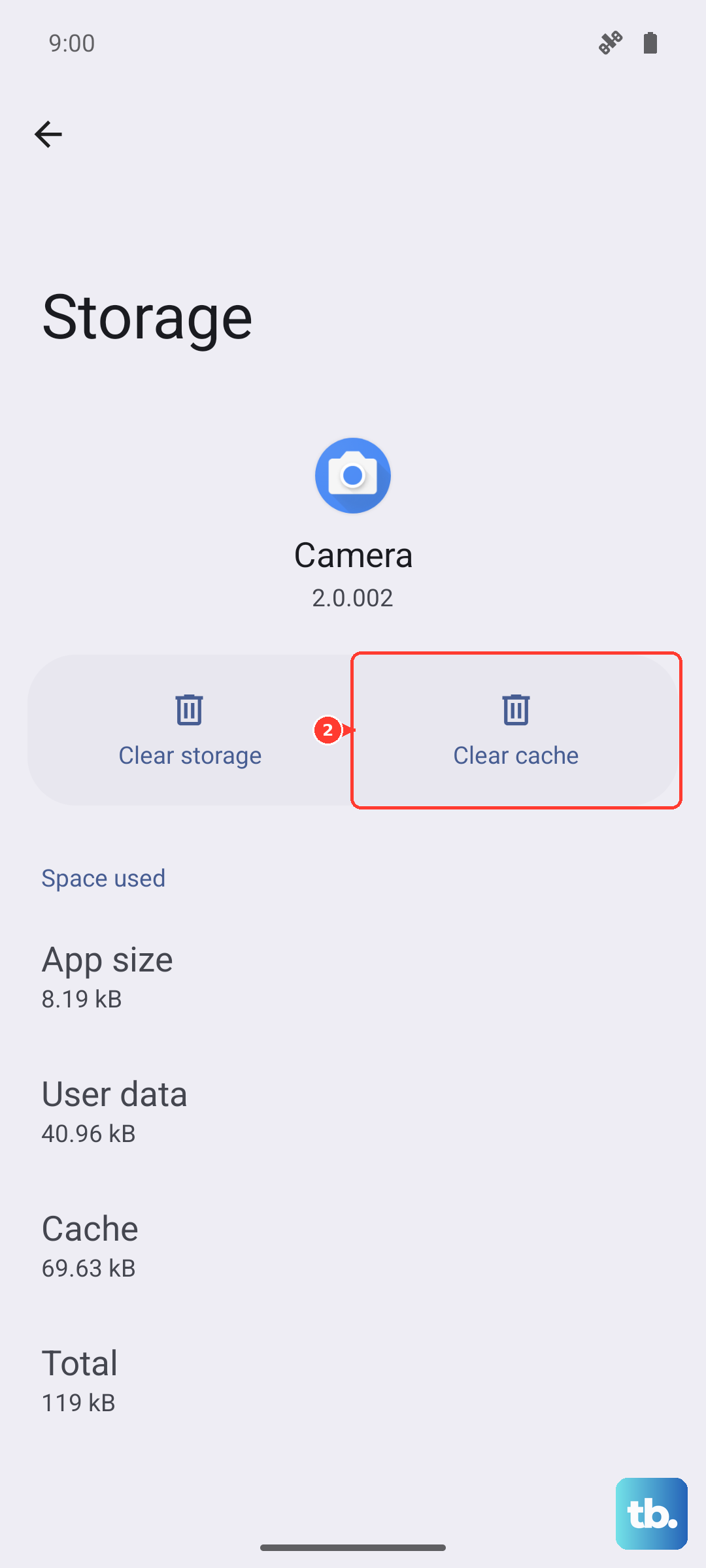
Corrupted temporary files within your navigation app can cause all sorts of strange behavior. This step clears that out without deleting your saved places. Go to Settings > Apps, find and select the app (e.g., Google Maps), then tap "Storage usage."
Tap "Clear cache" first. If the GPS is still acting up, you can try "Clear data." Be aware that this will reset the app to its default state, so you'll need to log back in and reset any preferences.
Toggle Airplane Mode and Check Mobile Data
Airplane mode resets all the phone's radios at once, which can clear up conflicts. Swipe down for Quick Settings and tap the airplane icon. Wait 15 seconds, then tap it again to turn it off. Your phone will reconnect to cellular and Wi-Fi networks, which also assist with location.
Speaking of cellular, make sure your mobile data is on. While GPS itself works without data, apps like Google Maps need data to download maps and traffic info. A weak or absent data connection can make it seem like the GPS has failed.
Test GPS in Safe Mode
Safe mode temporarily disables all third-party apps. If GPS works perfectly here, you know a recently installed app is causing the problem. To boot into Safe Mode, press and hold the power button until the power menu appears.
Then, press and hold your finger on the "Power off" text on the screen. A prompt will appear asking if you want to reboot to Safe Mode. Tap "OK." Once booted, test your GPS with a built-in app like Google Maps. To exit, just restart the phone normally.
Check for Physical and Environmental Issues
GPS signals are line-of-sight and can be blocked by all sorts of things. Thick metal phone cases, especially ones with magnetic clasps or mounts, can interfere. Try removing your case and see if the signal improves.
Your environment matters too. Being inside a building, in a dense urban area with tall buildings, or under heavy tree cover can weaken or block the signal. For the best test, try using your GPS in an open outdoor space with a clear view of the sky.
Use a GPS Diagnostic App
If you've tried everything and the GPS is still dead, an app like "GPS Test" or "GPS Essentials" can tell you if it's a hardware problem. These apps show a raw view of the satellites your phone can see.
Open the app outdoors with a clear sky view. If it shows multiple satellites in view with strong signals but your navigation apps still can't get a lock, it's likely a deep software issue. If the app shows zero satellites, even after waiting a few minutes, there could be a problem with the phone's internal GPS antenna.
Reset Your Network Settings
This is a more involved step that resets all your connectivity profiles. It will erase your saved Wi-Fi networks, Bluetooth pairings, and cellular settings. Go to Settings > System > Reset options.
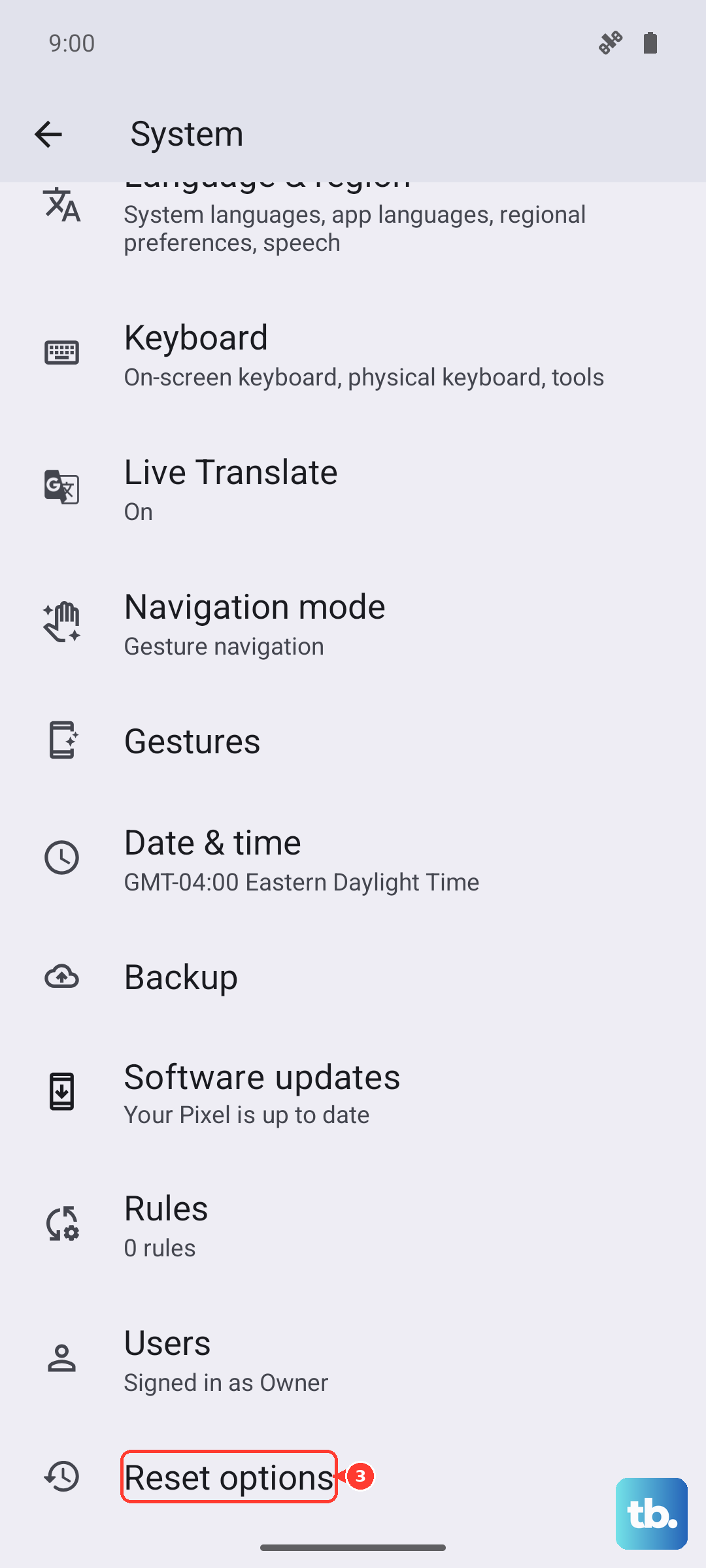
Tap "Reset Wi-Fi, mobile & Bluetooth." Confirm the action. After the phone reboots, you'll need to reconnect to your Wi-Fi and re-pair Bluetooth devices. This can sometimes clear out a corrupted configuration that's affecting all wireless services, including location.