
If your OnePlus 12 camera app is crashing, freezing, or just showing a black screen, the first thing to try is a simple restart. Press and hold the Power button for a few seconds until the power menu appears, then tap Restart. This clears out any temporary software glitches that can cause the camera to hang.
A browser based camera test is the fastest way to check whether the camera works at all. It shows a live preview along with the detected resolution and frame rate.
Key Points
- Restart Your Phone: A simple reboot can clear temporary glitches causing the camera to freeze or crash.
- Check for App and System Updates: Outdated software is a common cause of camera failures on the OnePlus 12.
- Clear the Camera App's Cache and Data: Corrupted app data can prevent the camera from opening properly.
- Check App Permissions: The camera needs permission to access your phone's hardware to function.
- Boot Into Safe Mode: This helps determine if a third-party app is interfering with the camera.
- Inspect the Camera Hardware: A damaged or obstructed lens can cause black screens or blurry photos.
- Reset App Preferences: This can fix issues caused by conflicting system settings without deleting your data.
- Check for Overheating: The OnePlus 12 may disable the camera if the phone gets too hot.
- Perform a Factory Reset: A last-resort step to eliminate deep-seated software problems.
Give the phone a full minute to reboot completely. Once it's back on, try opening the camera again to see if it responds.
Update Your Software
Outdated software is one of the most common reasons for camera problems. OnePlus regularly releases updates that fix bugs and improve camera stability. Open Settings > About device and tap on OxygenOS version to check for an update.
Install any available updates and restart your phone when prompted. I'd also check the Google Play Store for updates to the Camera app itself. Open the Play Store, tap your profile icon, and go to Manage apps & device > Updates available.
Clear the Camera App's Cache
Sometimes the app's temporary data gets corrupted. Clearing the cache can fix crashes and black screens without affecting your photos. Go to Settings > Apps > Camera.
Tap on Storage usage, then select Clear cache. Try opening the camera again. If it still fails, you can try Clear data as a next step, but be aware this will reset the camera app to its default settings.
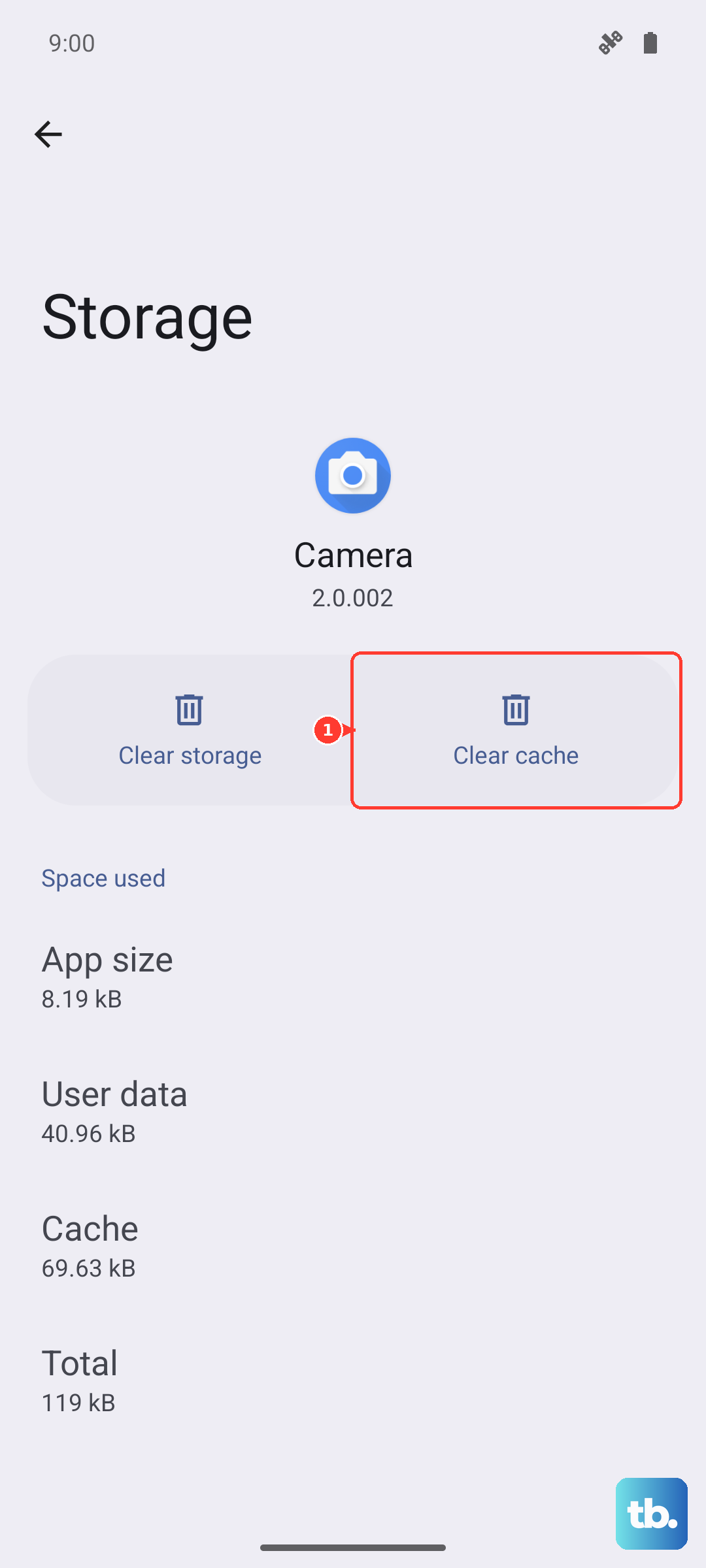
You'll lose any custom modes or settings within the app, but your photos and videos in the gallery will be safe.
Verify Camera Permissions
The camera app needs explicit permission to access your phone's hardware. If this was accidentally revoked, the app might not open. Go to Settings > Apps > Camera > Permissions.
Make sure the Camera and Microphone permissions are set to "Allow." While you're there, also check the permissions for any other apps you use for video calls, like WhatsApp or Zoom, if their cameras aren't working either.
Boot Into Safe Mode
If the camera works fine in Safe Mode, a third-party app you installed is likely causing a conflict. To enter Safe Mode, press and hold the Power button until the power menu appears.
Then, tap and hold the Power off option until you see a prompt to reboot to Safe Mode. Tap OK. In Safe Mode, test the camera. If it works, restart your phone normally and start uninstalling recently downloaded apps one by one, testing the camera after each removal.
Inspect the Camera Lens and Hardware
Take a close look at the camera module on the back of your OnePlus 12. Make sure the protective lens cover isn't cracked and that there's no dirt, smudges, or a phone case obstructing the lenses.
Gently clean the lenses with a soft, dry microfiber cloth. If you see physical damage to the lens glass, that's likely the cause of blurry images or camera failure, and the module may need professional repair.
Reset App Preferences
This is a useful middle-ground step that resets permissions, background restrictions, and default apps without deleting your personal data. Go to Settings > Apps > App management.
Tap the three-dot menu in the top right and select Reset app preferences. Confirm your choice. Afterward, you'll need to re-grant permissions when you open apps for the first time, but this can resolve conflicts that were blocking the camera.
Check for Overheating
The OnePlus 12 has safeguards that can disable the camera if the phone gets too hot, often from extended use, fast charging, or a hot environment. If you see a temperature warning or the camera app closes immediately, let the phone cool down.
Remove it from direct sunlight, take it out of its case, and avoid using it while it's charging with the 100W SUPERVOOC adapter. Once it cools, the camera should become available again.
Perform a Factory Reset
If you've tried everything else and the camera is still broken, a factory reset can eliminate any deep-seated software corruption. This will erase all data from your phone, so it's absolutely crucial to back up everything important first.
Go to Settings > Additional settings > Back up & reset > Erase all data (factory reset). After the reset is complete, set up your phone as new and test the camera before restoring your backup, in case the backup contains corrupted data.