
When apps on your OnePlus 12 keep closing in the background or crashing as soon as you open them, it interrupts everything you're trying to do. This is usually a software hiccup that OxygenOS can't quite manage, and it's often tied to how the system handles memory or app permissions. I'd start with a simple restart, as that clears out temporary glitches that can cause this behavior.
Restart Your OnePlus 12
Press and hold the Power button for about 10 to 15 seconds. You'll feel a vibration and see the screen go black before the OnePlus logo appears. This force restart is more thorough than a standard reboot and can stop any background processes that are interfering with your apps.
Check for App Updates
Outdated apps are a common culprit for instability. Open the Google Play Store, tap your profile icon in the top right, and go to Manage apps & device. Look under "Updates available" and install everything. For system apps from OnePlus, you might find updates in the Google Play Store or within the App Market app that came pre-installed on your phone.
Adjust Battery Optimization for Key Apps
OxygenOS aggressively manages battery life, which can sometimes force apps to close. If a specific app like your messaging or email client needs to stay running, you can exempt it. Go to Settings > Battery > More settings > App battery management.
Find the problematic app and tap on it. Change the setting from "Auto optimize" to "Don't optimize." This tells the system not to restrict that app's background activity, which should help it stay open.
Clear the App's Cache and Data
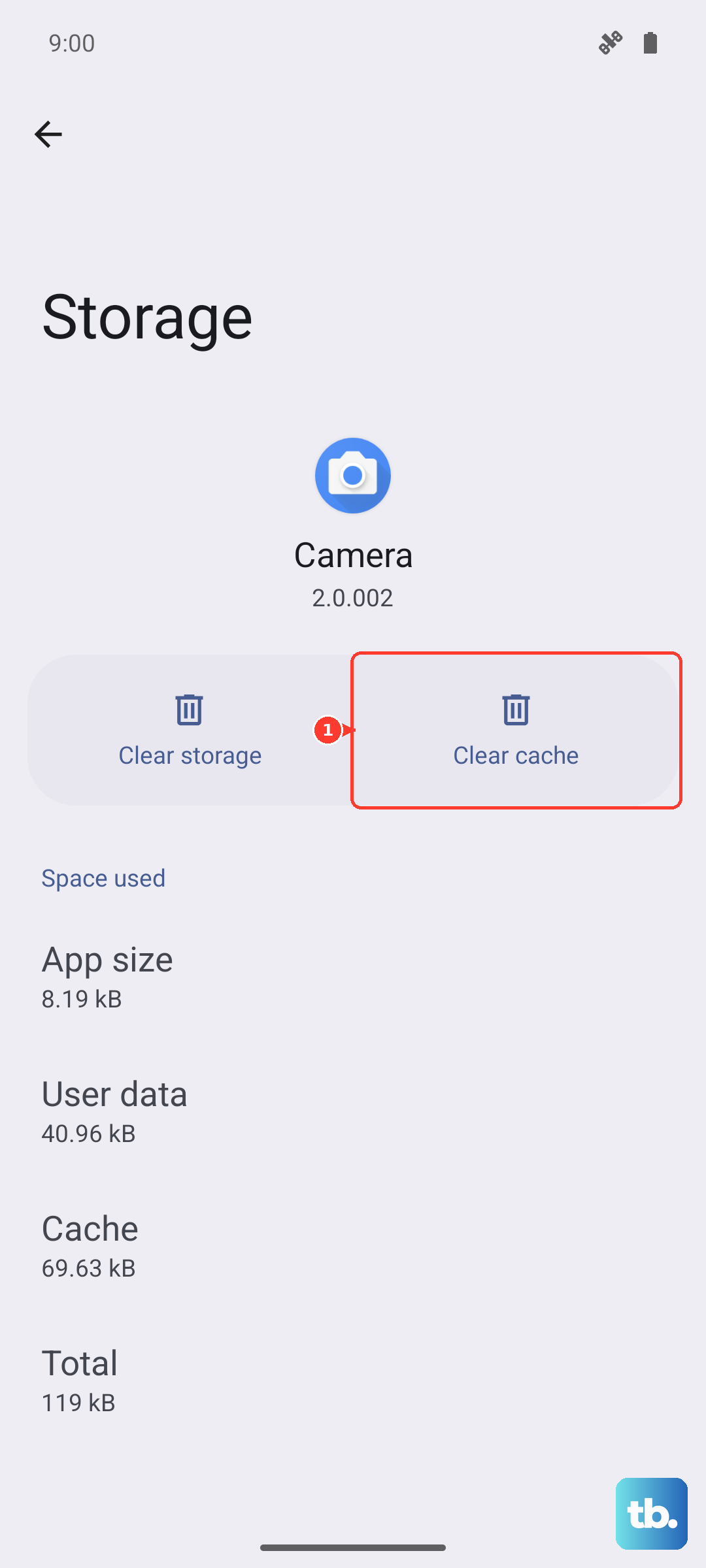
Corrupted temporary files can make an app misbehave. Clearing the cache is safe and won't delete your login info. Go to Settings > Apps > select the app having trouble > Storage usage.
Tap "Clear cache." If the problem persists, you can try "Clear data," but be aware this will reset the app to its freshly installed state, so you'll need to log back in.
Free Up RAM and Storage Space
Your OnePlus 12 has plenty of RAM, but if you've got dozens of apps open, it can still get bogged down. Swipe up from the bottom and hold to enter the recent apps view, then tap "Clear all" to close everything. Also, check your storage in Settings > Storage.
If you're below 10GB of free space, apps can struggle to create temporary files. Delete old downloads, offload photos to the cloud, or uninstall apps you no longer use.
Disable Parallel Apps for the Problem App
If you're using the Parallel Apps feature to run two accounts (like for WhatsApp or Instagram), it can sometimes create conflicts. Try disabling it for the app that's crashing. Go to Settings > Apps > Parallel Apps and toggle off the switch for that specific application.
Update OxygenOS
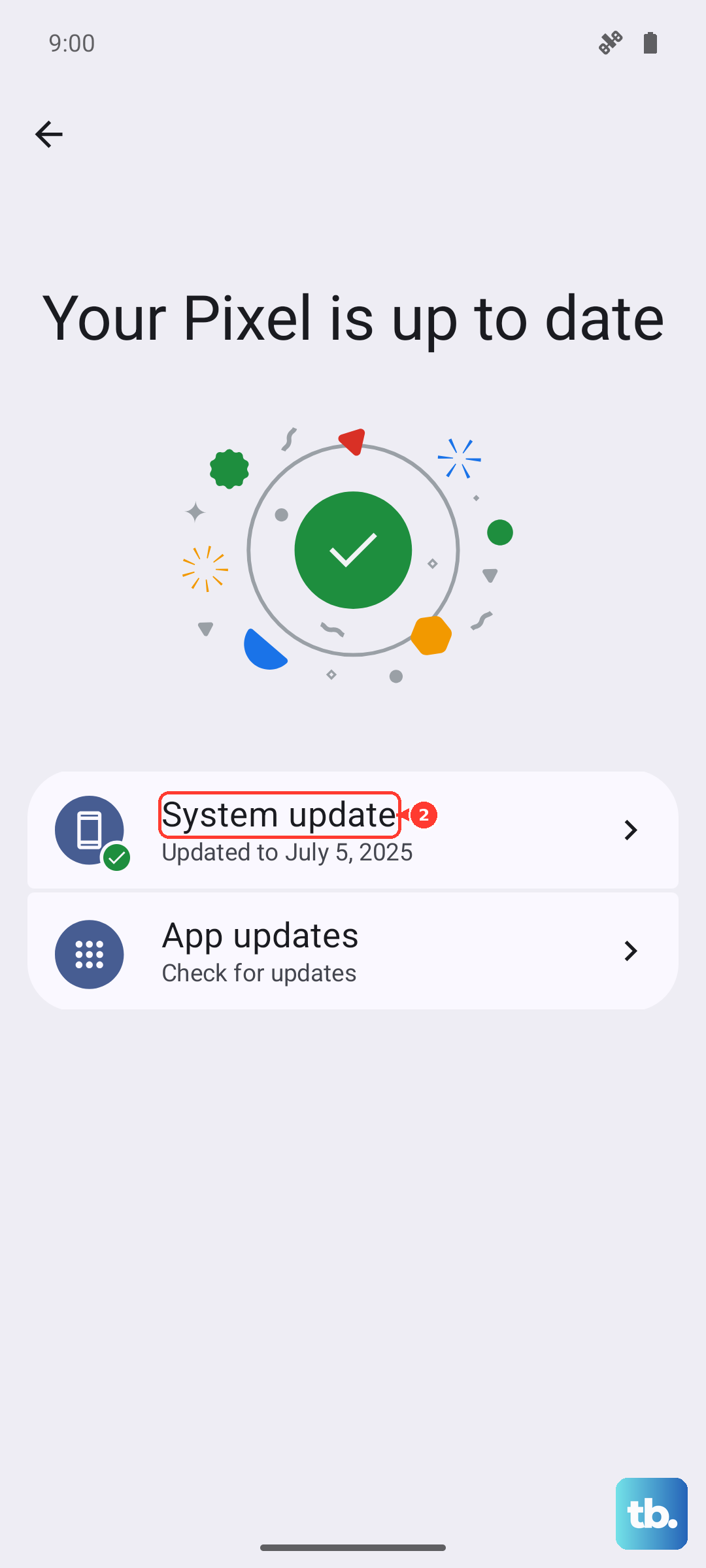
OnePlus regularly releases system updates that fix bugs affecting app stability. Make sure you're running the latest version. Go to Settings > About device > OxygenOS and tap on the top banner to check for an update. Download and install any that are available.
Check for Conflicting Third-Party Launchers or Mods
If you've installed a custom launcher, icon pack, or any system-modifying app, it might not play nicely with OxygenOS 14. Try switching back to the default OnePlus launcher temporarily to see if the app stability improves. The same goes for any apps that use accessibility services or draw over other apps.
Perform a Factory Reset
This is a last resort, but if a software issue is deeply rooted, a clean slate can fix it. First, make a complete backup of your data. Then, go to Settings > Additional settings > Back up and reset > Erase all data (factory reset). Follow the prompts to reset your phone.