
When your MSI Stealth 16 shows a "USB Device Not Recognized" error or just doesn't see your connected flash drive, mouse, or external drive, it's a common but fixable hiccup. The problem usually sits with the port, the device itself, a driver conflict, or a Windows power setting.
Try a Different USB Port on Your Stealth 16
Unplug the device and try a different port on your laptop. The Stealth 16 typically has a mix of USB-A and USB-C ports. If your device works in another port, the original one might have a physical issue or a temporary fault. This is the quickest way to rule out a hardware problem with the laptop's port itself.
Perform a Full Restart
Go to the Start menu, click the power icon, and choose "Restart." Don't just close the lid or put it to sleep. A full restart reloads all the USB drivers and resets the USB controller, which often clears up temporary glitches causing the detection failure. I've seen this fix the issue more often than not.
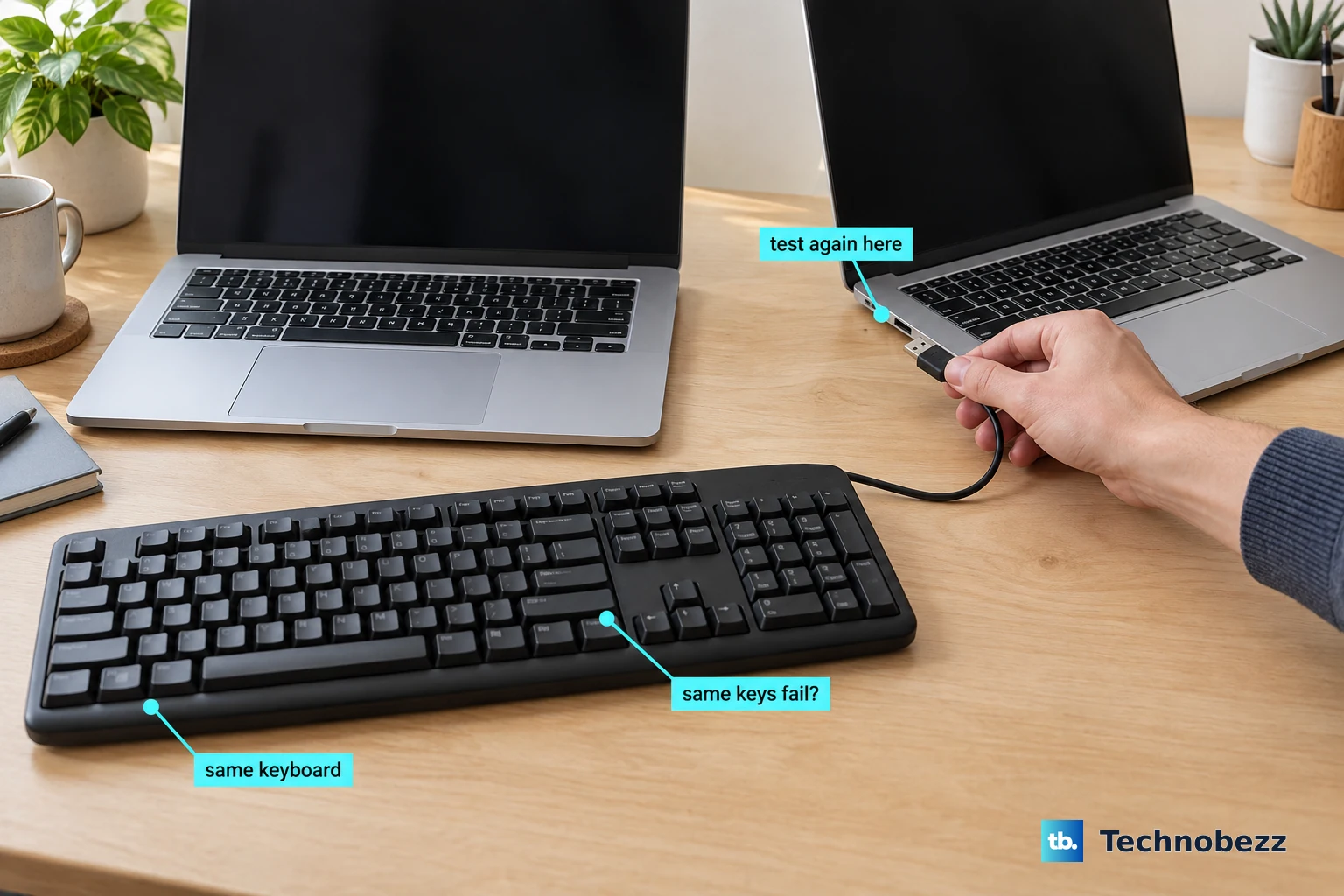
Test the USB Device on Another Computer
Take your USB device and plug it into a different PC. If it isn't recognized there either, the fault lies with the device or its cable. If it works perfectly on another machine, then you know the issue is specific to your MSI Stealth 16's configuration, drivers, or power settings.
Swap Out the Cable
If you're connecting something like an external hard drive or phone, try a different USB cable. Cables can fail internally, especially near the connectors. A common failure mode is a cable that still charges a device but can't transfer data because the data wires inside are broken.
Update or Reinstall USB Drivers
Right-click the Start button and select Device Manager. Expand the section labeled Universal Serial Bus controllers. Look for any entries with a small yellow warning icon. Right-click on them and choose Update driver.
You can also try right-clicking on the generic USB controllers (like "USB Root Hub") and selecting Uninstall device. Restart your laptop afterward, and Windows will automatically reinstall fresh driver versions. This can clear up corrupted driver data.
Disable USB Selective Suspend in Power Settings
Windows tries to save power by putting idle USB ports to sleep, which can sometimes prevent devices from being detected. To turn this off, open the Start menu and type "Edit power plan," then click it.
Click Change advanced power settings. In the new window, scroll down and expand USB settings, then expand USB selective suspend setting. Set both "On battery" and "Plugged in" to Disabled. Click Apply and OK.
Run the Built-in Hardware Troubleshooter
Press the Windows key, type "cmd," right-click on Command Prompt, and select Run as administrator. In the window, type the command msdt.exe -id DeviceDiagnostic and press Enter. This launches the Hardware and Devices troubleshooter, which can automatically find and fix some common USB-related problems.
Install All Windows and Optional Driver Updates
Go to Settings > Windows Update and click "Check for updates." Install everything available. Then, click Advanced options and look under Optional updates. There may be driver updates specifically for your chipset or USB controllers from Microsoft or MSI. Installing these can resolve compatibility issues.
Use MSI Center to Check System Health
Open the MSI Center application that came with your laptop. Navigate to the "Support" or "System Diagnosis" section. Run any available diagnostic scans. MSI Center can sometimes identify driver inconsistencies or system issues that generic Windows tools miss. Also, ensure MSI Center itself is updated through the Microsoft Store.
Scan for Hardware Changes in Device Manager
Go back to Device Manager. With the problematic USB device plugged in, click the Action menu at the top and select Scan for hardware changes. This forces Windows to immediately re-poll all the USB buses and can jolt a non-responsive device back into being detected.