
Screen glitching on your MSI Stealth 16 can be incredibly disruptive, turning a powerful gaming laptop into a flickering mess. You might see horizontal lines, random flashes, or the entire screen tearing. Let's get it fixed.
Update Your Graphics Drivers
This is the most common fix for screen glitches. Outdated or corrupted GPU drivers are often the culprit. Don't just rely on Windows Update for this. Head directly to the NVIDIA or Intel website, use their driver detection tool, and download the latest Game Ready or Studio driver for your specific Stealth 16 model. I'd start with this one.
After downloading, run the installer and choose the "Custom" installation option. Select "Perform a clean installation," which will remove old driver files before installing the new ones. This can resolve conflicts that a standard update might miss.
Check the MSI Center Software
The MSI Center app is central to how your laptop manages performance. An outdated version or a corrupted profile can cause display instability. Open MSI Center and check for updates in the Support or General Settings section.
While you're there, look at your User Scenario. If you're on "Extreme Performance," try switching to "Balanced" or "Silent" mode. The aggressive power and fan curves in Extreme Performance can sometimes introduce instability that manifests as screen glitches, especially if the system is overheating.
Adjust Your Display and Refresh Rate
Right-click your desktop and select Display settings. Scroll down and click Advanced display. Here, check your refresh rate. If your Stealth 16 has a high-refresh-rate panel, try switching from, say, 240Hz down to 144Hz or 60Hz to see if the glitching stops.
Also, click on Display adapter properties for Display 1 and go to the "Monitor" tab. Sometimes, toggling settings like "Hide modes that this monitor cannot display" can help. If you use an external monitor, test with that to see if the glitch follows the laptop screen or not.
Disable Hardware Acceleration in Apps
Specific applications, particularly web browsers like Chrome or Discord, can cause screen tearing when their hardware acceleration conflicts with your GPU drivers. In Chrome, go to Settings > System and turn off Use hardware acceleration when available.
Restart the browser after making this change. Do the same for any other app where you notice the glitching is most pronounced. This hands the rendering work back to your CPU and can instantly smooth out the display.
Manage the MUX Switch and NVIDIA Optimus
The Stealth 16 has a MUX switch, which lets you choose between the integrated Intel graphics for battery life and the dedicated NVIDIA GPU for full performance. Switching this requires a restart. You can manage it in the MSI Center app or sometimes in the NVIDIA Control Panel.
If you're on a mode that uses NVIDIA Optimus (which dynamically switches GPUs), try setting it to use the NVIDIA GPU only for a test. A glitch during the handoff between the Intel and NVIDIA graphics is a known issue on some gaming laptops. A restart is required for this change to take effect.
Boot Into Safe Mode to Isolate the Problem
If the glitching is constant, restart your laptop. As it boots, repeatedly press the F8 key or interrupt the boot process three times to force the Windows Recovery Environment. From there, navigate to Troubleshoot > Advanced options > Startup Settings > Restart.
After your PC restarts, press 4 or F4 to boot into Safe Mode. This loads Windows with only essential drivers. If the screen is perfectly stable in Safe Mode, you've confirmed the problem is caused by a driver or startup application. You can then use Safe Mode to uninstall recent software or drivers.
Roll Back a Recent Display Driver
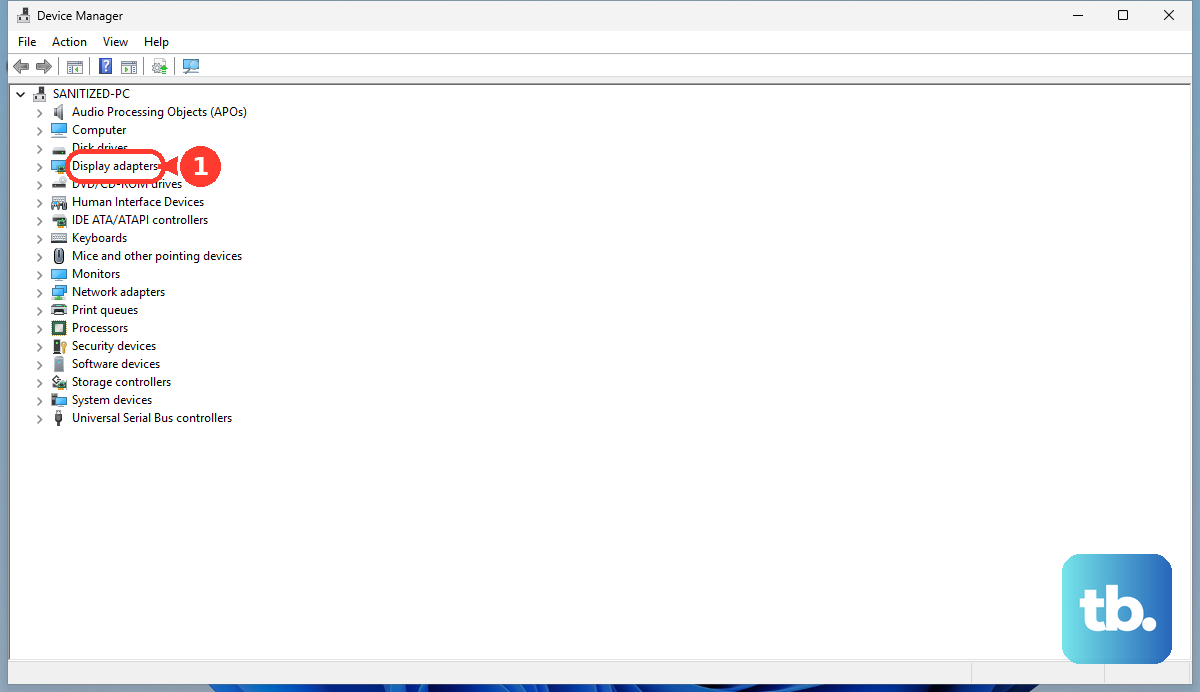
Did the glitching start right after you updated your graphics driver? You can easily revert. Press the Windows key + X and select Device Manager. Expand Display adapters, right-click your NVIDIA GeForce GPU, and select Properties.
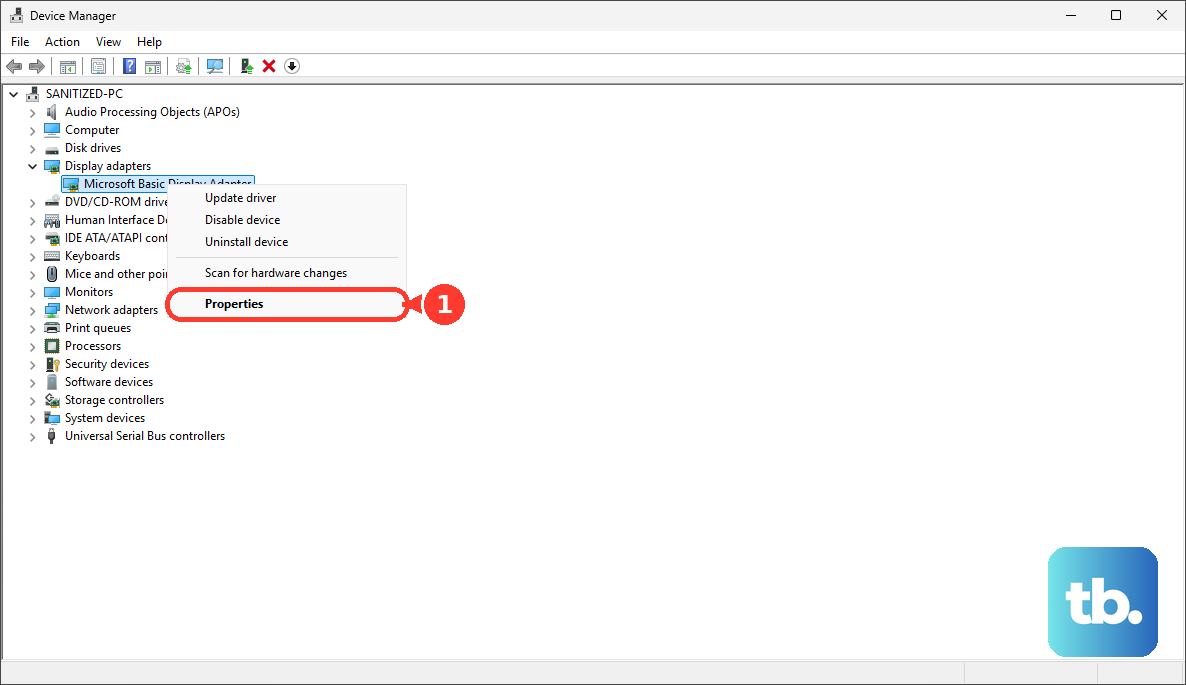
Go to the Driver tab and click Roll Back Driver. Follow the prompts. This will reinstall the previous driver version that was working. It's a quick fix that often solves problems introduced by a new driver update.
Check for Physical Connection Issues
This is a less common but possible hardware cause. If the glitching gets worse when you gently flex the laptop chassis or open/close the lid, the internal display ribbon cable (an eDP cable) might be slightly loose. This is a delicate connection that runs through the hinge.
While not a simple user fix, knowing this can save you time troubleshooting software. If every software fix fails and the glitch is tied to physical movement, the issue is likely internal and would require a professional technician to reseat or replace the cable.
Run a Full Windows Update
Finally, make sure your operating system itself is up to date. Go to Settings > Windows Update and click Check for updates. Install all available updates, including optional updates if any are listed.
Microsoft frequently releases system fixes and patches that can resolve compatibility issues between Windows, your hardware, and drivers. A cumulative update might contain a fix specifically for a display problem affecting laptops like the Stealth 16.