
When you plug your MSI Stealth 16 into an external monitor and get nothing but a black screen, it's a real productivity killer. The fix is usually a quick setting change or driver update, not a hardware failure.
To narrow down whether the screen or the signal is at fault, open a screen test and step through its patterns. A clean result shifts suspicion to the cable or source device.
Press Windows + P First
This is the fastest thing to try. Press the Windows + P keys together. A menu will pop up on the right side of your screen. By default, it might be set to "PC screen only," which disables the external output.
Select Duplicate to mirror your laptop screen, or Extend to use the monitor as a second desktop. I'd start with Duplicate, as it's the most straightforward. If that works, you can switch to Extend later.
Check Your Physical Connection
Unplug the HDMI or USB-C cable from both your laptop and the monitor, then firmly reconnect them. A loose connection is a common culprit. If you have a spare cable, try swapping it in.
Don't forget to check the monitor itself. Make sure it's powered on and set to the correct input source, like HDMI 1 or DisplayPort. It sounds simple, but it's an easy step to overlook when you're focused on the laptop.
Update Your Graphics Drivers
Outdated GPU drivers are a leading cause of display issues on gaming laptops like the Stealth 16. For the most reliable update, go directly to the source. If you have an NVIDIA GPU, visit NVIDIA's website; for an Intel Arc GPU, go to Intel's site.
Download and run the latest driver installer. During installation, select the "Custom" or "Clean install" option. This removes old driver files that might be causing conflicts. A clean driver install has resolved this issue for me more times than I can count.
Use Windows Display Settings
Right-click on your desktop and select Display settings. In the new window, click the Detect button. Windows will actively search for any connected displays.
If your monitor appears, click on its icon. Scroll down and ensure the display resolution and refresh rate are set to values your monitor supports. Try a standard setting like 1920x1080 at 60Hz to see if that gets a picture.
Restart Your Laptop While Connected
With the external monitor still plugged in and powered on, restart your MSI Stealth 16. Some laptops only fully initialize their video outputs during the boot sequence.
A restart forces the system to re-detect all connected hardware from scratch. This can often kick-start a monitor that wasn't being recognized while Windows was already running.
Manage the MUX Switch in MSI Center
The Stealth 16 has a MUX switch that controls whether the integrated or dedicated GPU handles the display output. If this is misconfigured, it can block external monitor signals.
Open the MSI Center software. Look for a feature called "GPU Switch" or related to display output. You may need to switch modes and then perform a full system restart for the change to take effect, as the MUX switch often requires a reboot.
Try a Different Video Port
The Stealth 16 likely has multiple video outputs, like HDMI and USB-C with DisplayPort Alt Mode. If your monitor isn't working via HDMI, try connecting it through a USB-C to HDMI or DisplayPort adapter.
If the external display works through the USB-C port but not the dedicated HDMI port, it could indicate a problem with the HDMI port's hardware or internal connection.
Disable and Re-enable the GPU
Press Windows + X and select Device Manager. Expand the "Display adapters" section. Right-click on your graphics card (NVIDIA GeForce or Intel Arc) and select Disable device.
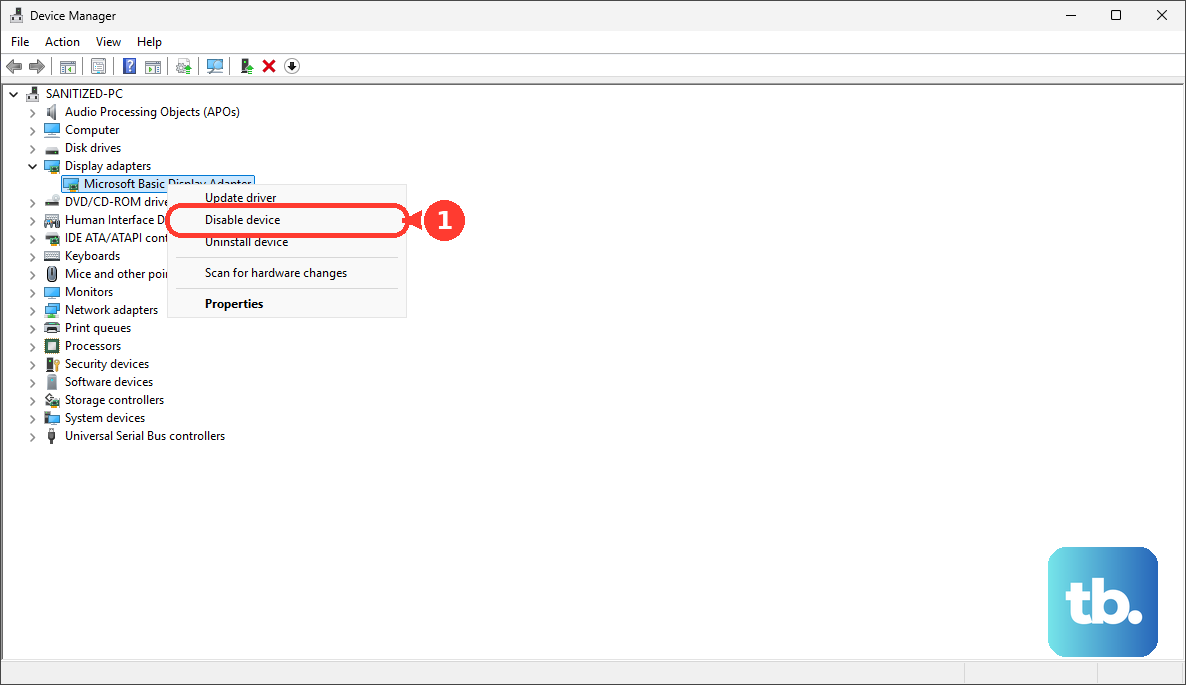
Wait about ten seconds, then right-click it again and choose Enable device. This performs a soft reset of the graphics driver, which can clear up temporary glitches preventing external display detection.
Check for BIOS Settings
Restart your laptop and repeatedly press the Del key as it boots up to enter the BIOS. Navigate using the arrow keys and look for any settings related to display output, primary display, or integrated/dedicated GPU.
Settings can sometimes be reset after a BIOS update. Ensure nothing is explicitly disabled. Be cautious in the BIOS; only change settings you understand, and note the originals before making adjustments.