When your Motorola Razr Plus (2024) volume buttons stop responding, it can be pretty annoying. You press them and nothing happens, whether you're trying to turn up a video or silence a call. The good news is that most of the time, this is a software hiccup or a simple blockage that you can fix yourself without a trip to the repair shop.
Before you assume the worst, work through these steps. I'd start with the force restart, as it clears up a lot of temporary glitches on Android devices.
Remove Your Phone Case
This is always the first thing to check. Take your Razr Plus out of its case. Some cases, especially thicker or ill-fitting ones, can press against the side buttons and prevent them from being fully depressed.
If the buttons work fine without the case, you've found your culprit. Try a different case or see if your current one has any debris trapped inside it.
Perform a Force Restart
A force restart is the go-to fix for unresponsive buttons caused by a software freeze. It doesn't delete any of your data or settings. For the Razr Plus, press and hold the Power button for 10 to 15 seconds.
Keep holding it until you see the Motorola logo appear on the screen, then you can let go. Once the phone boots back up, test the volume buttons immediately.
Check for Software Updates
Since your phone runs Android 14, bugs in the system software can sometimes affect hardware controls like the volume buttons. Motorola regularly releases updates that fix these kinds of issues.
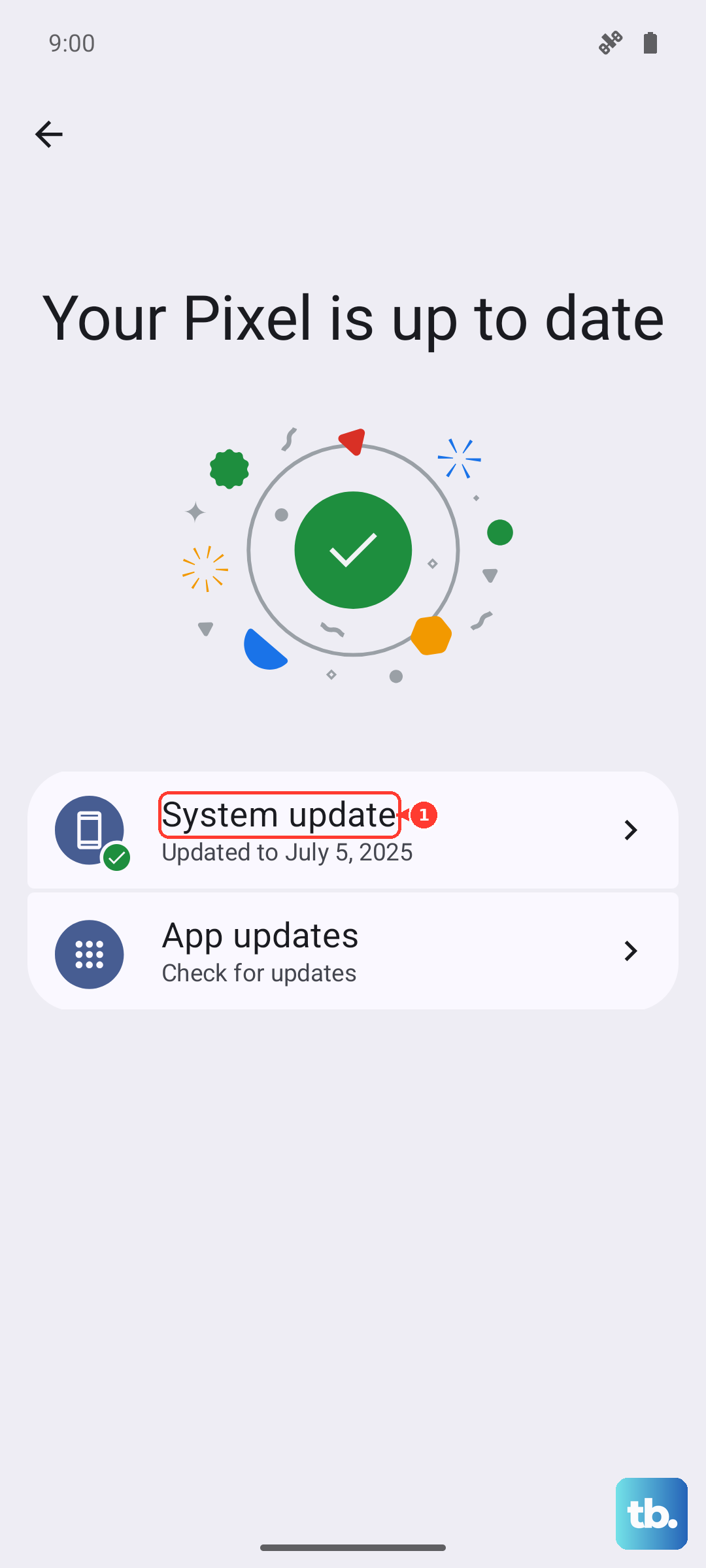
Go to Settings > System > System updates and tap "Check for update." If one is available, download and install it over Wi-Fi. After the update completes, see if the button responsiveness has returned.
Clean the Volume Buttons
Dust and pocket lint are common enemies of physical buttons. On a folding phone like the Razr Plus, debris can get into the hinge area and migrate to the buttons on the side. This can physically block the button from clicking.
Use a can of compressed air to gently blow around the volume rocker. For any sticky residue, lightly dampen a cotton swab with isopropyl alcohol and carefully clean around the button's edges. Let it dry completely before testing.
Test the Buttons in Safe Mode
Safe Mode temporarily disables all third-party apps you've downloaded. If a recently installed app is causing a conflict that locks up the volume controls, this will tell you.
To boot into Safe Mode, press and hold the Power button until the power menu appears. Then, press and hold the "Power off" option on your screen. You'll get a prompt to reboot to Safe Mode. Tap "OK."
If the volume buttons work perfectly in Safe Mode, you have a problematic app. Start by uninstalling apps you installed just before the problem began.
Check Your Sound Settings
While Android doesn't have a master toggle for physical button control like iOS, some accessibility or sound settings could be interfering. It's worth a quick look to rule it out.
Navigate to Settings > Sound & vibration. Make sure your media volume isn't already maxed out or set to zero. Also, check Settings > Accessibility for any features like "Accessibility menu" or "Switch Access" that might be overriding default button behavior.
Try the On-Screen Volume Slider
While you're figuring this out, you can still control your volume. Just press the physical volume button once to bring up the on-screen slider, then adjust it by tapping and dragging the slider with your finger.
You can also pull down the quick settings panel from the top of your screen and adjust the volume slider there. This is a good workaround while you troubleshoot the physical buttons.
Inspect for Physical Damage
Take a close look at the volume rocker itself. Has the phone been dropped recently? Even a small dent or misalignment near the button can prevent its internal mechanism from working.
Also, check the entire side of the phone. If the folding mechanism was ever stressed or damaged, it could affect components housed in the frame. If you see any obvious physical damage, the issue is likely hardware-related.
Reset App Preferences
This is a lighter reset that won't delete your app data. It resets permissions, notifications, and default app settings, which can sometimes resolve conflicts affecting system controls.
Go to Settings > Apps > See all apps. Tap the three-dot menu in the top right and select "Reset app preferences." Confirm the action. After your phone resets, test the buttons again.
Consider a Factory Reset
If every other step has failed, a factory reset can eliminate a deep-seated software corruption. This will erase all data from your phone, so you must back up everything important first.
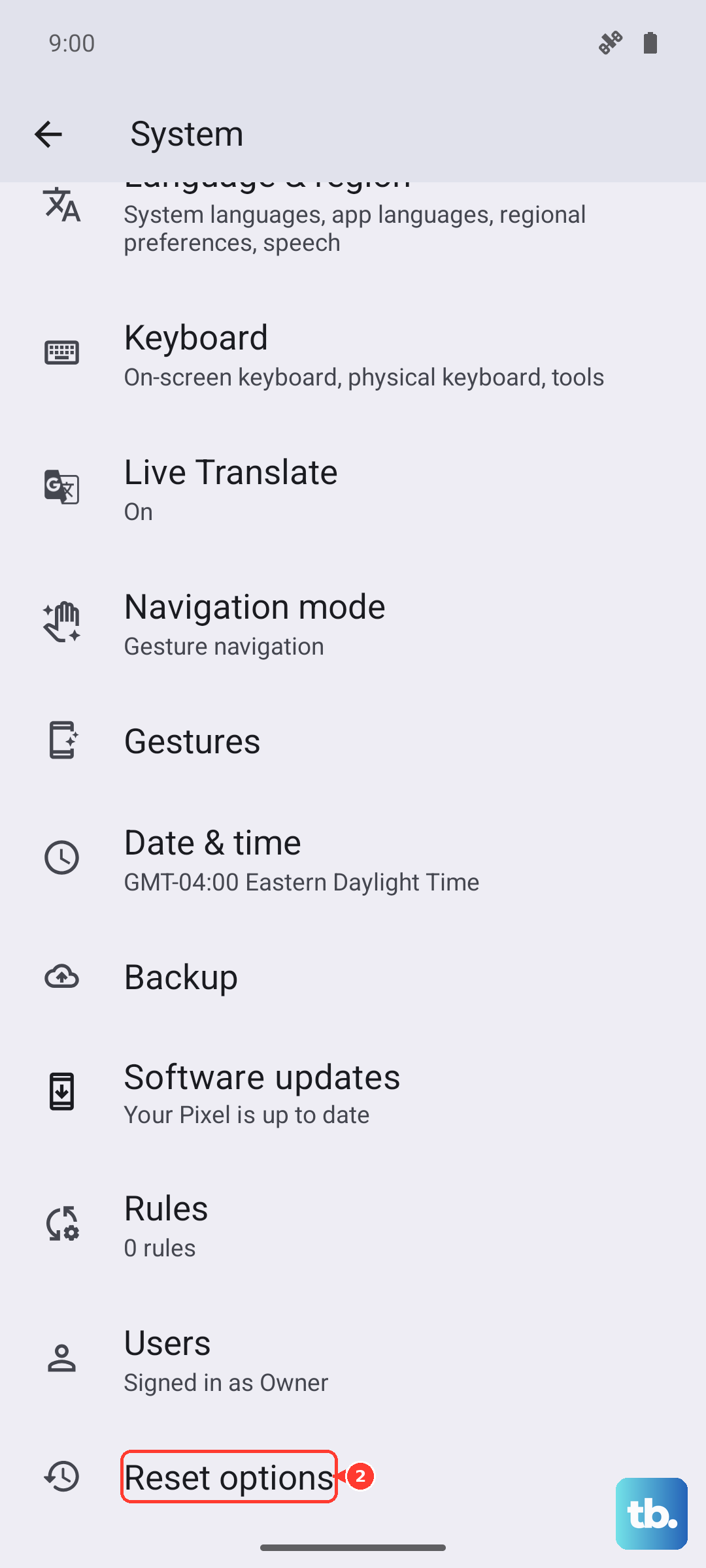
You can initiate this through the settings. Go to Settings > System > Reset options > Erase all data (factory reset). Follow the prompts to complete the process. After the phone restores, set it up as new to test the buttons before restoring your backup.