If your Motorola Razr Plus (2024) videos are stuttering, freezing, or looking choppy, it can really ruin the experience on that beautiful foldable screen. This is a common hiccup with modern smartphones, but on the Razr Plus, a few specific things can cause it.
I'd start by figuring out what kind of playback problem you're seeing. Is the video skipping frames and looking jittery? That's usually a stutter. Does it keep pausing to buffer, especially on streaming apps? That's lag. Sometimes, the video might even freeze completely while the audio keeps playing.
Clear the App Cache and Data
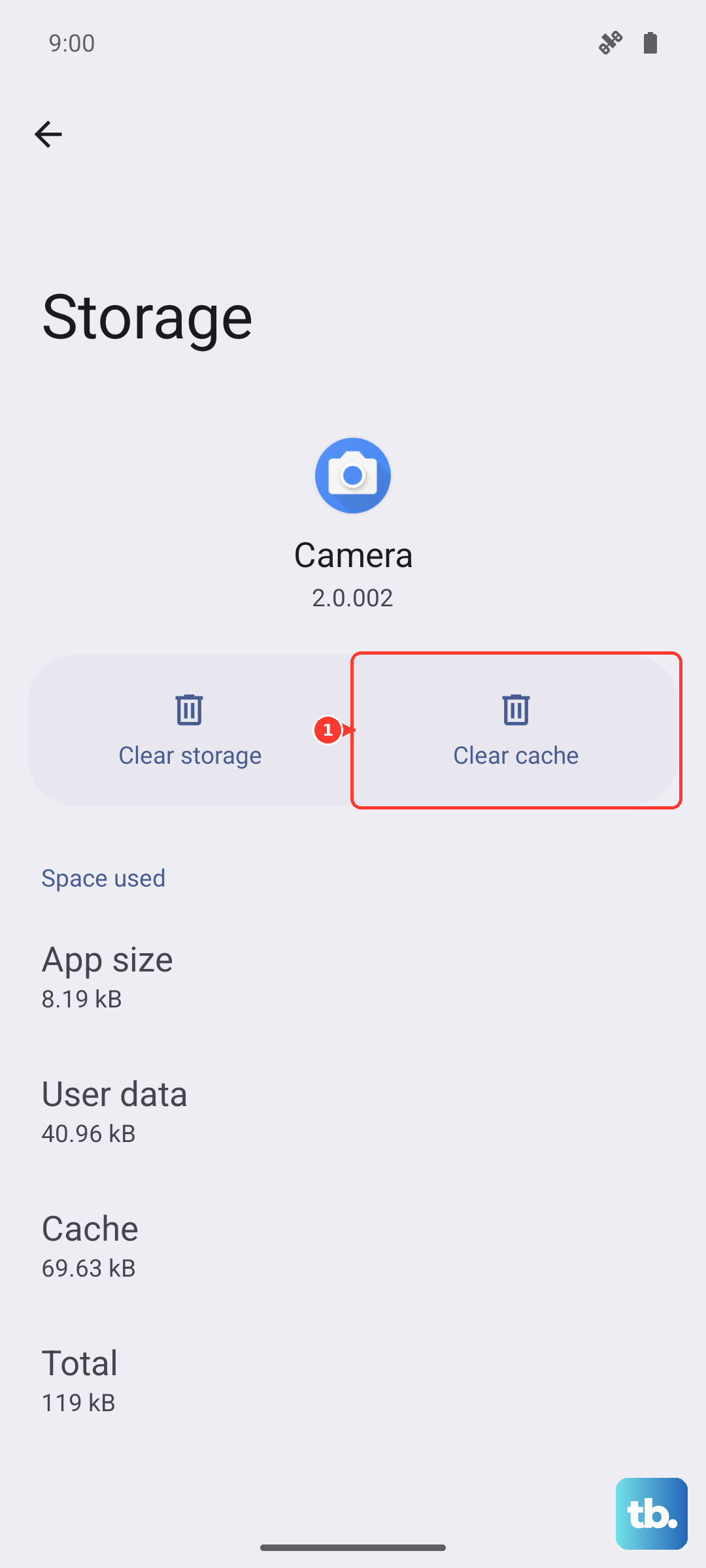
This is often the quickest fix, especially if the problem is only happening in one app like YouTube or Netflix. Over time, cached data can get corrupted and cause playback issues. Head to Settings > Apps, find the problematic video app, and tap on it.
Inside the app info, tap Storage & cache. You'll see an option to Clear cache. Try that first. If the stuttering continues, you can go back and tap Clear storage or Clear data. Just be aware this will log you out of the app and reset its settings.
Check Your Network Connection
For any streaming video, a weak Wi-Fi or cellular signal is the most common culprit for buffering and lag. The Razr Plus supports fast 5G, but walls or distance from your router can still interfere. Try running a speed test right from where you're watching.
You can also try toggling Airplane mode on and off to reset your network connections. Go to your quick settings panel and tap the airplane icon, wait about 10 seconds, and then tap it again to turn it off. This forces your phone to reconnect to the strongest available signal.
Free Up Internal Storage
When your phone's storage is nearly full, it can struggle with tasks that need quick data access, like playing high-resolution video. The Razr Plus doesn't have expandable storage, so managing the built-in space is key.
Open Settings > Storage to see what's taking up room. Look for large video files you've recorded or downloaded apps you no longer use. You can also use the built-in cleaning tool to remove junk files and cached data from all apps at once.
Update Your Software and Apps
Running an outdated version of Android or having old video apps can lead to compatibility issues. Motorola and app developers regularly release updates that fix bugs, including ones related to media playback.
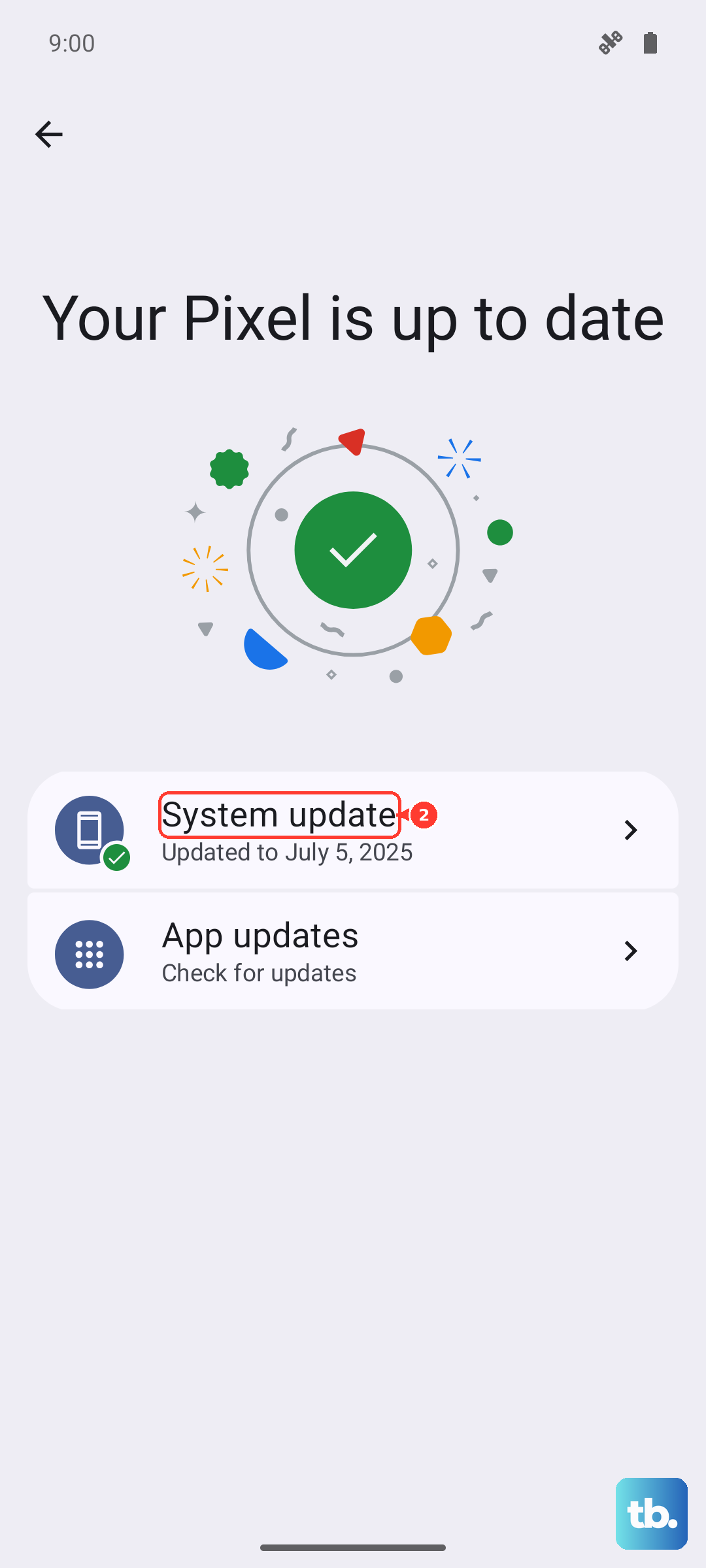
First, check for a system update by going to Settings > System > System updates. For your apps, open the Google Play Store, tap your profile icon, and go to Manage apps & device. Under "Updates available," you can update all apps or just your video players and streaming services.
Restart Your Phone
It sounds simple, but a restart clears out temporary system glitches and refreshes all running processes. For the Razr Plus, just press and hold the power button until the power menu appears, then tap "Restart."
If the screen is unresponsive, you can perform a force restart. Press and hold the power button for 10 to 15 seconds until you feel the phone vibrate and the Motorola logo appears on the screen. This won't delete any of your data.
Adjust Video Playback Settings
Sometimes the issue is that the video quality is set higher than your network can handle smoothly. In apps like YouTube, Netflix, or Disney+, look for a playback quality setting. Try manually lowering it from "Auto" or "1080p" down to "720p" to see if the stuttering stops.
Also, check if you have any battery saver modes enabled. Go to Settings > Battery and make sure any battery saver or adaptive battery features are turned off while you're trying to watch videos. These modes can limit performance to save power.
Check for Overheating
The Razr Plus's compact, foldable design can make it more prone to getting warm, especially if you're using the cover screen apps for extended periods. If the phone gets too hot, it will throttle the processor to cool down, which can immediately cause video lag.
If the phone feels warm to the touch, close any apps running on the cover screen and unfold it to help with heat dissipation. Avoid charging it while watching long videos, as this generates additional heat. Let it cool down for a few minutes before trying again.
Reset App Preferences or Network Settings
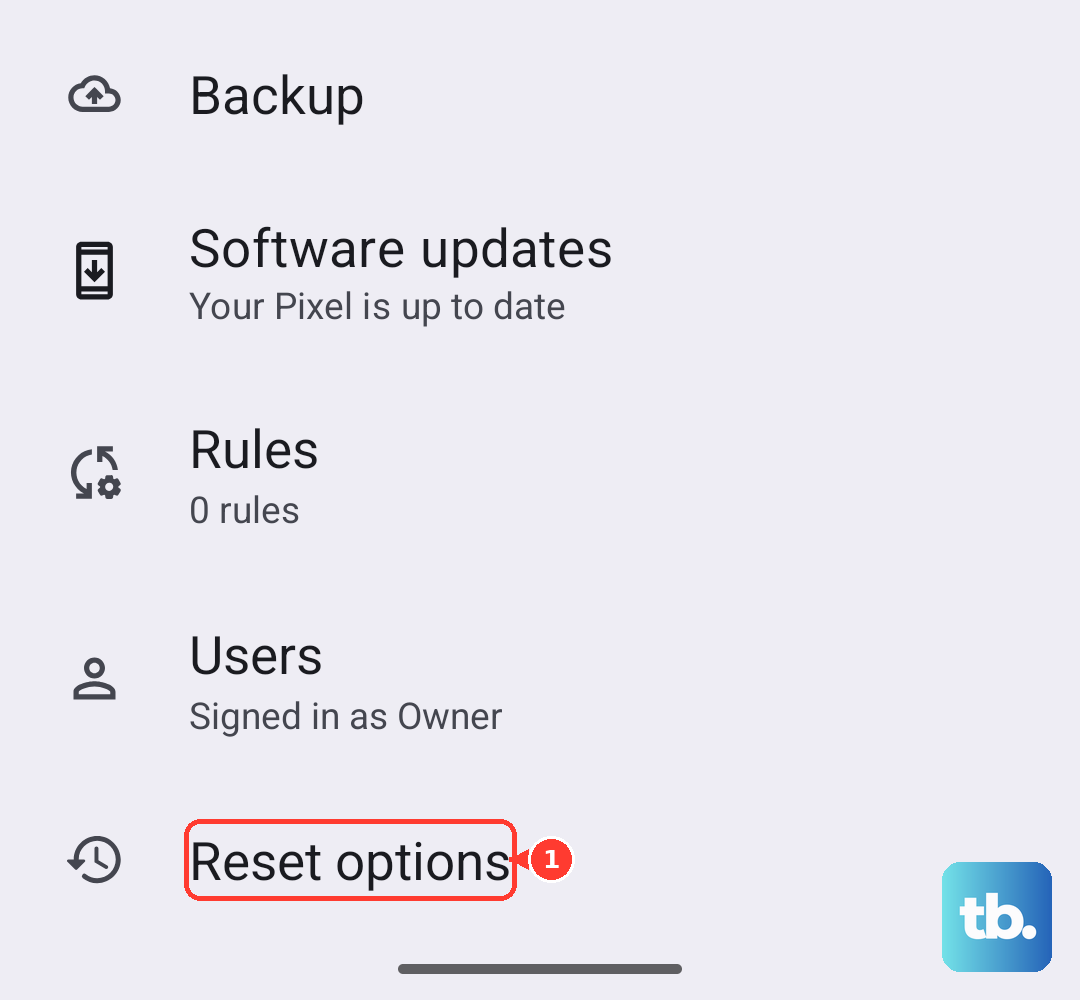
If the problem is widespread across many apps, resetting your app preferences can help. This resets permissions, background data restrictions, and default app assignments without deleting your data. Go to Settings > System > Reset options > Reset app preferences.
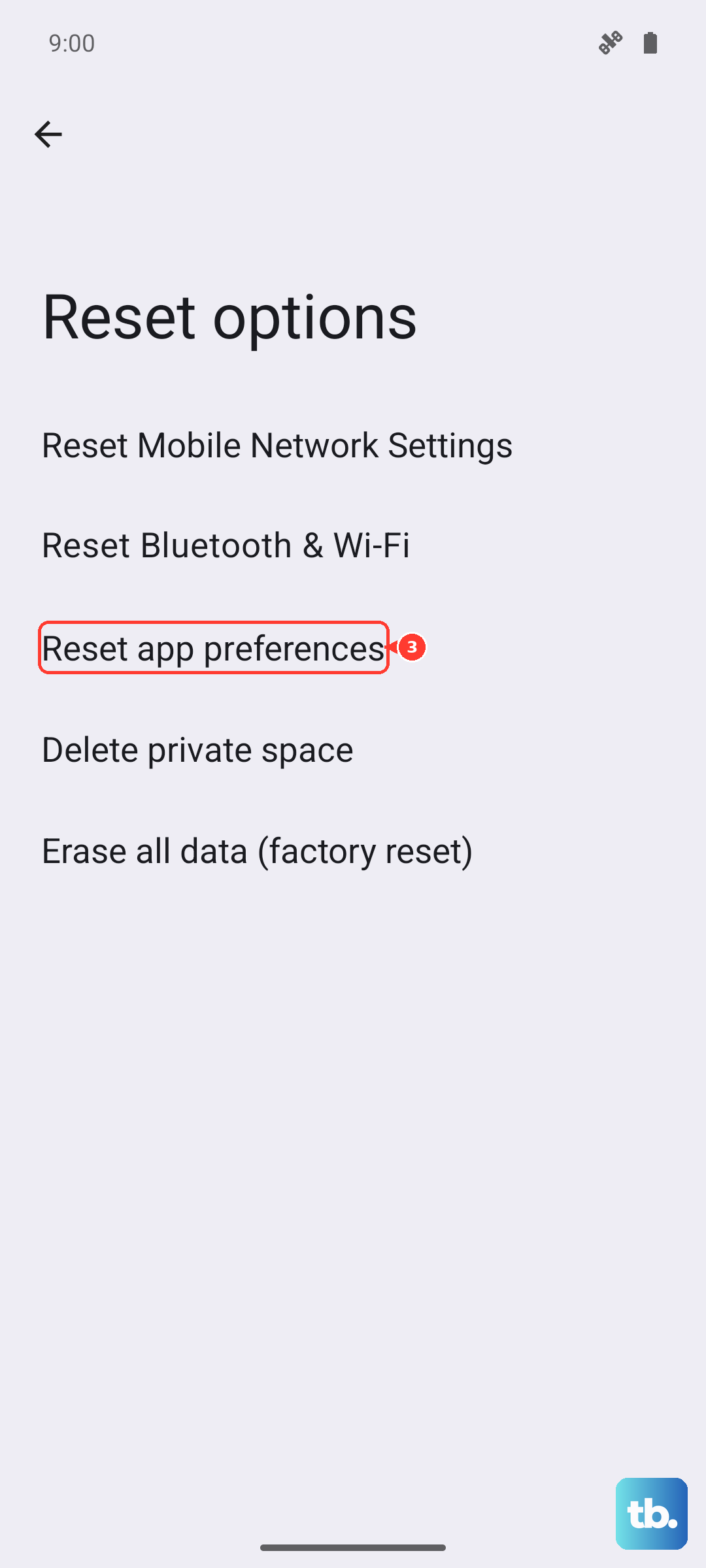
For persistent network-related buffering, you can reset your Wi-Fi, mobile, and Bluetooth settings. This will make you forget all saved networks and paired devices. You can find this in the same Reset options menu. You'll just need to reconnect to your Wi-Fi and re-pair accessories afterward.